








 Store
Store


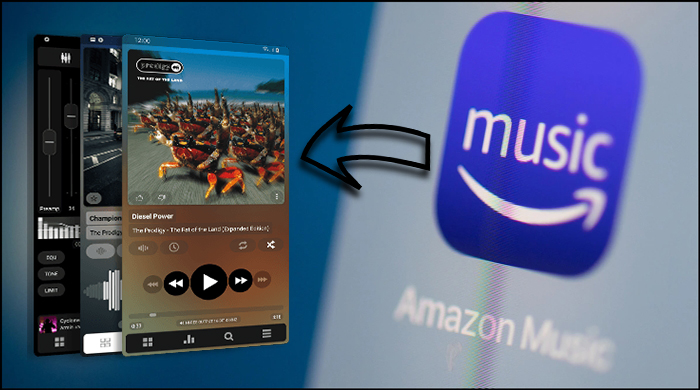
As a powerful music player for Android, Poweramp has long been one of the go-to music players for a lot of Android users. It has an intuitive interface with various visual themes and a sleep timer. Besides, it also has many playback features, including gapless playback, crossfade, and Bass and Treble adjustment. The main advantage of Poweramp is that you can easily manage and categorize songs from your own library and folder. For users who want to enjoy their music collection and streaming music together, it’s essential to figure out how to play Amazon Music on Poweramp. This complete guide will walk you through all the necessary steps to do so. Without further ado, keep reading to find what you want.
Part 1. Can Poweramp Play Amazon Music?
As one of the most popular third-party music players for Android, Poweramp attracts more and more users with its rich features and superior sound quality options. So, many users want to know whether Poweramp can play Amazon Music tracks. Let’s state: the answer is no. By default, Poweramp cannot play Amazon Music songs directly, even if you have downloaded them.
Like other music streaming services, Amazon Music applies a proprietary format for its streaming content. Due to this limitation, all the Amazon Music songs, including downloaded songs, can be played only in the Amazon Music app and its official web player. This means you can’t simply open the Amazon Music app within Poweramp or link the two services directly.
However, there are workarounds available. The easiest method is to download and convert Amazon Music songs to local music files, since Poweramp can play them without issues. That is to say, you will need a third-party downloader to bridge the gap between Amazon Music and Poweramp. Here, we recommend the TunesMake Streaming Audio Recorder.
TunesMake Streaming Audio Recorder adopts advanced decryption technology, which can remove DRM protection from Amazon Music content. Moreover, it supports downloading and converting Amazon Music songs, playlists, albums, and podcasts to diverse normal audio formats, including MP3, M4A, M4B, WAV, FLAC, and AIFF. The TunesMake program also smartly retains the original sound quality and ID3 tags, which ensures your offline listening experience. With this great tool, you can add Amazon Music tracks to Poweramp for playing without limits.

Streaming Audio Recorder –
Download Streaming Music to MP3 on PC and Mac
- Unlimitedly download streaming music songs, playlists, and podcasts
- Losslessly convert streaming music to MP3, M4A, M4B, WAV, FLAC, and AIFF
- Remove DRM protection from many streaming music platforms
- Convert streaming songs with original sound quality and ID3 tags kept
Security Verified. 100% Clean & Safe.
Part 2. How to Play Amazon Music on Poweramp
As we mentioned above, Poweramp allows you to play local music files. Its supported file formats include MP3, AAC, FLAC, WAV, WMA, ALAC, and so on. So, the first step of playing Amazon Music on Poweramp is to convert Amazon Music songs to compatible formats.
How to Convert Amazon Music for Poweramp
First of all, you should install the TunesMake Streaming Audio Recorder on your Windows or Mac computer by clicking the Free Download button above. Then, follow these simple steps to convert your favorite Amazon Music songs:
Step 1
Import Amazon Music to TunesMake
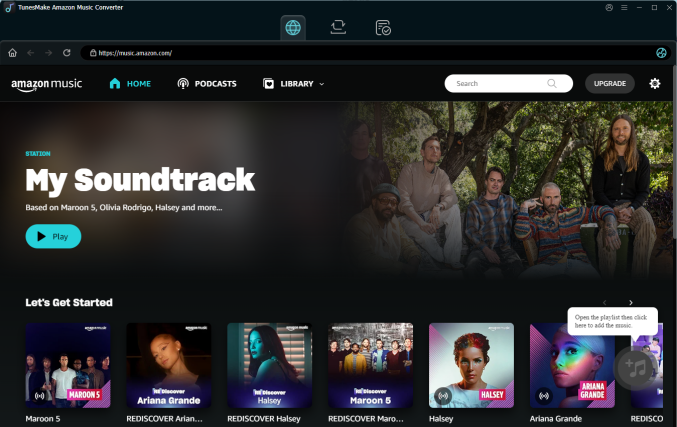
After you’ve installed TunesMake Streaming Audio Recorder on your computer, you cab fire it up. Then, it will load the Amazon Music web player at the same time. You can select any playlist or album you like, and then click the lower Add icon to load all the songs included in this playlist or album. To add these songs to the conversion list, select Add to List.
Step 2
Edit the output audio parameters
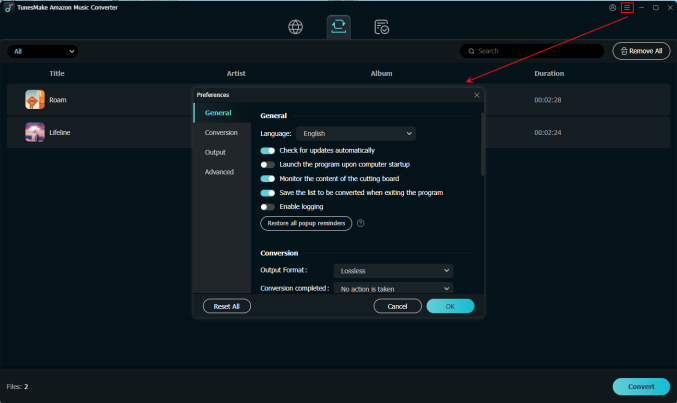
The next step is to adjust the output audio parameters by clicking the top menu icon > Preferences > Conversion. You could make Amazon Music tracks saved in the format of MP3 or others that are compatible with Poweramp. You can also set the bit rate, codec, sample rate, and others.
Step 3
Begin to extract from Amazon Music
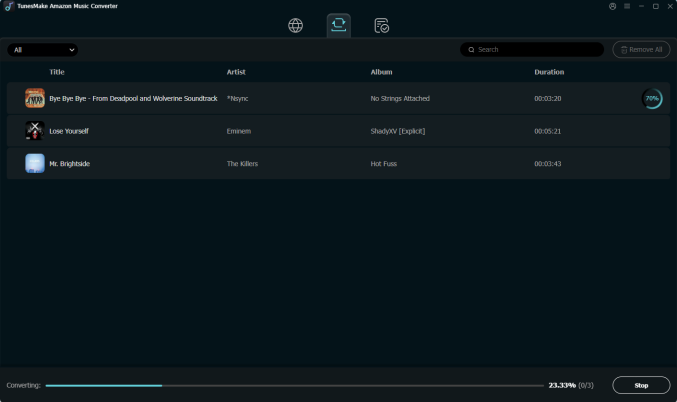
Once all is done, you could get started downloading songs from Amazon Music to MP3 or the format you choose by clicking on the Convert button at the bottom right corner of the TunesMake tool. It will work at a fast speed, and you just need to wait for the downloading and conversion. After downloading, you could navigate to the Converted panel to view the converted Amazon Music files in your specific folder.
How to Move Converted Amazon Music to Poweramp
Before adding Amazon Music songs to Poweramp, you need to connect your Android devices to the computer and move those downloaded songs to your device first. Then you can import Amazon Music playlists into Poweramp by following these steps.
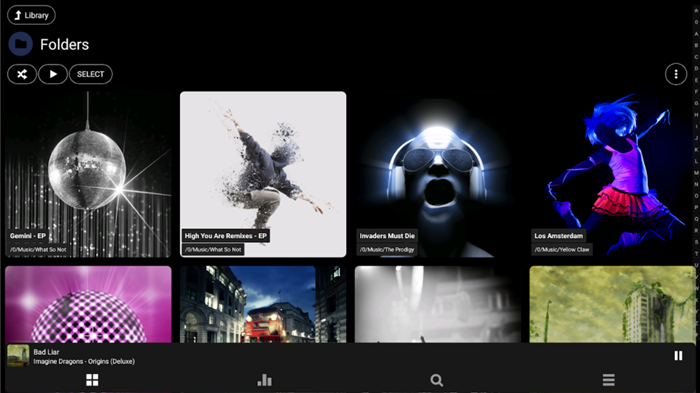
1) Tap on the Menu icon and go to tap on the Settings icon.
2) Tap on Library, click on Playlists, and then browse your playlists.
3) Use the Import System Library Playlists to add music.
Conclusion
Using Poweramp Music Player is one of the best ways to organize and play your music on your Android devices. In Poweramp Music Player for Android, you can listen to your music in several playback modes. If you want to play Amazon Music with Poweramp, you can try TunesMake Streaming Audio Recorder. Then you can download your favorite songs from Amazon Music to Poweramp for playing with ease.
Related Articles


A professional writer at TunesMake, crafts in-depth tutorials, practical tips and expert advice focusing on streaming music, technology, and more.
- 1
- 2
- 3
- 4
- 5
- 6
- 7
 Leave Your Comment
(0)
Leave Your Comment
(0)

 Download Center

