








 Store
Store


Initially launched by Steve Jobs in 2004, GarageBand is a line of digital audio workstations for macOS, iPad, and iOS devices. Without using any physical instruments, GarageBand will turn your Apple devices into a collection of touch instruments, allowing you to record audio, edit and mix rhythms, and add sound effects. As for the music source, Apple Music is probably the first that comes to mind. How about Amazon Music? Can we import Amazon Music to GarageBand directly?
Since most Amazon Music and GarageBand users are involved in this issue, here in this article, we’ll talk about the possibility to add Amazon Music to GarageBand. And also, a step-to-step guide on how to download Amazon Music to GarageBand for editing. Just continue reading and learn more about it.
Part 1. Can You Import Amazon Music to GarageBand for Editing?
Due to the DRM protection, almost all the popular streaming music services are inaccessible outside the music player, and Amazon Music is no exception. Though Apple Music is of the same company, GarageBand only allows users to use music tracks purchased from iTunes. Similarly, purchasing MP3 music tracks from Amazon Music is available.
In fact, GarageBand supports various audio formats including MP3, AAC, WAV, CAF, AIFF, and Apple Lossless. Therefore, if we could download songs from Amazon directly, it will be much easier and more economic to import Amazon songs to GarageBand. Luckily, an Amazon Music to GarageBand converter will enable you to download DRM-free songs from Amazon Music to GarageBand. All you need is to download your preferred Amazon songs to your computer and then add all the downloaded songs to the GarageBand program.
Part 2. How to Download Amazon Music Locally for GarageBand
Here, we’ll recommend a powerful Amazon music conversion tool, TunesMake Streaming Audio Recorder, which helps you easily download and convert your favorite songs from Amazon Prime Music or Music Unlimited to your computer. With no need to download the Amazon Music app, you can get lossless Amazon Music tracks in the format of MP3, M4A, M4B, WAV, FLAC, and AIFF at a fast speed. Here are the detailed steps to download Amazon songs with TunesMake.

Streaming Audio Recorder –
Download Streaming Music to MP3 on PC and Mac
- Unlimitedly download streaming music songs, playlists, and podcasts
- Losslessly convert streaming music to MP3, M4A, M4B, WAV, FLAC, and AIFF
- Remove DRM protection from many streaming music platforms
- Convert streaming songs with original sound quality and ID3 tags kept
Security Verified. 100% Clean & Safe.
Step 1
Add Amazon songs to the TunesMake program
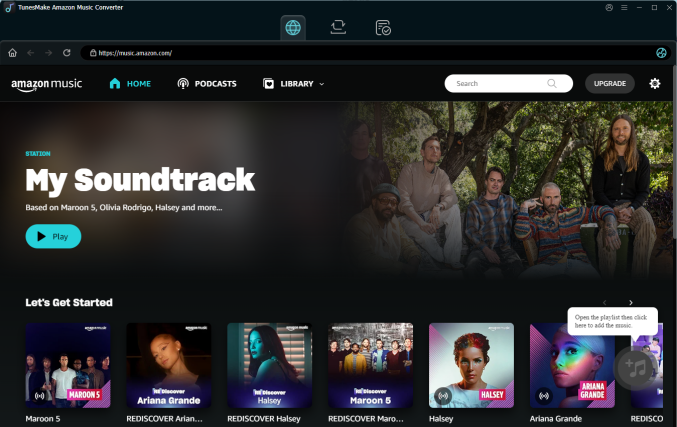
Install and launch the TunesMake Streaming Audio Recorder on your computer. Then, you can visit the Amazon Music web player on its interface. Feel free to find the songs you want to edit on GarageBand. You can drag and drop it to the Add icon. If you need to load multiple songs at once, you just need to select a playlist/album, and then click the Add icon > Add to List.
Step 2
Set audio parameters of Amazon songs
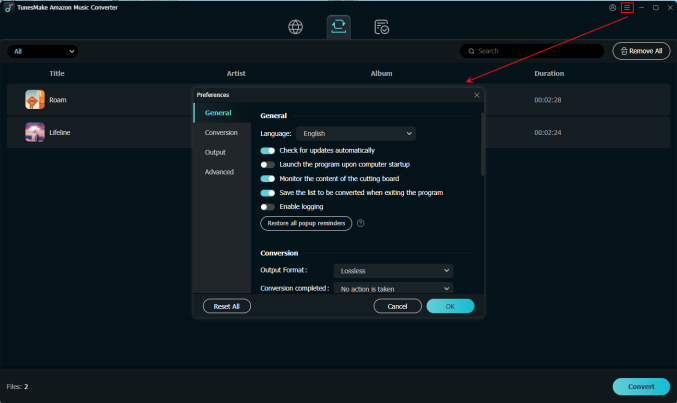
Once you load all the songs you want to download, you can set their audio settings as you want. Click the Menu icon at the top, and then select Preferences > Conversion. In this section, you can set the audio format, quality, sample rate, bit rate, channel, and more according to your needs. When you're done, don't forget to click OK so that your changes can be saved.
Step 3
Start to download Amazon Music for GarageBand
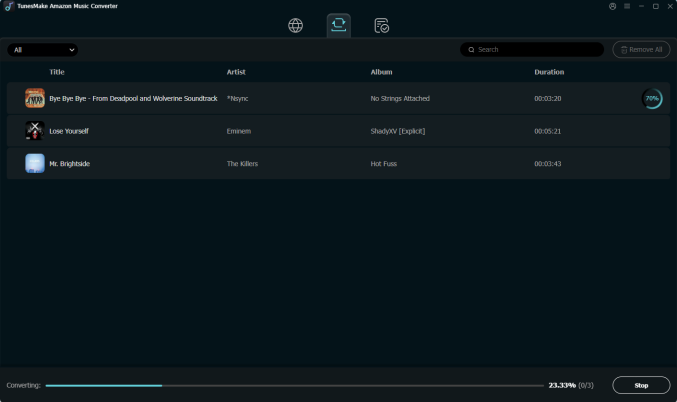
Now, everything is ready. You just need to click the Convert button at the bottom right, and the TunesMake program will begin downloading Amazon Music songs automatically. Wait for a while, and you can click the top Converted icon to check all the downloaded Amazon Music files. If you need to find their exact location on your computer, simply click the little file icon next to each track.
Part 3. How to Import Downloaded Amazon Music to GarageBand
Once you’ve downloaded all your DRM-free Amazon Music tracks on your computer, you can easily transfer the Amazon songs to your Apple devices for editing on GarageBand. If you haven’t tried to upload songs to GarageBand before, just follow the steps below. We’ll show you the methods to import Amazon Music to GarageBand on iPhone, iPad, or Mac.
Import Amazon Music to GarageBand on Mac
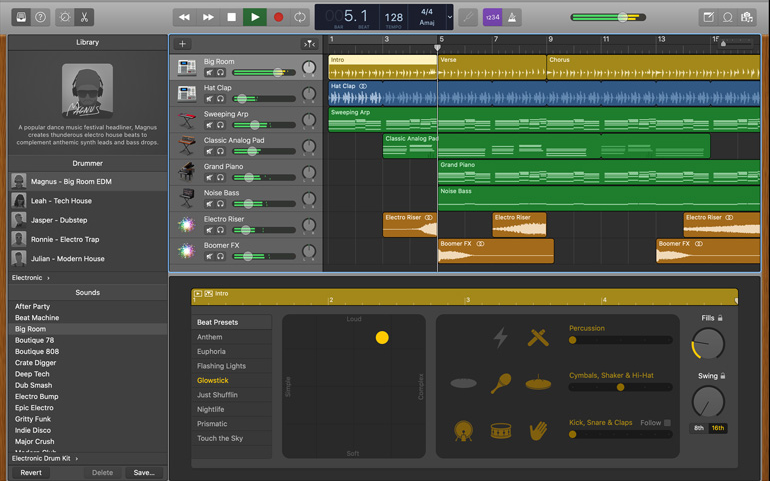
Step 1.Launch GarageBand program. Download and install the GarageBand app on your Mac computer, then open it by clicking the guitar app icon.
Step 2.Import Amazon Music. Click the Media Browser button at the upper right corner and go to the Audio option. Just expand the category and click the Drag Apple Loops Here button to add all the converted Amazon songs for editing.
Step 3.Output songs. Now you can simply click the Play button to begin your editing trip. You are free to add any sound effects GarageBand offered at any point of your track. When finished, you can output your customized output music tracks with ease.
Add Amazon Music to GarageBand on iPhone/iPad
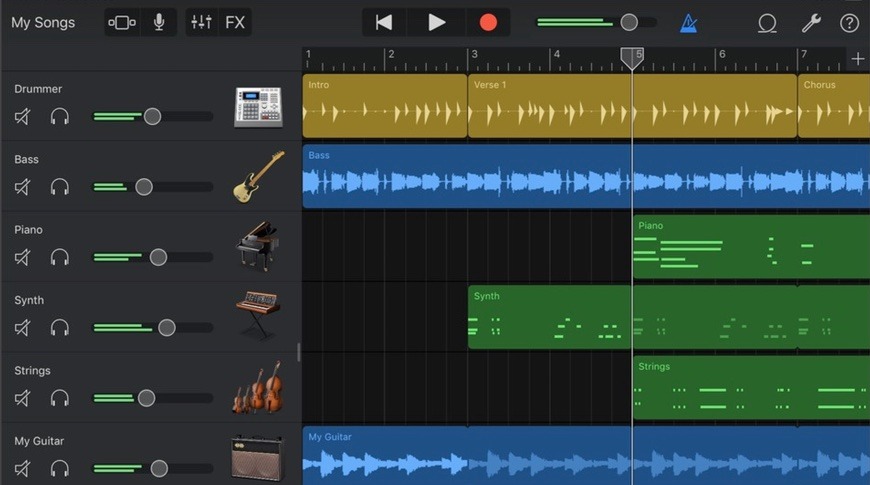
Step 1. Transfer Amazon Music to your iOS devices. Connect your iPhone or iPad to your computer using a USB cable, and sync all the converted Amazon songs to your iOS devices via iTunes or Finder.
Step 2. Launch GarageBand app. After launching, go to Tracks View > Loop Browser > Music to browse the Amazon songs.
Step 3. Add Amazon Music. Now just click the Browse items from the Files app button to navigate to the downloaded Amazon Music folder. You can also drag and drop the Amazon audio files into the workspace.
Part 4. Conclusion
This article has explored the best way to import Amazon Music to GarageBand for editing and mixing. With the assistance of TunesMake Streaming Audio Recorder, you can freely compose music downloaded from Amazon and create your own styled music tracks. Besides, you can also transfer those converted Amazon songs to other devices without any limits. Be aware that the free trial version shows limited features, and you need to purchase the official version to get the whole Amazon Music tracks.
Related Articles



A professional writer at TunesMake, crafts in-depth tutorials, practical tips and expert advice focusing on streaming music, technology, and more.
- 1
- 2
- 3
- 4
- 5
- 6
- 7
 Leave Your Comment
(0)
Leave Your Comment
(0)

 Download Center

