








 Store
Store


Audible has become the world’s largest producer of downloadable audiobooks through its production arm, Audible Studios. And Audible audio files are compatible with hundreds of audio players, mobile phones, and streaming media devices. So, it’s easy for you to find a device to listen to Audible audiobooks. However, burning Audible to CD is a great way if you want to listen to Audible in the car or from a CD player.
According to Audible’s website, all audiobooks from Audible can be burned to CD using Apple’s iTunes. Unfortunately, you’re only allowed to burn Audible books to CD due to digital rights management, but there are some workarounds. Here is the best method for how to burn Audible books to CD with your VLC or Windows media player except for using iTunes.
Part 1. How to Burn Audible Books to CD with iTunes
Audible makes it easy for you to burn audiobooks onto compact discs if you have iTunes installed on your computer. With the most up-to-date version of iTunes, you can burn Audible books to CD with ease. Considering that all audiobooks downloaded from Audible are saved in the format of .aa or .aax, you can only insert a CD for burning instead of a DVD or MP3 disc. Here’s how to.
Step 1. Open Audible Download Manager and click General Settings then place a checkmark next to iTunes.
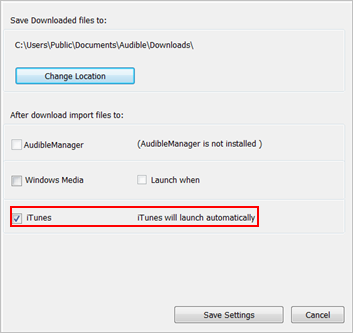
Step 2. Click Save Settings and all audiobooks you download from now on will go directly into iTunes.
Step 3. Run iTunes on your computer then click the menu box in the upper left corner of iTunes.

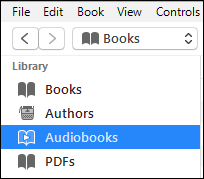
Step 4. Click Books, then Audiobooks on the left side of the screen and right-click on the title you want to burn.
Step 5. Click Add to Playlist, then New Playlist. Note that you must create a new playlist for each title you burn.
Step 6. Right-click on the playlist you have just created and select Burn Playlist to Disc.
Step 7. Then adjust your Burn Settings like preferred speed, disc format, and the gap between songs for the best results.
If your audiobook is longer than 80 minutes, iTunes will prompt when you need to insert a new disc. Then follow the instructions as they appear to finish burning the audiobook. In the following part, we’d share another way to help you burn Audible to CD except for using iTunes.
Part 2. How to Download Audible Audiobook to MP3
In the view of the fact that Audible files are in either AA or AAX format, Audible users are only allowed to burn Audible book to CD in iTunes. At the request of the publishers, Audible users are only allowed to burn each audiobook in the library one time. This is to prevent the mass distribution of audiobooks and to protect all parties involved. What’s more, you cannot burn Audible content to a DVD or MP3 disc.
However, the advent of TunesMake Audible Converter has completely solved this issue. It is a powerful and professional Audible converter that can not only download Audible books locally but also convert them to multiple popular audio formats, including MP3, M4A, M4B, WAV, FLAC, and AIFF. With the assistance of TunesMake tool, you are able to convert Audible to MP3, and then burn them to your CDs without limit.

TunesMake Audible Converter –
Convert Audible Audiobooks to MP3 and More
- Download and convert Audible to MP3, WAV, and more
- Remove the built-in DRM protection on Audible audiobooks
- Preserve lossless sound quality and original metadata
- Support the customization of audio parameters like the format and sample rate
Security Verified. 100% Clean & Safe.
You can download and install TunesMake Audible Converter from the above link. After you have TunesMake Audible Converter installed on your computer, you can perform the following steps to convert Audible books to MP3 or other popular audio formats.
Step 1
Import Audible files to TunesMake window
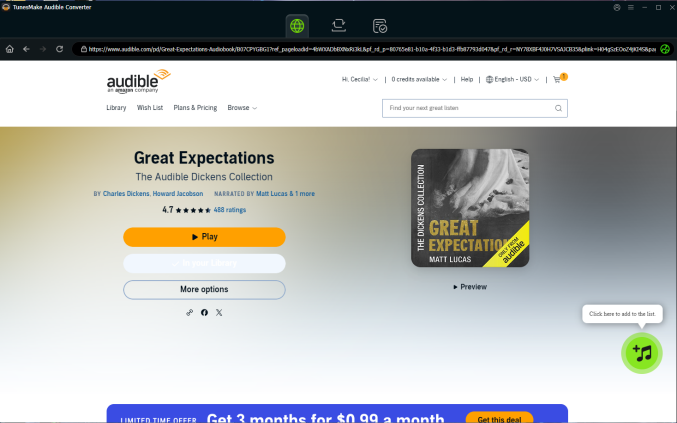
Fire up TunesMake Audible Converter on your computer, and then you need to sign in and find the audiobook you want to download. Enter its detailed page and click the Add icon at the bottom. So, this book will be loaded to the conversion list successfully.
Step 2
Adjust the output Audible audio format
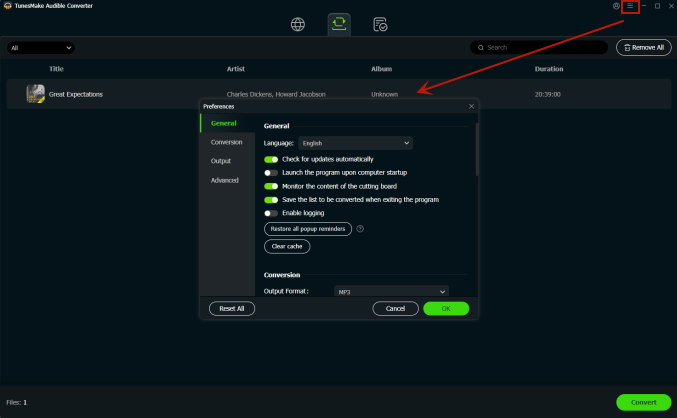
Just click the menu icon in the top right corner. Then, select Preferences > Conversion. Here, you can set the output format. MP3 is recommended. For better audio quality, you can also adjust the bit rate, sample rate, channel, and codec. Don't forget to click the Ok button after you have set up your parameters.
Step 3
Convert Audible audiobook book to MP3
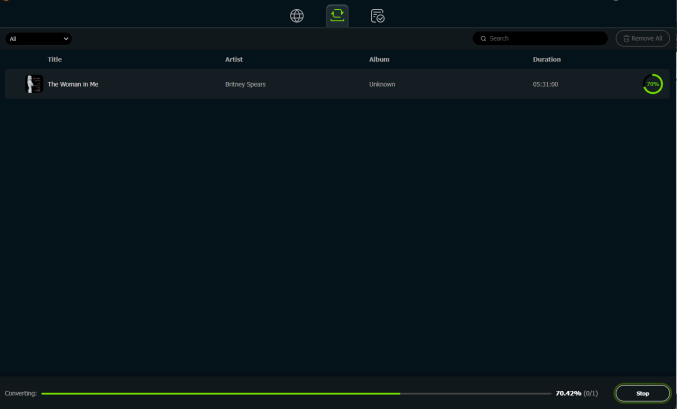
Now you can click the Convert button at the lower right corner and let TunesMake app start converting Audible audiobooks to your specific format immediately. After the conversion, you can check the converted audiobooks in the converted history by clicking the Converted button at the top. Next, you’re prepared to burn the converted Audible books to CD on your computer.
Part 3. How to Burn Audible MP3 Audiobooks to CD
After using TunesMake tool to convert Audible to DRM-free audiobooks, you are able to start the burning of Audible book to CD without limit. There are several ways for you to burn audio to CD, and you could follow the below two methods to start the burning.
Burn Audible books to CD with Windows Media Player
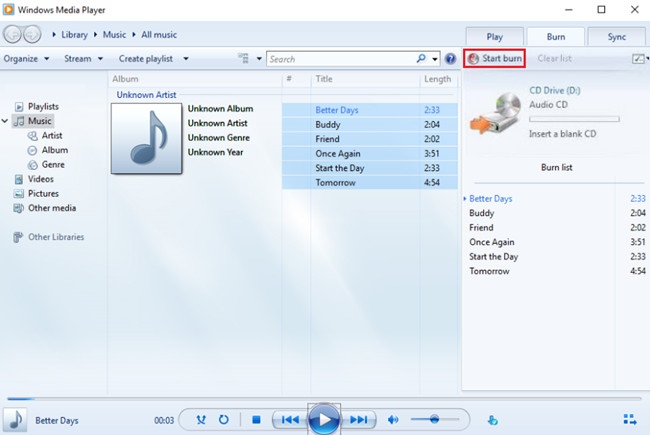
Step 1. Create a new playlist for Audible audiobooks
Launch Windows Media Player on your computer and click the Playlist panel to create a new playlist for saving Audible books. After creating a new playlist, you can drag and drop the converted Audible books onto the created playlist.
Step 2. Choose to burn a CD
Once you have uploaded the converted Audible books onto Windows Media Player, click the Burn button in the top right corner of the interface. Then drag and drop them from your Windows Media Player Library onto the Burn List dock at the right side of the interface.
Step 3. Start the burning of Audible book
After that, click the menu in the Burn panel, then select the Audio CD option from the menu. Continue to click the Start Burn button to enable Audible burn to CD and the disc will eject automatically after completion.
Burn Audible books to CD with VLC Media Player
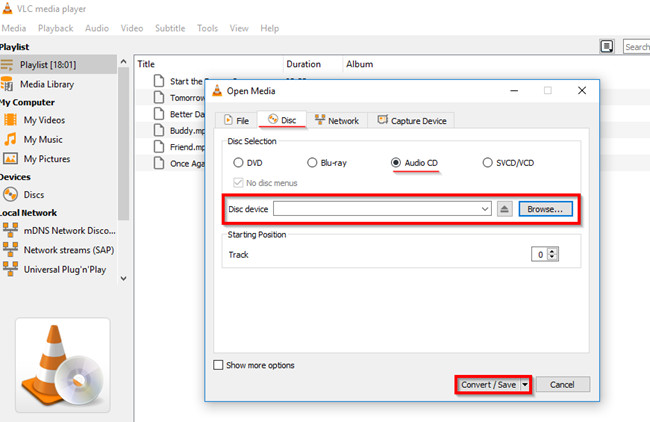
Step 1. Create a burn list for Audible audiobooks
Run the VLC Media Player on your computer and create a playlist for saving the converted Audible books so as to burn Audible audiobooks to a CD. Then you can drag and drop Audible books onto the Playlist dock for importing Audible books onto the VLC Media Player.
Step 2. Choose to burn Audible audiobooks
After all the converted Audible books you want to burn have been added to the VLC media player, click the Media menu and choose the Convert/Save option. Then click the Disc button and insert a blank CD or DVD into the disc drive on your computer.
Step 3. Start to burn Audible book to CD
Once the inserted CD is detected by the VLC media player, click Audio CD and Browse. Then choose the inserted CD and click the Convert/Save button. When you see the Convert screen, click the Browse button to choose the location for saving Audible books and click the Convert/Save button to start the burning of Audible to a CD.
Bottomline
Once you’re done with the above methods, your Audible audiobooks will be successfully burned to CD. If you just use iTunes to burn a CD, you must cherish the opportunity as you’re only allowed to burn Audible to CD in iTunes once. But with the assistance of TunesMake Audible Converter, you can freely burn Audible audiobooks to CD or DVD. Besides, you could play Audible on any device you like.
Related Articles


A professional writer at TunesMake, crafts in-depth tutorials, practical tips and expert advice focusing on streaming music, technology, and more.
- 1
- 2
- 3
- 4
- 5
- 6
- 7
 Leave Your Comment
(0)
Leave Your Comment
(0)

 Download Center

