








 Store
Store


For audiobook lovers and gamers alike, combining an engaging story with open-world exploration or casual gaming is the ultimate multitask. However, if you open the Microsoft Store on your Xbox console and search for an official Audible app, you will quickly encounter a disappointing truth: there is no Audible app for Xbox One, Xbox Series X, or Xbox Series S.
Fortunately, you do not have to give up on listening to your favorite audiobooks while gaming. Several simple workarounds allow you to play Audible on Xbox, including methods that support full background audio playback while you game. This guide breaks down all working methods step-by-step so you can choose the best option for your setup.
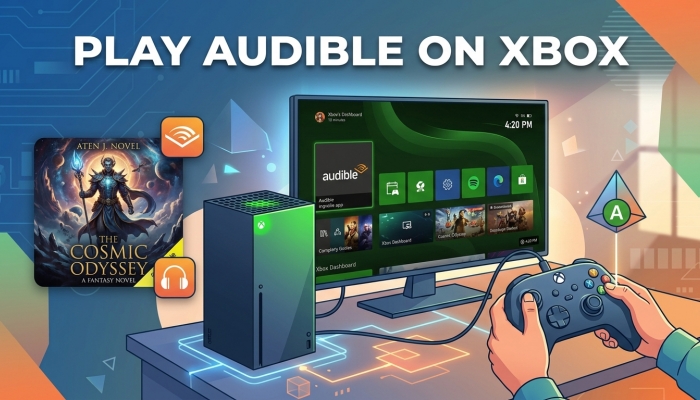
Part 1. Is There an Official Audible App on Xbox?
No, there is currently no official Audible app available on any Xbox console generation. Neither Amazon nor Microsoft provides a dedicated player on the Xbox Microsoft Store. However, you can still listen to Audible books on Xbox using one of four proven options.
| Playback Method | Background Audio Support | Internet Required | Setup Effort | Best Suited For |
|---|---|---|---|---|
| USB Media Player | ✔️ | ❌ | Medium | Guarantee lag-free background audio while gaming |
| Wireless Mobile Casting | ✔️ | ✔️ | Low | Fast wireless streaming from phone to Xbox |
| Microsoft Edge Browser | ❌ | ✔️ | Low | Listen to books without playing games |
| Dual-Source Gaming Headset | ✔️ | ❌ | Low | Physical audio mixing for competitive or multiplayer games |
Part 2. Best Way to Play Audible Xbox While Gaming
If your goal is to listen to Audible audiobooks seamlessly in the background while playing Xbox games, the USB Media Player method is the most reliable choice. It requires no active network connection during gaming and guarantees that your audiobook won't pause or stutter when high-bandwidth online games are running.
Requirements for Playing Audible on Xbox
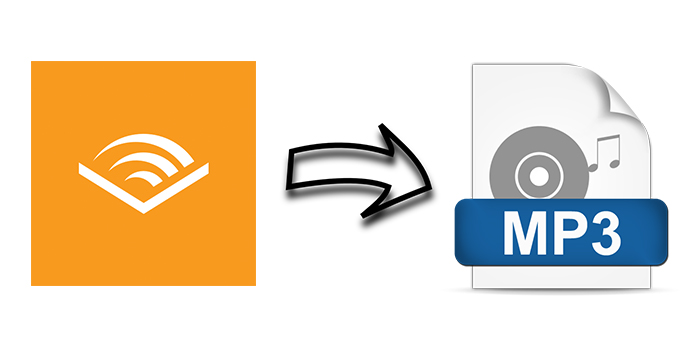
Audible audiobooks are downloaded in protected AAX or AAXC file formats encrypted with DRM. The Xbox system media player cannot read DRM-locked AAX files. To play your purchased Audible titles via a USB flash drive, you must first convert your downloaded Audible files into standard audio formats like MP3 or M4A on your computer using an Audible converter.
TunesMake Audible Converter solves this bottleneck by removing the DRM container and converting Audible AAX files into universally supported formats like MP3 or M4A while retaining chapter markers, ID3 tags, and original audio quality. With the help of TunesMake Audible Converter, you can easily get your Audible audibooks played on your Xbox.

Streaming Audio Recorder –
Download Audible audiobooks to popular audio formats
- Download purchases, podcasts, and Originals from Audible
- Convert Audible books to MP3, M4A, M4B, WAV, FLAC, and AIFF
- Remove DRM protection from Audible efficiently and safely
- Preserve the original audio quality and chapter information
- Support downloading audios from 11 popular streaming platforms
Security Verified. 100% Clean & Safe.
Steps to Play Audible Audiobooks on Xbox
The whole process of downloading and converting Audible books to play on Xbox is pretty easy. Download and install TunesMake Streaming Audio Recorder on your computer, then get started with the following steps.
Step 1 Select Audible Titles to Download
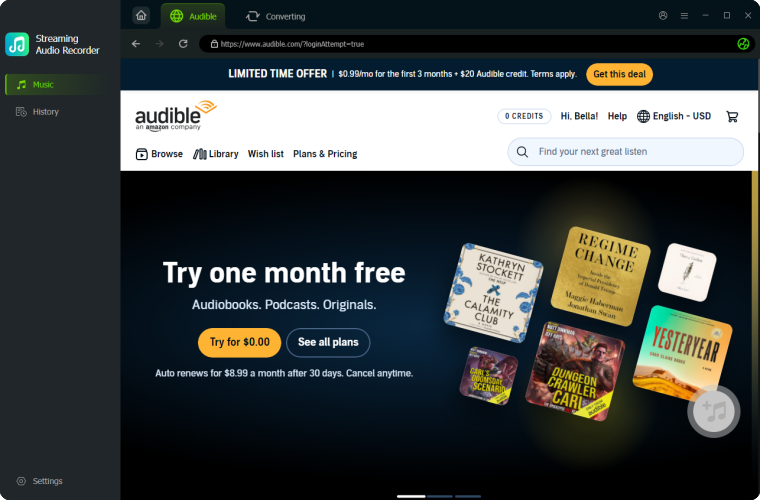
Start by opening TunesMake Streaming Audio Recorder, select Audible on the main dashboard and log into the built-in Audible web player. In your Library, find several titles to convert and click the + button to add them into the conversion list. Then proceed to the next step for setting the output audio parameters.
Step 2 Adjust the Parameters for Audible
Once you have added Audible books into the conversion list, you can choose the output format for all of them. Click the Settings button at the bottom left corner, then select MP3 as the output format and customize the audio properties, such as the sample rate, channel, and bit rate. Go ahead and click the Edit button to split audiobooks by chapters.

Step 3 Convert Audible Audiobooks to MP3
Click the Convert button to convert Audible books to MP3 or any other unprotected audio formats. After the conversion, you will see a red reminder popping up on the History tab that will tell you the number of books you've successfully converted. Go ahead and locate the converted Audible books in the history folder.

Step 4 Start to Listen to Audible on Xbox One
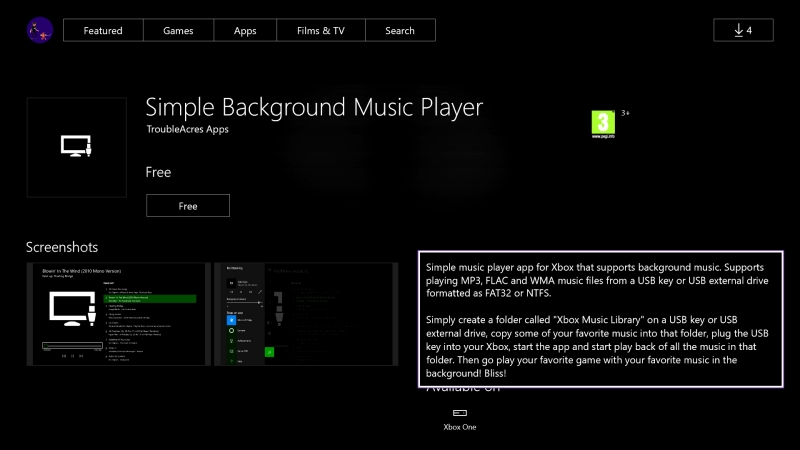
Now you can move all the converted Audible books to your USB flash drive. Plug the USB flash drive into the USB port on your Xbox. Open the Microsoft Store on your Xbox console. Search for and install Simple Background Music Player. Launch Simple Background Music Player. Press the controller button to scan your USB drive. Select your audiobook chapter to begin playback.
Part 3. How to Play Audible on Xbox Online
In addition to using the USB Media Player method, there are some other methods to help you play your purchased Audible titles on your Xbox. Let's dive into the details.
Method 1. Cast Audible to Xbox via AirServer (Wireless Background Audio)
For users who prefer a wireless solution without converting Audible files on a computer, streaming audio directly from the Audible app on your phone or table to your Xbox console is an excellent alternative. Although Xbox does not act as an AirPlay or Chromecast receiver, third-party receiver apps available directly on the console's Microsoft Store resolve this gap.
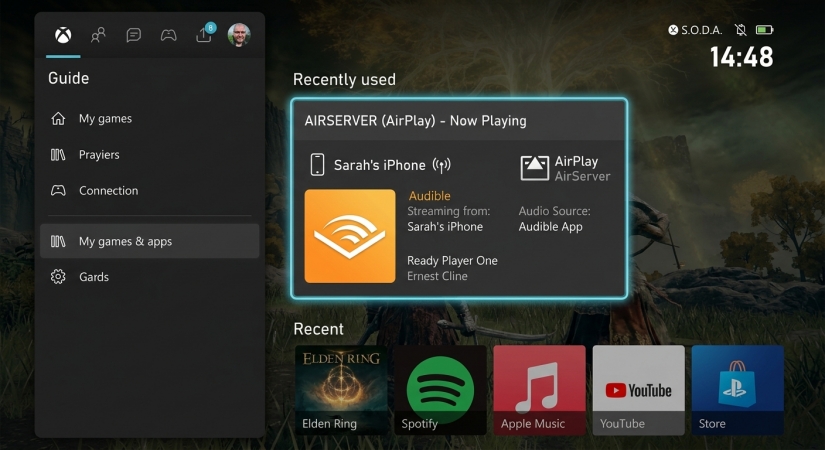
Step 1. Open the Microsoft Store on your Xbox and search for AirServer Xbox Edition to install.
Step 2. Make sure your phone and Xbox console are connected to the exact same Wi-Fi network.
Step 3. Open AirServer on your Xbox to make the console discoverable as an AirPlay or Cast receiver.
Step 4. Prepare to cast audio from your iPhone or Android phone.
- iOS: Open the Control Center, tap the Screen Mirroring or AirPlay Audio icon, and select your Xbox console from the receiver list.
- Android: Swipe down the quick settings panel, select Cast or Smart View, and connect to the Xbox receiver.
Step 5. Open the official Audible app on your mobile device and press play.
Method 2. Stream Audible on Xbox via Microsoft Edge (No Gaming Support)
If you simply want to listen to your Audible audiobooks using your TV or home theater speakers connected to your Xbox console and do not plan on playing a game simultaneously, the built-in web browser offers a fast, zero-installation setup.
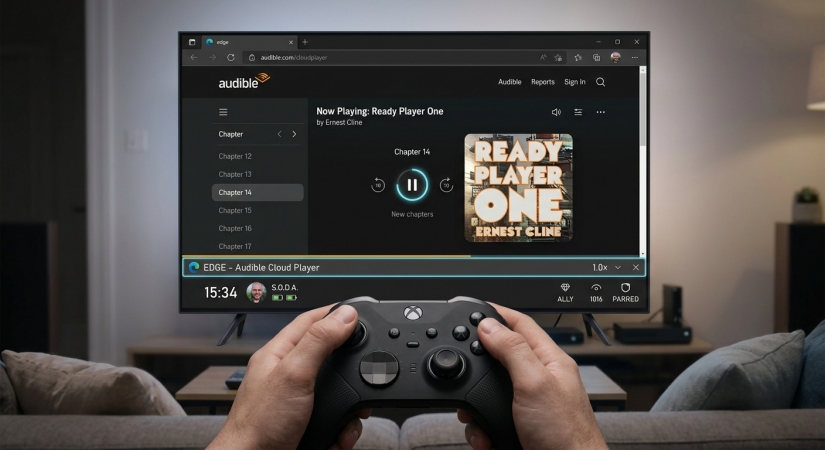
Step 1. Launch the Microsoft Edge browser from your Xbox console's My Games & Apps library.
Step 2. Use your controller or a connected USB keyboard to navigate to audible.com.
Step 3. Sign in with your Amazon or Audible credentials.
Step 4. Navigate to your Library and find any title to play on your Xbox.
Step 5. Click Listen Now next to your chosen title to open the Audible Cloud Player.
⚠️ Important Technical Limitation:
Microsoft Edge on Xbox handles media playback as an active foreground tab. If you minimize Microsoft Edge or switch to a game, the Xbox operating system immediately suspends the browser tab, cutting off audio playback.
Method 3. Play Audible on Xbox using Dual-Source Headset Hardware
If you frequently play multiplayer games or titles requiring active voice chat, managing software volume mixing on the console can sometimes become cumbersome. A hardware-based solution utilizing dual-input gaming headsets provides complete control over both audio channels independently.
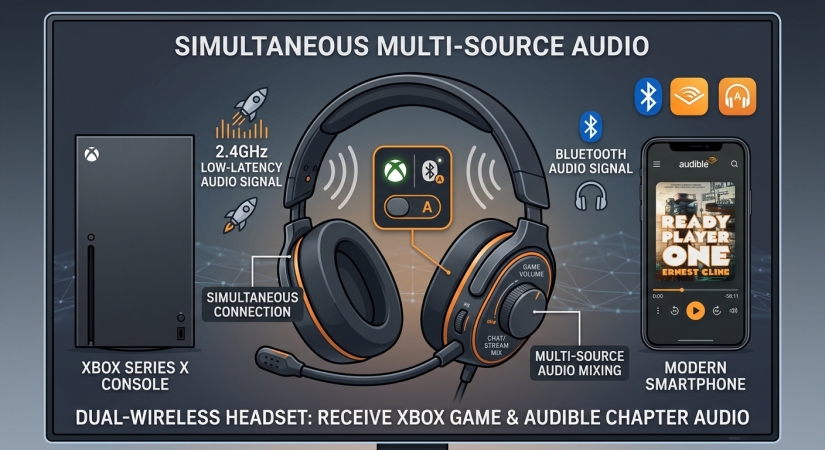
Step 1. Connect your headset to your Xbox console using the standard 2.4GHz USB dongle or Xbox Wireless protocol for low-latency game sound.
Step 2. Pair the headset's Bluetooth mode directly with your mobile phone or tablet.
Step 3. Open the Audible app on your mobile device and press play.
Step 4. Use the physical volume dial on your headset or mobile volume controls to balance game volume and audiobook narration independently without touching console settings.
Part 4. FAQs about Audible for Xbox
Will Audible sync my bookmark progress on Xbox?
If you stream via Microsoft Edge or AirServer casting, your progress automatically syncs with your Audible account. If you use converted Audible files on a USB drive, playback progress will not sync back to your cloud account, so you will need to keep track of your chapter manually.
Can I play Audible on Xbox in the background while playing games?
Yes! The methods of using a USB Media Player, casting via AirServer, and setting up with Dual-Bluetooth headset all support background audio while gaming. Streaming via the Microsoft Edge browser will stop playing as soon as you open a game.
Why does Simple Background Music Player say "No Drive Found"?
Make sure your USB drive is formatted as FAT32 or NTFS and that your converted Audible files are placed inside a folder named exactly Music on the root level of the drive.
How do I fix quiet audiobook narration over loud game sound?
In addition to adjusting the in-game audio options menu, use the console's built-in mixer. Press the Xbox Guide Button on your controller, navigate to Audio & Music at the bottom of the guide, and adjust the Chat Mixer or background audio slider to favor voice playback over media sounds.
Part 5. Conclusion
While Microsoft and Amazon have yet to release a dedicated Audible app for Xbox consoles, you don't have to miss out on your favorite audiobooks while gaming. If you simply want to listen through your TV or home theater speakers without gaming, the built-in Microsoft Edge browser offers a quick, direct solution via the Audible Cloud Player. However, if your goal is uninterrupted background audio during gameplay, converting your library to DRM-free MP3s using TunesMake Audible Converter for USB playback provides the most reliable, lag-free experience. Alternatively, wireless tools like AirServer or a dual-input Bluetooth headset offer flexible streaming straight from your smartphone. Choose the method that best matches your setup, launch your favorite game, and start enjoying your audiobooks seamlessly on Xbox.
Related Articles

A professional writer at TunesMake, crafts in-depth tutorials, practical tips and expert advice focusing on streaming music, technology, and more.
- 1
- 2
- 3
- 4
- 5
- 6
- 7
 Leave Your Comment
(0)
Leave Your Comment
(0)

 Download Center

