








 Store
Store


If you switch from listening to an audiobook on your iPhone during your morning commute to picking it up on your Kindle or Android tablet at home, finding yourself lost three chapters behind is frustrating. When Audible is not syncing across devices, the issue usually stems from various reasons. This step-by-step guide walks you through how to get Audible to sync across devices and how to fix Audible not syncing across devices.
Part 1. Why Is Audible Not Syncing Across Devices?
Audible relies on Amazon's cloud network and local app permissions to record and update your playback progress. When Audible fails to sync your listening progress across your phone, Kindle, tablet, or web player, the issue typically stems from a breakdown in Whispersync for Voice. Here are the primary causes of Audible not syncing across devices.
1️⃣ Disabled Sync Toggles: The "Sync Listening Position" setting in the Audible app or "Device Synchronization" on Amazon is turned off.
2️⃣ Network & App Closures: Closing the app or locking the screen immediately after pausing cuts off internet access before timestamp data can upload to the cloud.
3️⃣ Background Restrictions: Battery saver modes, disabled background data usage, or disabled "Background App Refresh" block Audible from updating progress in the background.
4️⃣ Account or Region Mismatches: Devices are signed into different Amazon accounts or different regional marketplaces.
5️⃣ Outdated Software or Corrupted Data: Outdated app builds, un-updated Kindle firmware, or corrupted local app cache break communication with cloud servers.
Part 2. Universal Fixes to Audible Not Syncing Across Devices
Regardless of what causes Audible to fail to sync across devices, you can fix the problem by performing these universal fixes. Follow these primary fixes ordered by highest success rate.
Step 1: Check Your Core Audible and Amazon Sync Settings
Before troubleshooting deeper device settings, verify that automatic synchronization is enabled inside your Audible app and on your main Amazon account.
Enable "Sync Listening Position" in the Audible App
The Audible app includes a specific toggle of Sync Listening Position that continuously transmits your playback position to the cloud.
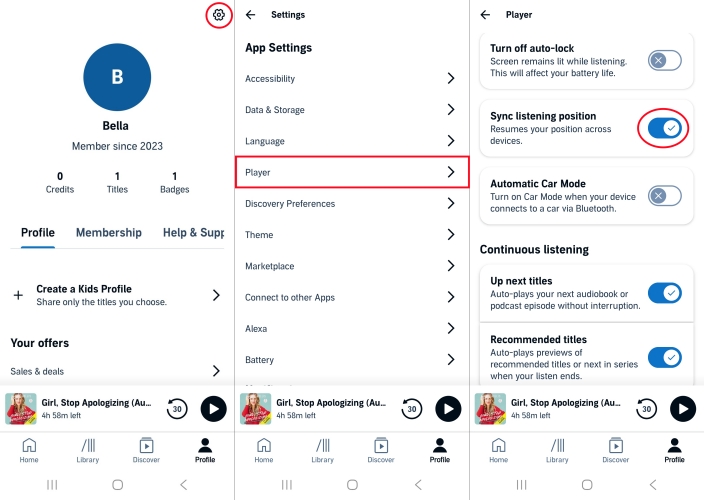
1. Open the Audible app on your phone or tablet.
2. Tap Profile in the bottom right corner.
3. Tap the Gear icon in the top right and select Player.
4. Scroll down to Sync Listening Position and ensure the toggle is turned ON.
Enable Amazon Whispersync Settings in the Audible Site
If Amazon's Whispersync feature is disabled on your primary Amazon account, no device will sync correctly regardless of local settings.
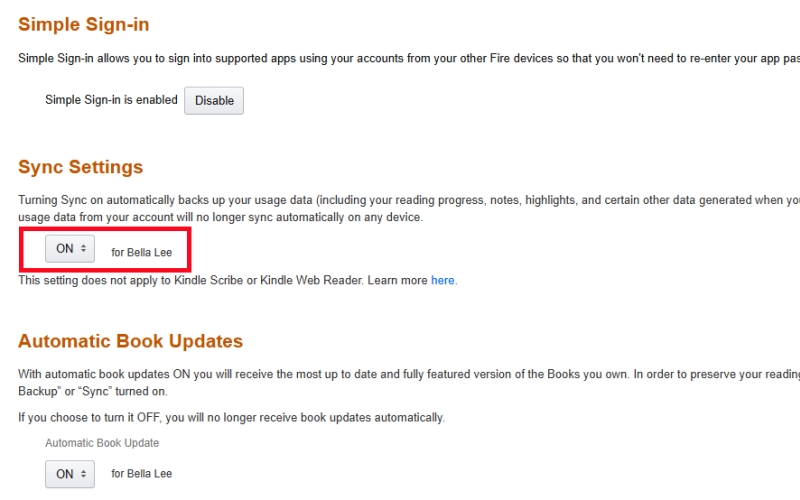
1. Open a browser and go to Amazon's Manage Your Content and Devices page.
2. Click on the Preferences tab at the top.
3. Scroll down to Sync Settings.
4. Ensure the status is set to ON.
Step 2: Perform Quick Manual Force-Sync Fixes
If your settings are correct but your Audible sync position is missing or outdated, you can trigger a manual sync to force the server to register your spot.
Use the In-Player Manual Sync Option
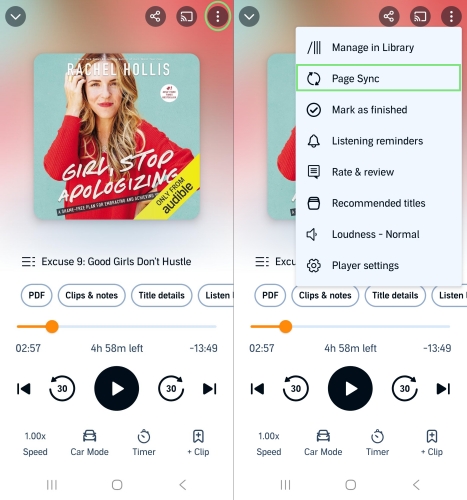
1. Open the audiobook player screen in the Audible app.
2. Tap the three-dot (...) menu icon in the top right corner.
3. Select Page Sync.
Adopt the 5-Second Pause Rule
Audible requires a brief internet connection window to send your timestamp to the cloud. If you finish listening and immediately force-close the app or turn off your device, the app may not have time to transmit your location.
1. Hit Pause after finishing listening.
2. Wait 3–5 seconds while connected to internet.
3. Close the app or put your device to sleep.
Step 3: Resolve Marketplace and Account Mismatches
A surprisingly common reason Audible won't sync across devices is logging into different country marketplaces or secondary Amazon profiles.
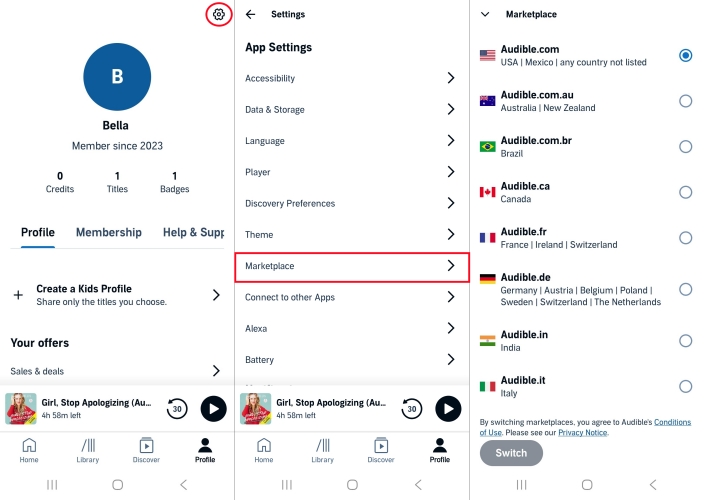
1. Open the Audible app and tap Profile.
2. Tap the Gear icon at the top right corner.
3. Scroll to the bottom and check your Marketplace.
4. Verify that your other device is logged into the exact same marketplace region.
If you use Amazon Household sharing, ensure both devices are actively using the profile that purchased or downloaded the audiobook.
Step 4: Refresh Your Library and App Cache
If your Audible audiobook's playback progress remains stuck, cached application data on your device may be corrupted.
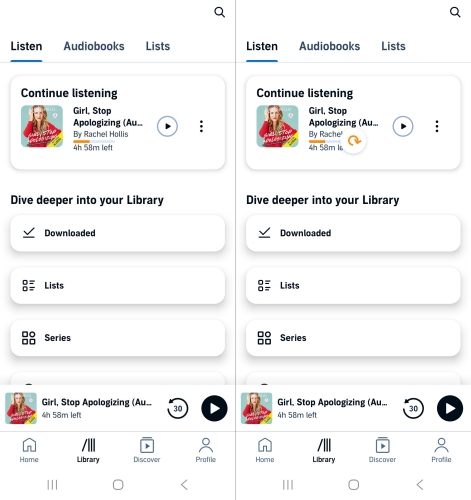
1. In the Audible app, tap Library.
2. Swipe down firmly on the screen to perform a full Library Refresh.
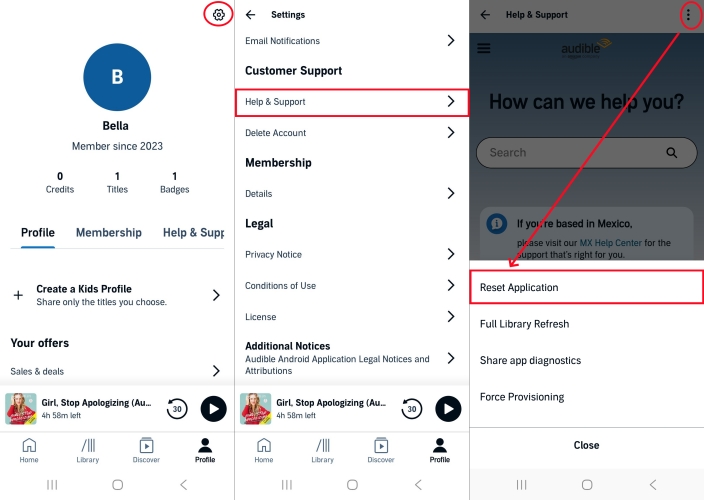
If issues persist, tap your profile image and go to Settings > Help & Support. Then tap the three-dot icon in the top right corner and select Reset Application.
Part 3. Specific Fixes to Audible Not Syncing between Devices
Operating system restrictions can block background sync activity. Updating these specific-device settings ensures Audible can communicate with cloud servers properly.
How to Fix Audible Not Syncing with Kindle
If your Audible phone and Kindle are not syncing together, the e-reader often requires a manual sync request or a firmware refresh.
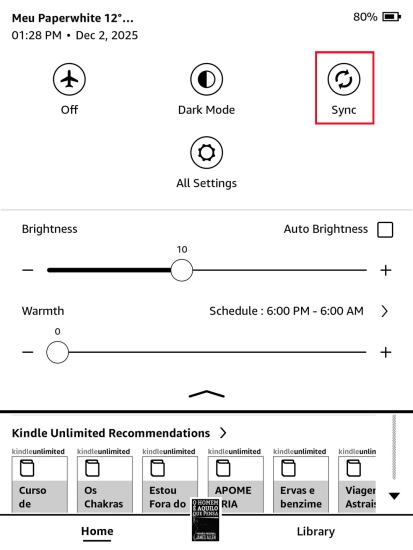
Step 1. Turn on Wi-Fi on your Kindle device.
Step 2. From the home screen, swipe down from the top to open the Quick Actions menu.
Step 3. Tap Sync My Kindle or Sync.
If position sync fails inside a Kindle book with companion audio, tap the center of the screen while reading, tap the Settings icon, and toggle Sync to Furthest Page Read to ON.
How to Fix Audible Not Syncing between iPhone and iPad
Apple's iOS aggressively manages background tasks to save battery life, which can stop the Audible app from transmitting your position when you lock your screen.
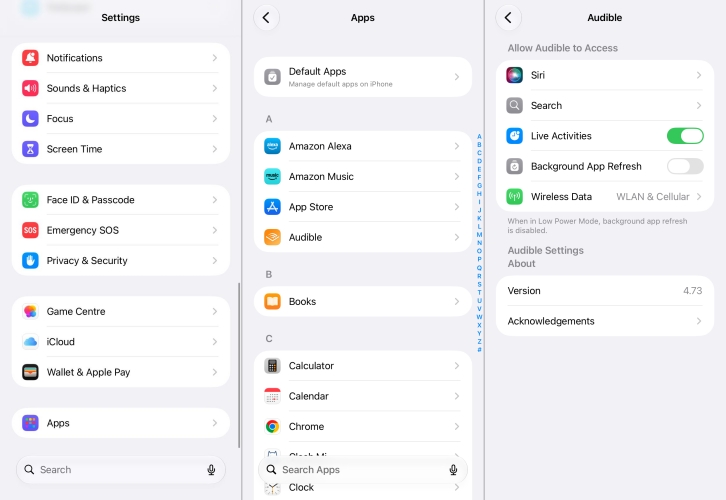
Step 1. Open the Settings app on your iPhone and scroll down to tap Apps.
Step 2. Find and select Audible from the list of apps.
Step 3. Turn Background App Refresh to ON.
Step 4. Turn Cellular Data to ON to allow position updates away from Wi-Fi.
How to Fix Audible Android App Not Syncing
Android operating systems often force power-saving restrictions onto media apps, causing the background sync service to freeze.
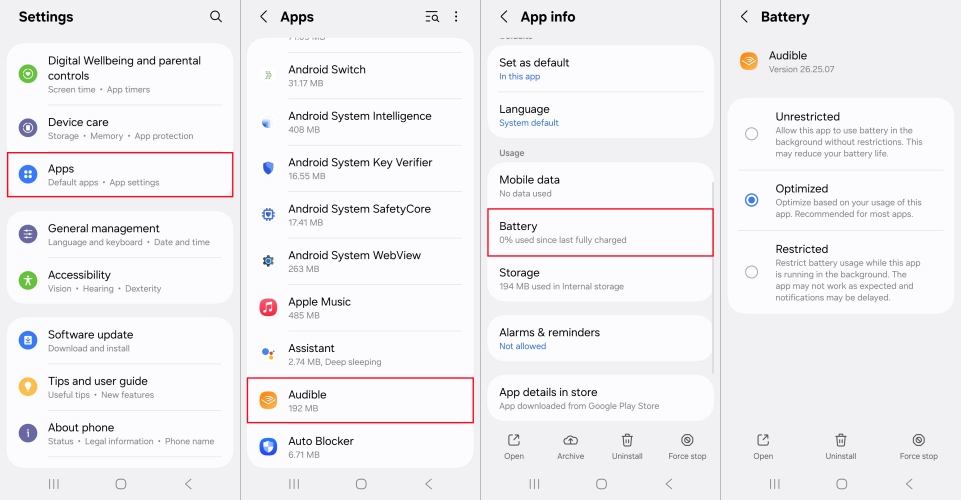
Step 1. Open Settings > Apps > Audible.
Step 2. Select Battery or App Battery Usage.
Step 3. Change the setting from Restricted to Optimized or Unrestricted.
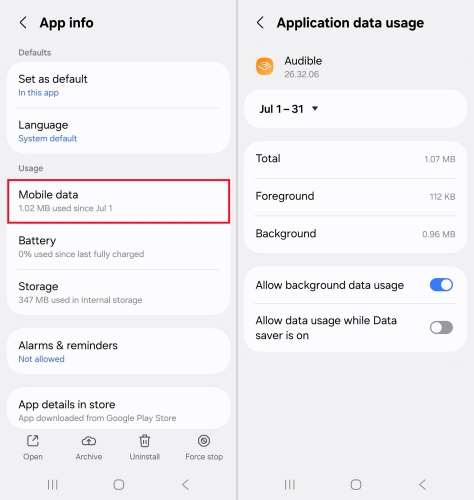
Step 4. Tap Mobile Data and enable Allow background data usage.
How to Fix Audible Not Syncing with Apple Watch
Smartwatches often run lightweight versions of the Audible app that rely heavily on Bluetooth handshakes with your paired smartphone.
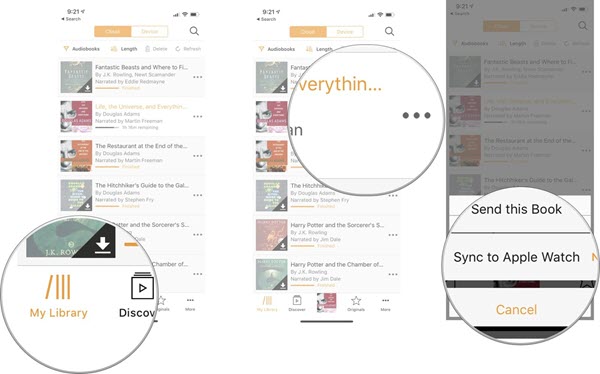
Step 1. Ensure both Bluetooth and Wi-Fi are active on your smartwatch.
Step 2. Open the Audible app on your iPhone while the watch is connected.
Step 3. Go to Library, select a title, tap the three-dot icon, and select Sync to Apple Watch.
If position tracking remains off, delete the audiobook file from your watch and download it fresh from your watch library.
Part 4. Alternative Way to Sync Audible on Non-Supported Devices
While Whispersync works well between Audible apps and supported devices, it cannot synchronize playback positions to MP3 players, car audio systems, or older offline devices. If you frequently listen across non-Audible ecosystems or experience persistent account sync drops, an alternative approach is to download and convert your purchased Audible audiobooks into standard MP3 or M4B formats using third-party tools like TunesMake Audible Converter.
By converting Audible audiobooks into open audio formats with preserved chapter information, you can manually transfer audiobooks to any device or media player without relying on active Whispersync servers or internet connectivity. Note that while converting audiobooks removes ecosystem playback limits, cloud-based automatic position tracking will no longer apply across devices, requiring manual progress tracking.

Streaming Audio Recorder –
Download Audible audiobooks to popular audio formats
- Download purchases, podcasts, and Originals from Audible
- Convert Audible books to MP3, M4A, M4B, WAV, FLAC, and AIFF
- Remove DRM protection from Audible efficiently and safely
- Preserve the original audio quality and chapter information
- Support downloading audios from 11 popular streaming platforms
Security Verified. 100% Clean & Safe.
Step 1 Load Audible Books to the Conversion List
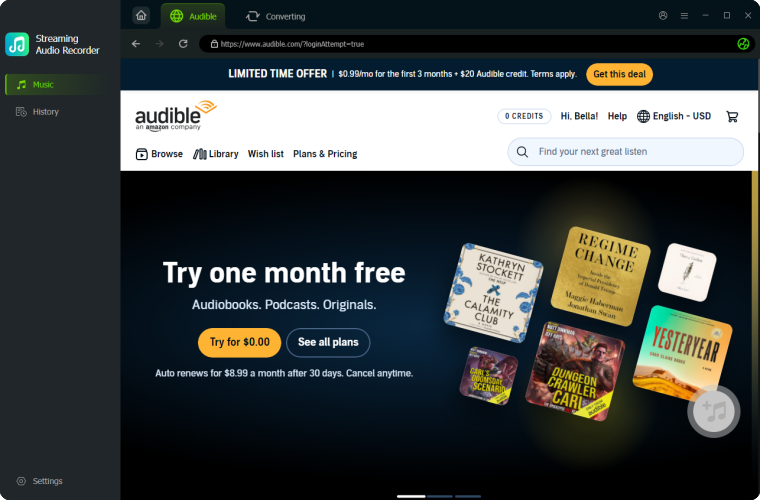
Install TunesMake Streaming Audio Recorder on your computer and then open it. On the main interface, select Audible and log into the built-in Audible web player. Go to find your purchased Audible audiobooks and click the + button to add them into the conversion list.
Step 2 Decide the Output Format for Audible Books
Once you successfully add the title you want to download locally, it's time to set the output format. Click the Settings button in the lower left corner and set MP3 as the output format. In this tab, you can also personalize other settings like channel, sample rate, and bit rate.

Step 3 Download and Save Audible Books as Local Files
Now you can click the Convert button. Then the TunesMake software will download and save Audible books as local audio files in your required format. And you can transfer them to the device you use and don't need to worry about Audible not syncing across devices anymore.

Part 5. Conclusion
Getting stuck on an old chapter when switching between your smartphone, Kindle, tablet, or smartwatch disrupts an otherwise seamless listening experience. In most cases, fixing Audible sync issues across devices comes down to double-checking key toggles, specifically the in-app "Sync Listening Position" setting and Amazon's account-wide Whispersync preferences.
If those settings are active, adjusting mobile background data restrictions, verifying matching account credentials, or giving your app a quick manual refresh will usually solve the problem. For non-compatible devices or offline setups, converting your audiobooks via TunesMake Audible Converter offers a reliable offline alternative. By following this diagnostic guide, you can eliminate playback skips and get right back to enjoying your audiobooks uninterrupted.
Related Articles

A professional writer at TunesMake, crafts in-depth tutorials, practical tips and expert advice focusing on streaming music, technology, and more.
- 1
- 2
- 3
- 4
- 5
- 6
- 7
 Leave Your Comment
(0)
Leave Your Comment
(0)

 Download Center

