








 Store
Store


Tidal is an incredible music streaming platform for audiophiles. You can get an immersive music experience with high-fidelity music from its library. Sometimes you may feel Tidal’s playing volume too low and want to make it louder. If you have no clue about how to make Tidal louder, you should not miss this article. We’ve collected 6 practical fixes that can solve your problem so that you can have better music enjoyment. Want to know more details? Just dive into reading the post and concentrate on selecting the suitable way depending on your demands.
Method 1. Use Tidal Volume Control Button
How do I make Tidal volume louder? The most simple answer is to utilize the volume control button and turn it up. When you feel the volume is not loud enough, follow the steps below to set the volume button to maximum.
On Desktop
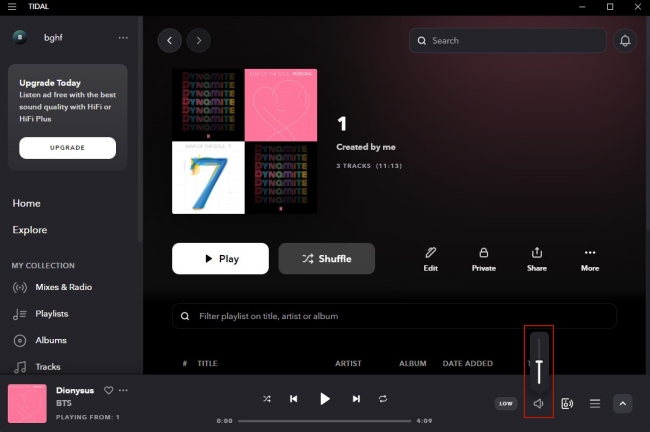
Step 1. Open your computer and then install and launch the Tidal app.
Step 2. Log in to your account and enter the main window.
Step 3. Locate the volume button and drag the volume bar up to make the music louder.
On Mobile Phone
Step 1. Go to the Tidal app on your mobile phone.
Step 2. Choose one song to play and enter the Now Playing screen.
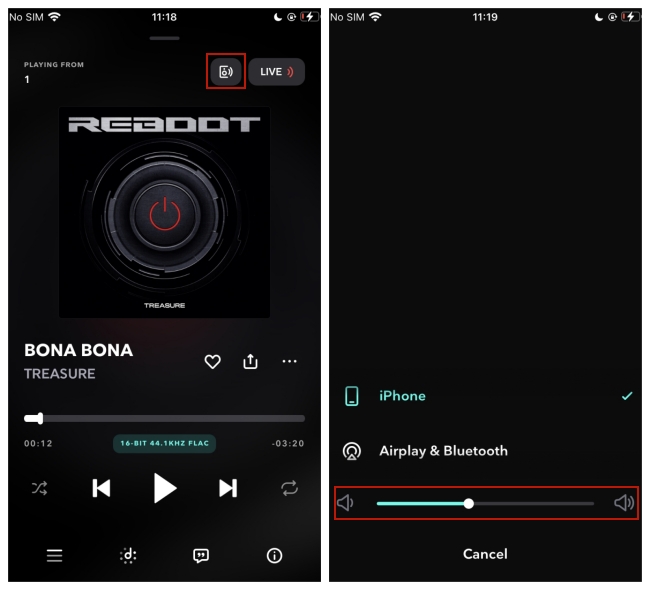
Step 3. Tap on the speaker icon at the top.
Step 4. Then you can see the volume bar at the bottom. Drag it to the right and you can turn on the volume.
Method 2. Enable the Exclusive Mode [Desktop]
Tidal Exclusive Mode is a feature that allows Tidal to take exclusive control of your audio device and provide the best sound experience while listening. Once you enable it, Tidal controls your audio output device and keeps the app’s volume at the maximum level. It is a practical solution to make your Tidal music playback louder.
Step 1. To ensure a smooth performance, you need to make sure that your DAC’s firmware is up to date.
Step 2. Then, connect your DAC to your PC or Mac.
Step 3. After that, launch the Tidal application on your desktop. You can enable the Exclusive Mode by going to Settings > Streaming > Sound Output.
Step 4. Once enabled, you can adjust the volume inside the Tidal app to make it louder.
Method 3. Disable the Normalize Volume Feature
Like other music streaming services, Tidal also offers the feature of volume normalization. It will turn louder songs down to their reference level, which may lead the low sound. Below you can see the detailed steps on how to close it.
On Desktop
Step 1. Fire up the Tidal app on your desktop and log in.
Step 2. Click the … icon next to your profile.
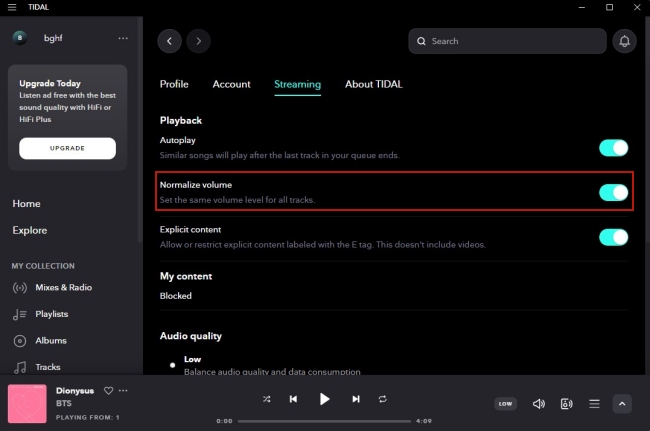
Step 3. Choose Settings – Streaming. Find the Normalize volume button and switch it off.
On Mobile Phone
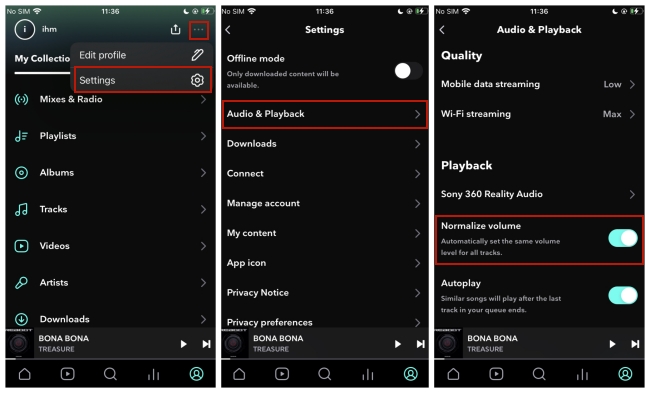
Step 1. Run the Tidal app on your mobile phone.
Step 2. Enter the My Collection screen. Tap the … icon at the top and select Settings.
Step 3. Tap Audio & Playback and then you can disable the Normalize volume button.
Method 4. Increase Audio Quality
To make Tidal louder, you can also change the audio quality. This method is a feasible way to improve your listening experience. By increasing the music quality, you will get clearer and louder music.
Note
This method requires a Tidal subscription.
On Desktop
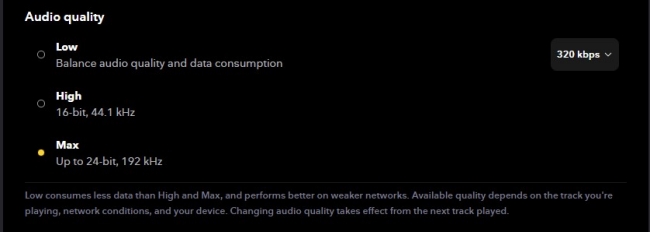
Step 1. Run the Tidal app on your computer.
Step 2. Head to the Settings.
Step 3. You can see the Audio quality section under Streaming. Tap High/Max to get a better and louder music quality.
On Mobile Phone
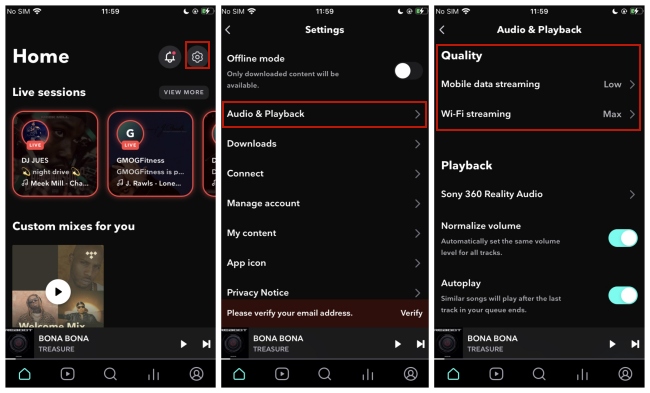
Step 1. Launch the Tidal app on your mobile phone and log in to your HiFi or HiFi Plus account.
Step 2. Tap the gear icon at the top of the home screen so that you can go to Settings.
Step 3. Choose Audio & Playback – Quality. Then you can decide the quality under Mobile data streaming and Wi-Fi streaming. Change them to High/Max.
Method 5. Play Tidal Tracks on Other Media Players
If your Tidal playback volume remains insufficient after trying the steps above, a more effective solution is to download your tracks locally for use with other media players. This is ideal for users who prefer third-party playback features over the native Tidal app. However, the premise of doing so is to remove the DRM (Digital Rights Management) from Tidal tracks. Luckily, TunesMake Tidal Music Converter can do you this favor.
TunesMake Tidal Music Converter is a professional converter that allows you to download songs, playlists, albums, and podcasts from Tidal to your local computer. According to your demands, you can set the output formats to normal ones like MP3, M4A, M4B, WAV, FLAC, and AIFF. Additionally, this program ensures your listening experience by retaining the original sound quality and ID3 tags. After downloading, it’s a breeze to import these Tidal songs to other media players for offline playback without issues.

TunesMake Tidal Music Converter –
Download Tidal Songs to Local Files
- Download any Tidal content, including songs, albums, playlists, and artists
- Convert Tidal music to MP3, FLAC, AIFF, WAV, M4A, and M4B
- Preserve a whole set of ID3 tag information in the downloaded Tidal songs
- Handle the conversion of Tidal music up to 22X faster speed and in batch
Security Verified. 100% Clean & Safe.
Step 1
Add Tidal music to TunesMake program

Click the Free Download button above so you can install the TunesMake Tidal Music Converter on your Windows or Mac computer. Fire up it, and the Tidal web player will open automatically. Then, you can log in and choose the playlists or albums you like for playing elsewhere. Simply select a playlist/album, and then click the Add icon > Add to List. All the songs will be loaded to the conversion list successfully.
Step 2
Define the output setting

Open the menu section at the upper right corner, and choose Preferences > Conversion. In this tab, you can define the audio parameters according to your needs. Changeable options include output format, output quality, sample rate, bit rate, channel, and so on. When you finish all the settings, don’t forget to save your changes by clicking the OK button.
Step 3
Download Tidal music for editing

Click the Convert button at the bottom of the program to initiate the downloading and conversion process. It may take you a while depending on the number you download. After downloading, you can click the Converted icon to locate the downloads in your local folders.
Step 4
Import Downloaded Tidal Songs to Other Players
Now, all the Tidal songs you like are stored on your device. You can import them to other media players on your desktop for louder playback. In addition, you can sync them to your mobile phone via a USB cable and play them on any media player application on your phone.
Method 6. Amplify Tidal Tracks via Audacity
If you want even more control over audio loudness, you can edit the downloaded audio files using professional editors or equalizers to make them louder. There are a variety of tools to choose from. Here, we will use Audacity as an example for you to reference. Audacity is a famous free audio editor that has powerful functions. There is no doubt that it can assist you in making music louder.
Step 1. Download and install Audacity on your computer, and open it.
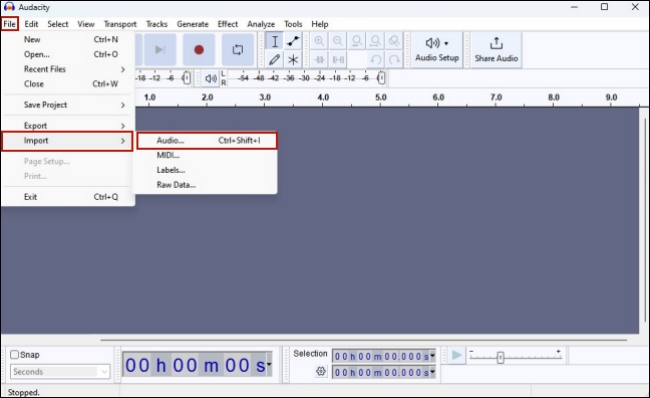
Step 2. At the top section, click File – Import – Audio and choose the downloaded Tidal music file from your computer.
Step 3. Hit Ctrl + A on your keyboard in order to select the entire track.
Step 4. Choose Effect – Volume and Compression – Amplify.
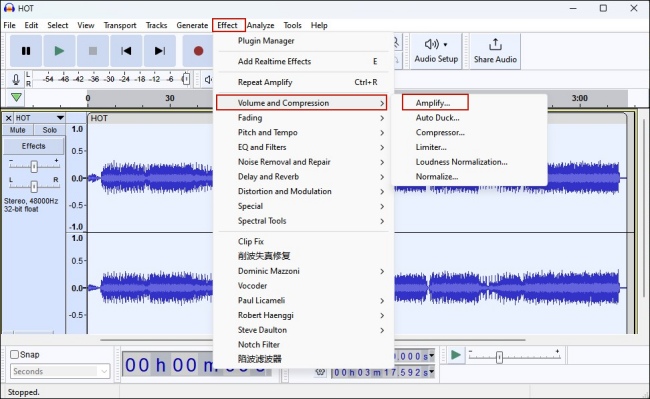
Step 5. On the new pop-up window, enter the suitable value to turn up the decibels. When you finish, click Apply.
Step 6. After you adjust the volume, click File – Export. Then decide the audio format and hit it so that you can save the file on your computer.
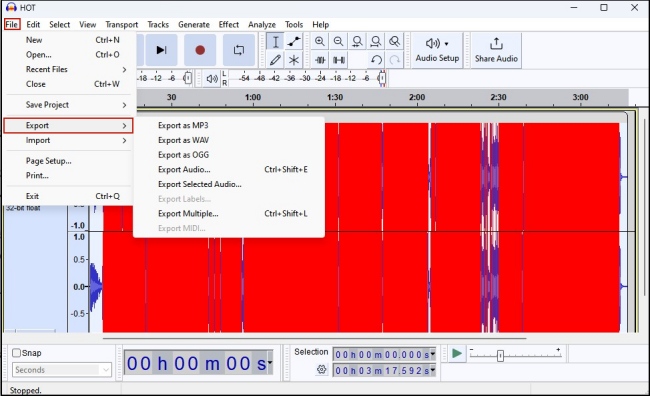
Step 7. Now you get a louder Tidal track than before and it can be played on any music player as long as the format is compatible.
Summary
This post presents 6 productive methods that you can try to adjust Tidal music volume. The question of how to make Tidal louder will not bother you anymore. You can get clear and loud music on Tidal via some inner settings like volume control and volume normalization. Also, you can choose to download Tidal music with the help of TunesMake Tidal Music Converter and change the volume on audio editors.
Related Articles

An experienced freelance writer at TunesMake, specializes in using various streaming services from Spotify, Apple Music, to Amazon Music, and more other platforms.
- 1
- 2
- 3
- 4
- 5
- 6
- 7
 Leave Your Comment
(0)
Leave Your Comment
(0)

 Download Center

