








 Store
Store


Is there a way to transfer Tidal playlist to Apple Music? I’ve been searched for the answer for a while and didn’t get a clear or concrete answer. Anyone can help?”
– User from RedditI use Tidal music as the main source of streaming and enjoying favorite songs, but now I’d like to switch to Apple Music because it has some songs that I’d like to hear but are not available on Tidal. What can I do to transfer Tidal playlists to Apple Music? I don’t want to lose those my favorite songs. Are you in the same boat with me? Perhaps, you want to hear your favorite artists on Apple Music or just want to enjoy a brand-new listening experience, whatever the reasons, it’s always a hard task to handle with Tidal songs. Now no more worries at all. Here in this article, we’ll walk you through several efficient ways to transfer Tidal music to Apple Music.
Part 1. Official Method to Transfer Playlists to Apple Music
For new subscribers who want to transfer their library and playlists from music services to Apple Music, Apple has simplified the onboarding process. While Apple Music doesn’t provide a direct “Transfer music from Tidal” button, it has officially partnered with third-party services to facilitate your transfer journey. If you have no idea how to do so, you should follow the steps below.
What You Need
- An available Apple Music subscription
- An iPhone or iPad that has the latest version of iOS or iPadOS,/An Android device with the latest version of the Apple Music app
- Your Tidal account credentials
- You have enabled the Sync Library feature on all of your devices
How to Transfer Playlists from Tidal to Apple Music
On iPhone/iPad/Android
Step 1. Open the Settings app on your iPhone or iPad, and then select Apps > Music. If you are using an Android device, head to the Apple Music app instead. Then, tap the More icon > Settings.
Step 2. Choose Transfer Music from Other Music Services.
Step 3. Now, you need to find and tap Tidal from the list of supported music services. After that, sign in to your Tidal account.
Step 4. Once done, you can choose what you want to transfer and select Add to Library.
Step 5. Next, Apple Music will find matches for your playlists in its catalog. When the process is complete, you will see the Transfer Complete prompt and begin listening to your favorite songs on Apple Music without hassles.
On Desktop:
Step 1. Open any browser on your computer and visit music.apple.com.
Step 2. Sign in to your Apple Music account. Then, click your profile icon in the top-right corner and select Transfer Music.
Step 3. Then, select Tidal and decide on what you want to transfer. To import them to Apple Music, click Add to Library.
Part 2. How to Transfer Any Song from Tidal to Apple Music
Although the official method to import playlists to Apple Music is convenient and easy, there is a big limit: you can’t ensure every single song can be transferred successfully due to the catalog difference between Tidal and Apple Music. To ensure a complete transfer process without any loss of songs, the best approach is to download your Tidal songs and playlists to local files and then add them to your Apple Music library.
When you t yr to do so, you may find that all Tidal files are encoded with special audio format, which can be played only in the Tidal app. In other words, you are not truly own your Tidal downloads, and you can’t transfer them to other devices and services. That’s why you need a converter tool like TunesMake Tidal Music Converter.
As a professional and powerful music downloader designed specially for all Tidal users, TunesMake Tidal Music Converter can break the format limit on Tidal songs and can build a bridge for you to convert Tidal music to common popular audio files. Whether you want to save songs, playlists, albums, or podcasts, it can help you download them to MP3, M4A, M4B, WAV, FLAC, or AIFF files. What’s more, it smartly keeps the sound quality and ID3 tags to ensure your listening experience. So later, you can add the DRM-free Tidal music to Apple Music for listening together. And that’s it!

TunesMake Tidal Music Converter –
Download and Transfer Tidal Music to Apple Music
- Download any Tidal content, including songs, albums, playlists, and artists
- Convert Tidal music to MP3, FLAC, AIFF, WAV, M4A, and M4B
- Preserve a whole set of ID3 tag information in the downloaded Tidal songs
- Handle the conversion of Tidal music up to 22X faster speed and in batch
Security Verified. 100% Clean & Safe.
Step 1
Select Tidal Music to Download

According to the operating system of your device, you can choose the compatible version of the TunesMake Tidal Music Converter and install it on your computer. Then, launch it and you will be navigated to the official Tidal web player. Here, you should log in and find the playlist you want to transfer to Apple Music. Next, select it and load all its songs to the conversion list by selecting the Add icon at the right corner > Add to List.
Step 2
Configure the Output Audio Parameters

Before initiating the conversion of Tidal music, you need to set the output audio parameters on demand. Click the Menu bar at the top right corner and select the Preferences option. In the Conversion tab, you can see all the changeable output audio parameters, such as output format, bit rate, sample rate, and channel. Just set them as you wish and save your preferences by clicking the OK button.
Step 3
Convert Tidal Music to MP3

After setting the formats, you can click the Convert button to start the conversion. It’s no problem to convert a batch of music files. You’ll only need to wait for a short time till it is finished. When the conversion is over, you can access the converted music files easily in your local folder by clicking the Converted icon.
Step 4
Import Tidal Playlist to Apple Music
When the conversion finishes, you can now transfer your Tidal songs to Apple Music with ease. We’ll utilize the iTunes app on your computer.
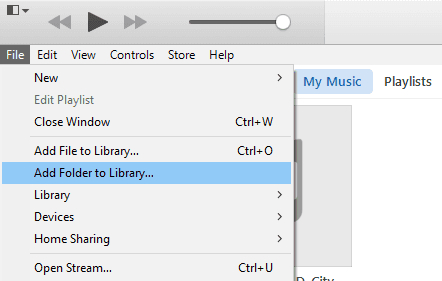
- Launch the iTunes app on your desktop and log in with your Apple Music account.
- Click on File from the menu bar on the upper-left, then select Add Folder to Library from the drop-down options.
- Find the folder where you save the converted Tidal tracks and select to add these local files to Apple Music.
- Once done, you’ll see your Tidal music show up on the Songs list. And you’ll get them on the iTunes library for playback.
Part 3. How to Transfer Tidal Playlists to Apple Music Online
In addition to the TunesMake program, there are many more online tools or websites you can make use of. The advantage of using these tools is that you don’t need to download extra tips in your local storage. All you need to prepare is your Tidal and Apple Music account and then wait for everything done. The shortcoming is you can’t avoid issues like buffering, keep pausing, or not working. Here are two popular ones you can apply with.
Option 1. Convert Tidal Playlist to Apple Music via Soundiiz
Soundiiz is a platform that aims to create a connection between streaming services. It provides automated transfer of playlists, as well as manages and synchronizes music data between music streaming sites, such as Deezer, Apple Music, SoundCloud, Amazon Music, and Tidal, as well as others. Below are the working procedures:
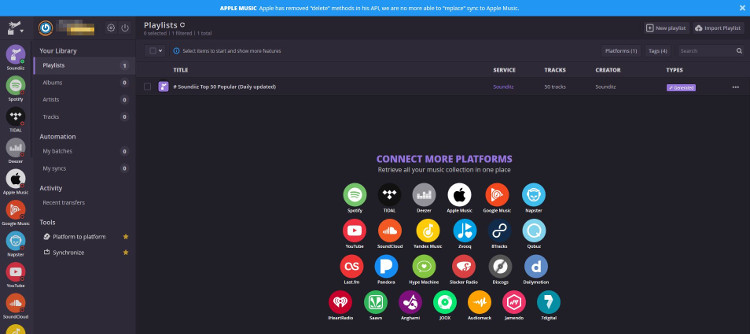
1) Go to the Soundiiz website and click on the Start button to start the transfer.
2) Sign in to your Tidal account and click Connect to enter your Apple Music account.
3) Browse your music library and select a playlist you want to transfer from Tidal.
4) Click on the Convert button in the top toolbar and then select Apple Music as the destination.
Option 2. Export Tidal Playlist to Apple Music via TuneMyMusic
TuneMyMusic is an online tool to help you transfer Tidal playlist to Apple Music. It can move playlists, albums, following artists, and liked songs across various services – iTunes, Apple Music, Spotify, Amazon Music, and others.
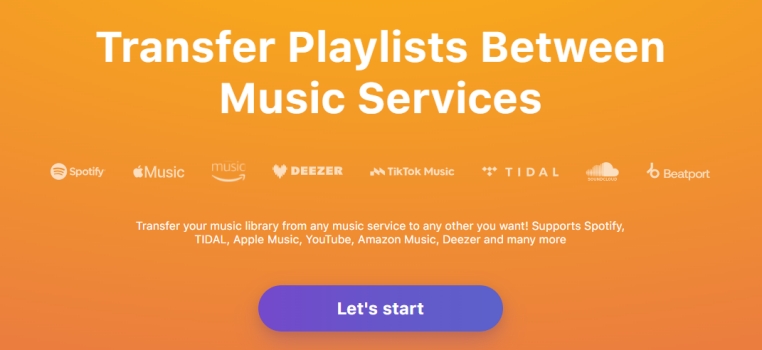
1) Go to tunemymusic.com on the web from any of your browsers.
2) From the Home screen, click Let’s Start to proceed.
3) Select Tidal as the source service and log in to your Tidal account.
4) Select Apple Music as the destination and sign in to your account too.
5) Confirm your choice and select Start Moving My Music to start the process.
Part 4. Comparison and Conclusion
With the above several methods, it is up to you to select the method that suits your personal needs. On different demands, choices are different too. Here is the comparison table of available methods above. You can take it as a reference before transferring Tidal to Apple Music.
If you prefer official support, you can directly finish the transfer process within the Apple Music software. But if you prefer doing so without losing any tracks, downloading Tidal tunes via the TunesMake Tidal Music Converter before transferring is the better solution.
| TunesMake Program | Soundiiz | TuneMyMusic | |
| Compatibility | Windows & Mac | Windows & Mac & Android & iOS | Windows & Mac & Android & iOS |
| Output Audio Quality | Lossless high-quality | Lossy quality | Lossy quality |
| Output Audio Formats | WAV, FLAC, AIFF, M4A, M4B, and MP3 | Not supported | Not supported |
| Transfer number limit | No limit | 200 song limit | 500 song limit |
| No need to install apps | No | Yes | Yes |
| No privacy leak/virus attack | Yes | Cannot guarantee | Cannot guarantee |
| Stability | Yes | Crashing on mobile phones | Cannot guarantee |
It’s a piece of cake if you want to transfer Tidal playlist to Apple Music as there are so many useful tools you can use for. For those who have many songs or playlists to transfer, you need a professional music converter tool. TunesMake Tidal Music Converter is the preferred way. Click the download button to have a try!
Related Articles


A senior editor from TunesMake, dedicated to sharing professional tutorials and solutions of software, movies, and music.
- 1
- 2
- 3
- 4
- 5
- 6
- 7
 Leave Your Comment
(0)
Leave Your Comment
(0)

 Download Center

