








 Store
Store


Amazon Music is a fantastic streaming service, but if you have made the switch to Linux, you have likely noticed a major omission: there is no official Amazon Music desktop application for the Linux platform. If you try to find a download link on Amazon's official site, you will only see options for Windows, Mac, iOS, and Android.
Fortunately, because Linux is highly flexible, you do not have to give up your favorite playlists or your premium subscription. Whether you want a quick way to stream Amazon Music in your browser or you are an audiophile looking to unlock Amazon Music Ultra HD audio and offline downloads, this comprehensive guide has you covered.

Part 1. How to Play Amazon Music on Linux via Web Player
The most straightforward way to listen to Amazon Music on Linux is through the official web player. Since modern web browsers handle cloud streaming seamlessly, you can enjoy your audio in just a few clicks. Amazon officially supports playback through modern browsers like Google Chrome, Mozilla Firefox, Microsoft Edge, and Brave.
Step 1 Access the Web Player
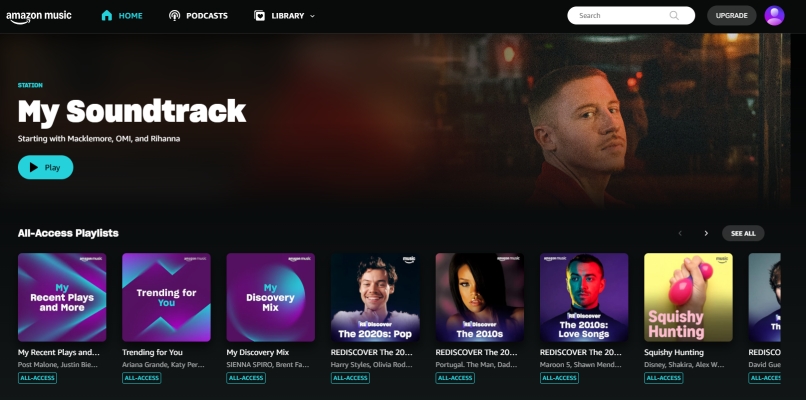
Open your preferred web browser and navigate to music.amazon.com. Log in with your Amazon account credentials, and you will see your familiar library.
Step 2 Enable Widevine DRM
Because Amazon Music encrypts its streams to protect intellectual property, it relies on Google's Widevine Digital Rights Management (DRM). If DRM is disabled in your browser, tracks will fail to load or throw an immediate error code. Go to enable DRM in the most popular Linux browsers.
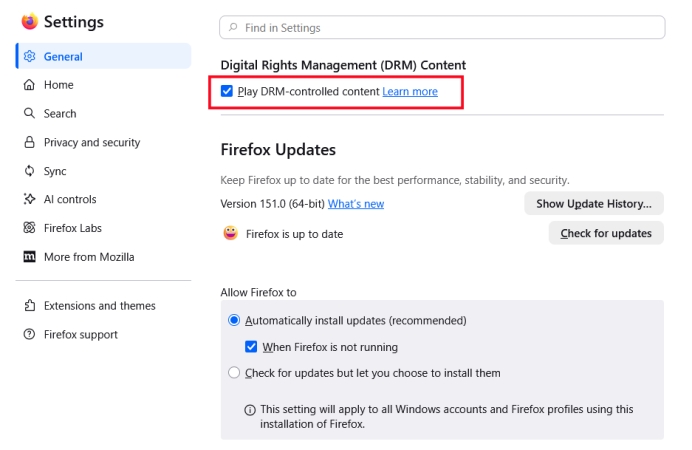
Mozilla FireFox:
Click the three horizontal lines (menu) in the top-right corner and go to Settings > General > Digital Rights Management Content. Then check the box next to Play DRM-controlled content.
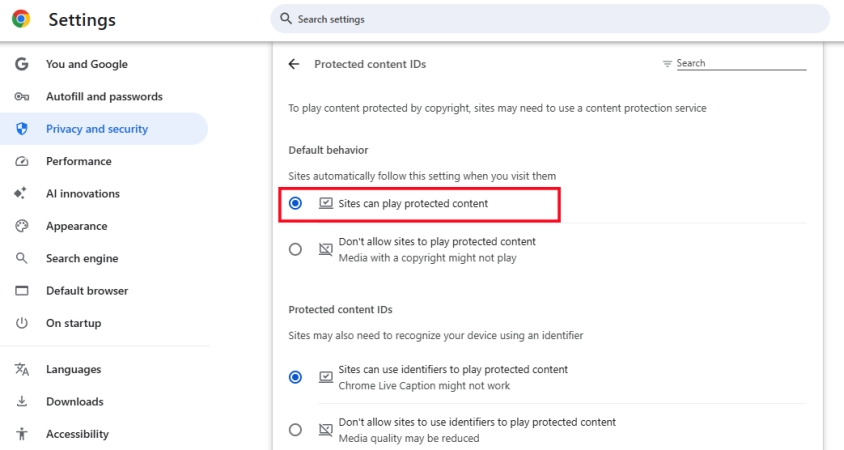
Google Chrome:
Go to chrome://settings/content/protectedContent and ensure that Sites can use identifiers to play protected content is selected.
How to turn the Amazon Music web player into a desktop app
If you don't want to keep a cluttered browser tab open, you can transform the web player into a Progressive Web App (PWA). This gives Amazon Music its own isolated window, a desktop shortcut, and a native-app feel.
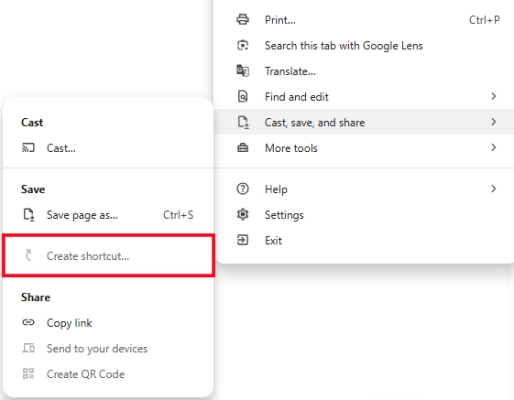
Step 1. Open Google Chrome, Brave, or Chromium and go to the Amazon Music web player.
Step 2. Click the three vertical dots (menu) in the top-right corner of the window.
Step 3. Hover over Cast, Save, and Share, then select Create shortcut.
Step 4. Confirm the installation.
A dedicated launcher will be added to your Linux desktop environment's application menu. You can pin it to your dock or taskbar for single-click access.
Part 2. How to Install Amazon Music App for Linux via Wine/Bottles
While the web player method is incredibly convenient, it comes with a major downside: Amazon caps web browser streaming to SD audio quality. Furthermore, you cannot download music to your local storage for offline listening.
To experience Amazon Music HD, Ultra HD, and offline downloads, you need to run the official Windows desktop app inside an translation environment. The most reliable way to achieve this on Linux is via a dedicated compatibility layer like Wine-GE or Bottles.
Step 1 Install System Prerequisites
Before deploying the application environment, you must install the foundational translation packages and tools required to build the container. Open your terminal and execute the command relevant to your Linux distribution:
Ubuntu / Debian / Linux Mint:
sudo apt update && sudo apt install wine winetricks curl cabextract
Fedora:
sudo dnf install wine winetricks curl cabextract
Arch Linux / Manjaro:
sudo pacman -S wine winetricks curl cabextract
Step 2 Execute the Automated Setup Script
The open-source community maintains a dedicated install script that creates an isolated Wine container, downloads the latest official Windows installer, and applies necessary library overrides.
1) Launch your terminal emulator.
2) Run the deployment script directly via the command:
curl -sS https://raw.githubusercontent.com/sonic2kk/AmazonMusicLinux/main/install.sh | bash
3) Allow the terminal to complete the process.
The script will initialize a dedicated environment configuration specifically for Amazon Music, preventing conflicts with other Windows applications you might run on your system.
Step 3 Configuring Desktop Integration
The script automatically generates an application shortcut for your specific desktop environment.
1) Open your system's Application Launcher or Dash.
2) Search for Amazon Music.
3) Right-click the icon and select Add to Favorites or Pin to Taskbar for faster deployment in the future, then click it to launch the player.
Part 3. How to Get Amazon Music on Linux via External Tools
If you have a dual-boot setup, access to a secondary Windows or macOS computer, or an existing virtual machine container, you can bypass Linux streaming limitations entirely by converting your Amazon Music library for local playback. Here you just need to use a dedicated desktop tool like TunesMake Amazon Music Converter to download and convert Amazon Music into common, open audio formats like MP3, FLAC, or WAV.
The utility preserves original ID3 metadata tags like artist, title, and album artwork and output file hierarchies categorized by artist or album. Once converted, these plain audio files can be transferred directly to your Linux local storage via a USB flash drive or local network share, allowing you to use native, lightweight Linux media players for offline listening. Following are the steps to get Amazon Music on Linux via TunesMake Amazon Music Converter.

Streaming Audio Recorder –
Download music from Amazon Music unlimitedly
- Download songs, albums, and playlists from Amazon Music
- Convert Amazon Music to MP3, M4A, M4B, WAV, FLAC, and AIFF
- Remove DRM protection from Amazon Music completely and safely
- Preserve the original audio quality and ID3 tags for management
- Support downloading music from 10 popular streaming platforms
Security Verified. 100% Clean & Safe.
Step 1 Customize Output Format for Amazon Music
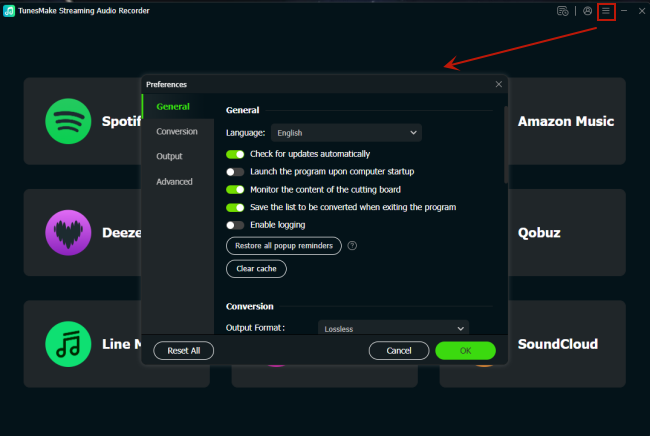
Launch TunesMake Streaming Audio Recorder after it has been downloaded. Click the menu bar > Preferences, then there will pop up a Preferences window. You have to switch to the Conversion tab. You can personalize the output audio parameters, including the audio format. You can set MP3 as the output format to make Amazon Music playable on Linux.
Step 2 Import Amazon Music to the Conversion List
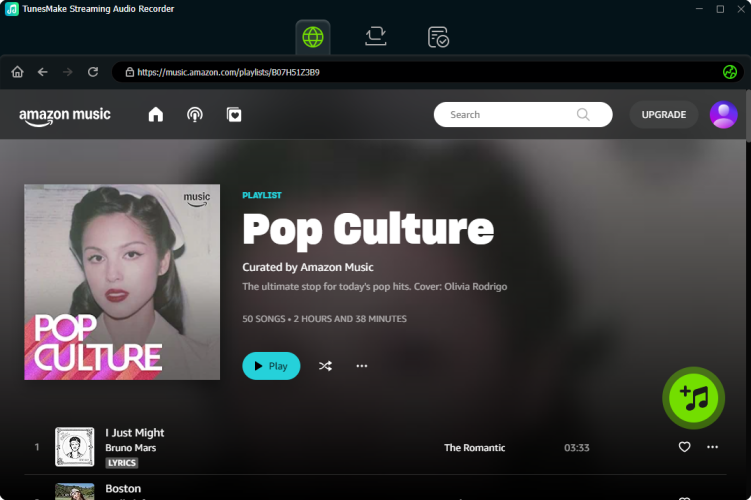
Go back to the software interface, and select Amazon Music. Within a few seconds, the converter will run the Amazon Music web player at once. Then you can easily access your Amazon Music library and find any music track, album, or playlist to download. Simply click the + button to add them into the conversion list for downloading and converting.
Step 3 Download and Convert Amazon Music to MP3
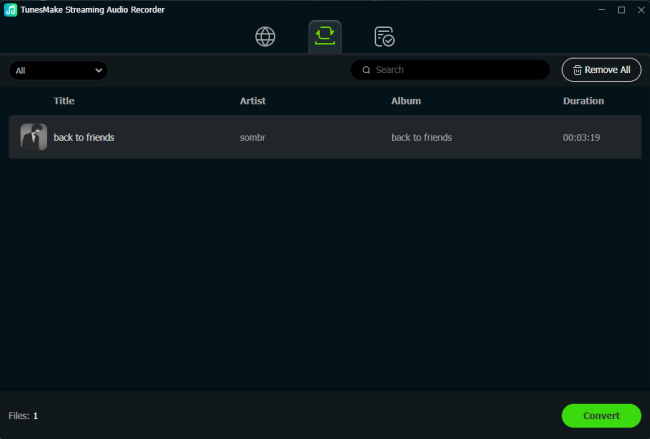
Now click the Convert button to start the conversion of Amazon Music songs. Then the software will quickly download and convert songs from Amazon Music to the folder you specified on your computer. You can view the converted Amazon Music tracks by clicking the Converted icon. Now you can transfer these Amazon Music files to your Linux computer.
Step 4 Stream Amazon Music on Linux via VLC Player
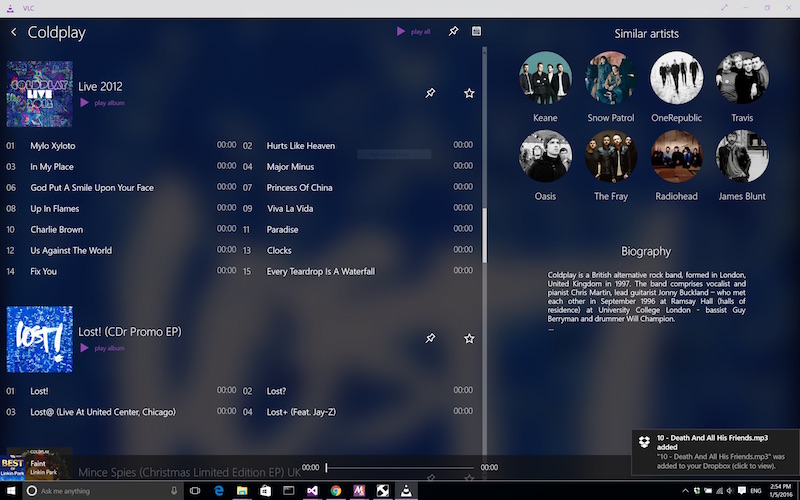
Go to download and install VLC Media Player on your Linux computer. Launch VLC Media Player and click Media Library > Open Media > Open Folder to locate the Amazon Music folder. Upload Amazon Music files and select them to play with VLC Media Player on your computer.
Part 4. FAQs about Amazon Music on Linux
Is there an official Amazon Music app for Linux?
No. Amazon doesn't currently distribute a native .deb, .rpm, or Flapak installer package specifically for Linux distributions. You cannot find any official Amazon Music app for Linux.
Does Amazon Music offline mode work in the web browser?
No. Amazon Music restricts offline storage capabilities exclusively to its native mobile and desktop operating system applications. You must have an active internet connection to stream using the Amazon Music web player.
Can I use my keyboard to control the playback of Amazon Music?
Yes. Most modern Linux desktop environments will recognize the media keys like play and pause on your keyboard to play, pause, or skip tracks running inside Chrome or Firefox background tabs.
Part 5. Conclusion
While there is no Amazon Music app for Linux, you don't have to miss out on your music catalog. For general daily listening where convenience is key, setting up the Amazon Music web player as a PWA is the fastest approach. If you refuse to compromise on sound quality and want to experience your subscription's full Ultra HD potential alongside offline downloads, running the Windows application through an optimized Wine compatibility script is well worth the short technical setup. Or try using TunesMake Amazon Music Converter to get Amazon Music on Linux more freely and easily.
Related Articles




A professional writer at TunesMake, crafts in-depth tutorials, practical tips and expert advice focusing on streaming music, technology, and more.
- 1
- 2
- 3
- 4
- 5
- 6
- 7
 Leave Your Comment
(0)
Leave Your Comment
(0)

 Download Center

