








 Store
Store


The Amazon Music Web Player offers a seamless, convenient way to stream millions of songs, podcasts, and curated playlists directly through your web browser without needing to install additional desktop software. Whether you are working on an office computer, using a Chromebook, or running Linux, the browser-based music streaming service provides instant access to your entire audio library.
This comprehensive guide covers everything you need to know about setting up and navigating the Amazon Music Web Player, comparing its capabilities against dedicated desktop applications, understanding audio quality limits, and resolving common playback errors quickly.
Part 1. Key Features of Amazon Music Web Player
The Amazon Music Web Player provides a full-featured, browser-based streaming experience designed for convenience without requiring desktop or mobile software downloads. Here is a breakdown of its key features.
1. Instant Cross-Platform Accessibility
-
No Installation Required: Stream directly from any modern web browser like Google Chrome.
-
Broad OS Compatibility: Works seamlessly across Windows, macOS, Linux, and ChromeOS.
-
Zero Storage Footprint: Saves local storage space since no software needs to be installed.
2. Complete Catalog & Personalization
-
100+ Million Track Library: Access the full Amazon Music catalog depending on a subscription tier.
-
Podcasts & Stations: Stream popular podcasts, browse top charts, and listen to algorithmically generated radio stations.
-
Personalized Recommendations: Get tailored playlist and artist suggestions on the Home dashboard based on your listening history.
3. Core Playback & Interactive Features
-
Synchronized Lyrics: Click the Lyrics icon during playback to follow along with real-time, scrolling track lyrics.
-
X-Ray Insights: Access background trivia, artist bios, and songwriter credits embedded directly in the player.
-
Queue Management: View, reorder, or clear upcoming tracks using the interactive playback queue drawer.
-
Playlist Creation: Build, edit, and organize custom playlists directly within your browser Library.
4. Audio Quality & Capabilities
-
Standard HD Audio Streaming: Supports up to CD-quality audio for Amazon Music Unlimited subscribers.
-
Purchased Music Downloads: Download any MP3 tracks or albums purchased through the Amazon Digital Music Store directly as unprotected local files.
Key Differences of Amazon Music Web Player vs Desktop App
While streaming through a web browser offers immediate accessibility, there are key differences between the Amazon Music Web Player and the Amazon Music desktop application specifically regarding audio fidelity and offline capability.
| Feature | Amazon Music Web Player | Amazon Music Desktop App |
|---|---|---|
| Maximum Audio Resolution | Standard HD (Up to 16-bit / 44.1 kHz, 850–1411 kbps) |
Ultra HD Lossless (Up to 24-bit / 192 kHz, bit-perfect) |
| Offline Listening | Not Supported | Full catalog downloads for offline playback |
| Purchased MP3 Downloads | Supported | Supported |
| System Installation | None required | Requires installation & storage space |
| Media Key Integration | Basic browser shortcuts | Full OS media key & hardware integration |
Part 2. How to Access and Set up Amazon Music Web Player
Getting started with the Amazon Music Web Player requires minimal configuration. Because the player runs on standard web technologies, you can start streaming in just a few clicks from virtually any operating system.
Supported Web Browsers & System Compatibility
The web player is optimized to run smoothly across all modern web browsers. To ensure uninterrupted playback and proper DRM decoding, keep your browser updated to the latest version. Supported platforms include:
-
Google Chrome: Optimized for Windows, macOS, Linux, and ChromeOS.
-
Mozilla Firefox: Full support across desktop environments.
-
Microsoft Edge: Native performance on Windows and macOS.
-
Apple Safari: Fully supported on macOS.
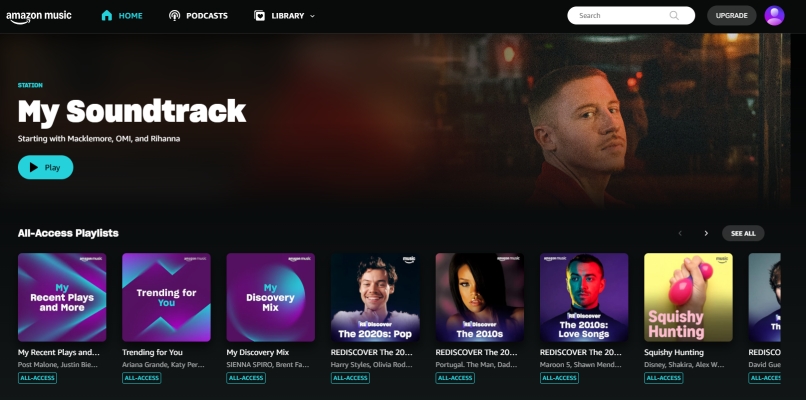
Step 1. Launch your preferred web browser and navigate to music.amazon.com.
Step 2. Click the Sign In button located in the top-right corner of the web page.
Step 3. Enter your Amazon account credentials. If your account uses Two-Factor Authentication, complete the verification prompt.
Step 4. Once authenticated, the browser will automatically direct you to your personalized audio dashboard.
Part 3. How to Download Music form Amazon Music Web Player
Streaming directly from the Amazon Music Web Player offers ultimate convenience, but there are a few inherent platform limitations like no offline streaming downloads, compared to Amazon Music mobile or desktop applications. Fortunately, two ways are available for downloading music from Amazon Music Web Player, and following are the detailed steps.
Download Purchased MP3 Files from Amazon Music Web Player
While streaming subscription tracks cannot be saved locally through the browser, any MP3 albums or tracks you purchase outright from the Amazon Digital Music Store can be downloaded directly through the Amazon Music Web Player.
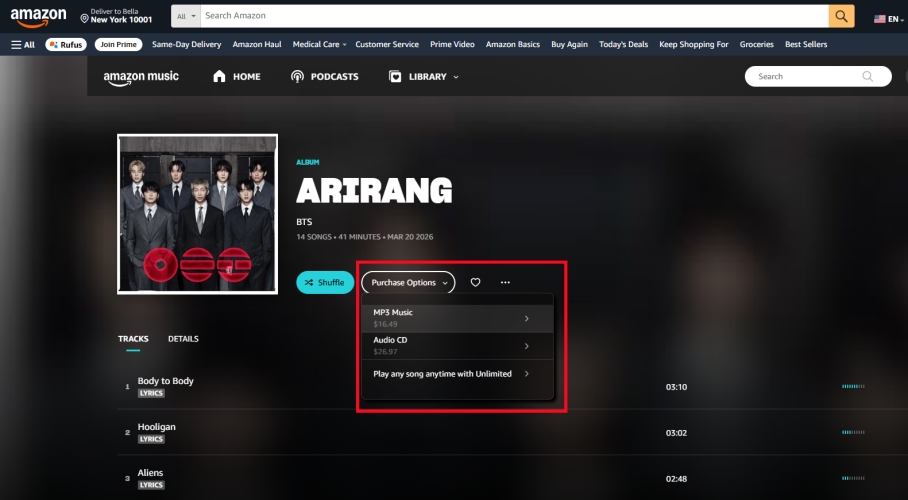
Step 1. Go to Library > Songs or Purchased.
Step 2. Click the More Options (...) menu next to the purchased track or album.
Step 3. Select Download to save MP3 files directly to your computer's local downloads folder.
Download Streaming Content from Amazon Music Web Player
Because the Amazon Music Web Player does not support direct offline caching for streaming tracks, users who need offline playback without installing the official desktop app often turn to third-party tools like TunesMake Amazon Music Converter.
This utility hooks into the web player interface to download tracks, playlists, or podcasts from Amazon Music Prime and Unlimited into standard audio formats such as MP3, FLAC, or WAV. By converting tracks directly from the Amazon Music Web Player, it preserves ID3 tags and original audio quality, allowing playback on local media players, MP3 players, or offline devices where browser access isn't feasible.

Streaming Audio Recorder –
Download music from Amazon Music unlimitedly
- Download songs, albums, and playlists from Amazon Music
- Convert Amazon Music to MP3, M4A, M4B, WAV, FLAC, and AIFF
- Remove DRM protection from Amazon Music completely and safely
- Preserve the original audio quality and ID3 tags for management
- Support downloading music from 10 popular streaming platforms
Security Verified. 100% Clean & Safe.
Step 1 Select Amazon Music Songs to Convert
The first thing, launch TunesMake Streaming Audio Recorder on your computer, and from the main interface, select Amazon Music. Then it will load the built-in Amazon Music Web Player automatically and navigate to browse the song or playlist you want to download. Now all you need is to click on the + button to add your selected content.
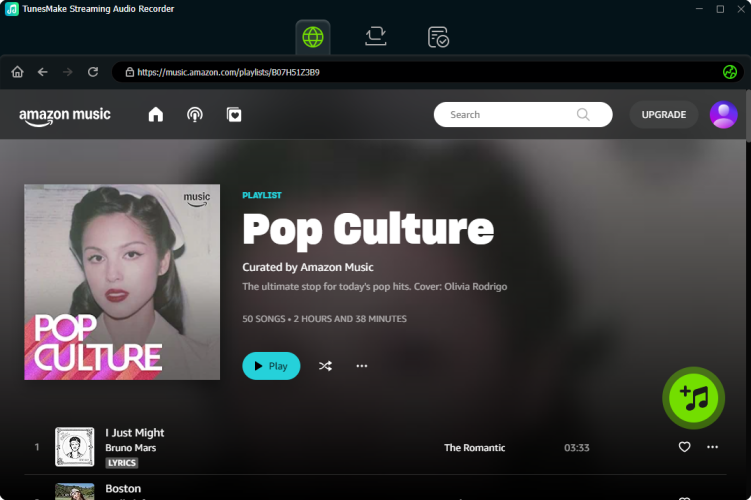
Step 2 Choose the Output Audio Parameters
The next step is to set the output audio parameters, and the program offers several audio parameters for setting: format, bit rate, sample rate, and channel. Just click the Settings button and then switch to the Conversion tab. Here you could personalize the audio parameters for Amazon Music. Simply set MP3 as the output format and click the OK button to save the settings.

Step 3 Start to Convert Amazon Music to MP3
Now, click the Convert button on the bottom right corner. TunesMake lets you specify which storage location you want for downloads. But TunesMake would default to the storage folder if you don't specify in advance. Once downloaded, all the downloaded songs will appear in the History section. Then use the search icon to locate Amazon Music in your local folder.

Part 4. Troubleshooting Amazon Music Web Player Not Working
If you encounter playback errors, buffering loops, or audio output issues while using the Amazon Music Web Player, use these tested fixes to get your music back online fast.
Problem 1: Music Won't Play or Stops Unexpectedly
Causes: Stale browser cache, memory overload, or conflicting extensions.
Fix 1. Refresh and Clear Cache. Press Ctrl + Shift + R on a Windows PC or Cmd + Shift + R on a Mac for a hard refresh. If issues persist, go to browser settings and clear cache for music.amazon.com.
Fix 2. Test Incognito Mode. Open an Incognito or Private window and log in. If playback works, a browser extension is conflicting with the player.
Fix 3. Disable Hardware Acceleration. In Chrome or Edge, go to Settings > System and toggle off "Use hardware acceleration when available."
Problem 2: Browser DRM & Widevine Errors
Causes: Digital Rights Management modules failing to verify licenses.
Fix 1. Update Browser. Ensure your web browser is running its latest version to support current Widevine DRM compliance.
Fix 2. Enable Protected Content. Go to your browser's settings like chrome://settings/content/protectedContent and ensure "Sites can play protected content" is turned ON.
Problem 3: Extension Interference
Causes: VPN location mismatches or ad-blockers blocking track tracking or license requests.
Fix 1. Disable or Pause Ad Blockers. Whitelist music.amazon.com in extensions like uBlock Origin, AdGuard, or Privacy Badger.
Fix 2. Disconnect or Split-Tunnel VPNs. Amazon Music restricts playback based on regional licensing. Disconnect your VPN or configure split-tunneling for music streaming.
Part 5. Conclusion
The Amazon Music Web Player is an exceptionally convenient solution for users who want fast, clutter-free access to their music collection without downloading software. It shines on shared computers, work laptops, Chromebooks, and Linux setups where installing software is impossible or impractical. While extreme audiophiles and offline power-users may prefer the desktop app for Ultra HD audio and downloadable tracks, the web player delivers an outstanding balance of flexibility, full library access, and crisp HD sound for day-to-day streaming.
Related Articles



A professional writer at TunesMake, crafts in-depth tutorials, practical tips and expert advice focusing on streaming music, technology, and more.
- 1
- 2
- 3
- 4
- 5
- 6
- 7
 Leave Your Comment
(0)
Leave Your Comment
(0)

 Download Center

