








 Store
Store


If you’re a fan of games, you’ve heard of GTA, an action-adventure game released by Rockstar in the 90s. The player has to earn rewards by completing thrilling missions given by the system. One of the main features of this game is that it simulates a realistic urban scene with all kinds of life and entertainment facilities, which gives a great sense of immersion.
In addition to the realistic experience, the game offers a high degree of freedom, as you can change the radio music in the car to your own local music. We have talked about how to play Spotify on GTA5 before. Today we are going to Apple Music. Of course, you can’t play Apple Music files in the game directly. So, do you know how to play Apple Music on GTA 5? No worries, today we’ll show you the best way to play Apple Music on the game.

Part 1. The Best Tool for Converting Apple Music
Have you ever tried to add Apple Music to GTA 5? You may fail a lot of times before. Do you know why? Because Apple Music is in an encrypted M4P format which can’t be added to any games. The only way is to convert Apple Music to MP3 for adding to other apps correctly. However, Apple Music can’t be downloaded in MP3 with its app, here you will need a powerful third-party tool to help you.
To convert Apple Music to MP3, TunesMake Streaming Audio Recorder should be your first choice. TunesMake Streaming Audio Recorder was created to convert and downloadApple Music to MP3, FLAC, AAC, WAV, M4A, and M4B formats. It also supports lossless conversion, so you don’t have to be concerned about audio quality. Every song’s ID3 data tags will also be saved. You can customize your audio by adjusting the speed, information, volume, and some other parameters of the output audios.

Streaming Audio Recorder –
Download Streaming Music to MP3 on PC and Mac
- Unlimitedly download streaming music songs, playlists, and podcasts
- Losslessly convert streaming music to MP3, M4A, M4B, WAV, FLAC, and AIFF
- Remove DRM protection from many streaming music platforms
- Convert streaming songs with original sound quality and ID3 tags kept
Security Verified. 100% Clean & Safe.
Part 2. How to Use the Tool to Convert Apple Music for GTA 5
TunesMake Streaming Audio Recorder is a professional Apple Music Converter. With TunesMake, you can get MP3 Apple Music files of high quality in a short time. Now please go to the official website to install TunesMake on your computer (Mac/Windows). If you want to know the details of converting Apple Music playlists to MP3, just keep following the steps below.
Step 1
Import Apple Music Playlists You Need to TunesMake
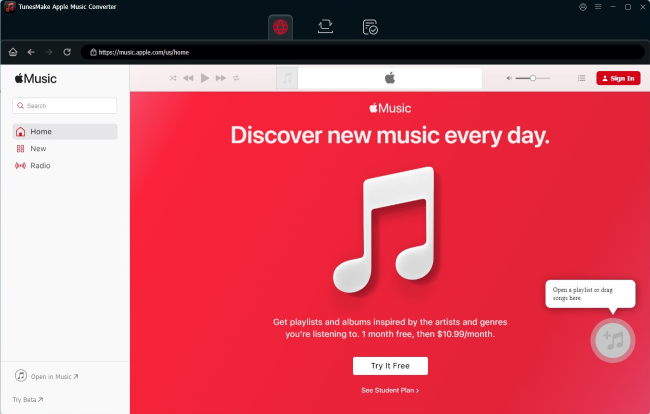
Meanwhile, launch TunesMake Streaming Audio Recorder on your PC, and iTunes will load automatically. Then, select the Apple Music M4P files you want to transfer and click the Load iTunes Library button. You can also simply drag and drop audio tracks from a local folder into the TunesMake interface.
Step 2
Tune Apple Music Parameters and Output Format
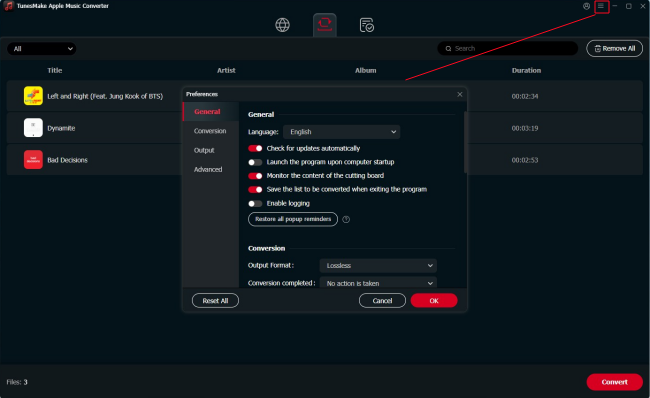
When you click the Format panel, a pop-up window will appear. You can set the output audio format as well as the bit rate, sample rate, codec, and channel in this option. Set MP3 as your output audio format to convert Apple Music M4P to MP3. Then click the OK button to save your changes and return to the TunesMake interface.
Step 3
Begin to Convert Apple Music for GTA 5
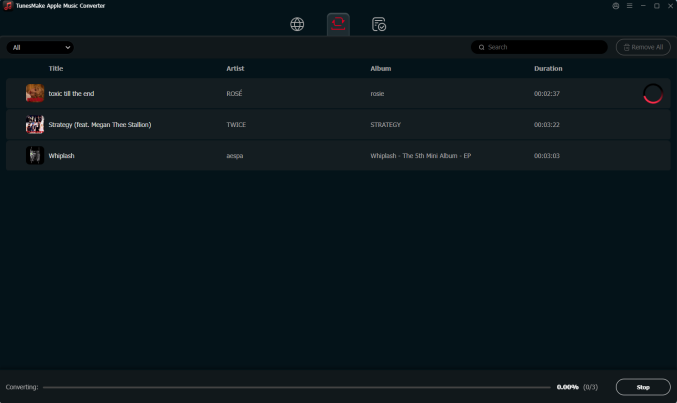
Once you’ve completed all of the settings, click the Convert button in the lower right corner to begin to decrypt and convert Apple Music to the audio format of your choice. After the conversion, click the Converted button at the top of the interface to browse all converted Apple Music files in the history folder.
Part 3. How to Add Apple Music to GTA 5
With TunesMake Streaming Audio Recorder, the conversion will be done at 30x faster speed and you can find the converted Apple Music MP3 files on your computer. You can also open the files from the converter. In the converted history, click the search icon on the right side of each audio to open it. It’s simple to play Apple Music on GTA 5 now. The guide below will show you how.
Step 1. Start your computer and navigate to the File Explorer.
Step 2. Navigate to the Documents folder and locate the Rockstar Games > GTA V > User Music folder.
Step 3. Locate and drag the converted Apple Music to the folder.
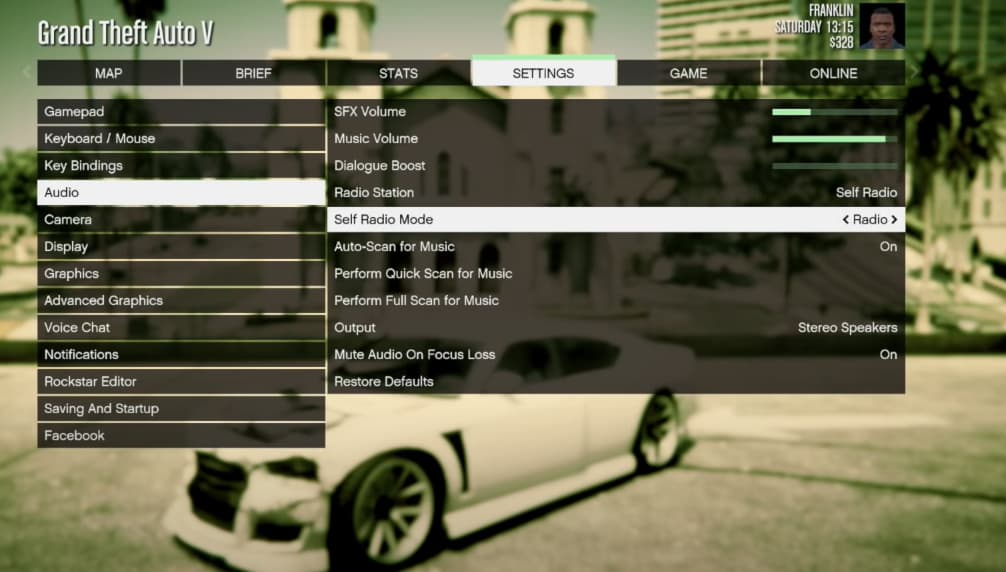
Step 4. Start the GTA 5 game and navigate to the SETTINGS > Audio.
Step 5. To listen to music, select Quick Scan or Full Scan.
Step 6. Change the radio station to Self RadioMode.
After that, you’ve successfully added Apple Music to GTA 5, and you can now listen to Apple Music with GTA 5 without hassle. When you get the converted Apple Music, you are able to add them to any games or play them on other devices, such as PS4.
The Bottom Line
To play Apple Music on GTA 5 is wonderful. You can now enjoy your Apple Music playlists on a car radio or other scenes in GTA 5 with TunesMake Streaming Audio Recorder. TunesMake can also download Audible Audiobooks and iTunes audio. It is an all-in-one tool for converting your streaming audio into universal a format. If you want to know more about TunesMake, just tap the link below to know more.
Related Articles

A professional writer at TunesMake, crafts in-depth tutorials, practical tips and expert advice focusing on streaming music, technology, and more.
- 1
- 2
- 3
- 4
- 5
- 6
- 7
 Leave Your Comment
(0)
Leave Your Comment
(0)

 Download Center

