








 Store
Store


For years, the digital DJ community has clamored for a way to use Apple Music with Serato DJ, even if they have an Apple Music subscription. Fortunately, with the launch of Serato DJ Pro 3.3.0, the wait officially ended. Native integration is now built directly into the software interface. If you want to access Apple Music's massive catalog of over 100 million tracks directly from your performance decks, this guide covers everything you need to know to get set up, manage your playlists, and break the technical limitations.
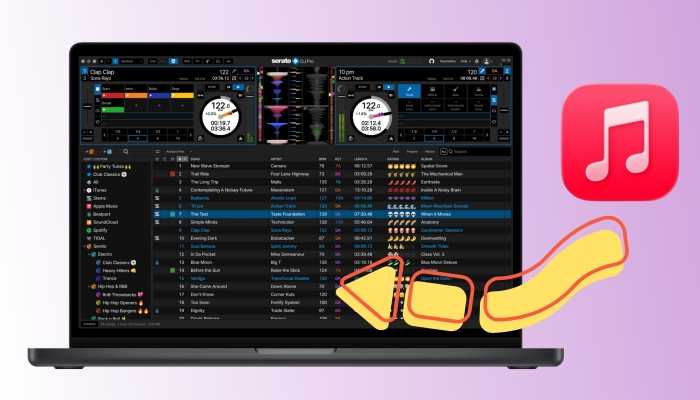
Part 1. Can You Use Apple Music with Serato DJ?
Yes, you can officially use Apple Music with Serato DJ. Serato integrates Apple Music directly into its software. To use this feature, you must have an active Apple Music subscription and be running Serato DJ Pro 3.3.0 or later, as well as Serato DJ Lite 3.3.0 or later.
While the integration is incredibly convenient for mixing, it does come with strict Digital Rights Management and licensing limitations built into the software. This means that many of Apple Music's services for other platforms are not available to Serato DJ.
No Offline Mode
Unlike Tidal or Beatsource, Apple Music in Serato does not support offline storage. You cannot download tracks to a local cache to play without internet access. If your venue has poor Wi-Fi or cellular reception, your music will not load.
No Serato Stems Support
Serato's real-time audio separation feature is completely disabled when playing an Apple Music track. Due to strict licensing agreements and hardware processing restrictions, you cannot separate vocals, drums, or melodies on streaming files from this provider.
No Recording Feature
If you like to record your practice sessions or live mixes using Serato's built-in recording deck, be aware that loading even a single Apple Music track will instantly grey out and disable the record function. This is a hard-coded DRM restriction to prevent music piracy.
Non-Commercial Licensing Terms
According to Apple Music's Terms of Service, the subscription is intended strictly for personal, non-commercial use. This means using this streaming integration at paid gigs, clubs, or weddings is a violation of their legal terms. It is designed primarily for bedroom practice, mixtape planning, and casual home environments.
Part 2. How to Get Apple Music on Serato DJ Pro & Lite
With the integration of Apple Music and Serato DJ, you can easily set up your Apple Music subscription in the software for use. Ensure your software and hardware ecosystem meet the minimum technical requirements. Missing any of these components will prevent the integration from working. Go to set up and use Apple Music on Serato DJ with the following steps.
-
Serato DJ Software: You must be running Serato DJ Pro 3.3.0 or later, including Serato DJ Lite.
-
Active Apple Music Subscription: A standard personal subscription is required. If you are new to the platform, Serato usually features a prompt for a 1-month free trial within the software interface.
-
Stable Internet Connection: Because this is a cloud streaming integration, a reliable Wi-Fi or ethernet connection is mandatory for loading tracks.
Step 1 Open Settings in Serato
Launch your Serato DJ software. Navigate to the top right corner of the user interface and click on the Gear icon to open the Setup menu.
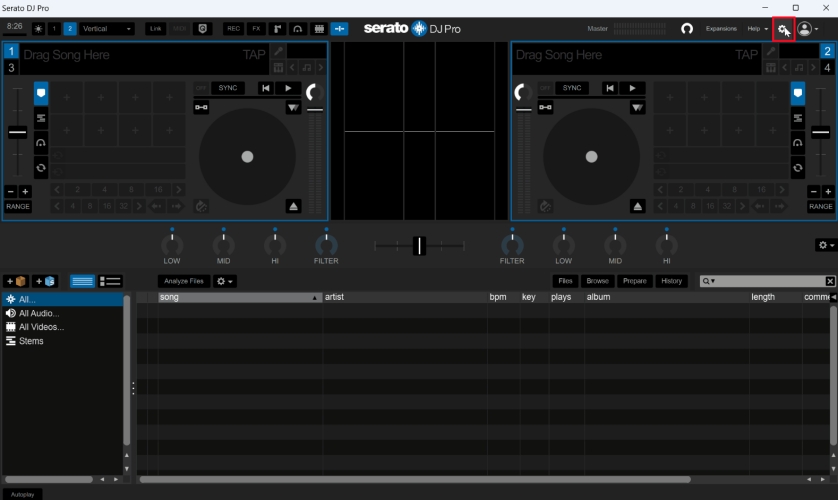
Step 2 Navigate to the Streaming Tab
Inside the Setup window, look at the top menu row and click on the Library + Display tab. Locate the Music Streaming section near the bottom of the options list.
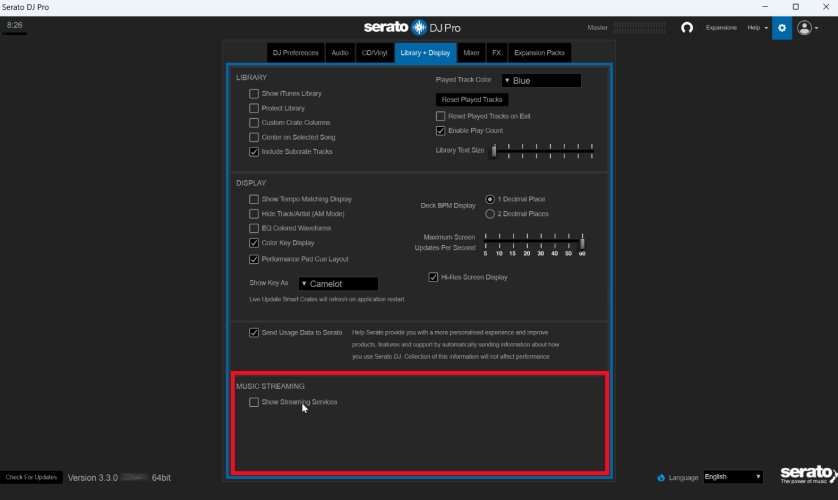
Step 3 Enable Apple Music
Check the box next to Show Streaming Services, and then select Apple Music from the list of available providers. Click the Sign up or Login button next to the Apple Music logo
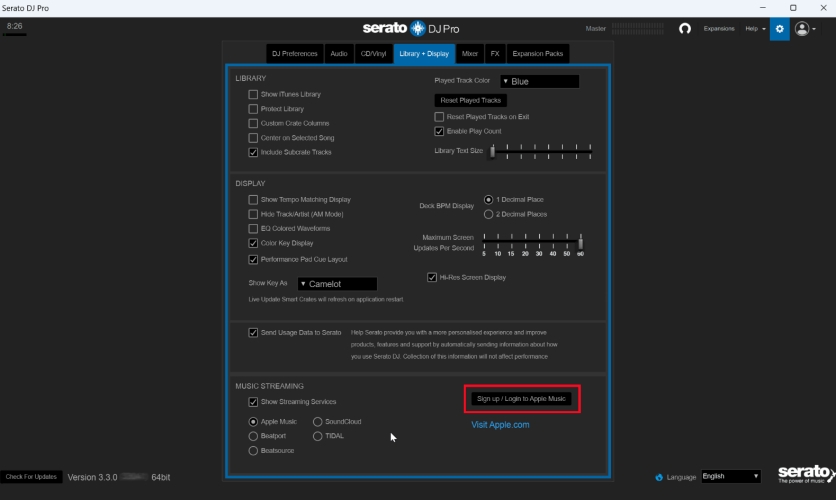
Step 4 Authenticate in Your Browser
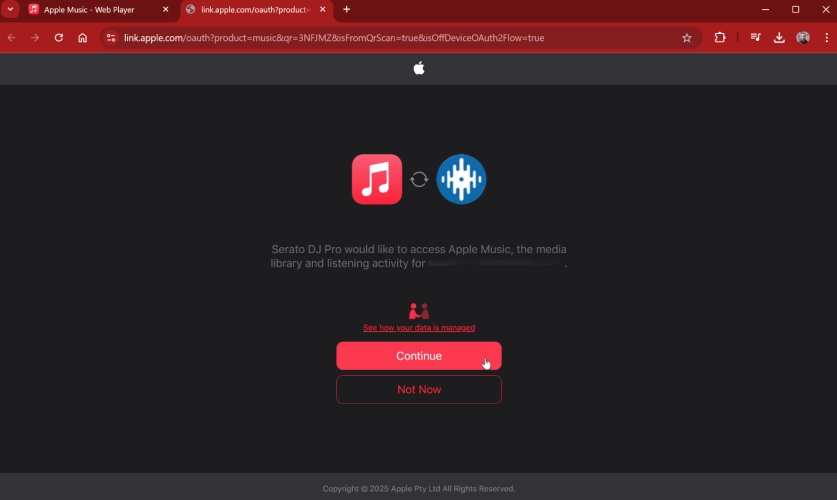
Serato will redirect you to the official Apple authentication page. Enter your Apple ID credentials and grant Serato DJ permission to access your account.
Manage Your Apple Music Playlist and Cloud Libraries
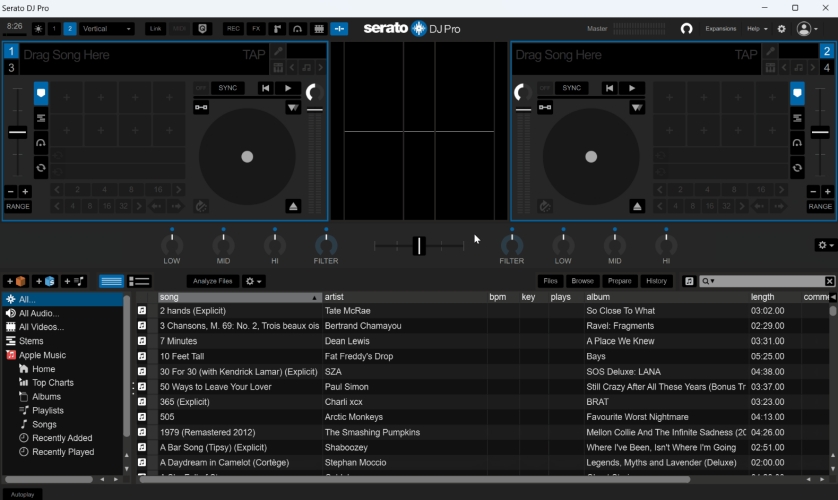
Once completed, your browser will display a success message, and you can return to Serato. A new Apple Music icon will appear in the left-hand crate column of your Serato dashboard. Clicking this icon expands your streaming options.
Access Playlists and Curation
You can instantly access your personal playlists, heavy rotation tracks, and Apple Music's expertly curated public playlists directly inside the browser panel.
Drag and Drop Apple Music
Adding new music to your sets is seamless. You can create a new streaming playlist within the Serato Apple Music panel and add songs simply by dragging and dropping tracks from Apple's catalog directly into that crate.
No Recording Feature
If you like to record your practice sessions or live mixes using Serato's built-in recording deck, be aware that loading even a single Apple Music track will instantly grey out and disable the record function. This is a hard-coded DRM restriction to prevent music piracy.
Sync Cloud Music Library
If you have Sync Library turned on within your Apple Music app on your Apple devices, any local audio files you have manually uploaded to your Apple cloud locker will also populate inside Serato under this tab, blending your cloud locker with the streaming platform.
Part 3. How to Stream Offline Serato DJ Apple Music
While streaming is incredible convenient for home practice, many professional workflows are blocked by the built-in DRM limitations. Specifically, streaming tracks do not support Serato Stems, disable internal set recording, and require a constant internet connection.
For DJs who need to prepare their sets for offline club environments or leverage real-time stems extraction, keeping tracks strictly local is often necessary. This is where third-party tools like TunesMake Apple Music Converter are utilized within a DJ workflow.
TunesMake Available for Offline Apple Music with Serato DJ
Instead of relying on a live stream, TunesMake allows users to convert their Apple Music tracks and playlists into unprotected, high-quality local formats such as MP3, WAV, or FLAC that are compatible with Serato DJ while keeping the original audio quality and ID3 metadata. Then you can import Apple Music local audio files into Serato DJ for mixing offline.
The most important is that TunesMake software allows to personalize the audio parameters like the bit rate, sample rate, codec, and channel. Here you can customize your Apple Music songs according to Serato DJ's requirements. Its top-notch features have purely set it apart from the rest of the market today.

Streaming Audio Recorder –
Download Apple Music songs for mixing with Serato DJ
- Download songs, albums, and playlists from Apple Music
- Convert Apple Music to MP3, M4A, M4B, WAV, FLAC, and AIFF
- Remove DRM protection from Apple Music completely and safely
- Preserve the original audio quality and ID3 tags for management
- Support downloading music from 10 popular streaming platforms
Security Verified. 100% Clean & Safe.
Steps to Convert Apple Music for Serato DJ with TunesMake
If you are curious about how to convert and save Apple Music as Serato DJ supported audio files step by step with TunesMake Apple Music Converter, you will know how to do it from the following content. Download and install TunesMake Apple Music Converter, then start.
Step 1 Select Apple Music Songs to Convert
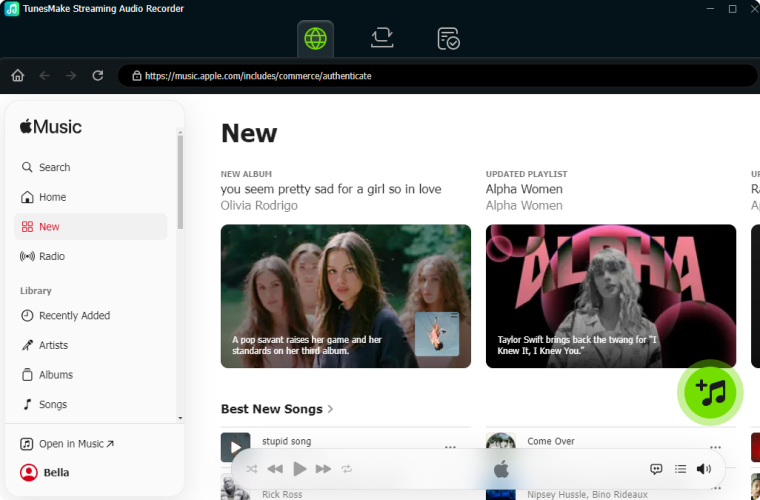
Begin by launching TunesMake Streaming Audio Recorder on your computer, then choose Apple Music from the main interface. Here you will be redirect to a built-in Apple Music web player where you can log into with your Apple account and password.
Step 2 Adjust the Output Audio Parameter
You're through with the first step. Now click the Settings button at the bottom left corner and locate the Conversion section. TunesMake allows you to convert Apple Music to several popular audio formats and choose one compatible with Serato DJ.

Step 3 Start to Convert Apple Music for Serato DJ
Start the conversion by clicking the Convert button. Relax for the conversion process to elapse, then proceed to the media folder you had selected and find your unprotected Apple Music files. You can click the History button to browse all the converted Apple Music tracks.

Ways to Add Apple Music Local Files to Serato
After completing the conversion, you can freely use your Apple Music songs in Serato DJ. To add them into Serato DJ, there are several options. You can directly import them from the local folder or use the drag-and-drop method.
Method 1. Use Drag-and-Drop from Folder
The absolute easiest way to import music is directly from your operating system's file manager into your Serato DJ software.
Step 1. Launch Serato DJ and open Finder on Mac or File Explorer on Windows.
Step 2. Navigate to the folder where your Apple Music audio files are stored.
Step 3. Select the specific tracks or the entire music folder.
Step 4. Drag and drop them directly into the Serato DJ library grid.
Alternatively, you can drag an entire folder into the left-hand Crates panel to instantly turn that folder into a organized Serato Crate.
Method 2. Use Serato's Built-in Files Panel
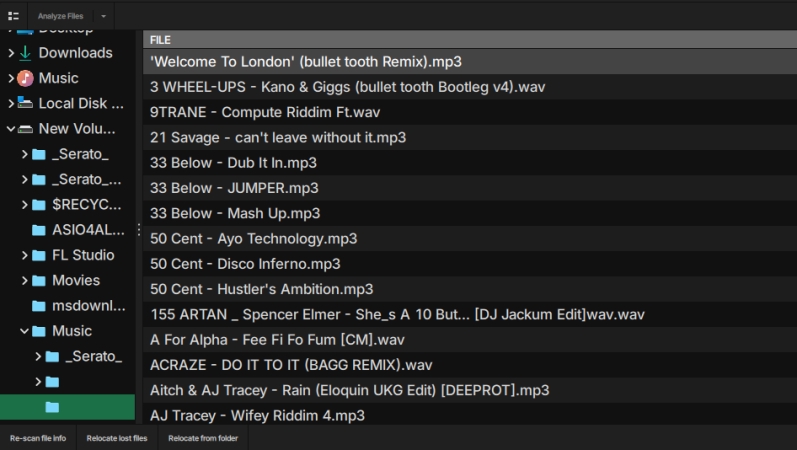
If you prefer to browse your Apple Music local audio files in the hard drive entirely within the DJ software, use the internal file navigator.
Step 1. Near the top-left area of the Serato library interface, click on the Files button.
Step 2. Navigate through your folders on the left panel.
Step 3. Once you find your music files or folders in the Files panel, drag them onto the purple
ALL icon located at the very top of your crate tree on the left.
Method 3. Use the Auto Import Folder
Serato features a hidden background folder that automatically imports music every time you launch the app. This is perfect if you want to skip manual dragging.
Step 1. Locate your default computer Music folder.
Step 2. Navigate to the _Serato_ directory folder located inside it.
Step 3. Look for a subfolder named Auto Import.
Step 4. Drop any new music files you download into this folder while Serato is closed.
The next time you open Serato DJ, it will automatically pull those tracks out of that directory, import them into your library, and place them into a temporary crate called Latest Imports.
Part 4. How to Fix Apple Music Library Not Showing in Serato DJ
If your Apple Music library is not appearing in Serato DJ, the issue usually stems from a disabled setting, an outdated software version, or a database sync error. Depending on whether you are trying to use the Apple Music streaming service integration or sync your local Apple Music library, follow the troubleshooting steps below to fix the issue.
Fix 1. Update Your Serato Software
If you are trying to access your active Apple Music streaming subscription directly inside Serato, your software must support it. The integration of Apple Music requires Serato DJ Pro 3.3.0 and later or Serato DJ Lite 3.3.0 and later. If you are running an older version of Serato, the Apple Music integration option will not exist. Update your software via the official Serato website.
Fix 2. Check the Streaming Toggle Settings
If you are on the correct software version but the Apple Music icon is missing from your sidebar, you may need to re-authenticate or enable the connection.
Step 1. Open Serato DJ and click the gear icon in the top-right corner.
Step 2. Go to the Library + Display tab.
Step 3. Locate the Music Streaming section at the bottom.
Step 4. Ensure Show Streaming Services is checked and Apple Music is selected.
Step 5. If it says you are disconnected, click Login to re-authenticate your Apple ID.
Fix 3. Fix Local Library Sync
If you are trying to show local files and playlists that you manage through the Apple Music app or iTunes on your computer hard drive, try the following steps to sync your music library.
Step 1. Launch Serato DJ and go to Setup > Library + Display.
Step 2. Ensure Show iTunes Library is checked.
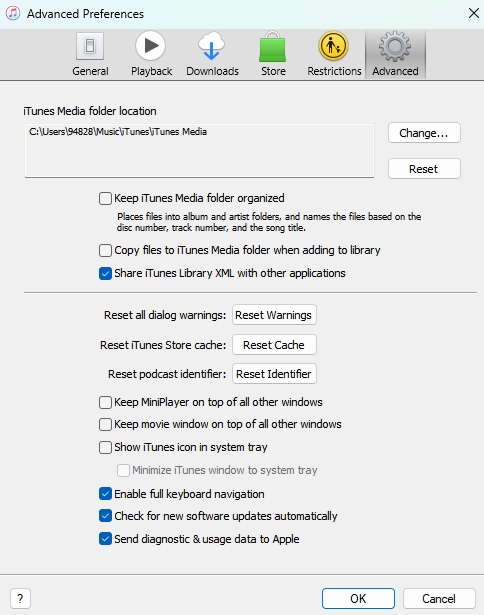
Step 3. Open iTunes and click Preferences > Advanced.
Step 4. Check the box for "Share iTunes Library XML with other applications."
Step 5. Restart both Apple Music and Serato DJ.
Fix 4. Force a Re-Index of Missing Tracks
If the Apple Music crate folder shows up but certain songs or playlists are missing, it means Apple's cloud library isn't synced with your hardware app.
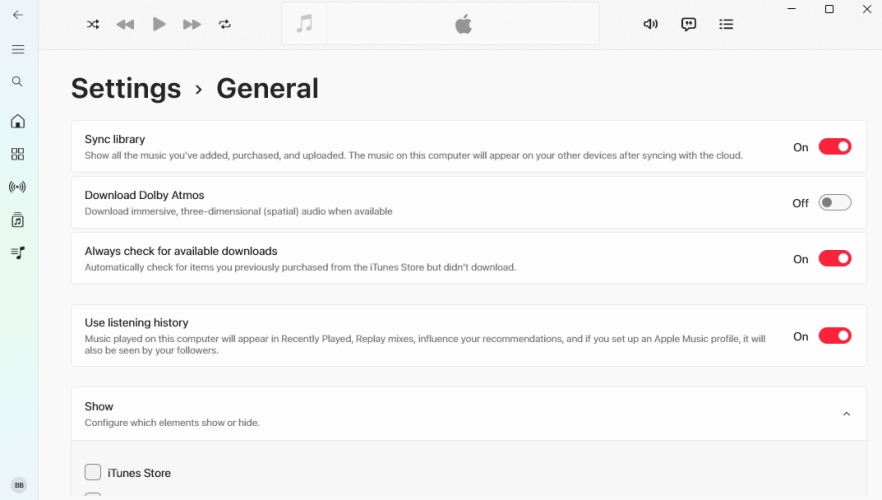
Step 1. Open your Apple Music app on your computer or phone.
Step 2. Go to the top menu and select Account > Sync Library.
Step 3. Ensure Sync Library is enabled in your app settings.
Step 4. Wait for the cloud icon in the bottom left of your Apple Music app to finish updating.
Step 5. Close Apple Music, launch Serato DJ, and your updated playlists should populate.
Part 5. Conclusion
The integration of Apple Music inside Serato DJ marks a massive step forward for digital music availability, successfully bridging the gap for casual mixing, playlist testing, and home practice. However, reliance on a purely cloud-based stream leaves professional creators exposed to internet outages, disabled set recordings, and restricted real-time Stems processing.
By understanding the key differences between cloud collections and local files, pre-analyzing your streaming crates, or utilizing localized conversions like TunesMake Apple Music Converter to shift essential tracks offline, you can build a stable, versatile library structure that delivers optimal performance every time you power up your controller.
Related Articles

A professional writer at TunesMake, crafts in-depth tutorials, practical tips and expert advice focusing on streaming music, technology, and more.
- 1
- 2
- 3
- 4
- 5
- 6
- 7
 Leave Your Comment
(0)
Leave Your Comment
(0)

 Download Center

