








 Store
Store


When I click in the Search field in Apple Music, the categories “Apple Music,” “Your Library,” and “iTunes Store” do not appear in the upper right corner of the music app window. All searches default to the iTunes store, so I am unable to search my music library or Apple Music. I have a huge music library, so searching is essential. How do I enable library searches?
-- User from RedditThere are some Apple Music issues that have been regularly mentioned for years while streaming within the app. As I stated at the beginning, many people have encountered the same or similar situations. In most cases, the search function is a very essential and frequently used tool. But now some people are experiencing the Apple Music search not working issue and have no idea how to fix it. Don’t worry. In this complete guide, you can learn how to resolve the issue of Apple Music search not working via the most effective and useful solutions.
Part 1. Why Is My Apple Music Search Not Working?
The first question you may be interested in is the reasons why Apple Music search does not work. Before jumping onto the solutions to this problem, it’ll be a great help for us to figure out the roots so that fix it quickly. There are various kinds of factors that may result in this issue, but generally, here are 4 main types:
1. Outdated Apple Music Subscription
When your Apple Music subscription is expired, you cannot use Apple Music search for sure. Usually, in this case, you will receive a message notifying you to renew the subscription.
2. Stuck OS System
Your iOS operating system could influence the effects of music performance as well as daily usage. Make sure your iOS system is in the latest version.
3. Internet Connection Failure
A stable and fast internet connection is required to stream Apple Music online and use the search function.
4. Software Bugs or Mistakes
Some unexpected mistakes or software bugs may cause the Apple Music search not working issue, too.
Quick Checklist - Try These Fixes First
If you need immediate solutions, here are some troubleshooting steps you can perform first.
Check Apple Music Status: Sometimes the problem isn't you; it's Apple. You can use tools like Downdetector to see if Apple Music is experiencing outages. If the service is down, you’ll need to wait until Apple resolves it.
Check Your Account Subscription: Make sure your Apple Music subscription is active. If your plan has expired, search functionality may be unavailable.
Check Network Status: Make sure that your Wi-Fi connection is stable and fast. Try switching between Wi-Fi and mobile data or restarting your router.
Part 2. How to Fix Apple Music Search Not Working
Now that we’ve found out what might be the key point to fix the problem, it’s time to follow the following methods to solve it. Are you ready? Let’s get started!
Fix 1. Disable VPN and Ad-Blockers
VPNs and third-party ad-blockers are great for privacy, but they may intercept and block the specific traffic ports Apple Music requires for search queries. Thus, you can try to disable any active VPNs or ad blockers on your device.
Step 1. Just go to Settings > General > VPN.
Step 2. Turn it off to see if search results reappear on Apple Music.
Fix 2. Sign Out and Back Into Media & Purchase
Another culprit of Apple Music search not working is account-related glitch, which can prevent Apple Music from syncing properly. Therefore, you should sign out of your account and sign back in to make a refreshment.
Step 1. Go to Settings on your iPhone.
Step 2. Tap your Apple ID at the top.
Step 3. Select Media & Purchases.
Step 4. Tap Sign out, and then sign back in.
Note
This step may temporarily remove your downloaded songs for offline play, but it won't delete your library.
Fix 3. Force Close and Restart Your Devices
When you’re hesitating about choosing which method to apply or are not sure about the depending factors, the most simple and effective way is to try to restart your device.
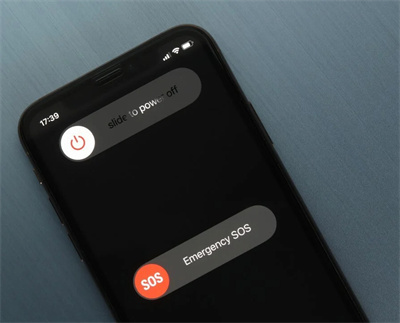
If you’re an iPhone user, now hold the Volume Down button and Power button together until a menu with a slider appears on the screen. Then drag the slider to turn off the phone. After 30 seconds, then press the power button for a few seconds until you see the Apple logo appear. Wait for a while and the home screen show up. You have successfully restarted the iPhone.
For most Android phone users, just hold the Power button and then select Restart or Power Off from the shown-up menu options. After then, wait a while for it to restart.
Fix 4. Update Apple Music
Don’t forget to check your Apple Music updates. If you’ve missed installing the latest version or haven’t updated your Apple Music app for a long time, this might be the reason why Apple Music search not working.
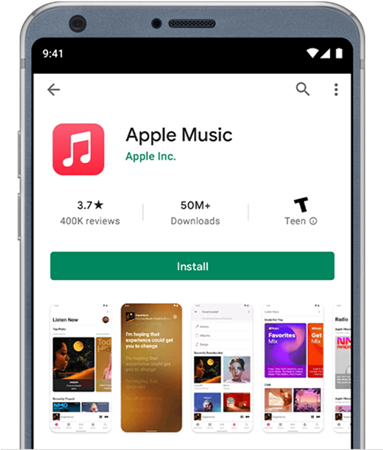
Step 1. Go to the App Store and search for the Apple Music app.
Step 2. On the details page, check the latest version of Apple Music.
Step 3. When you see an Update button available next to the Apple Music app, click the Update/Install button to update.
Fix 5. Reinstall the Apple Music App
If the issue persists, reinstalling the app can remove corrupted files and perform a clean start.
Step 1. Long-press the Music app icon on your iPhone.
Step 2. Select Remove App, and then Delete App.
Fix 6. Clear Apple Music Cache
Overwhelming or corrupted cache files can slow down or break certain features on Apple Music, including search.
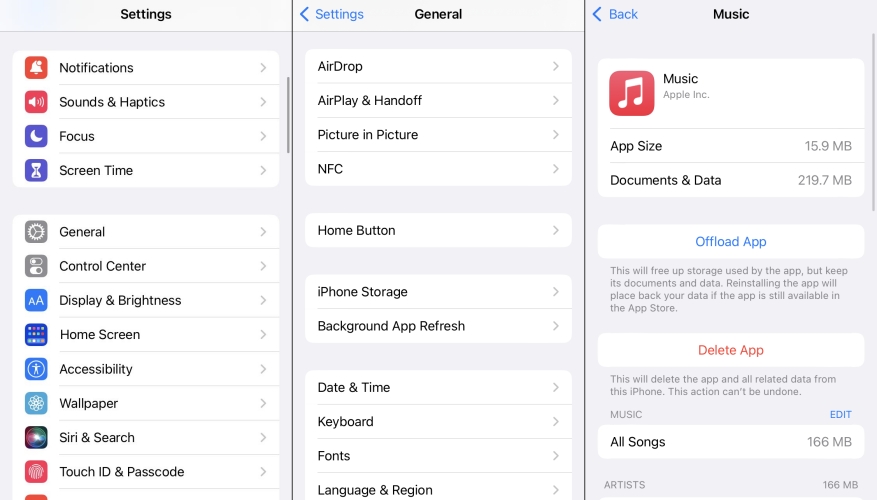
Step 1. Open Settings and tap General > iPhone Storage.
Step 2. Select Music and tap Offload App.
Fix 7. Free Up Memory Storage Space
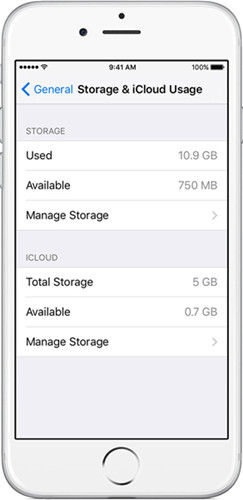
If your device is running out of storage space, then you may need to clear some caches or something to leave room for streaming Apple Music. To run the Apple Music app, make sure your device has at least 200 MB of storage space so that it functions well.
Step 1. Head to Settings > General > Storage & iCloud Usage.
Step 2. Tap Manage Storage to see how much space each app occupies on your device.
Step 3. Decide as to what apps to remove and what apps to keep on your iPhone.
Fix 8. Update iOS System to the Latest Version
An iOS software update is necessary as the update will solve the bugs and errors or mistakes. If you haven’t updated the iOS system for a long time, some software bugs in the process might hinder your usage of Apple Music.
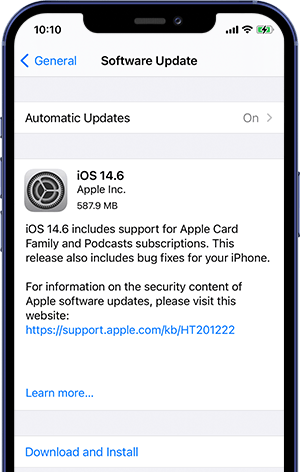
Step 1. Go to Settings and tap General.
Step 2. Then select Software Update to see if there is a new version of iOS available.
Step 3. If there is, just tap Download and Install and follow the on-screen prompts to install it.
Fix 9. Re-enable the Sync Library Option
If you cannot search on your library instead of the Apple Music catalog, your sync settings may be skewed. In this case, you can refresh the Sync Library feature.
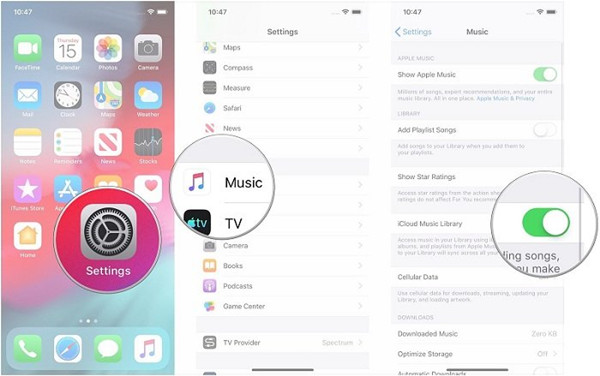
Step 1. Go to Settings > Music and toggle Sync Library off.
Step 2. Wait 30 seconds, and toggle it back on.
Fix 10. Reset Network Settings
If all else fails, resetting network settings can fix deeper connectivity issues.
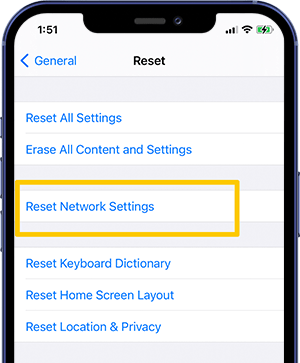
Step 1. Just open the Settings app on your iPhone.
Step 2. Then select General > Reset > Reset Network Settings.
Part 3. Ultimate Fix: Download Apple Music Songs to Play Offline
If you find that your problem remains unsolved after applying the methods above, the most reliable long-term solution is to move away from total dependence on online. This is where TunesMake Streaming Audio Recorder stands out.
TunesMake Streaming Audio Recorder is a powerful tool designed to liberate your music from all limitations on Apple Music and other music streaming services. Its advanced technology can help you download Apple Music songs, playlists, albums, and podcasts to diverse audio formats, including MP3, M4A, M4B, WAV, FLAC, and AIFF. Once these songs are saved to your local storage, you can easily import them to other media players for offline playback. As long as you build your own music collection, you can search for any song easily in your phone's local folder or your computer's library. The best thing is that the tool will retain the original sound quality to ensure your listening experience.

Streaming Audio Recorder –
Download Apple Music Songs to Local Files
- Unlimitedly download streaming music songs, playlists, and podcasts
- Losslessly convert streaming music to MP3, M4A, M4B, WAV, FLAC, and AIFF
- Remove DRM protection from many streaming music platforms
- Convert streaming songs with original sound quality and ID3 tags kept
Security Verified. 100% Clean & Safe.
Step 1
Select Apple Music to Import
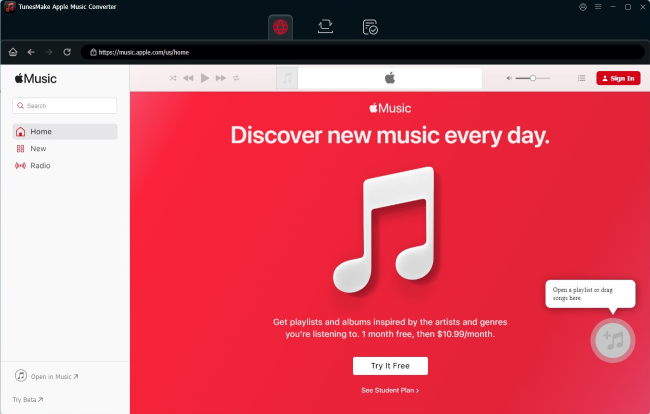
Install the TunesMake Streaming Audio Recorder software on your Windows or Mac computer via the Free Download button above. Then, launch it and select Apple Music in the interface. When the Apple Music web player is launched, you can sign in to your account. Select any playlist or album you like, and then click the lower Add icon > Add to List option for loading songs to the conversion list.
Step 2
Adjust the output audio parameters
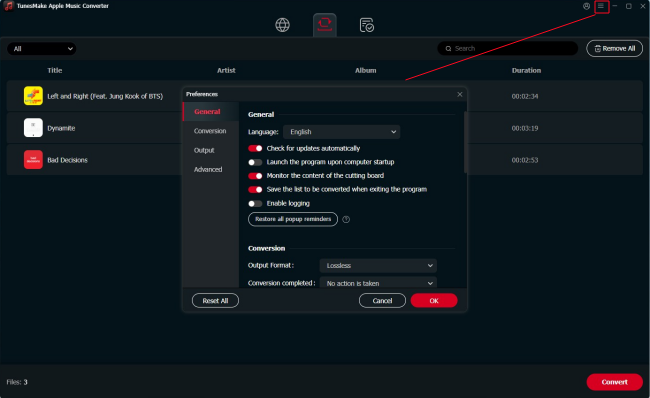
Now, you can customize the audio parameters as you wish. Simply click the top Menu option, and then select Preferences > Conversion. Here, you can choose an output format and change other parameters like codec, channel, sample rate, bit rate, etc.
Step 3
Convert Apple Music to MP3
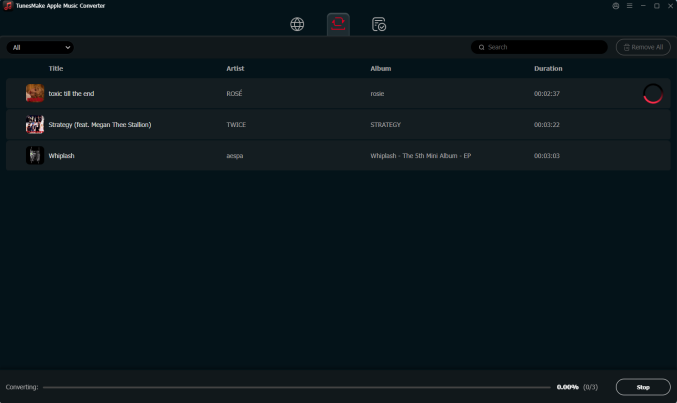
Once you’ve set all the formats and parameters, click the Convert button, and it will start to convert Apple Music to MP3 or other formats as you wish. The conversion will be done within a few minutes, and then you can check the converted files by clicking the Converted button and transferring them to any device for enjoying offline.
Part 4. Conclusion
In short, some unexpected errors may show up when using the Apple Music app. When you come down with the Apple Music search not working issue, please do not worry as we offer you the best solutions here. By the way, you can have a try with a special tool that enables you to stream Apple songs anywhere you want. That is TunesMake Streaming Audio Recorder. If you find that this article is helpful to you, welcome to share it with your friends or anyone who needs help.
Related Articles


A professional writer at TunesMake, crafts in-depth tutorials, practical tips and expert advice focusing on streaming music, technology, and more.
- 1
- 2
- 3
- 4
- 5
- 6
- 7
 Leave Your Comment
(0)
Leave Your Comment
(0)

 Download Center

