









 Store
Store


There is nothing more frustrating than operating Spotify, ready to soundtrack your commute, workout, or study session, only to type a query into the search bar and get absolutely nothing. Whether your Spotify app is stuck on a spinning loading wheel, displaying a completely blank screen, or flashing an irritating "Please try again" error, a broken search feature completely halts your music discovery.
Recently, a wave of performance lag and search freezes has hits both mobile and desktop users. If you are experiencing these issues, you are not alone. And the the good news is that the fixes are usually incredibly simple. Below is a step-by-step troubleshooting guide tailored to fix Spotify search bugs across all major platforms.
Part 1. Why Is My Spotify Search Not Working?
Many users have experienced persistent performance drops, connectivity loops, and unresponsiveness within the app's discovery features. When Spotify search stops working, the culprit is rarely a random glitch. It usually comes down to one of a few technical bottlenecks.
Symptom 1. Spotify Search Page Is Completely Blank
If tapping the search tab opens nothing but a hollow, black, or grey screen without any genres, recent searches, or text fields, your Spotify app is likely struggling with corrupted local data or a network handshake failure.
Symptom 2. Search Is Exceptionally Slow or Freezing
Your search queries are technically processing, but taking minutes to load. Or the entire app freeze up the moment you type into the input bar. This lag wave is often caused by heavy background processes or hardware compatibility issues.
Symptom 3. "Try Again" or "Something Went Wrong" Error Loop
Getting stuck in an explicit error loop usually indicates that your account session token has expired or is desynced across devices, causing Spotify's regional catalog servers to reject your search requests.
Symptom 4. Can't Type in the Search Bar
A unique bug sometimes prevents the virtual keyboard from popping up on mobile devices when you tap inside the search field, leaving you unable to type anything at all.
Part 2. Quick Diagnostics of Spotify Search Not Working
Before diving deep into your device's internal settings, it is crucial to determine who is actually at fault. If Spotify's backend architecture is experiencing a cloud outage, no amount of troubleshooting on your end will fix the issue. When Spotify's regional database nodes struggle, core data-fetching features like lyrics sync and real-time search are usually the first to collapse.
- Check Status Channels: Visit the official @SpotifyStatus handle on X or check a crowd-sourced monitoring site like Downdetector.
- Test Network Actions: If you can stream an already-saved song perfectly but the search engine refuses to load results, the issue is likely a localized data sync glitch or a wider server outage.
If the servers are healthy, move on to the platform-specific steps below.
Part 3. How to Fix Spotify Mobile Search Not Working
Because smartphones handle background data aggressively, mobile devices are the most common hosts for the Spotify search broken bug. Follow these steps sequentially to resolve the Spotify search not working on iPhone or Android devices.
Solution 1. Clear the In-App Cache
Many users hesitate to clear their cache because they fear losing their downloaded offline playlists. Fortunately, Spotify has a dedicated button that wipes temporary search and image files while leaving your downloaded music completely safe.
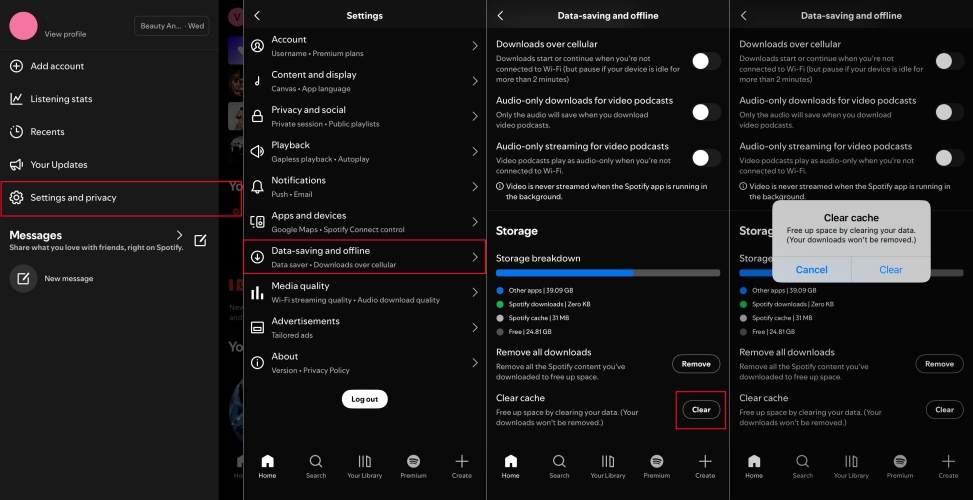
Step 1. Open Spotify and tap your Profile icon in the top-left corner.
Step 2. Select Settings and privacy > Data-saving and offline.
Step 3. Scroll down to the Storage section and tap Clear cache.
Step 4. Tap Clear to confirm your choice.
Solution 2. Force Close the App
If clearing the cache fails, your app session token might be desynced from Spotify's servers. You can log out of your Spotify account and force close the app on your device, then run it again to check whether the issue is fixed after reloading the app.
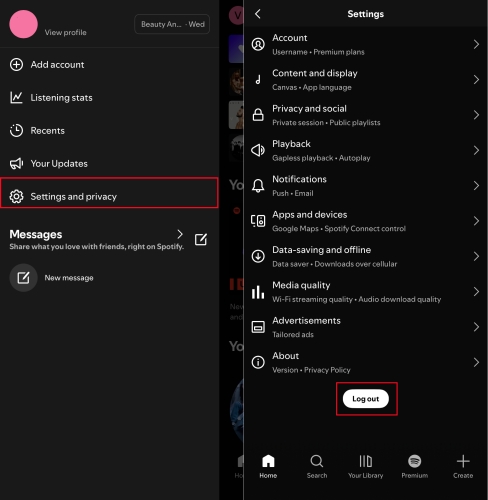
Step 1. Scroll to the absolute bottom of the Settings and privacy menu.
Step 2. Tap Log out, then close the Spotify app completely.
Step 3. Reopen the app and log back into your account.
Solution 3. Toggle Offline Mode
Sometimes the Spotify app gets stuck in a state where it thinks it is offline, preventing the cloud-based search engine from fetching data. Ensure that your Spotify app is not in Offline Mode. Or turn off Offline Mode in the Spotify app.
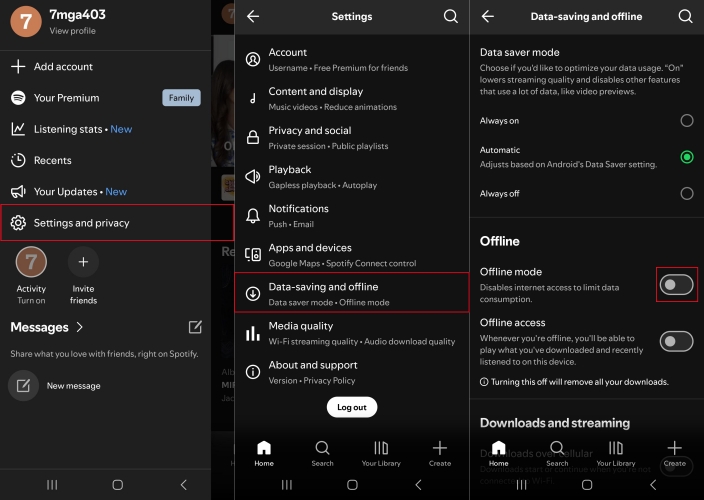
Step 1. In the Spotify app, tap your Profile image to open the control center.
Step 2. Select Settings and privacy, then tap Playback.
Step 3. Toggle Offline mode to Off.
Solution 4. Optimize Background Data Permissions
Whether on iOS or Android devices, aggressive battery savers or restricted data settings can starve Spotify of the bandwidth it needs to auto-populate search results instantly. Just optimize your phone's background data permissions.
On Android:
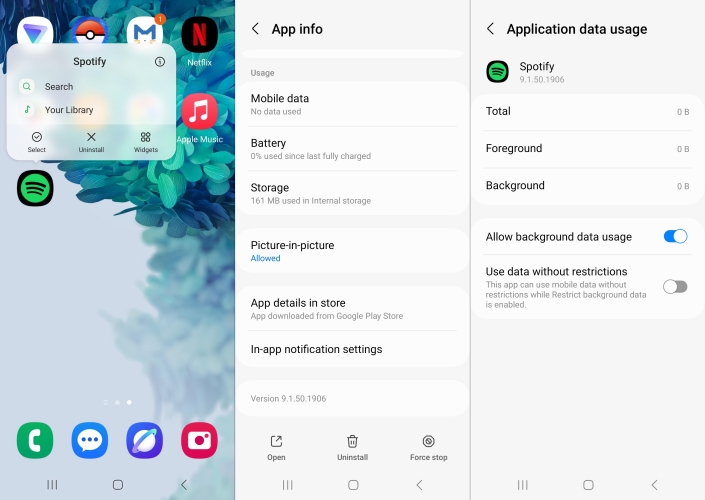
Step 1. Long-press the Spotify icon.
Step 2. Tap App info > Mobile data.
Step 3. Ensure Allow background data usage is turned on.
On iOS:
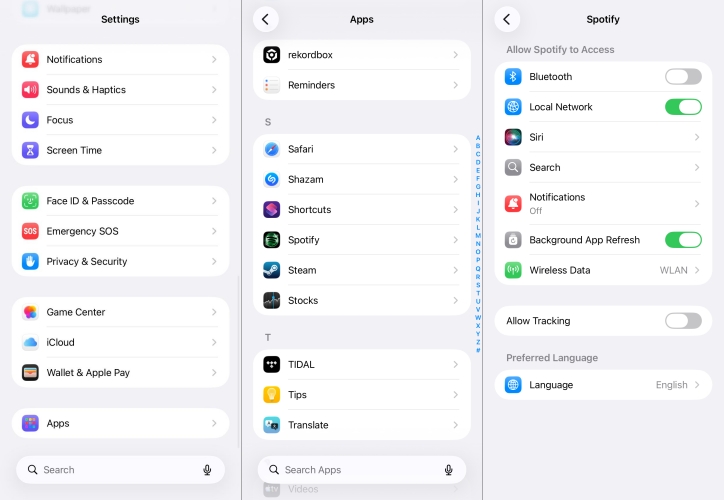
Step 1. Open the Settings app on your iPhone.
Step 2. Tap Apps and scroll down to Spotify.
Step 3. Verify that Background App Refresh and Cellular Data are both enabled.
Solution 5. Address the Android Keyboard Glitch
If you are using an Android device and notice that tapping the magnifying glass doesn't bring up your phone's virtual keyboard, you are dealing with a known user interface focus bug. To bypass this, tap the Search tab twice rapidly, or tap directly on the edge of the search bar text field rather than the center. If the issue persists, clearing the cache of your phone's default keyboard app via your your phone's main settings menu typically restores functionality.
Part 4. How to Fix Spotify Desktop Search Not Working
The Spotify desktop application and web player run on different architectures than Spotify mobile apps, meaning they require a unique approach when search functionality fails. To solve Spotify search not working on desktop or web player, follow the steps below.
Solution 1. Toggle Hardware Acceleration
If the Spotify desktop application is lagging heavily or displaying a blank search screen, your graphics card might be clashing with the app's visual rendering. Disabling hardware acceleration can relieve pressure on your graphics card.
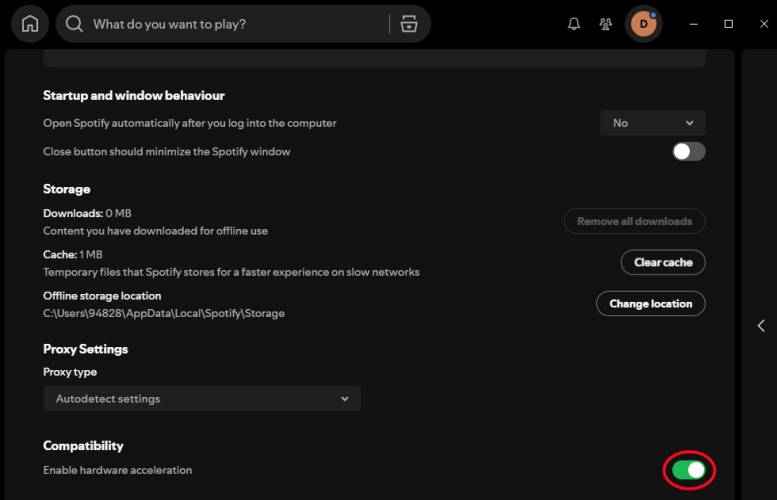
Step 1. In the Spotify app, click your profile picture.
Step 2. Go to Settings and scroll down to Compatibility.
Step 3. Toggle off Enable hardware acceleration, then restart the app.
Solution 2. Clear Local App Cache
Spotify heavily caches search results, album art, and tracks to make the app run faster. If this data becomes corrupted, it can cause the search screen to go entirely blank or freeze. A clean data wipe resets the interface.
On Windows:
Step 1. Press Windows Key + R.
Step 2. Type %localappdata%\Spotify\Storage\.
Step 3. Delete the contents of that folder.
On Mac:
Step 1. Open Finder and press Cmd + Shift + G.
Step 2. Go to ~/Library/Caches/com.spotify.client/.
Step 3. Delete the folder to clear the directory.
Solution 3. Disable Ad-Blockers & Firewalls
If you prefer using the Spotify Web Player via Google Chrome or Safari, your browser extensions might be over-correcting. Aggressive ad-blockers and privacy extensions often mistake Spotify's search-ahead prediction algorithms for tracking scripts and block them entirely. Try disabling your ad-blocker for open.spotify.com or opening the web player in an Incognito window to see if your search functionality returns.
Solution 4. Try Spotify Local Playback
If search bugs persist on your computer due to repeated software update conflicts, an alternative method to preserve your listening experience is to move playback completely outside the native Spotify interface. Using a third-party tool like TunesMake Spotify Music Converter, you can download and convert Spotify music into standard local formats like MP3.
By saving your curated music libraries directly to your computer or offline device, you can play your audio files via default media players like VLC or Windows Media Player. This serves as a reliable troubleshooting backup, ensuring you can still search and navigate your favorite music locally even when the official app's cloud architecture is experiencing performance lag.
Part 5. Conclusion
Spotify search not working is really annoying when you want to search for new songs. But you can find the solutions in this guide to resolve the issue, whether you are encountering the issue on a computer or mobile device. To bypass persistent app interface glitches, consider a local playback. With TunesMake Spotify Music Converter, you can throw all the restrictions away and listen to Spotify music anywhere. Why not download TunesMake and have a try?
Related Articles



A senior editor from TunesMake, dedicated to sharing professional tutorials and solutions of software, movies, and music.
- 1
- 2
- 3
- 4
- 5
- 6
- 7
 Leave Your Comment
(0)
Leave Your Comment
(0)

 Download Center

