








 Store
Store


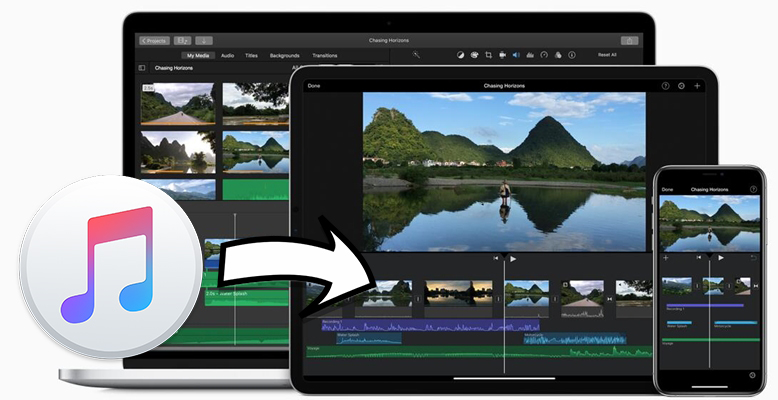
Like CapCut and Inshot, iMovie is a free video editing application but only for Mac, iPhone, and iPad. With iMovie, you can combine all your videos, photos, and music with advanced sound effects, filters, and lively titles. To create great-looking and interesting videos, music is important for the whole project. In iMovie, you can select a bunch of soundtracks to add to your video. However, is it possible to add Apple Music to iMovie? Here we are going to cover how to add Apple Music in iMovie on your Mac, iPhone, and iPad.
Part 1. Can I Add Apple Music to iMovie?
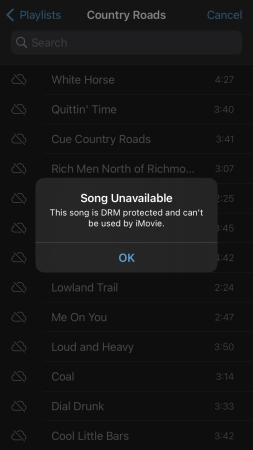
No, you cannot directly use Apple Music in iMovie. It is impossible to incorporate songs from Apple Music into the iMovie project since all Apple Music downloads come with a DRM restriction. When you try adding an Apple Music song to iMovie, you will get a notification – “Song Unavailable. This song is DRM-protected and can’t be used by iMovie.” To make Apple Music available for iMovie, you have to remove DRM from Apple Music and convert Apple Music to iMovie-supported formats.
The audio formats compatible with iMovie include AAC, MP3, WAV, AIFF, RF64, MP4, CAF, and BWF. From here, you have to opt to convert Apple Music to MP3 for use, and the best tool is TunesMake Streaming Audio Recorder. With TunesMake software, you can download and convert Apple Music songs, playlists, albums, and podcasts to plain audio formats, including MP3, M4A, M4B, WAV, FLAC, and AIFF. After converting Apple Music songs, it is when you can use Apple Music in your videos with iMovie, enabling you to dig deeper into how to add Apple Music songs to iMovie.
What’s more, the TunesMake program will keep the sound quality and ID3 tags of your favorite songs. So, you don’t need to worry about your offline listening experience. To satisfy users’ different demands, the TunesMake program also supports personalizing the audio settings. You can change parameters like bit rate and sample rate for better sound quality.

Streaming Audio Recorder –
Download Streaming Music to MP3 on PC and Mac
- Unlimitedly download streaming music songs, playlists, and podcasts
- Losslessly convert streaming music to MP3, M4A, M4B, WAV, FLAC, and AIFF
- Remove DRM protection from many streaming music platforms
- Convert streaming songs with original sound quality and ID3 tags kept
Security Verified. 100% Clean & Safe.
Part 2. How to Convert Apple Music to iMovie for Use
After fully knowing TunesMake Apple Music to iMovie Converter, you can try downloading and installing it to your Mac computer. Or you can get it to use on your Windows computer, then transfer the converted Apple Music songs to your iPhone or iPad for use.
Step 1
Load Apple Music Songs into the Converter
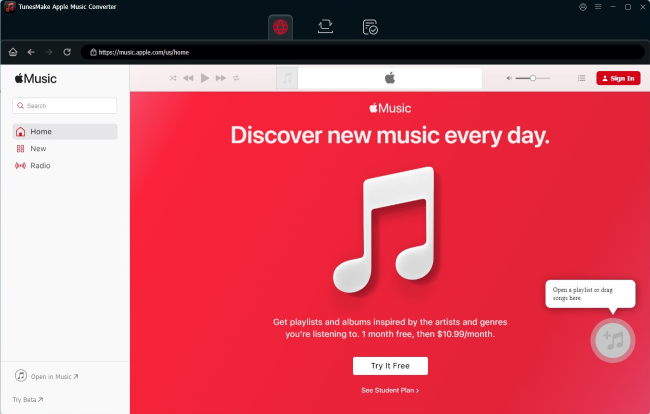
Launch TunesMake Streaming Audio Recorder on your computer, and then the Apple Music web player will be loaded automatically. In the Apple Music interface, you can select the playlists or albums you like. Then, click the Add in the lower right corner to load all its songs. Next, find the song you want to add to iMovie and add it to the conversion list by clicking the Add to List option. You can also try to drag and drop your desired song to the Add icon directly.
Step 2
Select MP3 as the Output Audio Format
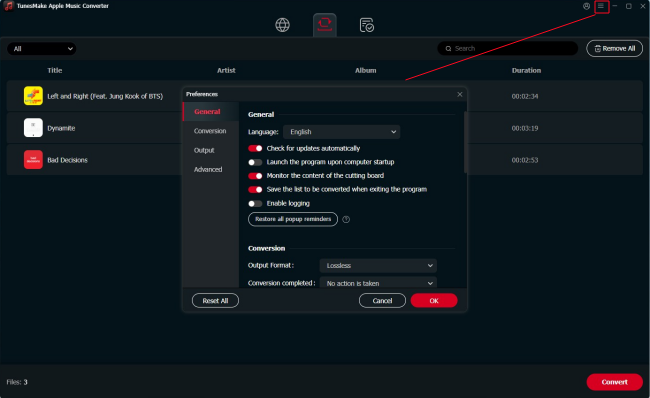
To make Apple Music compatible with iMovie, you need to select a compatible audio format in the output settings window. To open it, click the top Menu icon > Preferences > Conversion. The compatible options include MP3, AIFF, and WAV. Except for the output format, you can change other parameters, such as codec, channel, sample rate, and bit rate. When you finish, click OK to save your changes.
Step 3
Start to Convert Apple Music to MP3
To initiate the conversion of Apple Music, simply click the Convert button at the bottom right of the converter. Then, the TunesMake software will download and convert songs from Apple Music. All Apple Music songs will be saved in your required audio formats. After that, you can find the converted Apple Music files in the converted folder and use them in iMovie.
Part 3. How to Add Downloaded Apple Music to iMovie on Mac/iPhone/iPad
iMovie is only available on iPhone, iPad, and Mac. If you are using a Mac computer, then you can directly import Apple Music songs into iMovie for use. To insert Apple Music into iMovie on your iPhone or iPad, you have to transfer those converted Apple Music files to your device first. Now let’s go over how to add music from Apple Music to iMovie.
How to Import Spotify Music into iMovie on Mac
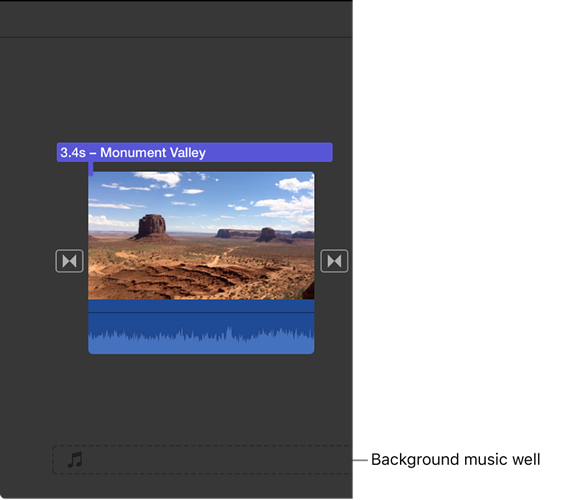
Step 1. Run iMovie on your Mac computer, then open your video project.
Step 2. Open the folder where you store the converted Apple Music files.
Step 3. Directly drag your target Apple Music file into the timeline of your iMovie project.
Alternatively, you can upload the converted Apple Music files to your library. Then you can download them within the Apple Music app. In iMovie, click Audio & Video at the top of the window, then click Music in the Libraries list. Now you can find your converted Apple Music songs and select one to add to your project.
How to Get Apple Music into iMovie on iPhone/iPad
Step 1. In iTunes or Apple Music on your computer, click Files > New > Playlist.
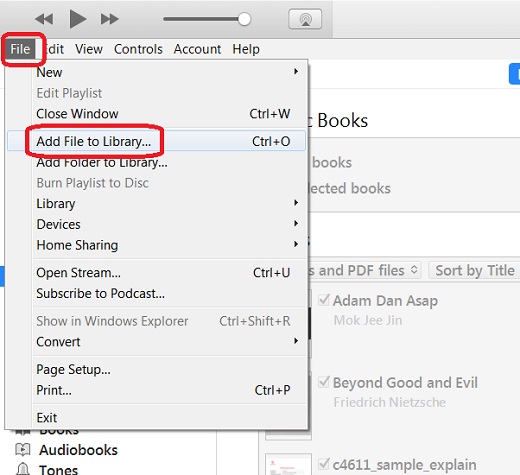
Step 2. After creating a new playlist, click Files > Add Files to Library, then upload the converted Apple Music files.
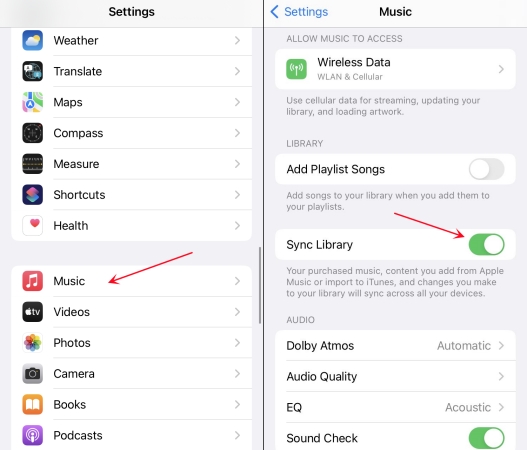
Step 3. Go to Settings on your iPhone, tap Music, and then turn on Sync Library.
Step 4. Launch Apple Music and select the Apple Music songs you’ve uploaded to download.
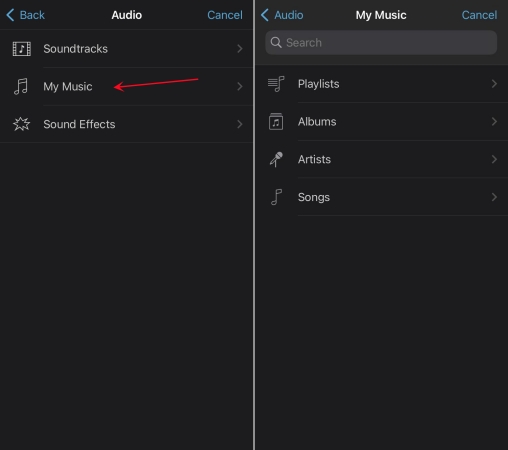
Step 5. Open your project with iMovie and tap the + icon, then select Audios.
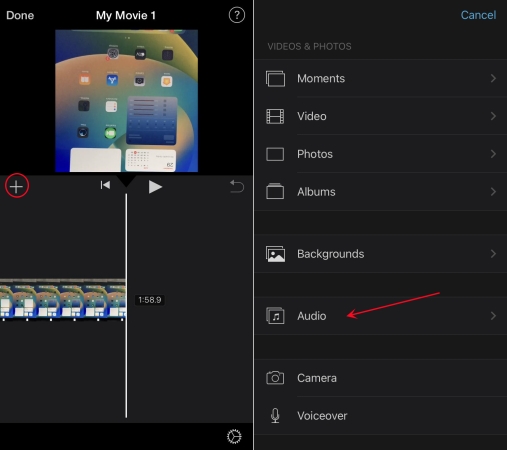
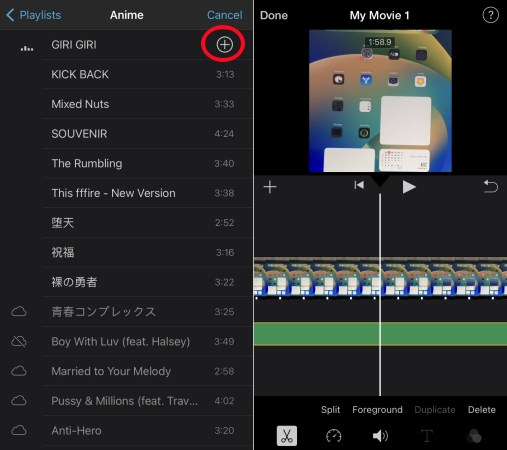
Step 6. Tap My Music > Playlists and select an Apple Music song to add to the timeline.
Step 7. Tap the + icon at the rear of each track. Then the music will be added to the timeline.
Part 4. How to Add Purchased Music from iTunes to iMovie
Now all music tracks purchased from iTunes are in the format of AAC without digital rights management. If you have purchased some songs in iTunes, you can sync them to your library in Apple Music. Then only if you have downloaded your purchased iTunes music on your device, you can add iTunes songs to iMovie when you edit your project.
Step 1. Open the Apple Music app on your Mac, then click Account > Purchased.
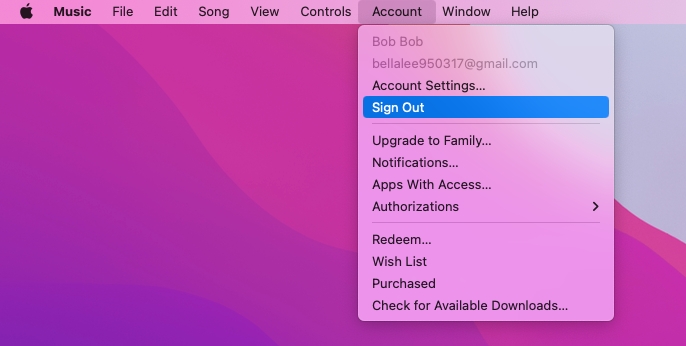
Step 2. Find your purchased music and click the download button next to a song.
Step 3. Launch your video project with iMovie and click Audio & Video.
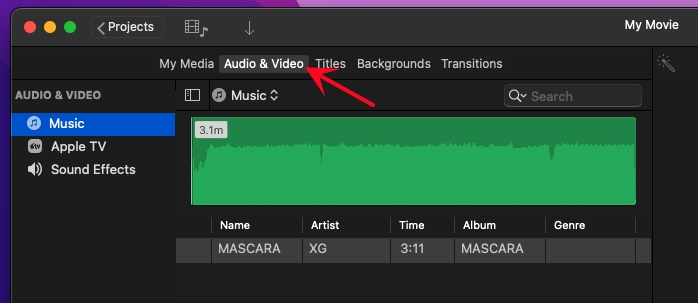
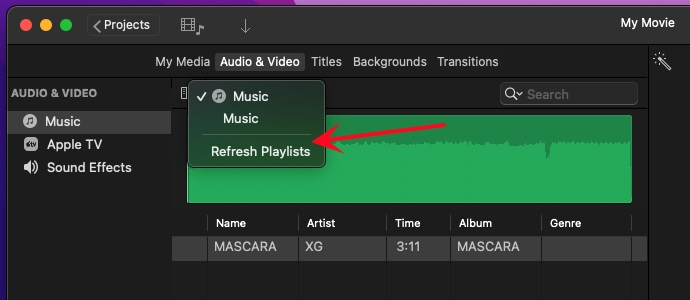
Step 4. Click Music and select Refresh Playlists from the drop-down menu.
Step 5. After refreshing your music, browse all your purchased iTunes music and select one.
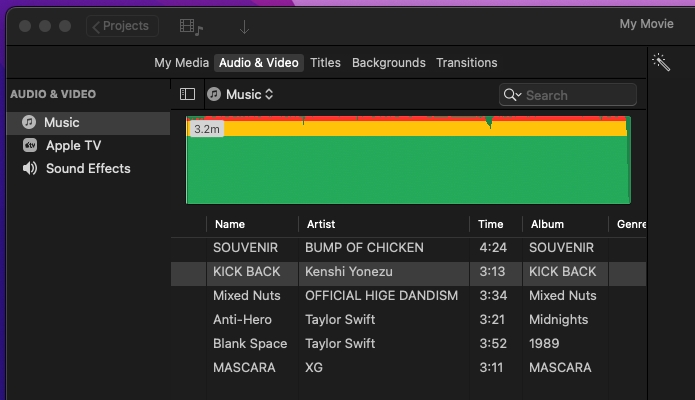
Step 6. Drag an iTunes song from the list into the timeline. Then you can adjust the background audio independently in the timeline.

Also, you can follow the steps in Part 3 to use your purchased iTunes music in iMovie on your iPhone. You just need to download your purchased iTunes music to your device, then add one to your project in iMovie.
Part 5. Summary
Music drives emotions and establishes positive connotations to a given product or a particular company. Therefore, it fills a significant gap when you incorporate it into your iMovie project. Music makes moving images appear more beautiful and dynamic to your project. Adding Apple Music to iMovie seems to be a colossal task. But after going through the steps above, it will be easy since you will have already known how to use Apple Music in iMovie. You can as well go to share your Apple Music songs with your family and friends.
Related Articles

A professional writer at TunesMake, crafts in-depth tutorials, practical tips and expert advice focusing on streaming music, technology, and more.
- 1
- 2
- 3
- 4
- 5
- 6
- 7
 Leave Your Comment
(0)
Leave Your Comment
(0)

 Download Center

