








 Store
Store


Nothing makes you look cool like a Fitbit Versa smartwatch that you can use to monitor your health, heart rate, and sleep time, and at the same time, play your favorite tunes. Like most mainstream electronic products, the smartwatch gives you an option to play music on Fitbit Versa. You can play songs from several streaming music services. If you are an Apple Music user, you may want to wonder can I play Apple Music on Fitbit Versa directly. The answer is no. Thankfully, listening to Apple Music on Fitbit Versa isn’t as tough as it may seem. Here’s how to get Apple Music on Fitbit Versa for offline listening.
Part 1. Can You Get Apple Music on Fitbit Versa?
Fitbit Versa has a long battery performance that can last for four days under continuous use and up to a week when used minimally. The battery performance is what makes it become the best for listening to music. You can stream music from Spotify, Pandora, and Deezer on your Fitbit Versa. Currently, you cannot install the Apple Music app on Fitbit Versa for playing your favorite songs and podcasts. So, is it impossible to listen to Apple Music on Fitbit Versa? Not sure! Go to find the ways in the following content.
Part 2. How to Control Apple Music Playback via Fitbit Versa
As Apple Music is not available on Fitbit Versa directly, you can stream songs from Apple Music directly. However, you can connect your iPhone to the smartwatch and then control the playback of Apple Music on Fitbit Versa. Make sure that you have the Apple Music installed on your device. Then turn on the Bluetooth on your device and Fitbit smartwatch. Let’s connect Apple Music to your Fitbit Versa.
Step 1. Power on your Fitbit Versa smartwatch and launch the Music app.
Step 2. Find the phone icon in the top left of the screen and tap it.
Step 3. Select Mobile then you can control the music played from your phone.
Step 4. Go to open Apple Music on your phone and choose to play any playlist you like.
Part 3. How to Play Apple Music on Fitbit Versa Freely
With a subscription to Apple Music, you can download songs for offline listening. Then you may want to move Apple Music songs to your smartwatch for playing. Unfortunately, Fitbit Versa doesn’t support those encoded Apple Music songs. To listen to Apple Music on Fitbit Versa, you will have to convert Apple Music songs from the encrypted format to a playable format on the smartwatch.
Thus, you need to download this powerful Apple Music Converter called TunesMake Streaming Audio Recorder. It is devoted to removing encryption on songs from Apple Music and converting Apple Music songs to various formats, such as AIFF, M4A, M4B, WAV, FLAC, and MP3. Due to its perfect music processing power, TunesMake Streaming Audio Recorder can convert Apple Music at 13× speed. Meanwhile, there is no distortion on the output audio quality, and all the ID3 tags like the title, artist, album, and more from the original track are retained on the final audio.

Streaming Audio Recorder –
Download Streaming Music to MP3 on PC and Mac
- Unlimitedly download streaming music songs, playlists, and podcasts
- Losslessly convert streaming music to MP3, M4A, M4B, WAV, FLAC, and AIFF
- Remove DRM protection from many streaming music platforms
- Convert streaming songs with original sound quality and ID3 tags kept
Security Verified. 100% Clean & Safe.
3.1 Convert Apple Music to Local Files
Before you put Apple Music songs on Fitbit Versa, you should download and install TunesMake Streaming Audio Recorder on your computer first. Then follow the procedure indicated below to download and convert Apple Music to MP3 by using TunesMake Streaming Audio Recorder.
Step 1
Add Apple Music Files to the Converter
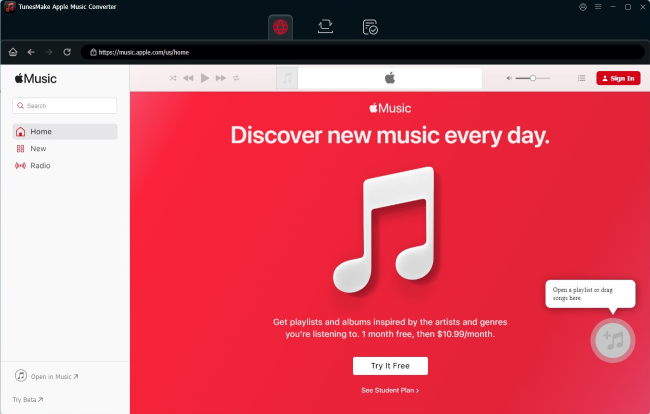
Launch the TunesMake Streaming Audio Recorder on your desktop, then you will be led to the official Apple Music web player. Here, you can sign in to your account and find any playlist you want to listen to on your Fitbit Versa. Select the playlist and click the lower-right Add icon > Add to List to load all the songs from Apple Music to TunesMake's conversion list.
Step 2
Select Your Output Preference
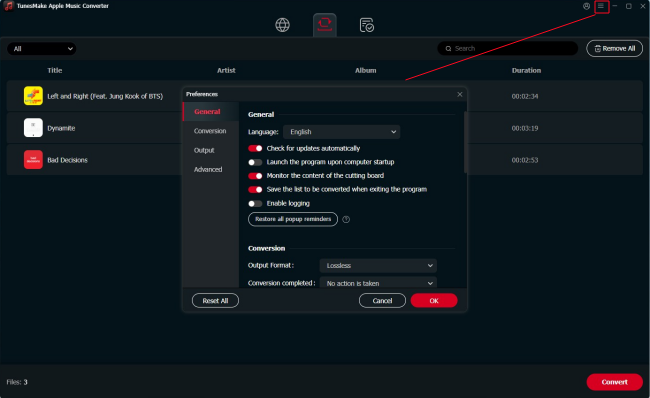
Once you have added your tracks, you can set the output settings as you wish. Click the menu icon at the top right corner and select Preferences. Then, switch to the Conversion tab in the new window. Here, you can select the output format, output quality, bit rate, sample rate, channel, and so on. When you finish, click on OK to close the settings window.
Step 3
Convert Apple Music to MP3
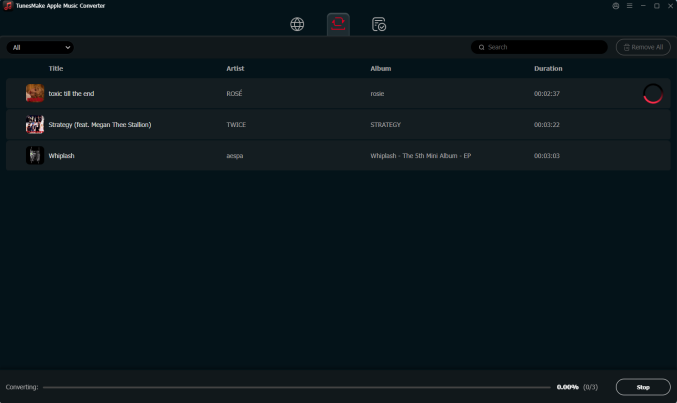
To conclude, after all the set parameters are saved, click on the Convert button, which is at the bottom right of your TunesMake interface. The conversion process will initiate, and after it is done, click on the Converted tab, and you will see your Apple Music converted to MP3 format, which is playable in Fitbit Versa.
3.2 Get Converted Apple Music Songs on Fitbit Versa
Once all the songs from Apple Music have been exported to your computer, you can now move Apple Music songs to Fitbit Versa for playing. No matter whether you are using a PC or Mac computer, you can follow the detailed steps below. Make sure that your smartwatch and computer are in sync over the same Wi-Fi network.
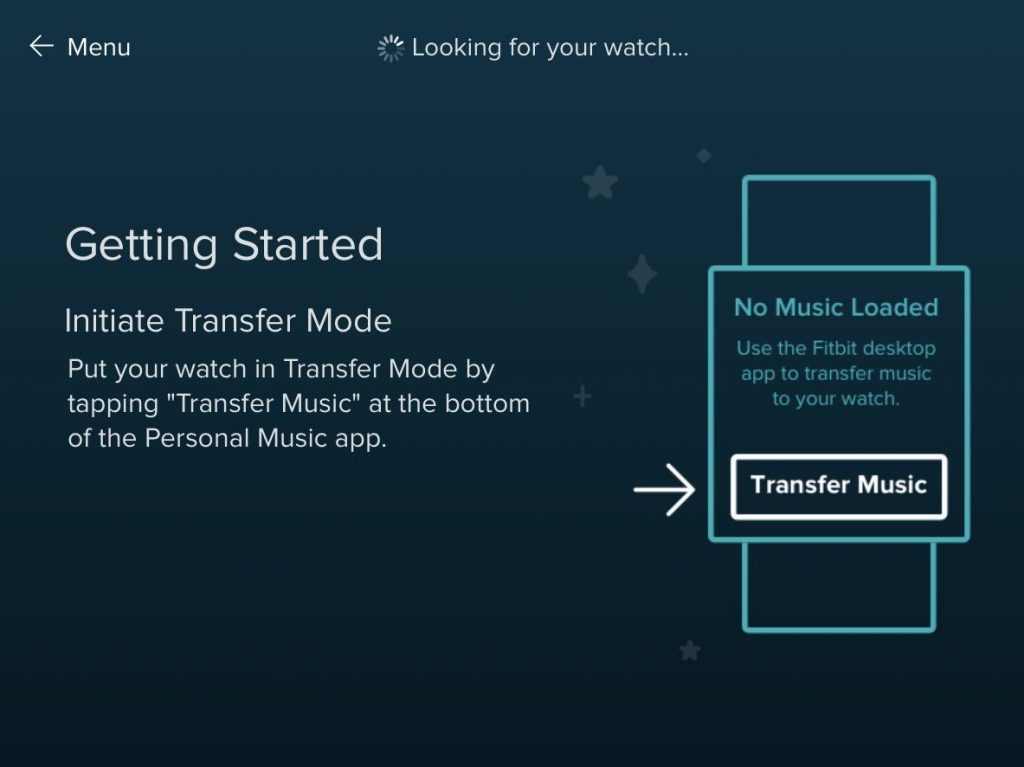
Step 1. Download and install the Fitbit Connect app from https://www.fitbit.com/global/us/setup on your computer.
Step 2. Proceed to launch the application and plug your smartwatch into the charger then type in your login information.
Step 3. From your PC, choose Manage My Music and click Personal Music. For Mac users, only find Manage My Music.
Step 4. On your watch, launch the Music app and then tap Transfer Music. Give your smartwatch some time before it connects to your computer.
Step 5. Once your Fitbit Versa smartwatch has been connected to the computer, you will see notifications on how you can locate your files from the computer’s storage location.
Step 6. Finally, after locating your files, select the songs you would want to add to your Fitbit Versa.
Part 4. The Bottom Line
In sum, now you can play Apple Music on Fitbit Versa with no limits. With the aid of TunesMake Streaming Audio Recorder, you can convert Apple Music for Fitbit Versa within simple steps. And you can also play those converted Apple Music songs on any device you like. Now launch the Music app on your smartwatch and listen to Apple Music on Fitbit Versa.
Related Articles

A professional writer at TunesMake, crafts in-depth tutorials, practical tips and expert advice focusing on streaming music, technology, and more.
- 1
- 2
- 3
- 4
- 5
- 6
- 7
 Leave Your Comment
(0)
Leave Your Comment
(0)

 Download Center

