









 Store
Store


Nothing hits quite like landing a clutch play or cruising down an open road with your favorite soundtrack blasting in the background. If you want to play Apple Music on Xbox, setting up your personal soundtrack while gaming is both fast and effortless. This step-by-step guide walks you through how to play Apple Music on Xbox while playing games and fix Apple Music not working on Xbox. Let's dive into the details.
Part 1. Is Apple Music Available on Xbox?
Yes, Apple Music is officially available on Xbox. The Apple Music app works on Xbox Series X|S and Xbox One consoles. It includes several key features designed for console gaming and big-screen navigation.
Feature 1. In-Game Background Playback
- Stream While Gaming: Play music in the background without interrupting your gameplay session.
- Xbox Guide Integration: Press the Xbox button on your controller mid-game to pull up a media overlay where you can play, pause, skip tracks, or adjust audio levels.
- Audio Balance Control: Use the Guide menu's volume slider to balance Apple Music volume against in-game sound effects and voice chat.
Feature 2. Full Catalog & Personal Library Access
- 100+ Million Songs: Stream Apple Music's entire catalog directly on your console.
- Personal Playlists & Saved Music: Access your existing music library, saved albums, custom playlists, and smart recommendations.
- Cross-Device Syncing: Any changes made to your library on an iPhone, iPad, Mac, or web browser instantly sync to the Xbox app.
Feature 3. Display & Visual Experience
- TV-Optimized Interface: Uses a grid-based UI built specifically for big screens and controller navigation.
- Full-Screen Album Artwork: View large-format album covers and artwork while listening.
- Time-Synced Lyrics: Sing or follow along with real-time, scrolling lyrics on your TV screen.
- Music Video Streaming: Watch music videos in up to 4K resolution.
Feature 4. Apple Music Radio & Curated Content
- Live & On-Demand Radio: Tune into Apple Music 1, Apple Music Hits, and Apple Music Country stations.
- Curated Playlists: Browse station picks categorized by gaming, mood, genre, or activity.
Feature 5. Quick Pairing & Account Management
- QR Code Sign-In: Authenticate your account without typing long passwords with a controller. Just scan the on-screen QR code with your phone or visit activate.apple.com.
- No Game Pass Required: The Apple Music app is free to download and does not require an Xbox Game Pass or Xbox Network paid subscription.
Key Limitations:
- No Lossless Audio or Spatial Audio: High-fidelity audio features like Dolby Atmos or Lossless Audio are omitted on the console app to optimize performance for gaming.
- No Local Downloads: Music cannot be saved to the Xbox internal hard drive for offline listening. Streaming requires an active internet connection.
Part 2. How to Play Apple Music on Xbox via the Official App
The easiest way to play Apple Music on Xbox is through the official Apple Music app for Xbox available in the Microsoft Store. It allows full background playback, playlist browsing, and quick media controls inside the Xbox Guide overlay.
Download the Apple Music App on Xbox
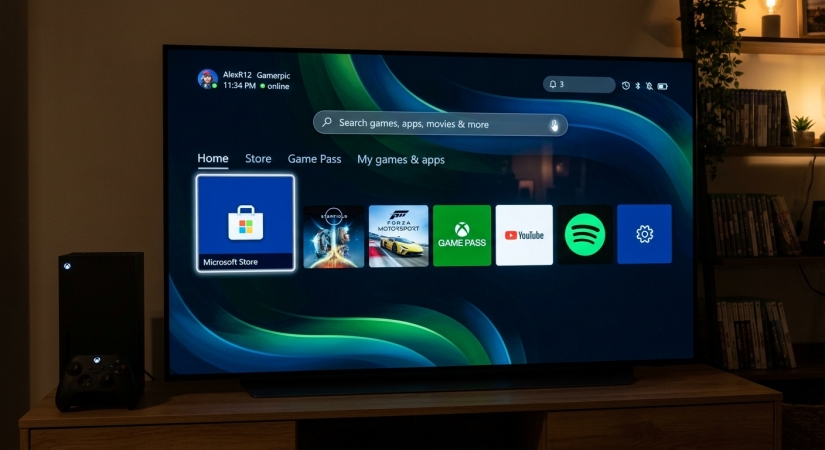
Step 1. Press the Xbox button on your controller to open the guide menu.
Step 2. Select Store from the side menu.
Step 3. Move to the search icon and type Apple Music.
Step 4. Select the official Apple Music app from the results and click Get or Install.
Sign In and Link Your Apple Account
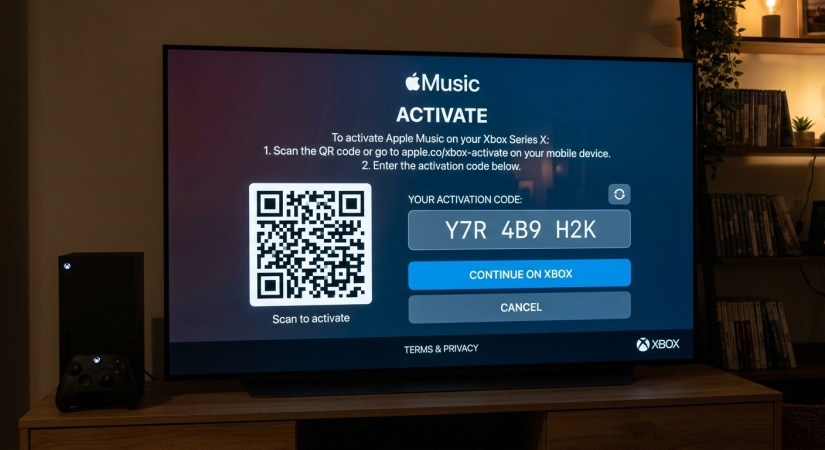
Step 1. Launch the Apple Music app from your games and apps library.
Step 2. Click Start Listening or Sign In.
Step 3. A QR code and activation URL will appear on your screen alongside an entry code.
Step 4. Scan the QR code with your phone, or navigate to the activation page on a web browser.
Step 5. Sign in with your Apple ID and enter the code shown on your TV screen.
How to Balance Xbox Game Audio and Apple Music
Once your Apple Music is playing, you need to set the right mix between game sounds, voice chat, and background music.
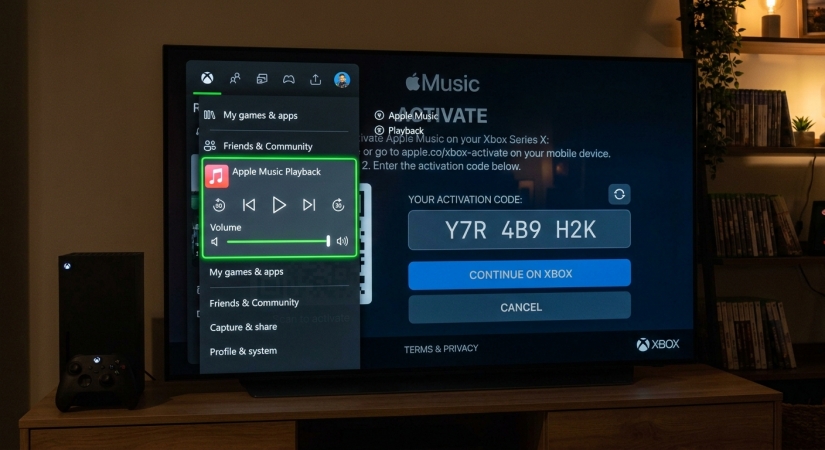
Step 1. While playing a game, press the Xbox button on your controller to open the guide.
Step 2. Locate the Apple Music widget near the bottom of the guide menu.
Step 3. Click on the widget to reveal media controls.
Step 4. Select the Volume icon to open the audio slider.
Step 5. Adjust the slider left or right to balance your background music.
Part 3. Alternative Ways to Get Apple Music on Xbox While Playing
If you encounter regional app restrictions, connectivity limits, or want offline background playback without relying on an active Apple Music app, these alternative methods offer flexible workarounds to get Apple Music on Xbox.
| Method | Best Used For | Background Playback | Connectivity |
|---|---|---|---|
| Xbox Apple Music App | Daily streaming | Support | Require internet |
| Microsoft Edge Browser | Quick web player access | Limited | Require internet |
| AirPlay Streaming | Streaming from iPhone or iPad | Support | Local Wi-Fi |
| USB Media Drive | Offline local media playback | Support | Completely offline |
Method 1. Stream Apple Music on Xbox via Microsoft Edge Web Player
If you don't want to install Apple Music on your Xbox console or your Xbox console doesn't support Apple Music, you can stream directly through the console's built-in web browser. It's an easy process to log in Apple Music web player and stream music online on your Xbox console.
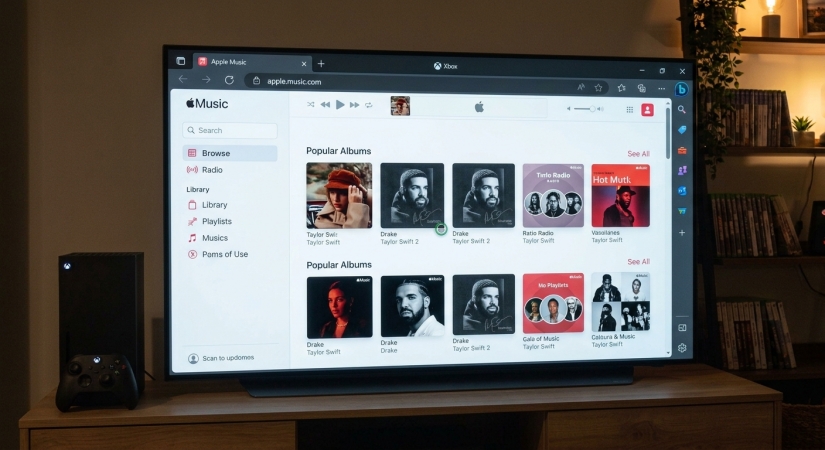
Step 1. Press the Xbox button on your controller and go to My games & apps > See all > Apps.
Step 2. Launch Microsoft Edge.
Step 3. Navigate to music.apple.com and click Sign In.
Step 4. Enter your Apple ID credentials and start streaming your playlists.
Method 2. Stream Apple Music on Xbox via AirPlay Using AirServer
Xbox consoles do not support Apple AirPlay out of the box, but you can turn your console into an AirPlay receiver using third-party Xbox apps like AirServer Xbox Edition.
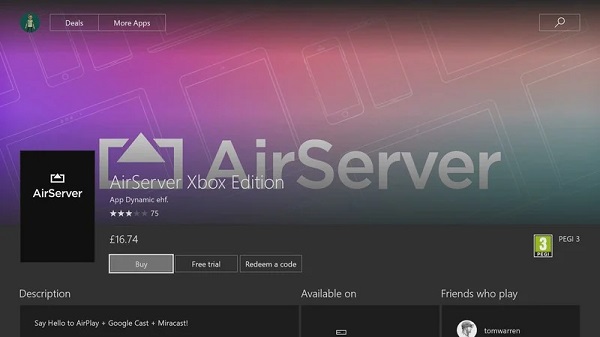
Step 1. Navigate to the Store app on your Xbox and choose the search bar.
Step 2. Search for the AirServer Xbox Edition app to download and install it.
Step 3. Choose Launch to start AirServer on your Xbox console.
Step 4. Press right on the directional pad, then A, to display a QR code on the screen.
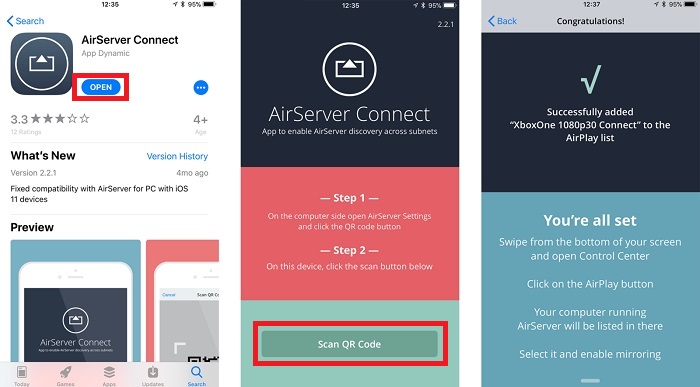
Step 5. Go to install AirServer Connect on your iPhone or ipad.
Step 6. Open AirServer Connect and tap Scan QR Code to scan the code on the console.
Step 7. Open Apple Music on your iPhone or iPad.
Step 8. Tap the playing bar at the bottom to enter the Now Playing screen.
Step 9. Tap the AirPlay icon and select your Xbox as the audio receiver.
Method 3. Stream Apple Music on Xbox via Offline USB Playback
If you want to play your Apple Music collection offline, or if the Apple Music app isn't available in your region, standard Xbox Media Player apps can play local audio files in the background while you game. However, downloaded Apple Music tracks carry format protection that prevents non-Apple media players from reading them directly.
To prepare your music library for USB playback on your Xbox console, you can use TunesMake Apple Music Converter. It is an all-in-one audio converter for converting Apple Music to MP3, FLAC, AIFF, WAV, M4A, and M4B with the original quality. In this way, you can play your Apple Music playlists on your Xbox console offline.
Step 1. Open TunesMake Apple Music Converter on your computer.
Step 2. Load the Apple Music tracks or playlists you want to play on your console.
Step 3. Set the output format to MP3 and click Convert to save the local audio files.
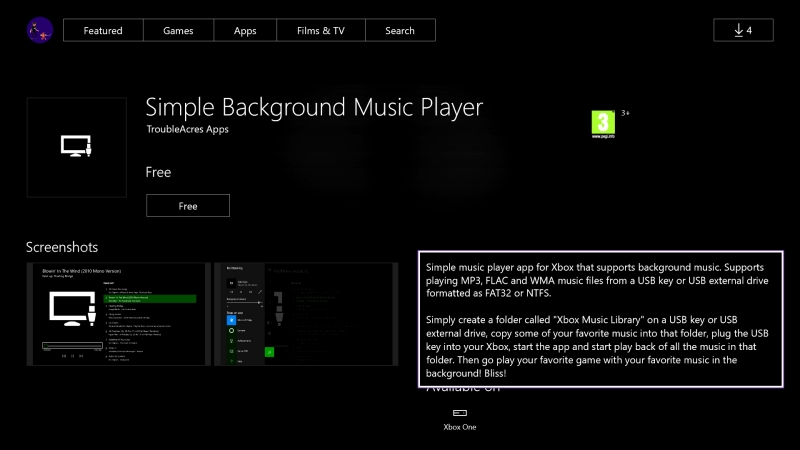
Step 4. Copy Apple Music local audio files onto a USB drive formatted as FAT32 or NTFS.
Step 5. Plug the USB drive into your Xbox console and open Simple Background Music Player.
Step 6. Launch your music in the background while gaming.
Part 4. Troubleshooting Apple Music Not Working on Xbox
If Apple Music is freezing, crashing, dropping background audio, or producing no sound on your Xbox, work through these proven fixes ordered from fastest to most thorough.
Solution 1. Check Audio Balance
If a song looks like it's playing but you can't hear anything, the Xbox Guide volume slider is usually muted or biased toward game audio.
Step 1. Press the Xbox button on your controller mid-game to pull up the Guide overlay.
Step 2. Highlight and click the Apple Music widget.
Step 3. Click the Volume or Audio icon.
Step 4. Move the slider to the right to raise Apple Music volume relative to game audio.
Solution 2. Force Quit and Relaunch the App
If the Apple Music app freezes on a black screen or crashes on startup, you can force quit the app on your console and relaunch it.
Step 1. Press the Xbox button to open the Guide menu.
Step 2. Highlight the Apple Music tile.
Step 3. Press the Menu button on your controller.
Step 4. Select Quit.
Step 5. Re-open the app from My games & apps.
Solution 3. Reset the Apple Music App
Corrupted local app cache often causes login loops or playback failures. In this case, you can reset the Apple Music app and set it up again.
Step 1. Open the Apple Music app on your Xbox.
Step 2. Go to Settings within the app.
Step 3. Select Reset Apple Music.
Step 4. Relaunch the app, scan the on-screen QR code, and re-link your Apple ID.
Solution 4. Restart or Hard Power Cycle the Xbox
A full power cycle clears stuck Quick Resume states and system memory. To resolve the issue, restarting the Xbox is a possible solution.
Step 1. Hold down the Xbox power button for 10 seconds until it completely shuts off.
Step 2. Unplug the power cable from the back for 30 seconds.
Step 3. Plug it back in and turn on your console.
Solution 5. Prevent Background Music Cutouts
If background audio stops automatically when launching heavy games, you can check system power settings and disable game music.
- Check System Power Settings: Go to Settings > General > Power Options and ensure the console is set to Shutdown or that strict background app limitations are disabled.
- Disable Game Music: Open your game's internal settings menu and turn the in-game music volume down to zero so it doesn't conflict with background playback.
Solution 6. Reinstall the Apple Music App
If none of the above steps work, you can try to completely delete the Apple Music app on your Xbox console and make a clean installation.
Step 1. Go to My games & apps > See all > Apps.
Step 2. Highlight Apple Music, press the Menu button, and select Uninstall.
Step 3. Open the Microsoft Store, search for Apple Music, and reinstall it.
Part 5. FAQs about Apple Music on Xbox
Can you play Apple Music on Xbox while playing games?
Yes, you can play Apple Music on Xbox while playing games. The background audio controls are supported on Xbox Series X, Xbox Series S, and all Xbox One models.
Does Apple Music support Lossless or Spatial Audio on Xbox?
No. The Apple Music for Xbox app currently streams standard stereo audio to preserve system performance for gameplay.
Do I need an active Xbox Game Pass subscription for Apple Music?
No subscription to Xbox Game Pass or Xbox Network Gold is required. You only need a free Xbox account and an active Apple Music subscription.
How to control Apple Music on Xbox from iPhone?
Because the Xbox Apple Music app does not support Apple's Remote Control feature, you still have two options to control Apple Music on your Xbox console from your iPhone.
Method 1. AirPlay from iPhone to Xbox (Full iPhone Control)
Step 1. Install an AirPlay receiver app like AirServer Xbox Edition on your Xbox.
Step 2. Connect your iPhone and Xbox to the same Wi-Fi network.
Step 3. Open Apple Music on your iPhone, play a song, tap the AirPlay icon, and select your Xbox.
Step 4. Control tracks, queues, and volume directly from your iPhone.
Method 2. Xbox Mobile App (Basic Media Controls)
Step 1. Download and open the Xbox app on your iPhone.
Step 2. Sign in with your Xbox account and connect to your console.
Step 3. Tap the Console Remote Control icon to use your phone as a virtual Xbox controller.
Part 6. Conclusion
Playing Apple Music on Xbox is a seamless way to elevate your gaming experience with custom soundtracks. Using the official Apple Music for Xbox app is the most direct method, giving you full background audio playback and intuitive volume mixing directly from the Xbox Guide menu.
If you encounter app errors or prefer alternative setups, workarounds like Microsoft Edge, AirPlay streaming, or offline USB playback via TunesMake Apple Music Converter offer flexible solutions to keep your music running in the background. Try adjusting your in-game audio mixer today and build the ultimate playlist for your next gaming session!
Related Articles

A professional writer at TunesMake, crafts in-depth tutorials, practical tips and expert advice focusing on streaming music, technology, and more.
- 1
- 2
- 3
- 4
- 5
- 6
- 7
 Leave Your Comment
(0)
Leave Your Comment
(0)

 Download Center

