








 Store
Store


Waking up to the same generic buzzer every morning can make rolling out of bed feel like a chore. If you want to transform your morning routine, customizing your wake-up call with your favorite tracks is one of the easiest changes you can make.
Because Apple Music boasts a massive library of over 100 million tracks, you can curate the exact mood you want to start your day with. In this ultimate cross-platform guide, we will break down how to set Apple Music as alarm across the entire Apple ecosystem, smart speakers, and Android devices, alongside the answers to those frequently asked questions about Apple Music as alarm.
Part 1. How to Make Apple Music Alarm on iPhone & iPad
For iOS and iPadOS users, integrating your Apple Music's music library with your morning routine is built right into the core system. The Clock app on the iPhone and iPad links directly with Apple Music. The following are the steps to make Apple Music alarm on the iPhone and iPad.
Prerequisites for Setting up Apple Music as Alarm
Before jumping into the setup of using an Apple Music song as alarm, make sure you have the following ready to ensure a seamless experience.
-
An Active Apple Music Subscription: Customizing songs from Apple Music as an alarm requires a paid Apple Music subscription or an Apple Music active trial.
-
An Apple Music App Installed: The Clock app on Apple devices integrates directly with the official Apple Music app.
-
Downloaded Apple Music Tracks: While you can stream your alarm track over WiFI, downloading the song directly to your device prevents the alarm from failing if your internet drops overnight.
Step 1. On your iPhone or iPad, open the Clock app.
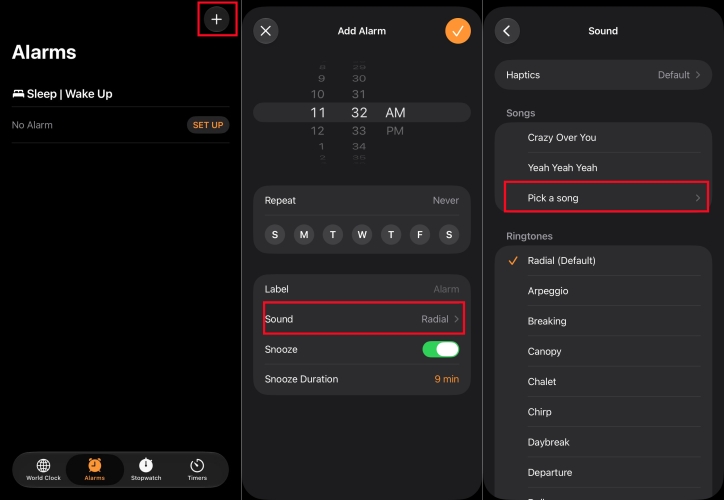
Step 2. Go to the Alarm tab at the bottom, then tap the + button in the top-right corner to create a new alarm or tap Edit on a current one.
Step 3. Tap the Sound option.
Step 4. Under the Songs section, tap Pick a song. This will launch an in-app browser for your music library.
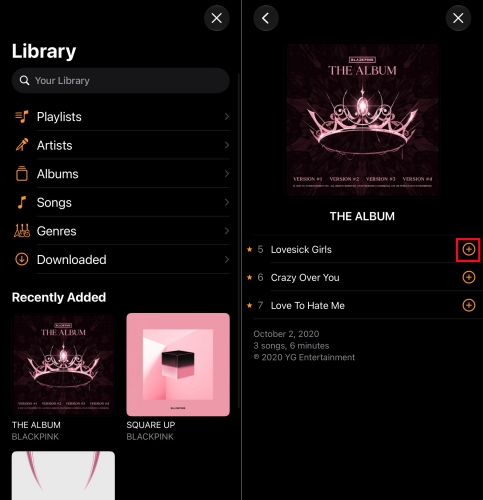
Step 5. Search for your preferred song or playlist, then tap the + icon or the track title to select it.
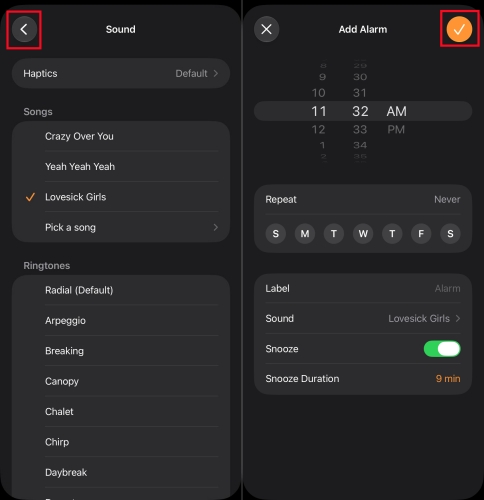
Step 6. Tap Back and hit Save in the upper-right corner to save the settings.
How to Download Music in Apple Music as Alarm
If the Apple Music song is not fully downloaded to your device's internal storage, it will consume battery power and cellular data when it triggers in the morning. To avoid this, you can download the target tracks in Apple Music, then set any one of them as the alarm tone.
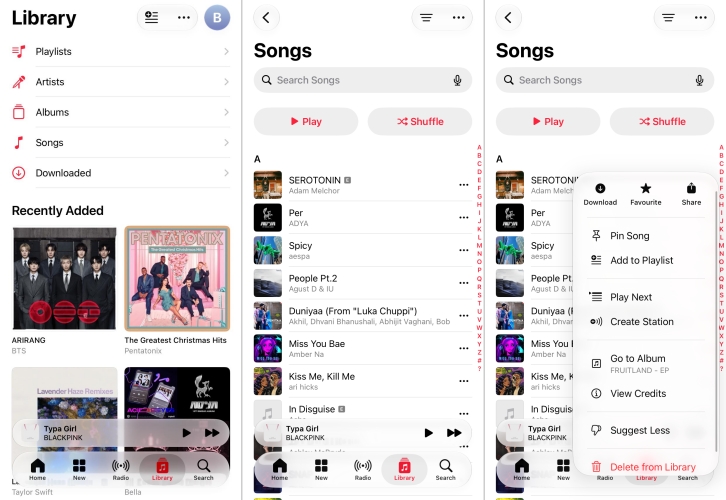
Step 1. Open the Apple Music app on your iPhone or iPad.
Step 2. Navigate to the Library section and tap Songs.
Step 3. Select a title to download and tap the three-dot icon.
Step 4. Tap Download to save the music track.
Part 2. How to Set Apple Music as Alarm on Android (For All Devices)
If you use Apple Music on an Android device, you will notice that the default Google Clock app does not feature native integration with Apple Music, unlike its built-in support for Spotify or YouTube Music. Furthermore, files downloaded inside the Apple Music app for Android are DRM protected files, meaning they cannot be read directly by the Android system settings.
To use your Apple Music catalog as a wake-up tracker, tools like TunesMake Apple Music Converter become necessary. By downloading and converting your preferred Apple Music tracks into standard MP3 files on a computer, you can easily transfer those files over to your Android device's internal Alarms storage folder. From there, the Google Clock app will recognize the song as a local media file, letting you assign it as your default tone.

Streaming Audio Recorder –
Convert Apple Music to unprotected audio files losslessly
- Download songs, albums, and playlists from Apple Music
- Convert Apple Music to MP3, M4A, M4B, WAV, FLAC, and AIFF
- Remove DRM protection from Apple Music completely and safely
- Preserve the original audio quality and ID3 tags for management
- Support downloading music from 10 popular streaming platforms
Security Verified. 100% Clean & Safe.
2.1 Steps to Convert Apple Music to MP3 for Alarm Tone
By using TunesMake Streaming Audio Recorder, you can remove the encryption from Apple Music, then you can move the converted Apple Music songs to your device and set them as alarm ringtones. Here's a detailed guide on how to convert Apple Music to MP3. Before starting, make sure that TunesMake Streaming Audio Recorder has been installed on your computer.
Step 1 Adjust the Output Audio Parameters
Launch TunesMake Apple Music Converter on your computer, then navigate to set the output audio parameters by clicking the menu bar > Preferences. In the pop-up Preferences window, you can switch to the Conversion tab and then set the output audio parameter per your need. You can select MP3 or AAC as the output format.

Step 2 Add Apple Music Songs to Convert
Go back to the main interface of the software and select Apple Music. Meantime, the built-in Apple Music web player will load automatically. Go to your music library and select any songs you want to download. Then you can click the + button to import the target Apple Music songs to the conversion list for downloading and conversion.
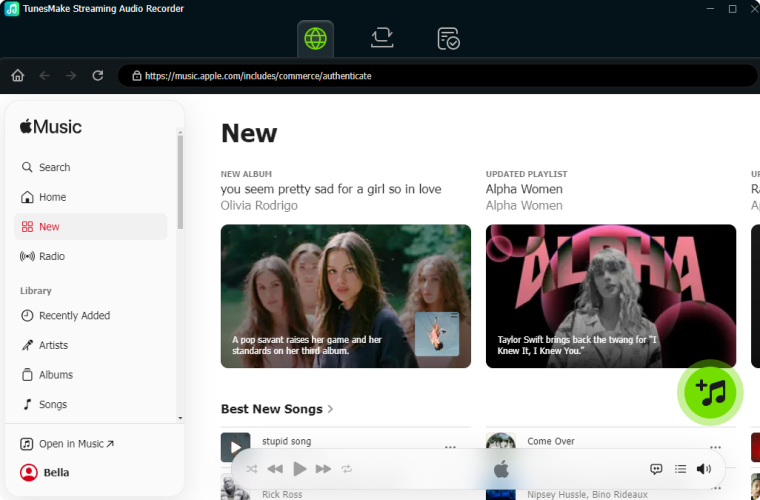
Step 3 Start to Convert Apple Music to MP3
You can now click the Convert button, and TunesMake Apple Music Converter will automatically convert Apple Music songs to MP3 or other audio formats you set. You can then locate all your converted Apple Music files by clicking the Converted button and begin to transfer them to your Android phone or other device.

2.2 How to Set Apple Music as Alarm on Android Devices
By using TunesMake Streaming Audio Recorder, you can remove the encryption from Apple Music, then you can move the converted Apple Music songs to your device and set them as alarm ringtones. Here's a detailed guide on how to convert Apple Music to MP3. Before starting, make sure that TunesMake Streaming Audio Recorder has been installed on your computer.
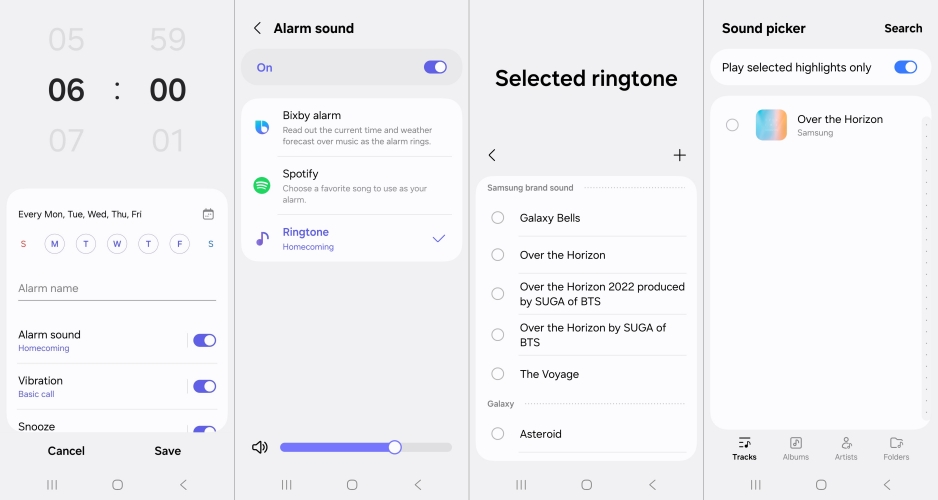
Step 1. Move the converted Apple Music songs to your Android device with a USB cable.
Step 2. Then open the Clock app on your device and tap the alarm you want to edit.
Step 3. Select Alarm sound, tap Ringtone, and press the + button.
Step 4. Find Apple Music songs stored on the device and select one to set it as the alarm tone.
Step 5. Tap Done, go back to the editing screen, and tap Save.
Part 3. How to Use Apple Music Song as Alarm on Smart Speakers
If you prefer filling your entire room with audio rather than relying on your smartphone speaker, you can route your morning audio through your smart home devices. Here are some tips to make Apple Music alarm on different smart speakers.
Set an Apple Music Alarm on HomePod
Because HomePod handles audio natively through your Apple ID, setting this up requires using the Home app rather than the Clock app. Here's how to make a song from Apple Music your alarm on HomePod.
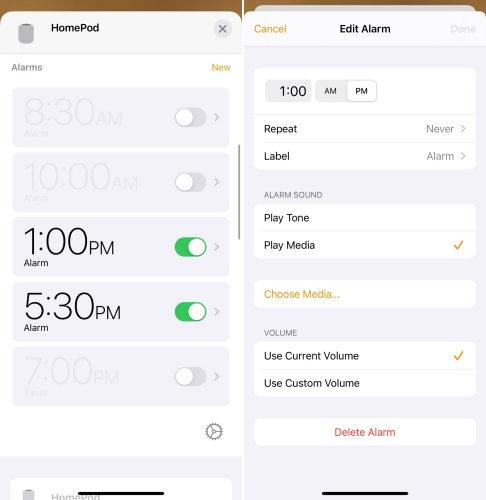
Step 1. Open the Home app on your iPhone or iPad.
Step 2. Tap and hold the icon for your HomePod or HomePod mini.
Step 3. Scroll down to the Alarms subsection and tap New Alarm.
Step 4. Set your target time, then tap Play Media followed by Choose Media.
Step 5. Browse your library to pick the perfect wake-up track or playlist, then save your settings.
Set an Apple Music Alarm on Amazon Echo
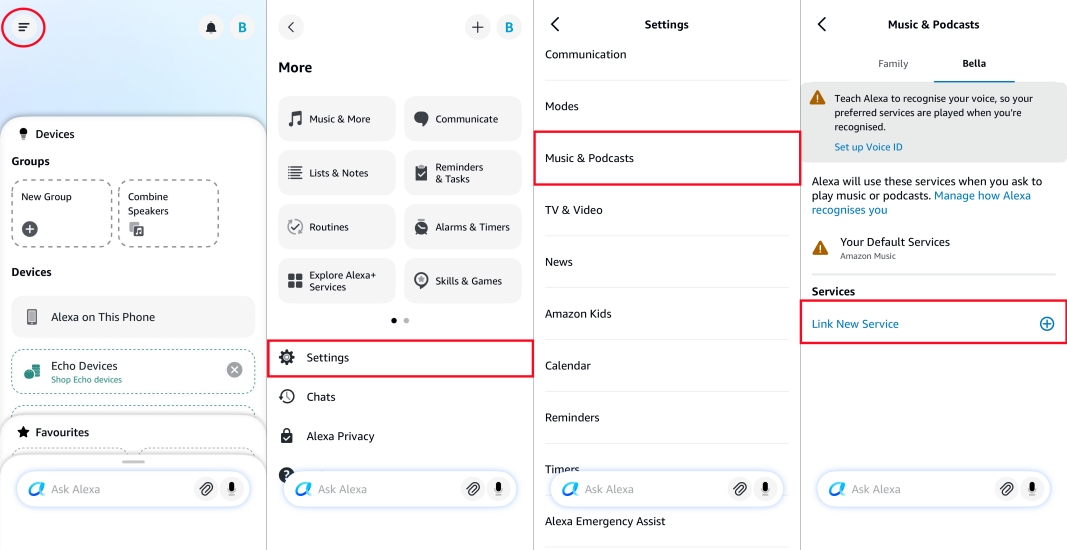
Step 1. Open the Amazon Alexa app on your phone.
Step 2. Go to More > Settings > Music & Podcasts.
Step 3. Tap Link New Service, select Apple Music, and log in with your Apple ID to enable the skill.
Step 4. Set Apple Music as your Default Services for music playback.
You can now simply say: "Alexa, set an alarm for 7 AM to Cruel Summer on Apple Music."
Set an Apple Music Alarm on Sonos
Like setting an alarm on an Amazon Echo, you need to use the official Sonos app to make Apple Music alarm. You can follow the steps below to connect your Apple Music account to Sonos, then continue to select a song from Apple Music to set as an alarm sound.
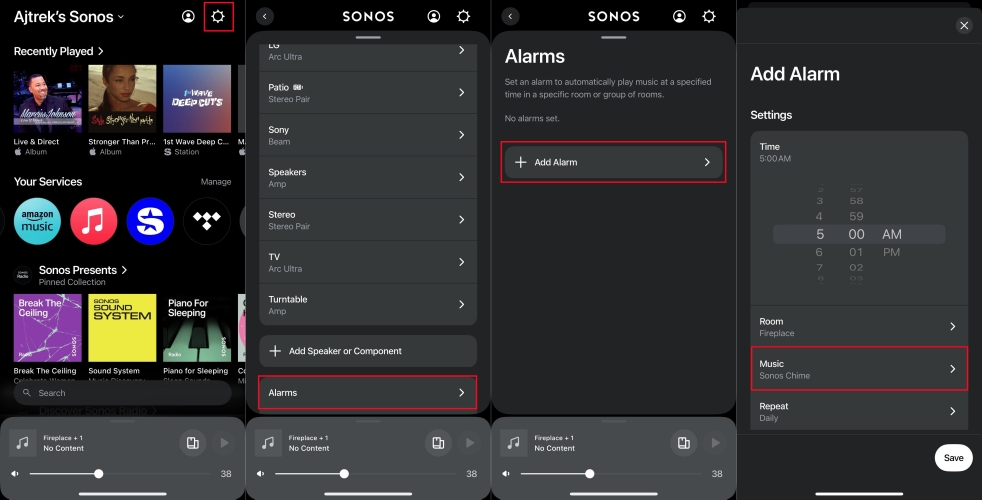
Step 1. Open the Sonos app on your phone.
Step 2. Tap the Settings icon in the top-right corner.
Step 3. Scroll down to Content Services and tap the + symbol.
Step 4. Select Apple Music, tap Add to Sonos, and choose "I am already a member."
Step 5. Authorize the connection using your Apple ID credentials.
Step 6. Go back to the Settings menu and select Alarms.
Step 7. Select the Add Alarm option to create an alarm and tap Music.
Step 8. Choose a song from Apple Music as the alarm sound.
Step 9. Tap Save to proceed with the settings, then tap Done.
Part 4. Conclusion
Jumping out of bed to the shrill sound of regular tone on your phone is no way to start the way. And with the above solutions, it's easy for you to set an Apple Music alarm clock. In Apple Music, you can find lots of suitable songs for your alarm, and the join of TunesMake Apple Music Converter makes it become easier. Have a try, and you'll find it out.
Related Articles


A professional writer at TunesMake, crafts in-depth tutorials, practical tips and expert advice focusing on streaming music, technology, and more.
- 1
- 2
- 3
- 4
- 5
- 6
- 7
 Leave Your Comment
(0)
Leave Your Comment
(0)

 Download Center

