








 Store
Store


For audiobook lovers, a long commute or a road trip is the perfect opportunity to dive into a captivating story or catch up on a favorite memoir. However, fumbling with a smartphone while managing highway traffic is a major safety hazard. To solve this problem, the Audible Car Mode feature provides a streamlined, distraction-free interface specifically engineered to keep your eyes on the road and your hands on the wheel.
For users who are unfamiliar with this feature, this guide is a timely helper. Here we will talk about everything you need to know to set up, customize, and troubleshoot this feature for a seamless, safe listening experience. What's more, we have prepared an alternative method to let you listen to Audible audiobook in your car without interruptions and limitations. Without further ado, let's rollout.
Part 1. What Is Car Mode in Audible?
Audible Car Mode is a specialized user interface built directly into the Audible app for iOS and Android. When activated, it replaces the standard application layout which features small text, dense menus, and multiple navigation tabs, with a minimalist, high-contrast display designed for quick glances. For seamless, hands-free audiobook access on the go, Car Mode is an ideal choice.
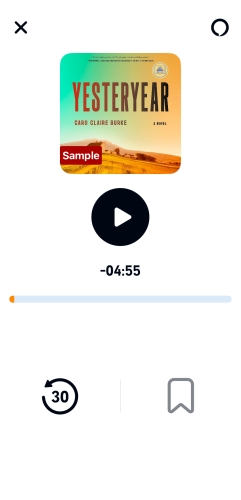
The core philosophy behind this feature is simplicity. The screen simplifies down to exactly four oversized, easy-to-tap buttons:
-
Play/Pause: A massive central button to instantly start or stop your audiobook.
-
Go Back 30 Seconds: A dedicated button to quickly rewind if you miss a plot point due to a sudden traffic distraction.
-
Add a Bookmark: A simple one-tap tool to flag an important section or favorite quote without needing to type a note.
-
Tap to Talk: A voice-assistant shortcut that lets you issue commands hands-free.
By minimizing visual clutter and maximizing target touch areas, this mode significantly reduces driver distraction, helping you stay compliant with hands-free driving laws while still enjoying your audio library.
Part 2. How to Turn on Car Mode in Audible
Through the information above, you now have a basic understanding of the Audible Car Mode feature. Depending on your preference and vehicle setup, you can launch this feature manually every time you drive, or configure it to launch automatically the moment your phone connects to your car. It's a straightforward operation and you just need to follow the steps below.
Method 1. Manual Activation via the Player Screen
If you are a passenger or only want to use this interface occasionally, manual activation is the fastest route.
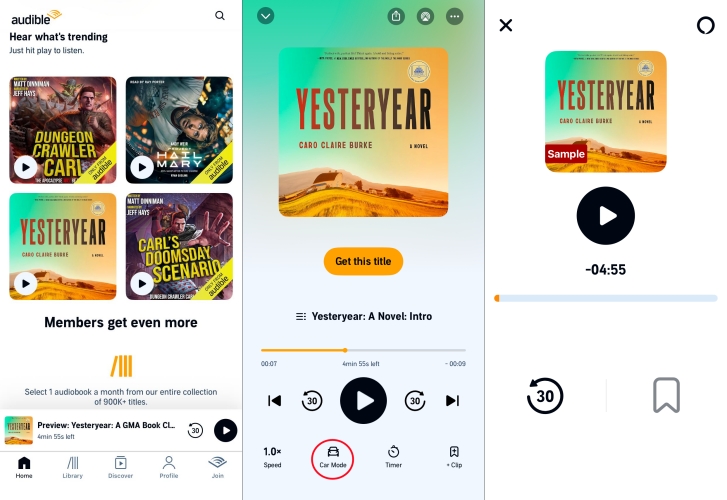
Step 1. Open the Audible app on your smartphone.
Step 2. Select a book you wish to listen to and open the Player screen.
Step 3. Tap the Car Mode icon at the right or bottom corner of the screen.
Step 4. Your screen will instantly transform into the simplified driving interface.
Method 2. Set Up Automatic Car Mode via Bluetooth
For daily commuters, automating the process ensures you never forget to switch to a safer layout.
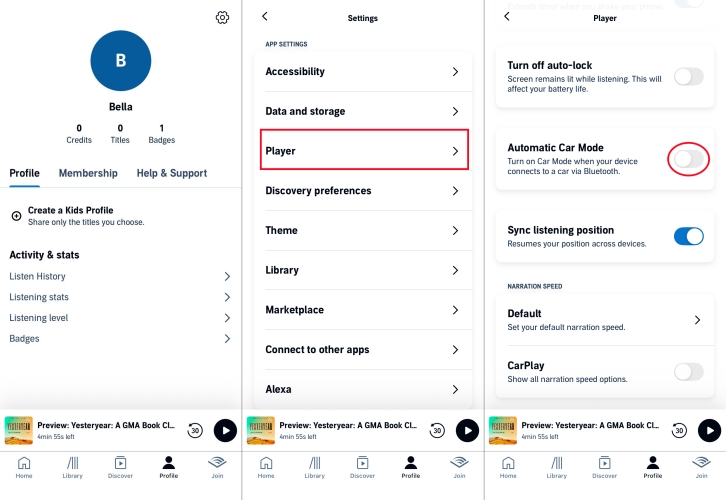
Step 1. Navigate to the Profile tab at the bottom right of the Audible home screen.
Step 2. Tap the Settings located in the upper right corner.
Step 3. Select Player from the settings menu.
Step 4. Locate the Automatic Car Mode option and toggle the switch to On.
To exit this layout at any time, simply tap the X or Exit button in the top-left corner of the screen when it is safe to do so.
Play Audible in the Car Using Alexa and Voice Commands
To achieve a truly safe driving experience, you should avoid touching your screen entirely. Audible features deep integration with Amazon Alexa, allowing you to control playback completely hands-free.
Enable Voice Assistant Permissions
Before hitting the road, ensure Audible has permission to use your microphone:
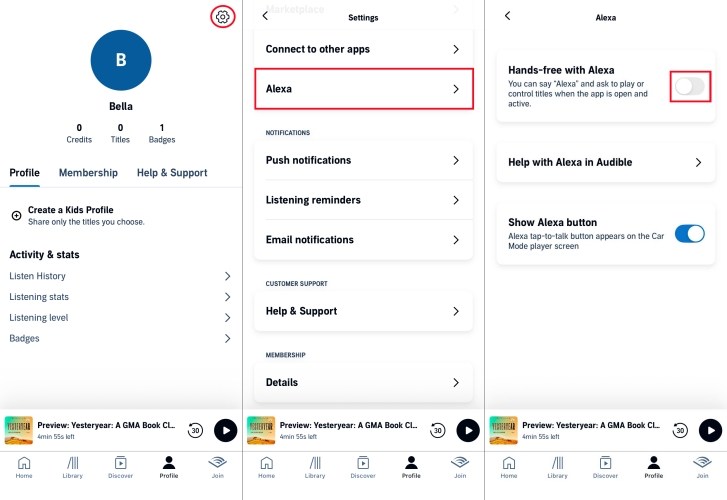
Step 1. Go to your phone's system settings, find the Audible app permissions, and ensure Microphone access is turned on.
Step 2. Inside the Audible app settings, ensure the "Hey Alexa" wake word or Tap to Talk feature is enabled.
Useful Voice Commands for Drivers
Once active, you can simply speak aloud while Car Mode is open on your screen. Try using these specific phrases:
"Alexa, pause."
"Alexa, play my audiobook."
"Alexa, go back 45 seconds."
"Alexa, next chapter."
Note:
-
If your car uses Apple CarPlay or Android Auto, the Audible app integrates into your vehicle's dashboard display. In these environments, you can use Siri or Google Assistant by holding down your steering wheel's voice button and saying, "Siri, read my book on Audible" or "Google, resume my Audible book."
How to Turn Off Car Mode in Audible
While the automated launch feature is convenient, it can sometimes cause your audiobooks to aggressively autoplay the exact second you start your car engine, even if you were planning to drive in silence. If you want to stop this feature from taking over your vehicle's audio system automatically, you can disable it entirely.
Step 1. Open the app and go to Profile > Settings > Player.
Step 2. Scroll down to the Automatic Car Mode toggle and turn it Off.
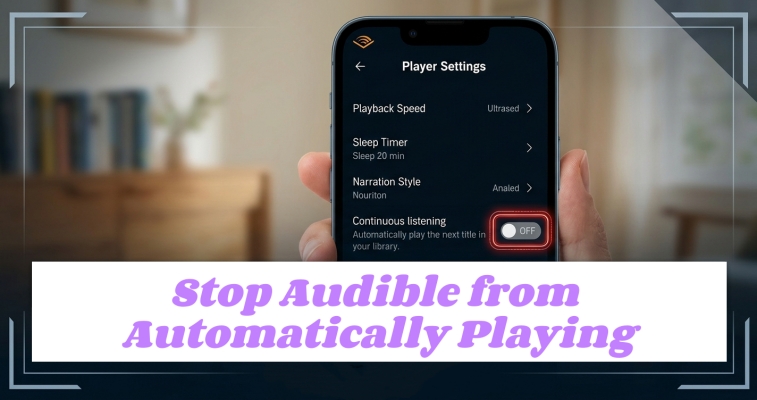
Step 3. To stop books from instantly playing upon connection, look for the Continuous Listening or Automatically Resume Media setting in that same menu and toggle it Off.
Part 3. Troubleshooting Audible Car Mode Not Working
If your Audible Car Mode is acting up, whether it refuses to launch automatically, crashes on your dashboard, or the screen turns off completely while you are trying to drive, you're not alone. Here is a quick troubleshooting checklist to get your hands-free listening back on track.
Solution 1. Verify Your Settings Toggle
Sometimes a minor app update can reset your background preferences. Make sure that your app and settings are enabled.
Step 1. Open the Audible app and tap your Profile.
Step 2. Tap the Settings gear icon in the top-right corner, then select Player.
Step 3. Make sure Automatic Car Mode is explicitly toggled On.
Solution 2. Check Bluetooth Link Profiles
For automatic activation to trigger, your smartphone needs to recognize a full media handshake with your vehicle.
Step 1. Go to your phone's system Bluetooth settings and tap on your car's profile name.
Step 2. Ensure that Media Audio or Audio Streaming is enabled, not just HD Voice or Calls Only. If the phone thinks your car is just a headset for calls, Car Mode will remain asleep.
Solution 3. Disable Screen Auto-Lock
If your Car Mode screen keeps turning black or putting itself to sleep while you are driving, your system preferences are likely overriding the app.
On Android:
Go to system settings and verify that power saving modes aren't forcing the screen off.
On iOS:
If the app isn't overriding your display sleep, navigate to Settings > Display & Brightness > Auto-Lock and temporarily change it to prevent a mid-drive blackout.
Solution 4. Clear Cache and Reset the App
Corrupted background temporary data can cause the driving interface to freeze or crash upon connection.
On Android:
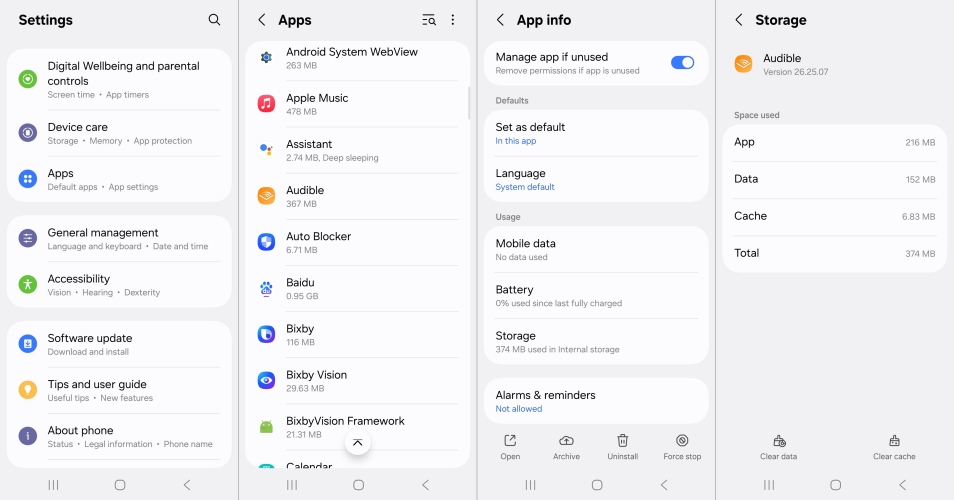
Open your device's system settings and tap Apps > Audible > Storage > Clear Cache.
On iOS:
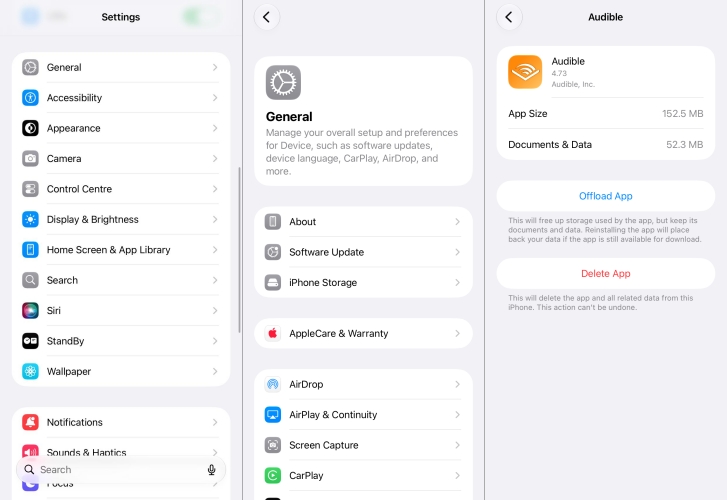
In the Settings app, tap General > iPhone Storage and find Audible. Then tap Offload App to free up storage used by the app.
Solution 5. Bypass App Bugs Completely
If app bugs, Bluetooth drops, or older infotainment software continue to stop Car Mode from responding, you can bypass the phone app entirely using an alternative method to listen to Audible books in your car without the app. Here we would like to recommend TunesMake Audible Converter to you. Keep reading to get more information.
Part 4. Alternative Solution to Playing Audible in the Car
While Car Mode is highly effective, the app integration occasionally experience sluggishness, Bluetooth dropouts, or compatibility issues with older car stereos. The best method to listen to your favorite books in Audible while driving without interruptions is to download and save them to a physical USB flash drive, then plug it into your car dashboard for playing.
Here you can use TunesMake Audible Converter that allows you to convert Audible AAX or AA files into universally supported formats like MP3 or M4B while preserving original audio quality and chapter divisions. By transferring the converted files to a USB drive, you can use your car's built-in physical media buttons to play, pause, and navigate chapters, offering a completely offline alternative to phone-based systems.

Streaming Audio Recorder –
Download Audible audiobooks to popular audio formats
- Download purchases, podcasts, and Originals from Audible
- Convert Audible books to MP3, M4A, M4B, WAV, FLAC, and AIFF
- Remove DRM protection from Audible efficiently and safely
- Preserve the original audio quality and chapter information
- Support downloading audios from 11 popular streaming platforms
Security Verified. 100% Clean & Safe.
Step 1 Add Audible Books to Convert
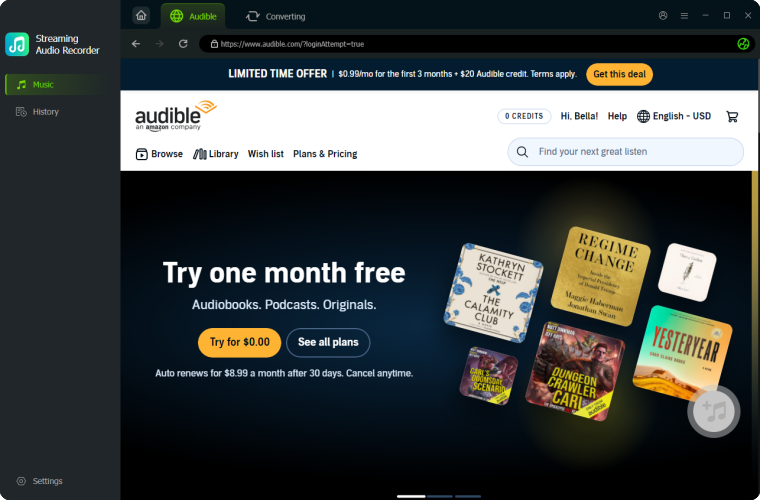
The first step is to download and install TunesMake Streaming Audio Recorder on your computer. When the software is installed, launch it on the computer and select Audible from the main interface. Then log into with your Audible account and password. Go to your library and select any Audible title to convert. Just click the + button to add it to the conversion list.
Step 2 Customize the Output Settings
After adding all the audiobooks you need, it's time to set the output audio settings. Click the Settings button at the left bottom. After that, you can select MP3 or other formats as the output audio format. In addition, you can adjust other parameters, including the channel, sample rate, and bit rate. Don't forget to click the OK button so that your choice can be saved.

Step 3 Convert Audible Books to MP3
Now all the settings are done. You can now click the Convert button to begin the conversion process. Wait for a while, and TunesMake will convert Audible audiobooks to MP3 and save them as local audio files on the computer automatically. If you want to view those converted files, you can click the Converted icon and find the storage location.

Step 4 Import Audible Books to USB
You now have MP3 files of your preferred Audible books, then import them to a USB stick and listen to them in your car without the app. Insert the USB stick into the computer and move the converted Audible audiobook files into the USB's folder by copying and pasting. Once done, unplug the USB stick and insert it into the USB port of your car. Enter the infotainment system and start playing Audible audiobooks with the built-in media player.
Part 5. Conclusion
Audible Car Mode transforms in-car audiobook listening, promoting a safer, more focused experience on the road. But sometimes it may not work, and in this case, you should use TunesMake Audible Converter instead. It offers a fantastic way to listen to uninterrupted, offline audiobooks by converting them into regular audio files. Whether in remote areas or in vehicles without an internet, TunesMake lets you take your vast library anywhere, no compromises necessary. Happy listening!
Related Articles



An experienced freelance writer at TunesMake, specializes in using various streaming services from Spotify, Apple Music, to Amazon Music, and more other platforms.
- 1
- 2
- 3
- 4
- 5
- 6
- 7
 Leave Your Comment
(0)
Leave Your Comment
(0)

 Download Center

