








 Store
Store


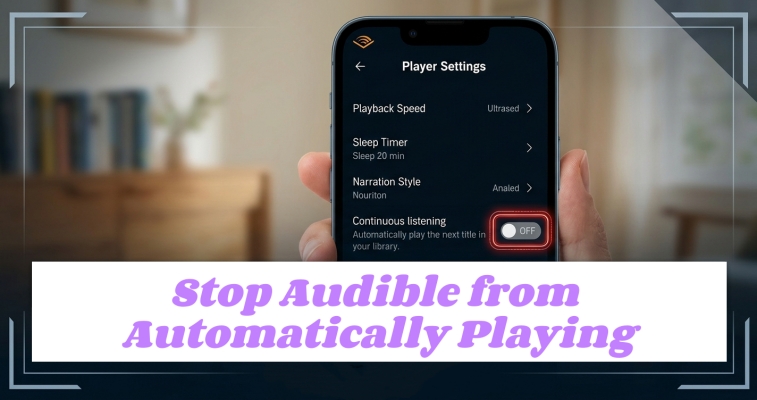
Few things are more frustrating than your audiobook suddenly blasting through your car speakers at a red light, or realizing you lost your place because Audible kept playing in your pocket. Whether your app is automatically starting a new title when your current book ends, or your phone forces Audible to autoplay the moment you connect to Bluetooth, you can take control back. This guide provides step-by-step solutions to stop Audible from automatically playing, covering both native app settings and advanced system workarounds for iPhone and Android.
Part 1. How to Stop Audible from Playing the Next Episode
If your issue is that Audible automatically starts playing a new book, a promotional sample, or an advertisement the second your current audiobook finishes, the culprit is a setting within the app itself. Here is how to stop Audible from playing the next episode.
Method 1. Turn Off Continuous Listening
Audible includes a feature called Continuous Listening designed to keep the audio flowing seamlessly, but it often results in unwanted promotional audio playing without your consent. Disabling it ensures that the player stops entirely once your current selection finishes.
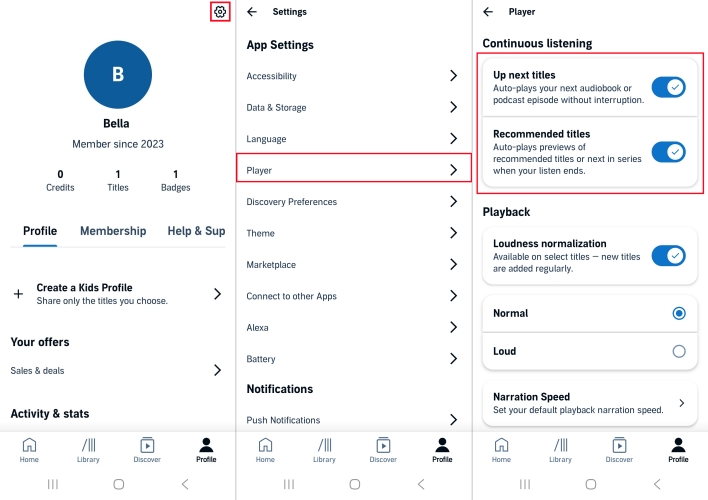
Step 1. Open the Audible app and tap Profile in the bottom right corner.
Step 2. Tap the Gear Icon in the top right corner.
Step 3. Select Player from the menu options.
Step 4. Locate Continuous listening and toggle it OFF.
If you see a toggle for Related titles, turn this OFF as well. This ensures that even if you manually queue books, Audible will not automatically play unowned promotional samples when your queue ends.
Method 2. Disable Seamless Multipart Play
For older titles or massive books broken down into multiple download segments, Audible may attempt to chain them together automatically. If you prefer the app to stop at the end of a specific file segment, check your Player settings for Seamless Multipart Play and switch it to OFF.
Step 1. Launch the Audible app on your smartphone.
Step 2. Tap the Profile tab located in the bottom-right corner of the interface.
Step 3. Tap the Gear Icon in the top-right corner of the screen.
Step 4. Select Player from the menu options.
Step 5. Scroll down to look for Seamless Multipart Play and toggle the switch to the OFF position.
Note:
-
This feature is automatically integrated into newer versions of the app, but remains a manual toggle on some older operating systems.
Part 2. How to Stop Audible from Playing Automatically on Android/iPhone
By changing some settings in the Audible app, you can stop it from playing the next book on your mobile device. But sometimes, Audible suddenly starts playing a title by itself while running in the background. Here you can shut off background execution completely.
Method 1. Put Audible to Deep Sleep
Android systems allow apps to rest in a cached background state where hardware keys can wake them up. Restricting the app keeps it closed until you choose to open it.
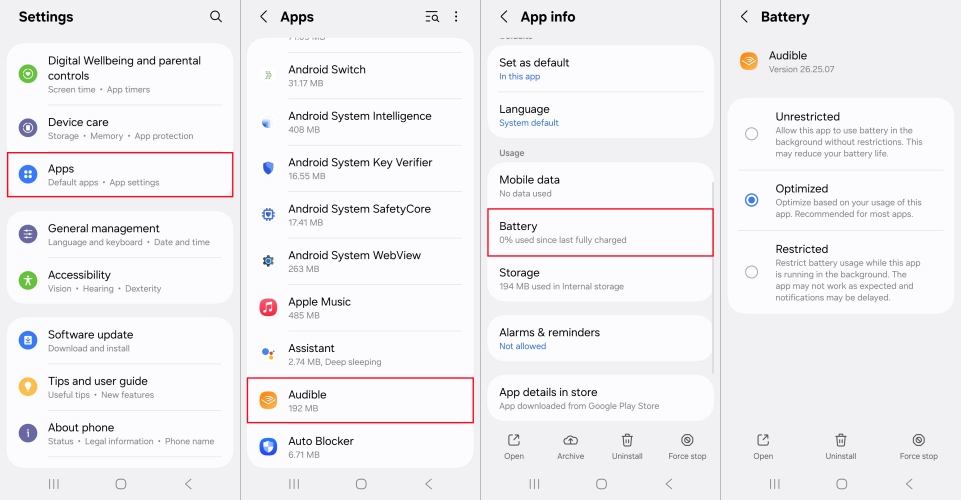
Step 1. Open your phone's Settings and navigate to Apps.
Step 2. Find and select Audible from the list.
Step 3. Tap on Battery or Background limits.
Step 4. Select Restricted or move the app to the Deep Sleep list.
Method 2. Turn Off Background App Refresh
Restricting Audible's permission to run active background tasks can prevent iOS from keeping the app "woken up" and ready to stream audio.
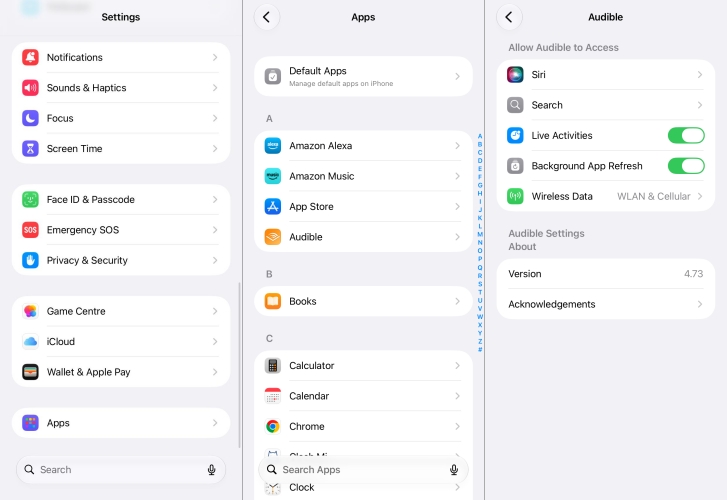
Step 1. Open your iPhone's main Settings app.
Step 2. Scroll down and select Audible from your list of installed apps.
Step 3. Toggle off Background App Refresh.
Step 4. If visible, toggle off Live Activities.
Part 3. How to Stop Audible from Automatically Playing in the Car
Besides, the most common and disruptive autoplay issue happens externally. Many modern car infotainment systems send a forceful "Play" command the moment a connection is established. If you want to stop Audible from automatically playing in the car, try these methods.
Method 1. Toggle Off Resume Playback
Before adjusting your phone's operating system, change this internal Audible setting to tell the app to ignore external play requests.
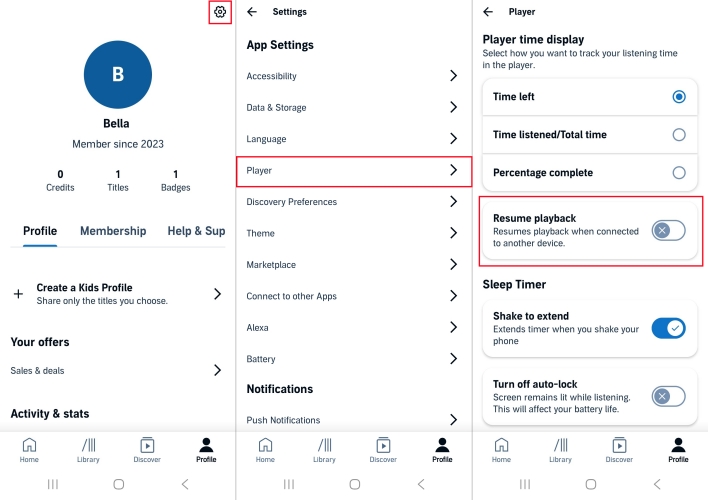
Step 1. Go to Profile > Settings > Player.
Step 2. Scroll down to find the Resume Playback option.
Step 3. Toggle it OFF.
When disabled, this stops the Audible app from automatically picking up right where you left off the moment it detects a Bluetooth handshake.
Method 2. Switch Off Automatic Car Mode
To prevent Audible from automatically switching to its simplified, large-button driving interface when you get into your vehicle, you can disable Automatic Car Mode within the app settings.
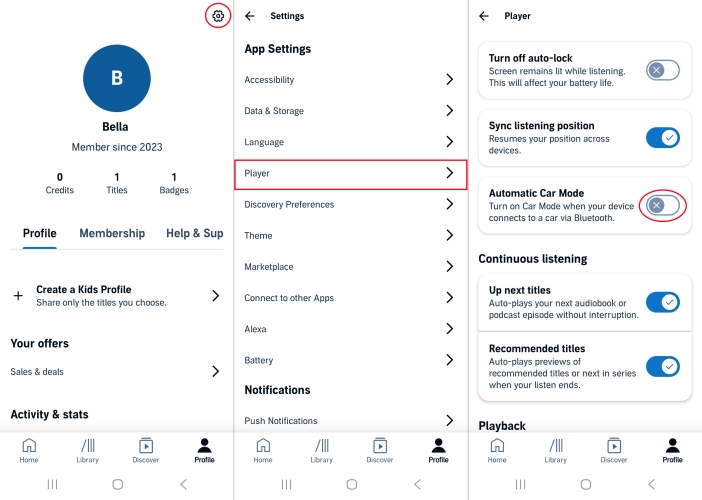
Step 1. Open the Audible app on your mobile device.
Step 2. Tap the Profile icon located in the bottom-right corner of the screen.
Step 3. Tap the Settings in the top-right corner.
Step 4. Select Player from the settings menu.
Step 5. Scroll down to find the Car Mode or Automatic Car Mode section.
Step 6. Toggle the switch to the OFF position.
Once turned off, Audible will no longer automatically change its player interface based on your driving movement or Bluetooth connections, allowing you to use the standard player screen at all times.
Method 3. Turn Off Start Music Automatically
If you use Android Auto and find that Audible launches every time you start your car engine, the setting is actually managed by the Android Auto system app.
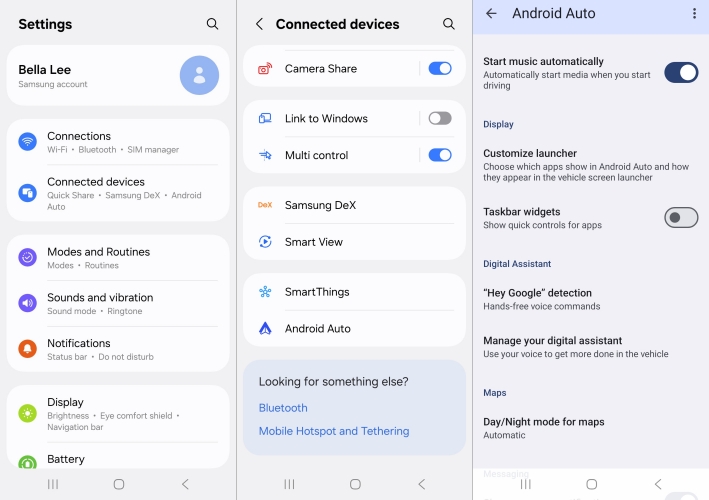
Step 1. Open your phone's Settings.
Step 2. Search for or select Connected Devices, then tap Android Auto.
Step 3. Scroll down through the settings until you find Start music automatically.
Step 4. Toggle this feature OFF.
Method 4. Disable Nearby Devices Permissions
If the Audible app continues to start up on Android devices when Bluetooth connects, you can revoke its permission to look for nearby wireless devices entirely.
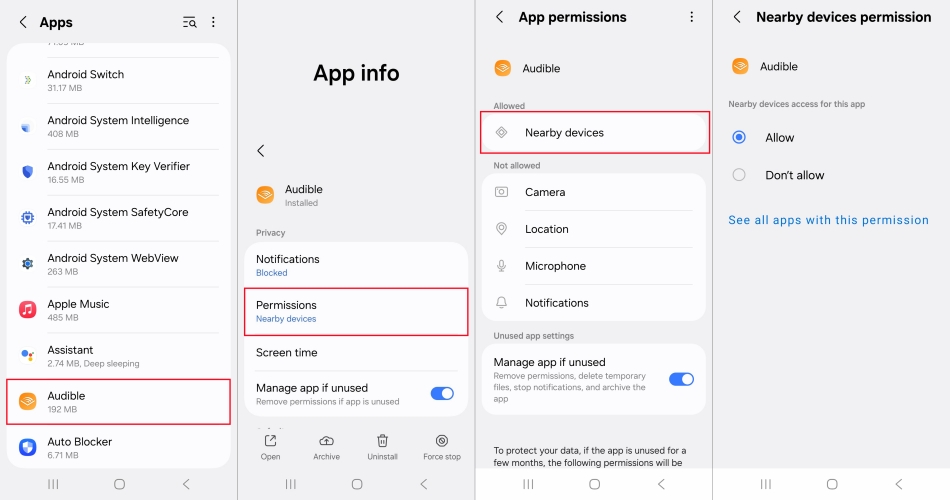
Step 1. Open your Android phone's main Settings app.
Step 2. Navigate to Apps and choose Audible.
Step 3. Tap on Permissions.
Step 4. Select Nearby Devices and switch it to Don't allow.
Method 5. Set Smart Pause Automation
iOS devices does not have a "disable Bluetooth autoplay" switch. If your car forces Audible to play anyway, you can outsmart the system using a built-in iOS Shortcut automation that forces the phone to pause media immediately upon connecting to your vehicle.
Step 1. Open the Shortcuts app on your iPhone and tap the Automation tab at the bottom.
Step 2. Tap the + icon to create a new automation.
Step 3. Select Bluetooth as the trigger.
Step 4. Choose your car's Bluetooth name under Device and select Run Immediately.
Step 5. Tap Next and choose New Blank Automation.
Step 6. Search for and add the action Wait, then set it to 5 seconds.
Step 7. Search for and add a second action called Play/Pause.
Step 8. Change the action to explicitly say Pause on Media.
Part 4. Ultimate Workaround to Stop Audible from Automatically Playing
If system-level configurations fail to keep the Audible app from misbehaving, the most definitive solution is to bypass the app entirely. This can be achieved by using a third-party tool like TunesMake Audible Converter to convert Audible AA or AAX audiobooks into standard audio files, such as MP3, FLAC, AIFF, WAV, M4A, or M4B.
Once your titles are downloaded locally, you can play them using native device storage or alternative, highly configurable offline media players. These traditional players often feature strict, reliable toggles to completely disable Bluetooth autoplay and continuous listening, putting you back in complete control of your media experience.

Streaming Audio Recorder –
Download Audible audiobooks to popular audio formats
- Download purchases, podcasts, and Originals from Audible
- Convert Audible books to MP3, M4A, M4B, WAV, FLAC, and AIFF
- Remove DRM protection from Audible efficiently and safely
- Preserve the original audio quality and chapter information
- Support downloading audios from 11 popular streaming platforms
Security Verified. 100% Clean & Safe.
Step 1 Add Audible Books to Convert
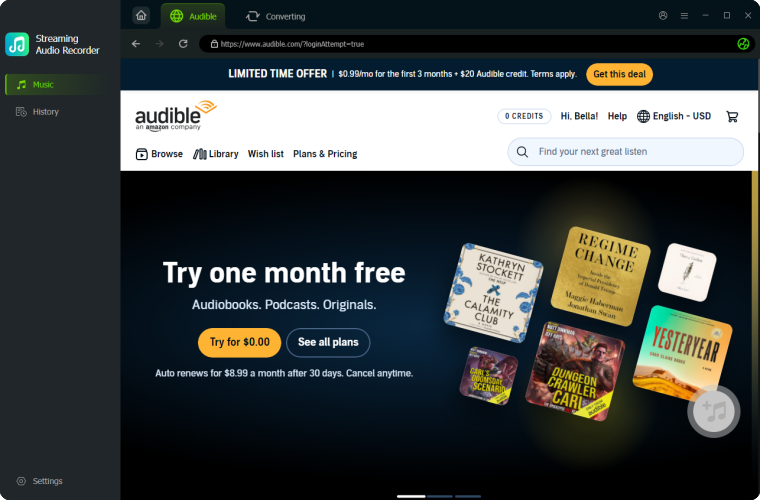
First of all, launch TunesMake Streaming Audio Recorder on your computer and choose Audible from the main interface. Then log into the built-in Audible web player and select some books you want to convert. Just click the + button to add them to the conversion list.
Step 2 Set the Output Audio Parameters
After adding Audible books to the conversion list, you can set the output audio parameters by clicking the Settings button. Then switch to the Conversion tab and select the output audio format. Also, you can set the bit rate, sample rate, and channel.

Step 3 Start to Convert Audible Books
Once setting well, you can click the Convert button at bottom right corner. This will make TunesMake automatically downloading and converting Audible books to your selected audio format. And you can go to History to browse the converted Audible books.

Part 5. Conclusion
Taking control of your listening experience doesn't have to be a constant battle against automation. By systematically turning off in-app settings like Continuous Listening and Resume Playback, or setting up operating system restrictions like Android's Deep Sleep and iOS Shortcuts, you can permanently stop Audible from automatically playing. If you want a completely foolproof solution that bypasses app updates altogether, converting your audiobooks with TunesMake Audible Converter to play on a dedicated local media player gives you ultimate manual control.
Related Articles

A professional writer at TunesMake, crafts in-depth tutorials, practical tips and expert advice focusing on streaming music, technology, and more.
- 1
- 2
- 3
- 4
- 5
- 6
- 7
 Leave Your Comment
(0)
Leave Your Comment
(0)

 Download Center

