









 Store
StoreTunesMake Spotify Music is an easy-to-use yet efficient music downloader and converter designed to help music lovers download and convert tracks, playlists, albums, podcasts, and audiobooks from Spotify into universally compatible formats. Whether you are using a Spotify Free or Premium account, this tool bypasses streaming restrictions so you can enjoy your Spotify collection offline on any device.
As it is fully compatible with both Windows and macOS operating systems, you can download and install it on your computer. Now you can download the right version and start using it to convert Spotify music to MP3 or other formats at a lightning-fast speed while retaining the original audio quality and ID3 tags.
Part 1. How to Download and Register TunesMake Spotify Music Converter
Step 1 Download TunesMake Spotify Music Converter
Click the Free Download button above to download and install TunesMake Spotify Music Converter on a Windows PC or a Mac. Once done, double-click the icon on your computer, and you will be led to the official Spotify web player on the interface of the software.
Step 2 Register TunesMake Spotify Music Converter
To unlock the limit in the trial version, which only allows you to convert the first one minute of each music track, you need to click the Register icon in the top right corner. Then copy and paste your licensed email and registration code to make it the full version.
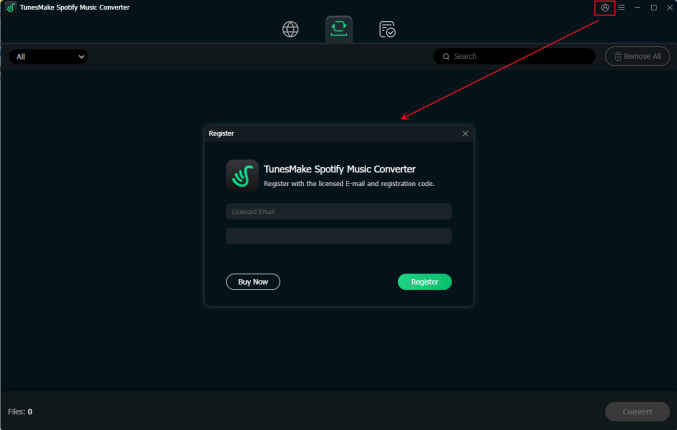
Note: Please be cautious and do not insert any blank when entering the registration information as it is case-sensitive.
Part 2. How to Convert Spotify Music with TunesMake Spotify Music Converter
Step 1 Sign into with a Spotify Account
As soon as you open TunesMake Spotify Music Converter, you can see the official Spotify web player on the interface of the software. Now you can click the Log in button in the top right corner and enter your Spotify account credentials. Whether you are subscribing to a premium plan or not, you can access and download all your favorite content via this great Spotify downloader.
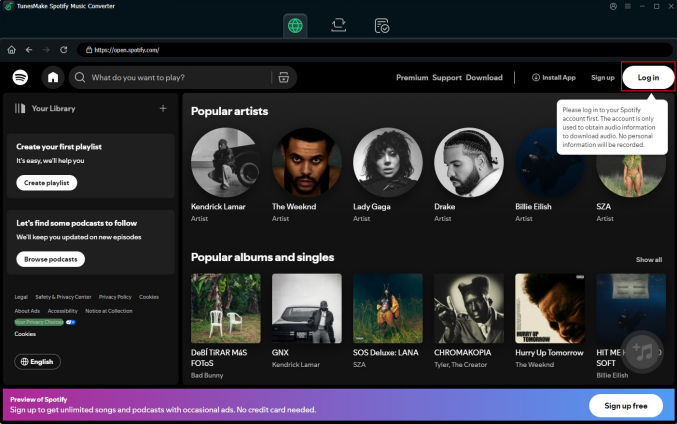
Step 2 Select Spotify Content to Convert
Now you can browse your own library or use the search function to find any music track, album, playlist, or other content you want to download. Simply open a target playlist or album and click the + button at the right bottom of the software. Then this converter will begin analyzing the source automatically. You can choose the music track you want to download and click the Add to List button so as to load all of them. Alternatively, you can drag and drop the target items to the Add icon directly.

Step 3 Customize Output Audio Parameters
After adding all the music tracks you want to download, you need to set the output audio parameters by clicking the Menu bar and selecting the Preferences option. In the pop-up Preferences window, switch to the Conversion tab where you can choose the output format as MP3, FLAC, WAV, AIFF, M4A or M4B. Also, you can personalize other parameters like the channel, sample rate, and bit rate, as well as organize and archive the saved files by artists or albums.

Step 4 Download and Convert Spotify Music
You can click the Convert button at the lower right corner to let this Spotify converter start the conversion based on your requirements. Wait for a while, and all the selected Spotify music tracks will be downloaded and saved as your required formats. All of them are stored in the local folder on your computer. Now you can listen to them on any device or with any media player at any time.

Step 5 Find the Downloaded Spotify Music
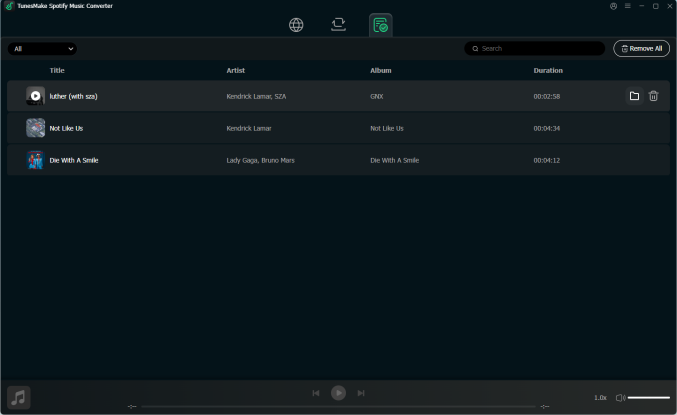
Once all the music tracks are downloaded successfully, you can click the Converted icon on the top menu. In the Converted section, you can see all the converted songs. You can double-click the music and listen to it with the built-in media player in the converter directly. You can even set the playback speed as you wish. To find it on your computer, you can click the file icon at the rear of each music track.
 Download Center

