








 Store
Store


Among all the streaming music platforms, Tidal is one of the most popular choices. With its millions of songs, a variety of podcasts, music videos, live concert recordings, and professionally curated playlists, you can have a great music experience. If you have a subscription, you can even download music for offline listening. However, those downloaded Tidal songs are cache files only playable within the Tidal music app. In other words, you cannot move Tidal downloads to other devices like an SD card or a USB drive. Due to its enough storage space and convenience, the USB drive is an ideal choice to store music for playing anytime. Is it possible to download Tidal music to USB? Sure! Today, here we’ll introduce two feasible ways to help you download Tidal playlist onto USB.
Part 1. Can You Download Tidal Music to USB?
The short answer is: Not directly through the official Tidal app. While Tidal allows subscribers to download tracks for offline listening, these downloads are encrypted by DRM protection. This restriction means you can only access them within the Tidal app, and you can't directly transfer them to a USB drive or play them on other devices. Even if you manage to copy the downloaded cache files to your USB, they won't be recognized or playable by other apps.
But that doesn't mean it's impossible to get Tidal music onto a USB drive. All you need is a professional third-party Tidal music converter. To make Tidal music playable everywhere, here we recommend TunesMake Tidal Music Converter to you.
TunesMake Tidal Music Converter is a top-notch music downloader for all Tidal users. With the help of this Tidal music downloader, you can download your liked songs from Tidal and convert them to common universal audio formats that can be saved locally. During the conversion process, there is no quality loss. Once done, you can freely transfer the local Tidal files to your USB drive.

TunesMake Tidal Music Converter –
Download& Save Tidal Music to USB Drive
- Download any Tidal content, including songs, albums, playlists, and artists
- Convert Tidal music to MP3, FLAC, AIFF, WAV, M4A, and M4B
- Preserve a whole set of ID3 tag information in the downloaded Tidal songs
- Handle the conversion of Tidal music up to 22X faster speed and in batch
Security Verified. 100% Clean & Safe.
-
😀 Pros
- Full control over file format and quality
- Works offline without restrictions
- Compatible with most devices
- Lossless audio quality
- High-speed conversion
- Retains original ID3 tags
-
☹️ Cons
- Requires third-party software
Part 2. How to Download Tidal Music to USB Drive Locally
TunesMake Tidal Music Converter is compatible with both Windows and Mac computers. You can choose the correct version to help you download Tidal songs. It’s easy for newbies to use as TunesMake software is designed with an easy-to-use interface. Now follow the below steps to download Tidal songs by using TunesMake Tidal Music Converter.
Step 1
Upload Tidal Songs to the Converter

First up is to open TunesMake Tidal Music Converter on your computer. Then the Tidal music web player will be launched automatically. In the Tidal music player, find any album or playlist you want to download and add them to the converter by clicking the Add icon > Add to List.
Step 2
Set MP3 as the Format for Tidal music

Go to the menu bar and select the Preferences option, then a window will pop up. In the pop-up window, you can select the output format and set the bit rate, sample rate, and channel. As TunesMake supports MP3, AIFF, FLAC, M4A, M4B, and WAV, you can choose one as the output format for Tidal music. MP3 is recommended due to its compatibility.
Step 3
Download and Convert Tidal to MP3

To initiate the conversion of Tidal to MP3, you can click on the Convert button at the bottom right of the converter. Then TunesMake Tidal Music Converter starts to download and export Tidal music as MP3 to your computer. After conversion, you can browse all the converted Tidal songs in the history list by clicking the Converted icon.
Step 4
Go to Transfer Tidal Music to USB
Now it’s time to move Tidal music to a USB drive. Simply insert your USB drive into the USB port of your computer and create a new folder in the USB drive for storing Tidal music files. Locate the folder where you save the converted Tidal music files and move them to the folder on your USB drive.
Part 3. How to Convert Tidal to USB Online
You don't need to install any extra desktop programs if you prefer an online solution. There are a lot of web-based Tidal music converters that can help you get Tidal music files directly on your browser. If you don’t mind lossy audio quality and other limitations, these online tools are good options. Here, we will take Apowersoft as an example.
Apowersoft Free Online Audio Recorder is a free browser-based tool that can record audio playing on your computer, including Tidal music. Follow these steps to get Tidal music to your USB via this online tool:
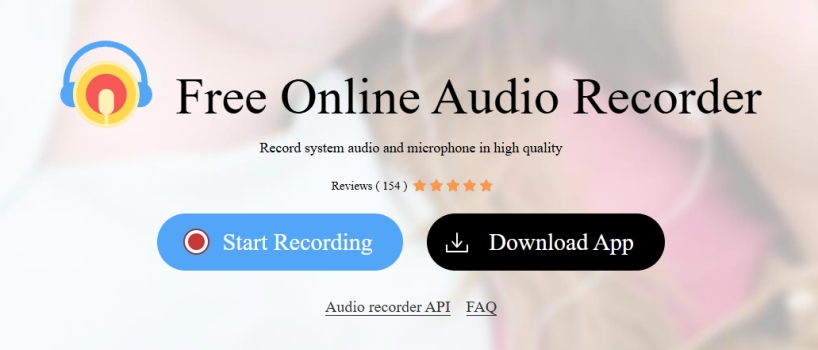
Step 1. Open the Apowersoft Free Online Audio Recorder official website on your browser, click the Start Recording button.
Step 2. Then, choose the System sound as the recording resource.
Step 3. When it prompts, you should select the Tidal music player or app and click the Share button.
Step 4. Play the Tidal music you want to save, and the tool will start recording automatically. Once the playback finishes, stop the recording and save the recorded audio file to your local computer.
Step 5. Once you get the local Tidal music files, insert your USB drive into your computer, then copy and paste the Tidal audio files to your USB drive.
-
😀 Pros
- No installation required
- Easy to use for beginners
-
☹️ Cons
- Limited audio quality
- Often restricted to MP3 format
- May not support playlists or albums
Part 4. FAQs about Converting Tidal to USB
Why can’t I transfer Tidal downloads to USB?
Because all Tidal downloads are encrypted cache files that cannot be recognized or accessed directly by other devices including your USB drive. Even if you have downloaded them, you don’t own the actual audio files. The downloads are tied to its official apps. To transfer Tidal music to USB, you need to use a third-party converter to convert the encrypted Tidal tracks to common local audio files first.
Is it legal to download Tidal music to USB?
Generally speaking, as long as you download and save Tidal music for personal use, it is legal. Make sure you don’t share or redistribute the Tidal downloads. It’s always a good idea to check your local laws and Tidal’s terms of service to avoid copyright violations.
What audio format is best for USB playback?
For maximum compatibility with cars and smart TVs, MP3 is the safest bet. But if you want to experience high-end audio quality, FLAC and WAV are better options.
Can I keep lossless quality when transferring to USB?
Yes, but only if you use a professional local converter like TunesMake Tidal Music Converter. Online recorders often compress the audio.
Conclusion
With a paid subscription to Tidal, you can download music from Tidal to a Tidal-supported device. But you cannot put Tidal songs into a USB flash drive. Here you can try using TunesMake Tidal Music Converter – a professional Tidal music downloader. You can then easily transfer Tidal songs to your USB drive for playing anytime.
Related Articles

A senior editor from TunesMake, dedicated to sharing professional tutorials and solutions of software, movies, and music.
- 1
- 2
- 3
- 4
- 5
- 6
- 7
 Leave Your Comment
(0)
Leave Your Comment
(0)

 Download Center

