








 Store
Store


Now is the era of music, and more and more music lovers are pursuing high-fidelity songs and extraordinary music experiences. As a result, Tidal stands out from a variety of music streaming services due to its large music library and high-quality audio like MQA, 360 Reality Studio, and Dolby Atmos. If you are unfamiliar with spatial audio, don’t worry. In this latest guide, you can learn almost everything you want to know about Tidal Dolby Atmos, from what it is, what key features it offers, and the requirements to using it, to how to find and play Dolby Atmos tracks on Tidal online or offline. Plus, you can get helpful troubleshooting solutions when you find that Tidal Dolby Atmos is not working. To get a remarkable music experience, keep reading and follow the tutorial step by step.
Part 1. Overview of Tidal Dolby Atmos [Latest]
For users who want to experience true three-dimensional music, Tidal is the option you cannot miss. As a top-tier spatial audio provider, Tidal offers the best immersive listening experience. Before learning how to get Dolby Atmos audio on Tidal, it’s important to understand how it works with the platform. Here is an overview that includes the basic information about Dolby Atmos on Tidal.
What is Dolby Atmos?
Dolby Atmos is an immersive audio format that gives you a spatial way to enjoy the song you like. Unlike an ordinary stereo, its advanced technology places the audio elements in a three-dimensional sound field. As a result, you can achieve an experience that goes beyond common songs. At first, Dolby Atmos was used in films. But now it has penetrated into the music industry and can be accessed on your home cinema setups, soundbars, media players, mobile phones, and smart TVs.
Does Tidal have Dolby Atmos?
The one-word answer to this question is yes. Tidal is famous for its high-quality music. Not to mention the Dolby Atmos that it provides lifts users’ music experience to a brand new level. As long as you meet the basic requirements, you can easily play any Dolby Atmos track on Tidal, which is usually labeled with a Dolby Atmos badge.
Requirements of Listening Dolby Atmos on Tidal
An available Tidal subscription: Dolby Atmos audio was previously reserved for a specific "HiFi Plus" tier. However, Tidal has changed and streamlined its subscription model in 2025. Now, you just need a Tidal Individual, Family, or Student plan to access Dolby Atmos content.
A Supported Device: Dolby Atmos requires compatible hardware: To listen to Dolby Atmos songs on Tidal, you should use a supported device like iOS (15 or later), Apple TV 4K (running tvOS 13 or later), Nvidia Shield TV/Pro (2019 and newer models), and more. To figure out whether your device is compatible with Tidal, you can check this page.
The latest version of the Tidal app: To ensure a smooth and proper playback, it’s a good idea to install the latest version of the Tidal app on your device. Old versions of the app may not support Dolby Atmos playback or cause compatibility issues.
The latest version of the Tidal app: To ensure a smooth and proper playback, it’s a good idea to install the latest version of the Tidal app on your device. Old versions of the app may not support Dolby Atmos playback or cause compatibility issues.
Part 2. How to Find and Play Dolby Atmos Tracks on Tidal
Once your hardware is properly configured, finding immersive music on the platform is straightforward. Tidal has curated a massive library of spatial audio, so you can browse to find any song you like or stream the Dolby Atmos playlists below directly:
Tidal Dolby Atmos Playlists:
The steps of browsing Dolby Atmos content are slightly different across devices. We have prepared detailed steps for you, and you can follow them:
On Mobile Phone:
Step 1. Install and launch the Tidal app on your iOS or Android device. Then log in to your HiFi Plus account.
Step 2. Tap the search icon at the bottom and enter the Explore screen soon.
Step 3. Enter “Dolby Atmos” in the top search bar. Then choose Dolby Atmos Genre from all the results.
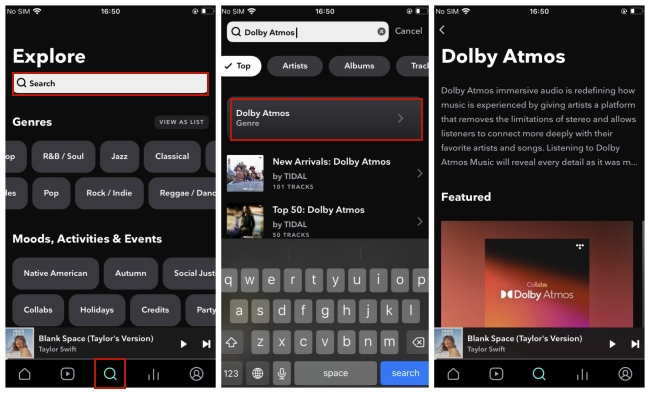
Step 4. Now you will be navigated to the Dolby Atmos section. You can browse and choose the track or playlist you like to play.
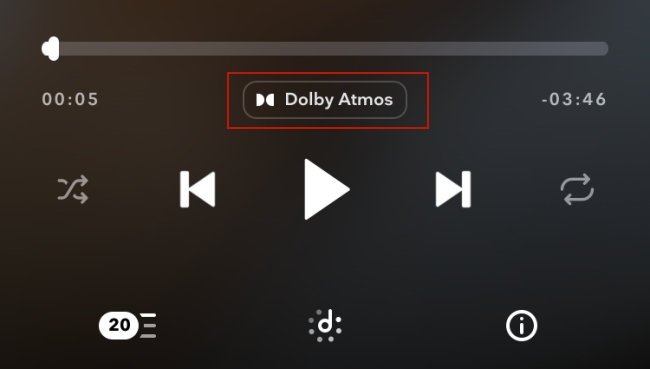
Step 5. If your device is not Dolby enabled, the Tidal app will play a stereo version instead. To make sure your Dolby enjoyment, you can enter the Now Playing screen and check whether there is a Dolby icon.
Note
Your iOS device should be running iOS 14.6 or later to play Dolby Atmos music.
On Smart TV:
Step 1. Fire up your smart TV and find the Tidal app on it.
Step 2. Choose the Available in Dolby Atmos option on the main screen.
Step 3. Finally, choose the music you like to stream on your smart TV.
Note: If you can’t find or download the Tidal app on your TV, you can utilize the Tidal Connect feature to access Dolby music on your TV.
Part 3. How to Play Tidal Dolby Atmos Tracks Offline
Now you can find and listen to Dolby music with ease. We all know that high-quality music will cause more cellular data, thus, you need to ensure a stable network connection while streaming it. But what if the Internet is lagging? Can you download Dolby music offline to avoid that situation? Unfortunately, Tidal does not allow you to do so.
First of all, only Tidal subscribers can download songs and playlists from the Tidal app directly. Furthermore, only the mobile version of the Tidal app provides the downloading feature. If you are a big fan of Tidal, you may know that all Tidal downloads are DRM-protected, which means you can only play them inside the Tidal app. If you want more flexibility when listening to Dolby Atmos on Tidal, try another approach - converting Tidal Dolby Atmos to local music files. This conversion step can help you listen to your favorite Tidal tracks anytime and anywhere you want, even without a network connection or the Tidal app.
To do so, the indispensable program is the TunesMake Tidal Music Converter. TunesMake Tidal Music Converter is designed to download and convert Tidal songs, playlists, albums, and even podcasts as local files in various formats, including MP3, M4A, M4B, WAV, FLAC, and AIFF. More so, the TunesMake program can smoothly remove this annoying copyright limitation of Tidal while retaining the original sound quality and ID3 tags. You can also personalize diverse audio parameters according to your demands. With its assistance, you can get Dolby Atmos music from Tidal locally and enjoy it offline without limits.

TunesMake Tidal Music Converter –
Download Tidal Dolby Atmos Songs Locally
- Download any Tidal content, including songs, albums, playlists, and artists
- Convert Tidal music to MP3, FLAC, AIFF, WAV, M4A, and M4B
- Preserve a whole set of ID3 tag information in the downloaded Tidal songs
- Handle the conversion of Tidal music up to 22X faster speed and in batch
Security Verified. 100% Clean & Safe.
Step 1
Add Dolby Atmos music to TunesMake program

Launch the TunesMake Tidal Music Converter on your desktop, and meanwhile, the Tidal web player will open itself. Log in and go to the Dolby Atmos section to choose the track you want to download. Then, you should select the playlist or album that contains it. After that, click the Add icon in the right corner, and you can load this song to the conversion list by clicking Add to List.
Step 2
Reset output settings for Dolby music

Click the menu icon at the top right section. Then choose Preferences, and switch to the Conversion tab. Here, you can decide the output formats and change other parameters depending on your demands. When you finish the settings, click the OK button to make a confirmation.
Step 3
Download Tidal Dolby Atmos music

Now it’s high time to begin downloading and converting. To do so, you should click the Convert button at the bottom of the program’s interface. Just wait patiently for a while and you will be able to save the Dolby Atmos music files permanently. Once everything is done, you can click the Converted icon to trace the storage path of these files on your computer.
Part 4. Troubleshoot: Tidal Dolby Atmos Not Working
Even with a correct subscription and device, Dolby Atmos can sometimes not work properly on Tidal. If you encounter this issue on your device, here are some fixes that can resolve it. Try them. Or, you can directly download Tidal Dolby Atmos songs via the TunesMake program and listen to them without the problematic Tidal app.
1. Check compatibility. The first thing you need to check is whether your device supports Dolby Atmos playback or not. If you are using Tidal on a PC or Mac, Tidal does not support Dolby Atmos playback on its desktop application. Pixel devices are the same. When you play Dolby Atmos on a device that does not support Atmos, Tidal will automatically switch to stereo playback.
2. Check the audio settings. If Dolby Atmos doesn’t work on your device, you should enter the audio settings section on the Tidal application and make sure this feature is enabled successfully. Just open Tidal, and head to Settings > Audio & Playback > Dolby Atmos.
3. Update Tidal. An outdated version of the app may cause playback issues. Thus, it’s always a good idea to use the newest Tidal app on your device. You can update Tidal from its official website or the app store on your device.
4. Test your Internet connection. Dolby Atmos files are larger than standard audio songs. A weak or unstable Internet connection can cause buffering. Make sure your network connection is at least 10 Mbps for a smooth Dolby Atmos experience. When there is an issue, try switching to another Wi-Fi or restarting your router.
5. Change the volume settings. One possible situation is that you play a Dolby Atmos song, but there is no sound. This is a known software bug tied to the app’s volume settings. You can fix it by going to Tidal Settings > Audio & Playback. Then, find the toggle labeled "Normalize volume" and turn it off.
Part 5. FAQs about Dolby Atmos Tidal
Can I listen to Tidal's immersive audio on my computer?
Unfortunately, the answer is no. The Tidal desktop app for both Windows and Mac computers doesn’t support spatial audio playback. The immersive experience is mainly designed for mobile devices, smart TVs, and stereo audio devices.
What is the difference between Dolby Atmos and Sony 360 Reality Audio?
Dolby Atmos and Sony 360 Reality Audio are both spatial audio, and they operate similarly by using audio objects, rather than standard channels. That means instead of coming out from the common left and right channels, the audio will move in a three-dimensional space. One of Dolby Atmos music’s advantages is that it has better loudness normalization. Compared with 360 Reality Audio, Dolby Atmos can only be used on suitable devices that are compatible with it.
Which music streaming app supports Dolby Atmos?
Apart from Tidal, you can get Dolby Atmos on Apple Music and Amazon Music Unlimited. Learn more on these pages:
https://www.dolby.com/experience/apple-music/
https://www.dolby.com/experience/amazon-music/
Is Dolby Atmos free on Tidal?
Actually, no. Dolby Atmos music is now only available to users who have the Tidal HiFi Plus subscription. Notwithstanding, if you want to access Dolby Atmos on Tidal, you can get or upgrade your subscription on the Tidal website.
Conclusion
As long as you have a Tidal subscription, it is really easy for you to get Dolby Atmos music on Tidal. In sum. This post presents 2 useful methods to help you solve the question: how to listen to Dolby Atmos on Tidal. You are allowed to directly stream Dolby music on the Tidal app. For offline playback, try TunesMake Tidal Music Converter to play it on any device without much effort. What makes it better, you can save the music files forever.
Related Articles

An experienced freelance writer at TunesMake, specializes in using various streaming services from Spotify, Apple Music, to Amazon Music, and more other platforms.
- 1
- 2
- 3
- 4
- 5
- 6
- 7
 Leave Your Comment
(0)
Leave Your Comment
(0)

 Download Center

