








 Store
Store


Tidal is getting increasingly popular due to its superior hi-res audio quality and powerful functions. Recently, a group of people has been asking questions like: Is Tidal compatible with Alexa? How can we play Tidal on Alexa? As we all know, Amazon Echo is an Alexa-based smart speaker designed by Amazon, which now supports playing audio files covering multiple kinds.
Amazon Alexa has partnered with many major brands for music streaming, including Amazon Music, Spotify, etc. And if you want to connect Tidal to Alexa for streaming, congratulations! You have come to the right place! This article will tell you why and how.
Part 1. Can I Play Tidal on Alexa?
Tidal is a digital music subscription service featuring a music library that is no less than Spotify and Master music quality. With a vast range of great features, Tidal is now a big competitor of other streaming apps. As for compatibility with Amazon Alexa, the answer is yes! Tidal has no reason to fall behind. Tidal is fully compatible with the Amazon home assistant, allowing Tidal users that have an Amazon Echo to control their music with their voice.
Can I set Tidal as the default music service on my Alexa?
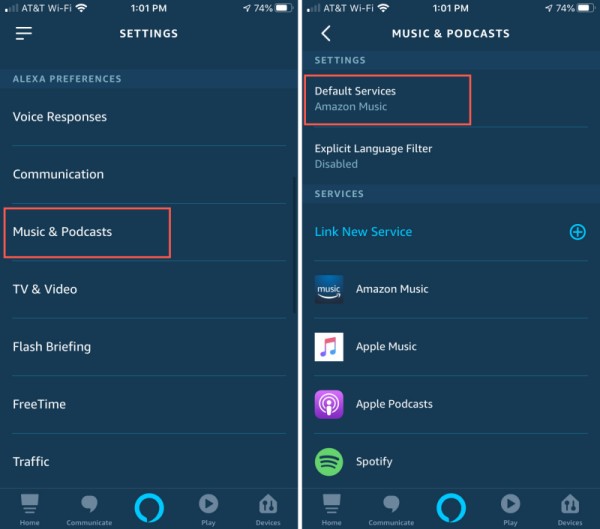
Yes, you can set Tidal as the default music service on your Alexa device. By doing so, you don’t need to say “on Tidal” at the end of your every voice command. To reach this goal, you should go to the Alexa app, and select Settings > Music & Podcasts >Default Services. Scroll down to the Music section, select Tidal as the default service.
Why is the Tidal Alexa integration not available in my country?
Currently, the Tidal Alexa integration is available in the United States. If you are in elsewhere, you can try an alternative methods: downloading Tidal songs to local files, and then play them on Alexa offline. You can learn more detailed information on Part 3.
Does Alexa play Tidal music in high-fidelity quality?
Alexa does not support Tidal’s Max quality through native skill. When you stream Tidal music on Alexa, you can usually get the Standard or High quality. If you want better control and quality than voice commands, you can try to make a connection via Tidal Connect and compatible hardware.
Part 2. How to Connect Tidal to Alexa via Official Method [Online]
Thanks to the partnership, it’s easy to get Tidal music playing on Amazon Echo. To get this done, you’ll need a Premium account to link these two services together.
How to Setup Tidal Alexa the First Time
If you haven’t connected Tidal to Alexa, here’s the how-to guide:
1. Download and launch the Amazon Alexa App on your phone.
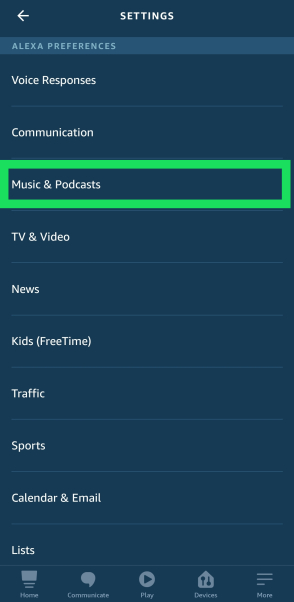
2. Go to “Settings” and tap “Music”.
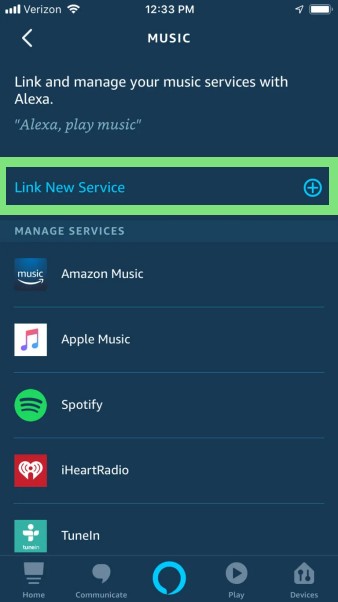
3. Under the “Music” section, tap “Link New Service” > “TIDAL” to add Tidal music service.
4. Click “Enable to Use” and link your TIDAL account.
Now you have set up Tidal for Alexa, it’s easy to control your music playback through your mobile phone or by making voice commands to the home assistant.
How to Use Alexa Voice Commands to Control Playback
As long as you have added Tidal to your Alexa playing services, you can easily stream Tidal Music on Amazon Alexa devices. Call out a song, album, or playlist you want to listen to and make voice commands to Alexa, by saying ” Alexa, play [XX] on/from Tidal”. When you request a song or album that has multiple writers, the best way to tell Alexa is to say just one writer like “Alexa, play XX from XX”. That’s enough, otherwise, your Alexa assistant may be puzzled and confused to respond to your requests.
In addition to asking Alexa to play songs, you can control the Tidal Music playback on Alexa with ease. You can shuffle songs, play next or previous songs, pause or skip songs and adjust the volume, etc.
Part 3. How to Download Tidal Music Locally for Alexa [Offline]
With the steps above, you can easily stream Tidal Music on Alexa. However, you should notice that this official feature requires an active subscription and a stable network connection. If you want to bypass the account and network limitations, is there a method? Luckily, the answer is yes! All you need to do is to download your preferred Tidal songs to local files. Therefore, you can play them on Alexa offline without limits. To get this done, it’s essential point is how to remove the DRM protection of Tidal songs. Don’t worry. TunesMake Tidal Music Converter comes to help you.
TunesMake Tidal Music Converter is a professional music downloader designed for all Tidal users. You can use it to download songs, playlists, albums, and podcasts from Tidal to normal audio formats, including MP3, M4A, M4B, WAV, FLAC, and AIFF. With its advanced and innovative technology, you can easily save Tidal songs locally. Then, it’s a piece of cake to import them to other devices for unlimited offline playback. What’s more, it can keep the original sound quality and ID3 tags. Here is the tutorial you can follow:

TunesMake Tidal Music Converter –
Download and Play Tidal Music on Alexa
- Download any Tidal content, including songs, albums, playlists, and artists
- Convert Tidal music to MP3, FLAC, AIFF, WAV, M4A, and M4B
- Preserve a whole set of ID3 tag information in the downloaded Tidal songs
- Handle the conversion of Tidal music up to 22X faster speed and in batch
Security Verified. 100% Clean & Safe.
Step 1
Select Tidal Songs to Download
Now, install and launch TunesMake Tidal Music Converter on your computer. Here, the Tidal web player will be opened at the same time. Then, you can sign in and select any playlist or album you want to download. To load all the songs in this playlist/album, you need to click the lower Add icon > Add to List.

Step 2
Adjust Output Audio Parameters
The second step is to configure the output audio parameters as you want. Go to the menu icon > Preferences > Conversion to select the output format, bit rate, sample rate, and channel for personal needs. Here, you can choose MP3 to convert as it is compatible with most popular players or devices.

Step 3
Convert Tidal Music to MP3
Once confirmed your output settings, you can click the Convert button to start your conversion. The converted Tidal music will be saved to the default folder or the folder you’ve set as above. Finally, you can click the Converted icon to open the history list where you can browse the converted Tidal music.

Part 4. How to Play Downloaded Tidal Music on Alexa
With the help of the TunesMake Tidal Music Converter, you have easily downloaded and converted Tidal music into DRM-free local files. Here in this part, I’ll show you how to play Tidal on Alexa devices.
Step 1
Transfer Converted Tidal Music to Phone
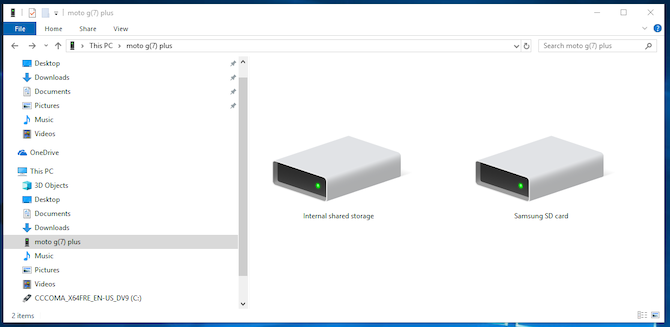
To get Tidal Music on Amazon Alexa, you’ll need to transfer Tidal Music to your mobile phone first. Go to connect your mobile phone to your computer with a USB cable, then tap the Charing this device via USB notification on your phone. Under the Use USB for section, select File Transfer, and a file transfer window will pop up. You can drag Tidal music files from your computer to your phone now.
Step 2
Connect your device to Amazon Echo
Activate and connect your phone or tablet to Amazon Echo by saying “Alexa, pair”. Please make sure that your phone or tablet is near the Alexa speaker. Enable the Bluetooth settings on your phone and wait for Echo to display in the available connection list. Tap your Alexa device to pair it to your phone.
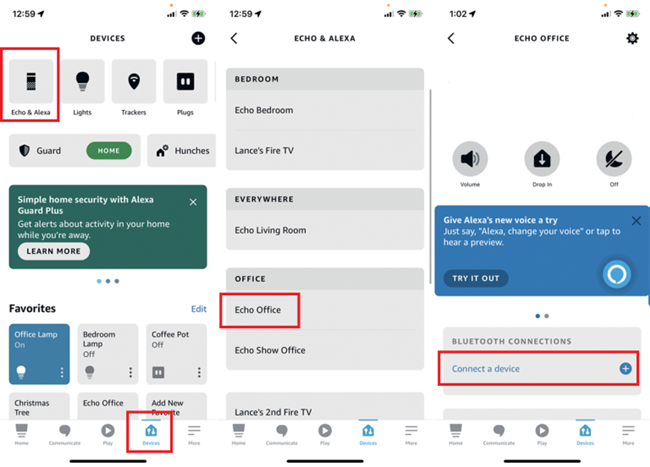
After then, select ‘Devices’ > ‘Echo & Alexa’ on the Alexa app. Choose the Echo that you would like to pair with your mobile device. Then go to ‘Pair Alexa Gadget’. Open the Bluetooth settings on your phone and choose the name shown for your Echo. Then the connection is done.
Step 3
Start to play Tidal on Amazon Echo
You can ask Alexa to play Tidal music by talking to it. Besides, if you have set Tidal as your Alexa default music service, there is no need to say “Alexa, play XX on/from Tidal” when you making commands to Alexa.
Part 5. Troubleshoot: Can’t Link Tidal to Alexa
It’s quite straightforward to link Tidal to Alexa. But sometimes, you may find that Tidal is not showing on Alexa or Alexa is not responding when streaming Tidal Music. Don’t worry. You can find some helpful solutions to fix this issue.
1. Check your network connection. Make sure you have connected your Alexa device and smartphone to a stable network connection, since music streaming relies on a fast Internet connection.
2. Verify regional and account compatibility. The official Tidal Alexa integration is only supported in certain countries and regions. You need to make sure that this feature is officially supported in your region. Plus, this feature requires a valid Tidal subscription. Thus, you should check your account status as well.
3. Clear the app cache. If you find the connection is stuttering, you can try clearing the app cache of both the Tidal and Alexa apps installed on your device. Then, reboot both apps and reconnect them.
4. Re-link Tidal to your Alexa device. Sometimes, Alexa may fail to trigger Tidal for streaming music. In this case, you can try to re-link Tidal to Alexa via its official web player without the app. This may bypass mobile-specific display bugs.
Bottom Line
To conclude, it’s easy to play Tidal on Alexa, but you’re required to get a subscription account to utilize this feature. After setting up Tidal on Alexa, you can make voice commands to Alexa for playing Tidal music. If you want to listen to Tidal on Alexa without limits, never mind, TunesMake Tidal Music Converter can help you!


 Leave Your Comment
(0)
Leave Your Comment
(0)

 Download Center

