









 Store
Store


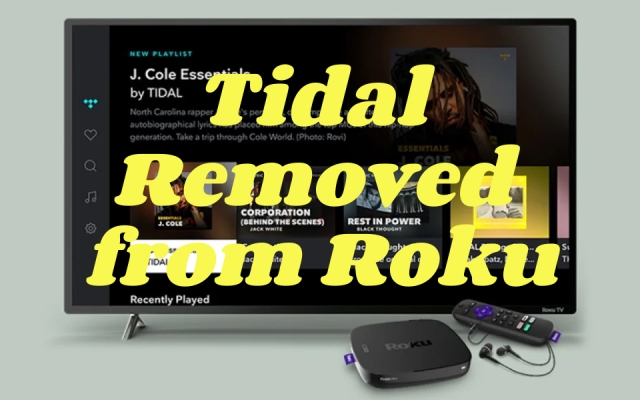
If you have booted up your Roku streaming stick or Roku TV expecting to sit back and stream your favorite high-fidelity tracks, you have likely run into a frustrating roadblock: The official Tidal app is missing. The official Tidal app was completely discontinued and removed from the Roku Channel Store. This left thousands of audiophiles searching for answers and wondering how to get their music back on the big screen.
Fortunately, losing the Tidal channel doesn't mean your home theater setup has to go quiet. While you cannot download an official Tidal app directly onto your device anymore, several reliable workarounds can get your music playing. This guide covers the best working methods to play Tidal on Roku online and offline.
Part 1. Why Is Tidal No Longer on Roku?
Tidal officially ended its support for the Roku platform, completely removing its app from the store. Roku isn't the only casualty, and Tidal similarly dropped support for Samsung Tizen OS TVs, older Amazon Fire TV models, and its long-standing direct integration with the Plex media ecosystem.
The reasoning behind this shift comes down to hardware capabilities and a company pivot. Tidal recently overhauled its technical architecture, retiring old MQA formats in favor of HiRes FLAC and Dolby Atmos.
Because standard TV hardware and streaming sticks often struggle to output these high-bitrate, bit-perfect audio streams without severe hardware compression, Tidal chose to sunset its smart TV apps. Instead, the company is focusing resources on dedicated mobile apps, desktop clients, and Tidal Connect hardware ecosystems.
Part 2. How to Get Tidal on Roku Online
Not all workarounds are created equal. Depending on how you cast the audio signal to your Roku device, you could be listening to pristine, lossless sound or heavily compressed wireless streams. Here is the definitive ranking of how to play Tidal on Roku in four primary methods, ordered from highest to lowest audio fidelity.
| Connection Method | Best For | Audio Quality | Setup Difficulty |
|---|---|---|---|
| Roku Media Player | All users | Lossless | Very Easy |
| Apple AirPlay 2 | iPhone, iPad, & Mac users | High (Lossless CD Quality) | Easy |
| Screen Mirroring | Hi-Res Lossless (24-bit/192 kHz) | Android smartphone users | Easy |
| Bluetooth Audio | Roku TVs & Roku Streambars | Standard (Compressed) | Easy |
Method 1. Roku Media Player via USB (True Lossless Offline Playback)
If your primary goal is absolute audio perfection with zero wireless degradation, the absolute best method is playing extracted FLAC files locally through a physical USB drive. Because the official Tidal app is gone, you cannot download tracks directly to your Roku. Instead, you can use a third-party tool like TunesMake Tidal Music Converter on your computer.
TunesMake Tidal Music Converter –
Download Tidal music for playing with Android Auto
- Download songs, albums, playlists, and artists from Tidal without premium
- Convert Tidal music to MP3, FLAC, WAV, AIFF, M4A, and M4B losslessly
- Handle the conversion of Tidal music up to 25× faster speed and in batch
- Save a whole set of ID3 tags during the conversion process automatically
- Preserve the original audio quality up to HiRes FLAC or 320kbps MP3
Security Verified. 100% Clean & Safe.
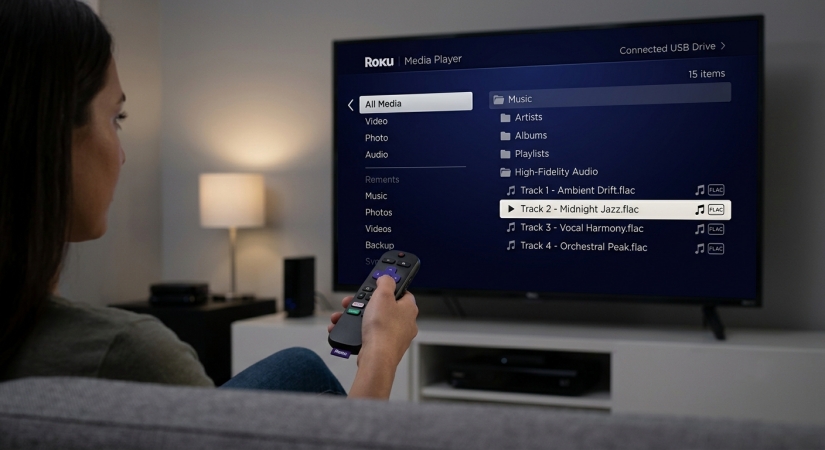
With this tool, you can bypass the restriction by converting your Tidal music directly into uncompressed local audio files while preserving the original ID3 tags and high-fidelity audio properties. You can then transfer your local Tidal audio files to a USB drive and start your Tidal music playback on your Roku through the built-in media player from your USB drive.
Audio Quality:
-
Perfect Lossless (Up to 16-bit or 24-bit FLAC depending on the source). Because the Tidal music files are read directly from local storage, there is no wireless jitter, buffering, or compression.
Step 1. Open TunesMake Tidal Music Converter on your computer and log into your Tidal account via the built-in web player.
Step 2. Adjust the settings menu to select FLAC as your output format and choose your desired bit depth.
Step 3. Add your target playlists into the conversion list and click Convert to save them to your local hard drive.
Step 4. Format a USB flash drive to NTFS or FAT32 and transfer the converted Tidal FLAC music files onto it.
Step 5. Plug the USB drive directly into the port on your Roku TV or Roku Ultra streaming box.
Step 6. Launch the Roku Media Player app, select Audio, and browse your music files to play.
Method 2. Apple AirPlay 2 via Apple Devices (Lossless CD Quality)
For users embedded in the Apple ecosystem, Apple AirPlay 2 provides an exceptional balance between convenience and high-fidelity sound. Unlike older wireless standards, AirPlay 2 uses a lossless compression codec to transmit audio over your local Wi-Fi network.
Audio Quality:
-
Lossless CD Quality (16-bit/44.1kHz). AirPlay 2 caps audio at CD quality. While it won't pass Tidal's maximum 24-bit Max resolution, it handles standard HiFi streams perfectly.
Step 1. Ensure your Apple device and your Roku are connected to the exact same Wi-Fi network.
Step 2. Open the Tidal app on your Apple device and start playing a track.
Step 3. Tap the Now Playing bar at the bottom of the screen to expand the player view.
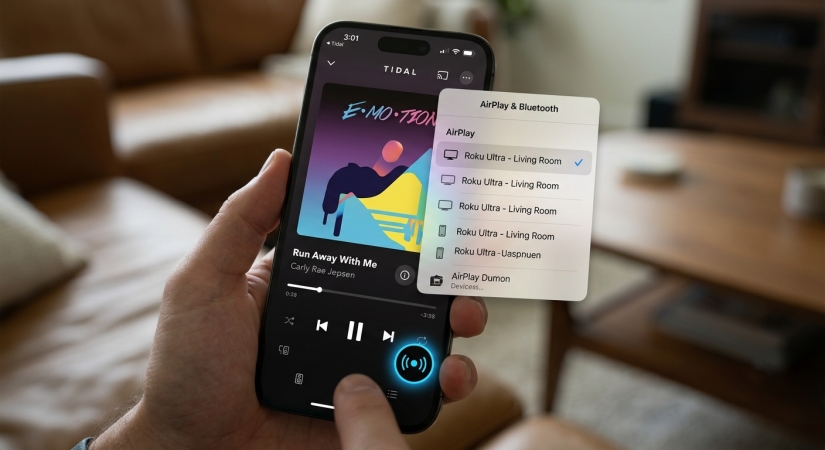
Step 4. Tap the Sound Output icon in the top-right corner.
Step 5. Select AirPlay & Bluetooth, then choose your Roku from the available hardware list.
Method 3. Screen Mirroring via Android Devices (Variable, Near-Lossless)
Android users can cast their phone's audio and screen using built-in mirroring features like Smart View or Screen Cast to most devices, including Roku devices. The feature name of screen mirroring varies depending on your phone manufacturer.
Audio Quality:
-
Near Lossless or High-Quality Lossy. Android screen mirroring protocols handle audio data differently based on your phone manufacturer. Some use high-bitrate codecs that sound nearly identical to a CD, while others apply a subtle layer of compression.
Step 1. Swipe down from the top of your Android screen to open the Quick Settings panel.
Step 2. Tap Smart View, Cast, or Screen Mirroring.
Step 3. Select your Roku device from the list to project your phone's screen onto your TV.
Step 4. Launch the Tidal app and begin playing music.
Method 4. Audio Mirroring via Bluetooth Pairing (Convenient but Compressed)
If you own a Roku TV, a Roku Streambar, or a Roku device paired with official Roku Wireless Speakers, your system supports direct Bluetooth pairing. This allows you to treat your television setup like a giant wireless speaker. Here's how to get Tidal music on Roku by a Bluetooth pairing.
Audio Quality:
-
Compressed or Lossy. Bluetooth relies on lossy audio codecs like SBC or AAC to squeeze data through the airwaves. While incredibly convenient, you will not achieve true lossless HiFi or HiRes FLAC depth on your Roku device using this method.
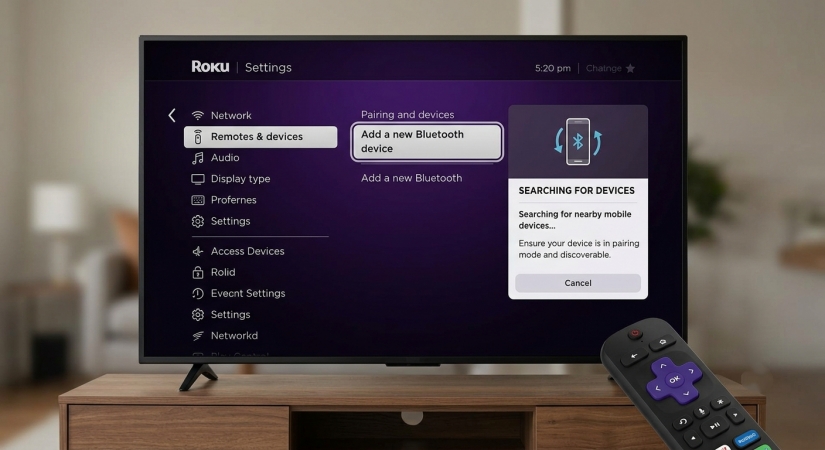
Step 1. Turn on your TV and navigate to the Roku home screen.
Step 2. Go to Settings > Remotes & Devices > Pair Bluetooth Device.
Step 3. Roku will display a pairing screen and begin broadcasting its Bluetooth signal.
Step 4. Open the Bluetooth settings menu on your mobile device and look for your Roku model.
Step 5. Select the Roku device to establish a pair. Once connected, open Tidal to play music.
Part 3. FAQs about Tidal for Roku
Can I use Plex to stream Tidal on my Roku?
No, you cannot use Plex to stream Tidal on a Roku device as Tidal and Plex officially severed their integration. You can no longer access Tidal content inside the Plex media ecosystem.
Will Tidal ever come back to Roku?
It is highly unlikely. Tidal has shifted focus away from mass-market smart TV ecosystems toward high-end audio integrations like Tidal Connect and platforms that support advanced audio passthroughy. Utilizing AirPlay or hardware upgrades remains your best permanent path forward.
What is the Tidal Music for TV app currently listed in the Roku Store?
If you search the Roku Channel Store, you might find an app titled Tidal Music for TV. Be aware that this is an independent, third-party application completely unaffiliated with Tidal Inc. Because it lacks official API backing, it often suffers from interface bugs and does not guarantee secure account authentication or official lossless audio playback.
Part 4. Conclusion
While the lack of an official Tidal app on Roku is a frustrating hurdle, you don't have to sacrifice your audio quality entirely. If you want the absolute purest sound, investing a little time into the local USB playback method via TunesMake Tidal Music Converter yields perfect, uncompressed results. If you prefer the convenience of managing playlists straight from your couch, streaming over Apple AirPlay 2 provides true, uncompressed CD-quality playback that will sound phenomenal on any high-end audio setup.
Related Articles

A senior editor from TunesMake, dedicated to sharing professional tutorials and solutions of software, movies, and music.
- 1
- 2
- 3
- 4
- 5
- 6
- 7
 Leave Your Comment
(0)
Leave Your Comment
(0)

 Download Center

