








 Store
Store


An equalizer can help you change the frequency parameters of the sound to your liking to achieve the effect you want. Many music streaming services provide a built-in equalizer to give you a more personalized and better music experience, like Spotify and Apple Music. Except for them, Amazon Music is also a famous music platform. If you are also using it, you may wonder if Amazon Music has an equalizer. How to use Amazon Music Equalizer to enhance my music enjoyment? Well, this article will answer all your questions in detail. In the next parts, you will be guided on how to get an equalizer on Amazon Music step by step. Also, to give you more options, we introduce some third-party equalizer apps and the best method to adjust Amazon Music on equalizers without hassle. Let's explore together in the following parts!
Part 1. Does Amazon Music Have an Equalizer?
Yes, but with limitations. Unlike other streaming music platforms, Amazon Music doesn't have a universal built-in equalizer within its official app across all devices. Whether you can access the equalizer on Amazon Music depends on your device's system-level EQ integration. Currently, only users who use Amazon Music on Android and Alexa devices can access EQ controls directly through the Amazon Music app or voice commands. For other platforms users, the official app lacks a native EQ interface, so you will need a workaround to use an equalizer for Amazon Music.
| Device | Method | Get it |
|---|---|---|
| Android | Access the equalizer within the Amazon Music app directly | Read More |
| Alexa-enabled devices | Use voice commands or the Alexa app audio settings | Read More |
| iOS/Windows/Mac/Other devices | Download Amazon Music songs as local files for using with any third-party EQ app | Read More |
Part 2. How to Enable and Use Amazon Music Equalizer
Although Amazon Music doesn’t always provide a direct equalizer feature, you can still adjust sound quality and effect if you are using an Android or Alexa device. Let’s break it down.
2.1 Use Equalizer for Amazon Music Android
Thanks to the Android system’s native sound effects, you can easily access an equalizer within the Amazon Music app installed on your Android phone. But notice that the quality and flexibility of Amazon Music equalizer can vary depending on your phone model and the manufacturer.
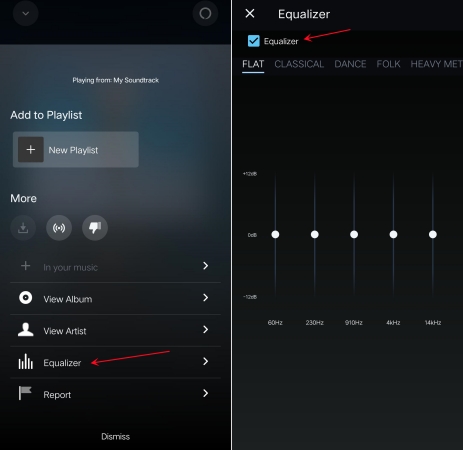
Step 1. Run Amazon Music on your Android device, then head to your library.
Step 2. Select any playlist to play and enter the Now Playing screen.
Step 3. Tap the three-dot icon at the bottom and select Equalizer.
Step 4. Tick the box next to Equalizer, and then you can choose preset models or customize your own sound profile.
Tip
If you feel your device's EQ is limited, consider installing a third-party equalizer app on your phone. For details, refer to Part 3.
2.2 Get the Equalizer for Amazon Music Alexa
If you own an Alexa device, it doesn't matter when you can't find an equalizer on Amazon Music. Because Alexa has the audio equalizer feature, you can utilize it to tune the audio so that it suits your preferences.
You can directly use voice commands to adjust. Just say "Alexa, reset the equalizer", "Alexa, set the equalizer to Acoustic", or "Alexa, turn up the treble".
Or, you can utilize the Alexa app audio settings to make adjustments:
Step 1. Open the Alexa app on your phone.
Step 2. Go to Settings > Device settings > Sounds.
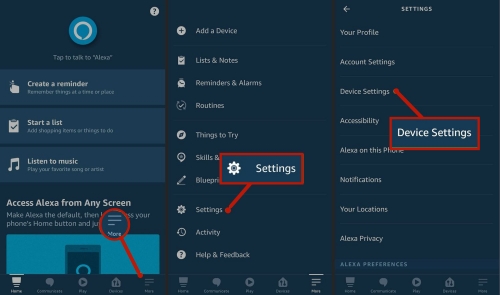
Step 3. Then, tap Equalizer and you can adjust it as you wish.
Pro Tip: Amazon Music Best Equalizer Settings
Once you’ve figured out how to access an equalizer on Amazon Music, you may wonder how to utilize it to make your favorite Amazon Music songs shine. Here are some of the best equalizer settings you can take as references:
Preset 1. Energetic
Best for: Rock, EDM and Hip-Hop tracks
| 30 Hz | +3 dB |
|---|---|
| 60 Hz | +4 dB |
| 120 Hz | +2 dB |
| 250 Hz | +2 dB |
| 1k Hz | -3 dB |
| 2k Hz | +1 dB |
| 4k Hz | +3 dB |
Preset 2. Clarity
Best for: Jazz, Classical, and Vocals
| 30 Hz | -2 dB |
|---|---|
| 60 Hz | -1 dB |
| 120 Hz | 0 dB |
| 250 Hz | -1 dB |
| 1k Hz | +3 dB |
| 2k Hz | +2 dB |
| 4k Hz | +1 dB |
Preset 3. Pop
Best for: Modern pop music and vocals
| 30 Hz | +3 dB |
|---|---|
| 60 Hz | +4 dB |
| 120 Hz | +2 dB |
| 250 Hz | 0 dB |
| 1k Hz | +1 dB |
| 2k Hz | +2 dB |
| 4k Hz | +3 dB |
Part 3. How to Adjust Amazon Music on Any Equalizer App

Hey yall so I recently moved from Spotify to Amazon Music Unlimited recently and there’s only one thing that’s bothering me compared to Spotify. It’s the EQ customization, I can’t really find it on the settings of the app on iPhone. Any ideas anyone on how I can I access the eq settings for iPhone? Cheers yall
-- User from RedditSince the equalizer is only available for the Amazon Music app on Android and Alexa devices, many music lovers turn to third-party EQ apps. However, the biggest challenge to adjust Amazon Music on other equalizer apps is that Amazon Music’s streams are all DRM-protected content. Even if you have downloaded an Amazon Music song, you can only play it within its app, not to mention importing it to other apps. Thus, you must remove the DRM protection of Amazon Music songs and convert them to common audio files first. TunesMake Streaming Audio Recorder is your best choice to do so.
TunesMake Streaming Audio Recorder is a dedicated music downloader designed for all music lovers. Its decryption technology can help you download any Amazon Music song, playlist, album, and podcast to widely compatible audio files. You can even choose the output format from MP3, M4A, M4B, WAV, FLAC, and AIFF. The highlight of this tool is that there is no quality loss during conversion, which means you can have the same high-fidelity music experience as online. After downloading, it’s a breeze to import these local Amazon Music files to other equalizer apps and adjust them as you wish.

Streaming Audio Recorder –
Download Amazon Music to Local Files
- Unlimitedly download streaming music songs, playlists, and podcasts
- Losslessly convert streaming music to MP3, M4A, M4B, WAV, FLAC, and AIFF
- Remove DRM protection from many streaming music platforms
- Convert streaming songs with original sound quality and ID3 tags kept
Security Verified. 100% Clean & Safe.
3.1 Download Amazon Music Locally
To meet diverse demands, TunesMake Streaming Audio Recorder released two different versions for Windows and Mac users. You can choose the right version and install the tool on your desktop via the Free Download button above.
Step 1
Import Amazon Music You Need to TunesMake
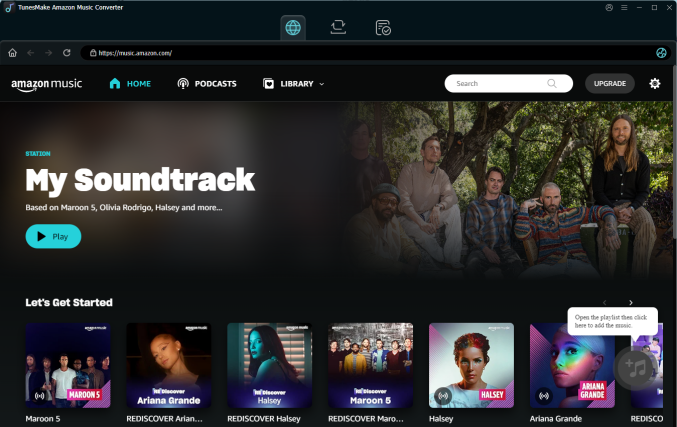
Launch the TunesMake Streaming Audio Recorder, and you can see a list of available music streaming services. Choose Amazon Music to visit its official web player. Then, you can sign in and search for your desired content. Once found, select the playlist or album and click the Add icon in the lower right corner. When it prompts, you can pick the songs you like and add them to the conversion list by clicking Add to List.
Step 2
Choose Output Format and Set Audio Parameters
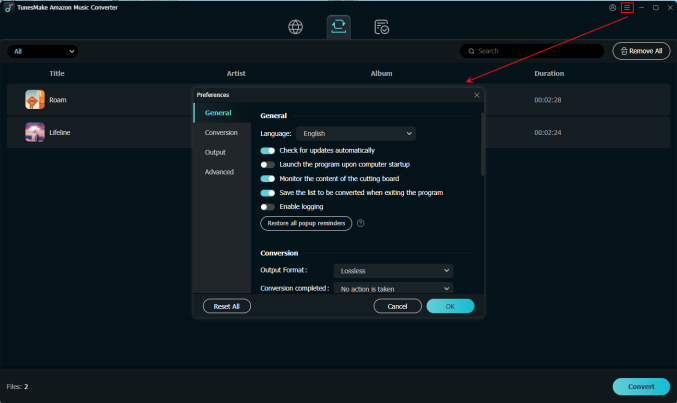
From the three-line menu in the upper right corner, select Preference. Choose the Conversion tab in the pop-up window, and then set the output format as you need. You can also edit other options, including sample rate, bit rate, channel, and so on. If you want the lossless Amazon Music, select the Lossless output format. All settings are set by default for this. Don’t forget to click the OK button when you are done so that your changes will be saved.
Step 3
Convert Amazon Music to Any Equalizer
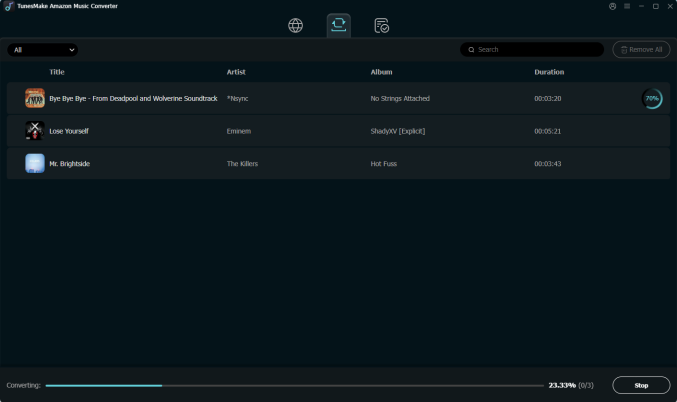
After you've decided on your formats, press the Convert button. TunesMake Streaming Audio Recorder will begin the conversion instantly. You may locate your converted files in the folder you indicated before, or just click the Converted icon to confirm.
3.2 Use Other Equalizers to Adjust Local Amazon Music
Congratulations! Now, you have the local files of your favorite Amazon Music songs. You can import them to any equalizer app for adjusting. There are multiple apps that allow you to adjust the playback with several equalizer presets. If you don’t know which one to choose, you can jump to the next part to get recommendations based on your device. Here, we will take iTunes as an example.
Step 1. Launch iTunes and click File > Add File to Library, then head to the folder where you store Amazon Music files.
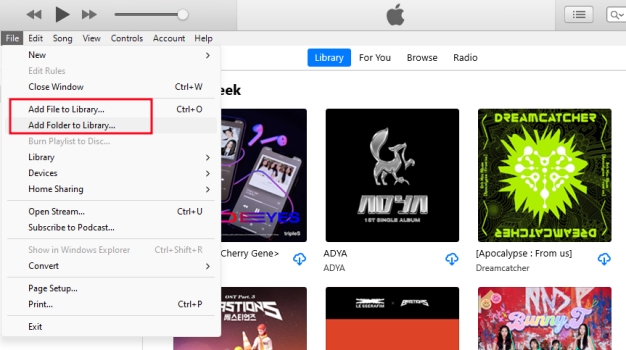
Step 2. Once uploading Amazon Music files, go to your music library and start playing your songs.
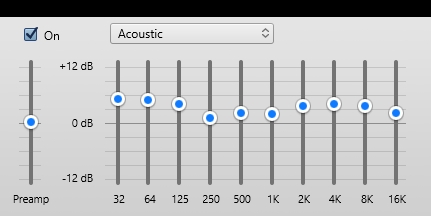
Step 3. Click View at the top of the screen and select Show Equalizer to open the equalizer settings.
Step 4. There will pop up an equalizer where you can select a preset or manually make a preset.
Part 4. Best Amazon Music Equalizer on iOS/Android/PC/Mac
With all converted Amazon Music files, you can freely import them to other platforms. Once you find a suitable equalizer app on your device, you can use it to adjust your Amazon Music files. In this part, we will introduce some equalizer apps for iOS, Android, PC, and Mac.
4.1 Equalizer + HD music player [iPhone & iPad]
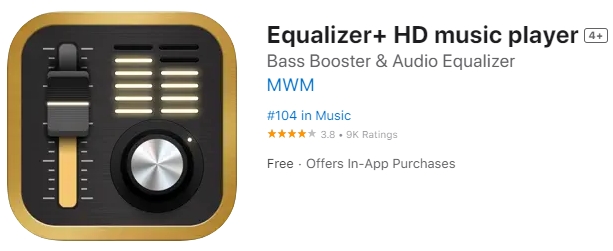
Equalizer+ HD music player is a great comprehensive equalizer for both iPhone and iPad users. It is only compatible with iOS 13.0 or later. It's a full-featured music player that offers brilliant sound quality automatically optimized depending on the headphones used. In this equalizer, you can access music from your device and optimize your playing using many equalizer presets and bass boosters. It can assist you in changing the sound effects of your local music. The sound may be customized, mixed, and even edited. In this equalizer, you'll find a 7-band equalizer, 10 equalizer presets, and many more features.
💰In-App Purchases: $7.99 per week and $9.99 per month
4.2 Equalizer FX: Bass Booster App [iPhone & iPad]
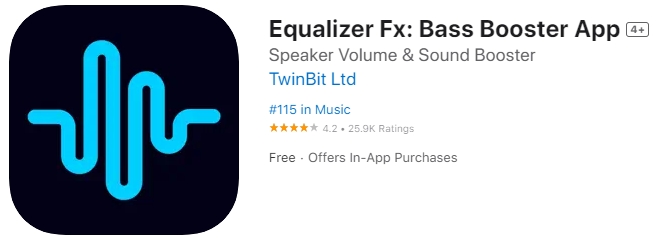
Equalizer Fx: Bass Booster App is another best equalizer and bass booster app for iPhone and iPad. The main feature of Equalize FX is to increase the bass sound and listening experience. It can optimize the sound quality based on the output devices, such as a Bluetooth speaker or a pair of headphones. It has a powerful 7-band equalizer with DJ transitions and over 15 punchy amplifier presets for modifying and personalizing sound effects. With this equalizer app, you can play music in the background and create custom equalizer presets on your device. This equalizer app is compatible with iOS 12.0 and later.
💰In-App Purchases: $2.99 per week and $9.99 per year
4.3 Music Volume EQ + Equalizer [Android]
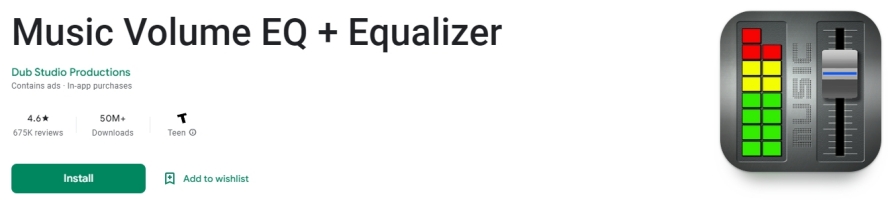
Music Volume EQ + Equalizer is a simple music volume equalizer app for adjusting the volume and parameters of the audio. If you are a music lover, you can download this app from the Google Play Store. With a user-friendly interface and advanced features, this app enables you to easily the sound quality of your favorite tunes. This app includes a normal 5-band EQ, as well as, 9 EQ presets. Though the settings are a little bit less than the others, it can work with many players. You can also get volume control, bass boost, loudness improvement, and other functions.
💰Price: Free
4.4 Equalizer & Bass Booster [Android]
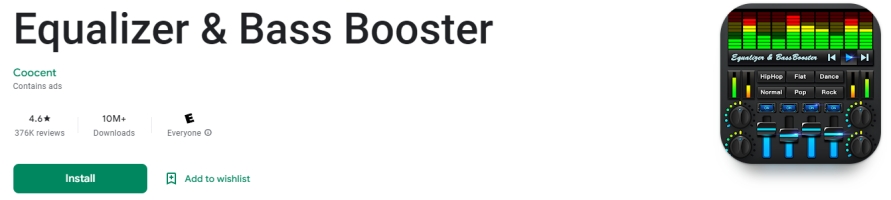
Equalizer & Bass Booster is a powerful and professional equalizer with equalization and a bass booster. It has a five-band equalization, 10 equalizer presets, and a bass booster, to name a few features. The stereo-led VU meter, visual effect, volume control, and other features are available. It is also compatible with the majority of music players, video players, and FM radios. The only big issue is that the program may occasionally close when left in the background, and it doesn't always work sometimes.
💰Price: Free
4.5 Viper4Windows [Windows]
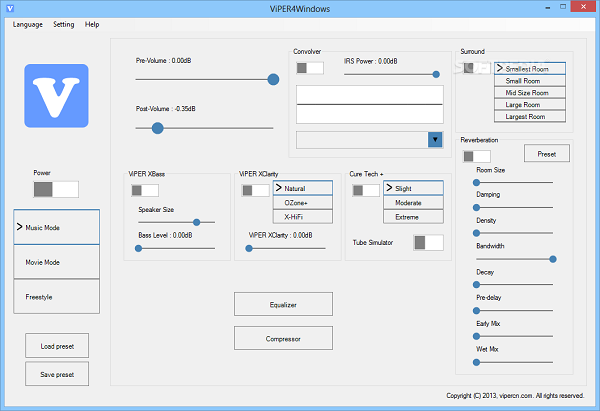
ViPER4Windows is a great equalizer for Windows 10, Windows 8, Windows 7, and Windows XP. This equalizer allows you to customize your audio through 18 bands which range from 120dB to 13dB. ViPER4Windows offers the option to select different modes for playing music through headphones or speakers. Also, this app lets you control the reverb according to various factors, depending on the room and the current environment. With this software, you can easily change the playback of your music on your computer.
4.6 Boom3D [Mac]
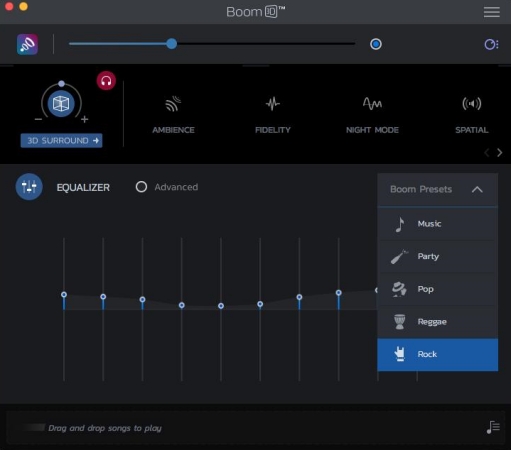
Boom3D is a system-wide volume booster and equalizer for Mac. It can deliver an unbelievably immersing listening experience with its magical 3D Surround Sound and futuristic technology. To get a better listening experience, Boom3D is a must-have application. With this powerful equalizer app, you can boost all audio and select a perfect sound profile for your Mac computer. Designed with a sleek and intuitive interface, this app makes it easy for users to take control of the audio coming out by selecting various equalizer presets.
Part 5. Summary
In this article, we’ve talked about how to use an Amazon Music equalizer. It should be considered on a case-by-case basis. If you are using an Android or Alexa device, it’s pretty easy to access the equalizer feature within the Amazon Music app. But if you are using other devices or you want to tune your music in a better way, you should convert Amazon Music songs to local files via the TunesMake Streaming Audio Recorder first. Thus, you can import your local Amazon Music songs to any other equalizer apps to adjust freely.
Related Articles

A professional writer at TunesMake, crafts in-depth tutorials, practical tips and expert advice focusing on streaming music, technology, and more.
- 1
- 2
- 3
- 4
- 5
- 6
- 7
 Leave Your Comment
(0)
Leave Your Comment
(0)

 Download Center

