








 Store
Store


In an era of constant connectivity, there are still many moments from long-haul flights to remote hiking trails where you need your soundtrack to work without a signal. However, if you're tired to hit "Download" recently, you may have noticed that listening to Amazon Music offline is more complex than it used to be on your device.
Whether you are a Prime member wondering why certain songs won't download or an Unlimited subscriber trying to manage high-definition storage, this guide will walk you through the exact steps to ensure your Amazon Music songs never stops. Let's learn how to listen to Amazon Music offline on a smartphone, computer or other device in three methods.
Part 1. Can You Listen to Amazon Music Offline?
Yes, you can listen to Amazon Music offline on all supported devices. Amazon updated its playback rules in 2024 and 2025, creating distinct tiers. Users with different subscriptions are allowed to access specific offline playback in Amazon Music. Here is how the offline features stack up across the different plans.
| Feature | Amazon Music Free | Amazon Music Prime | Amazon Music Unlimited |
|---|---|---|---|
| Offline Playback | ❌ | Select playlists only | Unlimited access |
| Pick-and-Play | ❌ | All-Access Playlists only | Any song, album, and playlist |
| Ad-free Listening | ❌ | ✅ | ✅ |
| Audio Quality | SD | SD/HD | HD/Ultra HD/Spatial |
The "All-Access" Factor for Amazon Prime Members
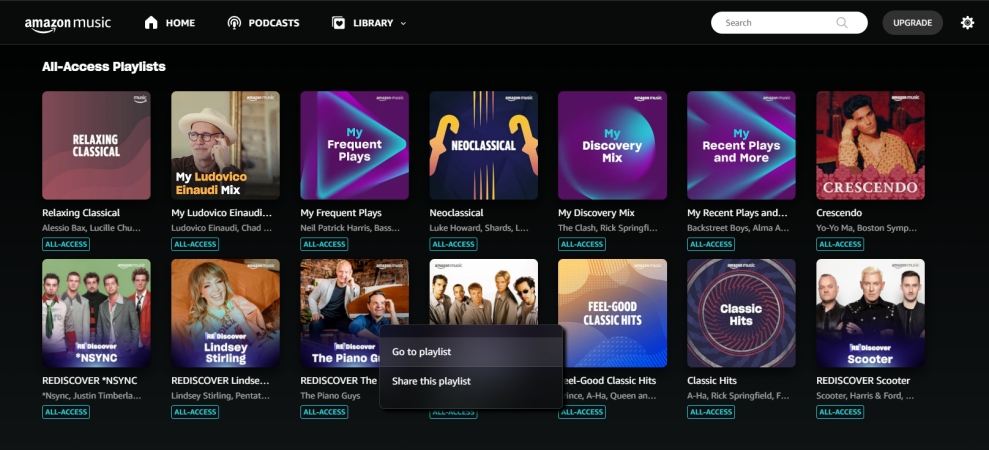
If you are an Amazon Prime member, you can only listen to music offline if it is part of an All-Access Playlist. These are curated lists tailored to your listening habits. You cannot download a random individual album or a single trending song unless it has been added to one of these specific playlists by Amazon's algorithm. However, you can still exercise control over your library by frequently "Like" songs and interacting with the algorithm. Amazon prioritizes your most-listened-to genres when refreshing your All-Access options.
Part 2. How to Listen to Amazon Music Offline (Unlimited Users)
Once you know what you can download, the process of actually getting the music onto your device is straightforward. Follow the steps below to download and enable offline mode.
2.1 How to Download Amazon Music for Offline Playback
To listen offline, you must first download the content while you have an active internet connection. Then you have the ability to activate offline listening.
On Mobile (iOS and Android)
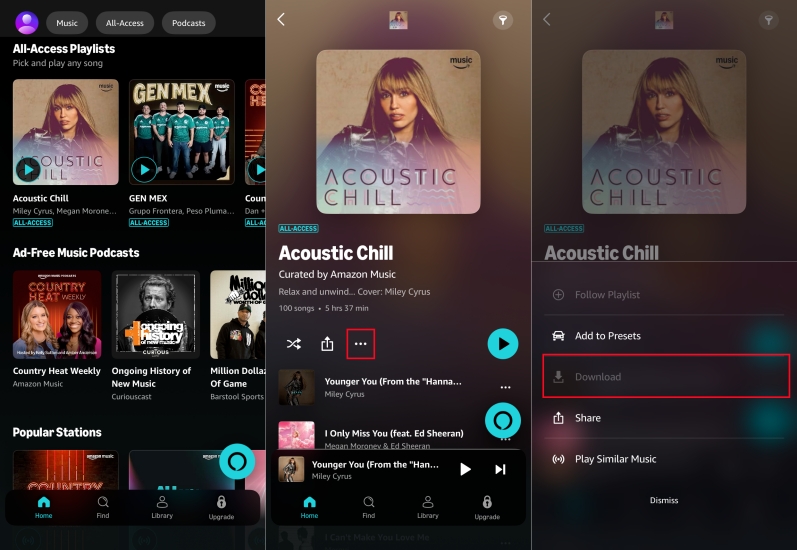
Step 1. Open the Amazon Music app.
Step 2. Select a song, album, or playlist you wish to download.
Step 3. Look for the three-dot icon (More Options) next to the title.
Step 4. Tap Download. Once the download is complete, a blue "down arrow" icon will appear next to the track.
On Desktop (PC and Mac)
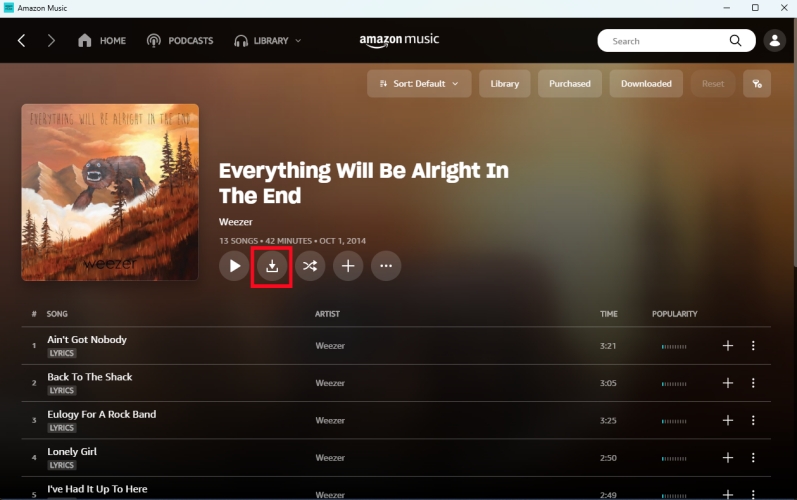
Step 1. Open the Amazon Music desktop application.
Step 2. Go to Library and find the content you want to save.
Step 3. Click the Download icon next to a song or album.
Step 4. To see only your downloaded files, click on Library and select the Downloaded filter at the top of the screen.
Pro Tip:
Amazon Music defaults to high-quality for many users. While this sounds incredible, it can quickly fill your phone's storage. If you are running low on space, go to Settings, click Download Quality, and select Standard. This allows you to store thousands of songs rather than just a few hundred.
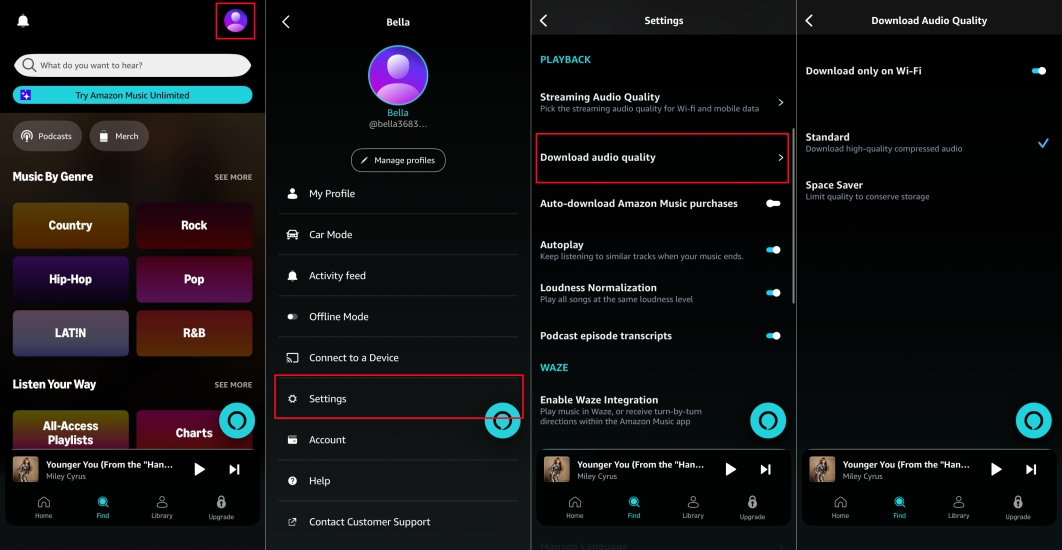
2.2 How to Activate Amazon Music Offline Playback
This is the most important steps for listening to Amazon Music offline. By default, the app may still try to stream or refresh data even if you have the song downloaded.
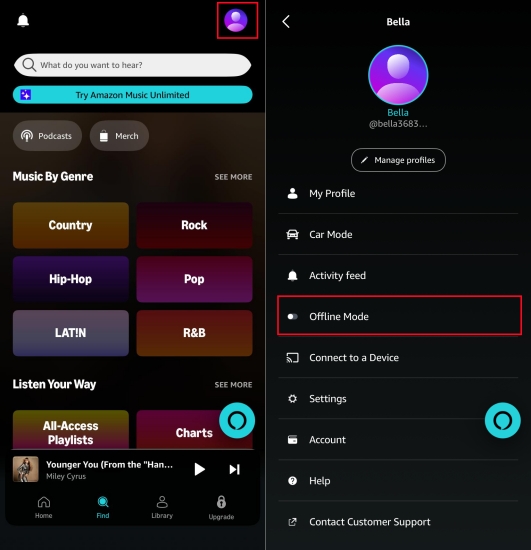
Step 1. Tap the Gear icon in the top right corner of the mobile app.
Step 2. Toggle Offline Mode to On.
Step 3. Your library will now refresh to show only the music physically stored on your device.
Part 3. How to Play Amazon Music Offline (Permanent Solutions)
If you want to own your music without worrying about subscriptions or 30-day check-ins, you can purchase music directly from the Amazon Digital Music Store or save music as local files using an Amazon Music downloader. These files belong to you forever. Once downloaded, you can move them to any media player or an SD card for true offline freedom.
| Feature | Download in Amazon Music | Buy Amazon Digital Music | Use Amazon Music Downloader |
|---|---|---|---|
| File Ownership | Temporary. Rental access only. | Permanent. You own the files for life. | Permanent. Files stay on your device forever. |
| Cost | $11.99 - $12.99 per month (included with Prime) | $0.99 - $1.29 per song | $14.95 - $24.95 per month |
| Portability | Locked. Only works inside the Amazon Music app. | High. Standard MP3s work everywhere. | Extreme. Move to USBs, MP3 players, car, or anywhere. |
| Audio Quality | HD / Ultra HD (Lossless) | Standard MP3 (Compressed) | Up to FLAC/WAV (Lossless) |
| Subscription Required | Yes. Offline mode requires Prime or Unlimited. | No. One-time payment only. | No. Only need an active Amazon account to access. |
Method 1. Purchase Amazon Music MP3 Songs
Any MP3s you have bought through the Amazon Digital Music Store can be downloaded and played offline on any device, regardless of your subscription status. If you want to buy individual songs or albums, you can use a web browser with the following steps.
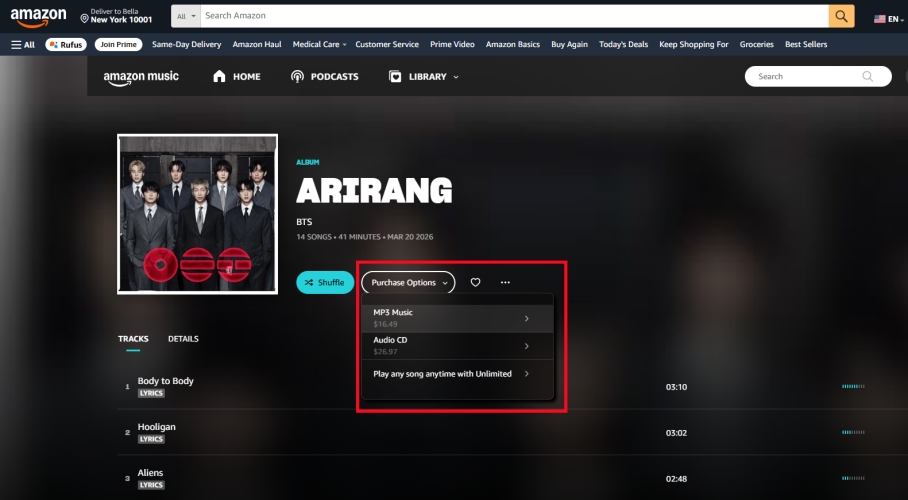
Step 1. Open your web browser and go to the Amazon Digital Music store.
Step 2. Search for the artist, song, or album you want.
Step 3. Click the Purchase Options button or the price next to MP3 Music.
Step 4. Complete the purchase. The music will now appear in your Amazon Music library under the Purchased filter, and you can download the MP3 files to your computer.
Method 2. Convert Amazon Music as Local Files
While you can download music for offline playback through the official Amazon Music app, those files are cached, meaning you can't move them to other devices and you lose access if your subscription ends. If you want to keep your music permanently as local files like MP3 that you can play on any device forever, you can use a third-party tool like TunesMake Amazon Music Converter. It is a desktop utility that essentially downloads and converts your Amazon Music library into common audio formats. Compared to buying individual songs to own forever or paying for a streaming subscription, TunesMake makes you have more control of your library. Start downloading your liked songs with TunesMake.

Streaming Audio Converter –
Download Amazon Music for offline listening
- Download songs, albums, and playlists from Amazon Music
- Convert Amazon Music to MP3, M4A, M4B, WAV, FLAC, and AIFF
- Remove DRM protection from Amazon Music completely and safely
- Preserve the original audio quality and ID3 tags for management
- Support downloading music from 10 popular streaming platforms
Security Verified. 100% Clean & Safe.
Step 1 Run TunesMake Amazon Music Converter
Install TunesMake on your computer, then run it once the installation is complete. On the main interface, click the three-horizontal line at the top right corner and select Preferences. In the Preferences window, click Conversion and select the output format.
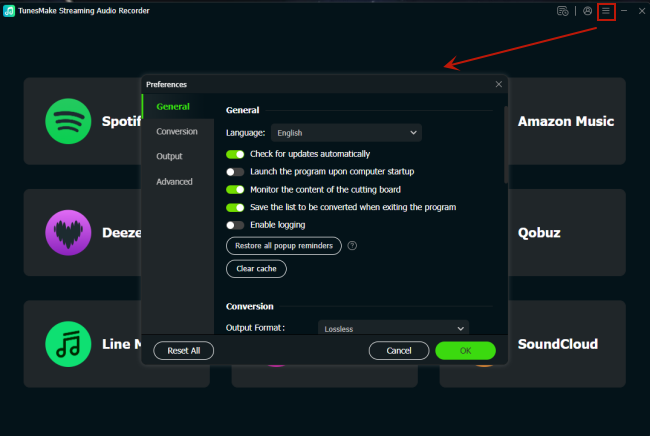
Step 2 Log into Your Account and Select Liked Songs
After saving the output preferences, select Amazon Music from the main interface of the converter and log into your Amazon account via the converter's built-in web player. In the web player, look for a song, album, or playlist to download
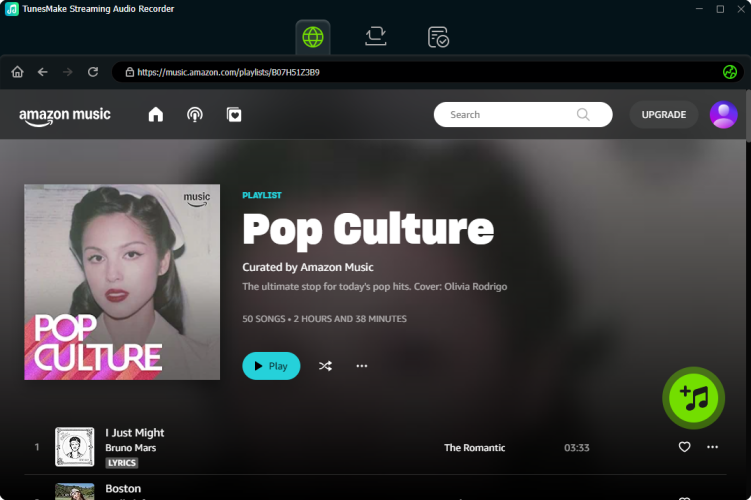
Step 3 Start to Save Amazon Music Songs as Local Files
Locate the detailed page and click the Add icon in the lower corner. Then click Add to List to add your preferred tracks to the conversion list. In the Converting window, click the Convert button to start downloading and saving Amazon Music songs.
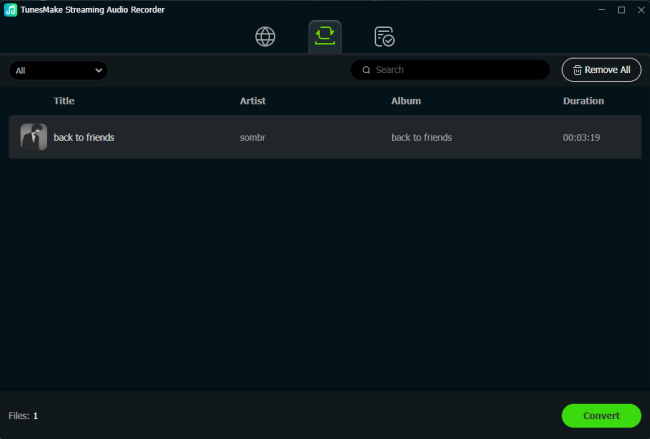
Part 4. Troubleshooting: Amazon Music Offline Not Working
It's frustrating when your music cuts out right when you need it. If you find that you cannot listen to your music offline despite having downloaded it, it is likely due to one of three common reasons. Perform the following steps to fix Amazon Music offline not working.
The 30-Day Re-authentication
Amazon's security protocol requires your device to connect to the internet at least once every 30 days to verify your subscription license. If you stay offline longer than a month, your downloads will be temporarily locked. Simply connect to Wi-Fi, open the app, and let it sync for a minute. Your "greyed out" songs should become active again.
Device Authentication Limits
You can only have 10 devices authorized for offline music on one account. If you've upgraded phones recently, your new device might not be authorized to "unlock" offline files. In this case, you might need to remove an old device from your Amazon account. Go to Manage Your Content and Devices on Amazon's website to de-register old gadgets.
Streaming Subscription Changes
Many users find offline mode "broken" because of recent changes to subscription rules. If you downgraded from Unlimited to Prime, any songs that are not part of an "All-Access Playlist" will remain on your device but will be greyed out and unplayable offline. You can download music from "All-Access Playlist" or use an Amazon Music downloader to get all music downloaded.
Part 5. Conclusion
To listen to Amazon Music offline, you can download a song, album, or All-Access playlist you love with a Prime account or an Unlimited subscription. But for those who want a permanent and convenient offline listening, buying individual songs or using a professional Amazon Music downloader is an ideal choice. You don't need to worry about the 30-day expiration to prevent your library from locking. If you want more flexible Amazon Music offline, try TunesMake Amazon Music Converter and master your library anywhere.
Related Articles

A professional writer at TunesMake, crafts in-depth tutorials, practical tips and expert advice focusing on streaming music, technology, and more.
- 1
- 2
- 3
- 4
- 5
- 6
- 7
 Leave Your Comment
(0)
Leave Your Comment
(0)

 Download Center

