








 Store
Store


There are many different ways to listen to music on Amazon Music. With an Amazon Prime account, you can enjoy over 100 million songs ad-free and the most top podcasts at no additional cost to your membership. By upgrading to Amazon Music Unlimited, over 100 million songs, top podcasts, and the largest catalog of audiobooks from Audible are available for you across devices.
However, some users would like to import local audio files from their computers into Amazon Music for playing. In fact, Amazon discontinues the feature of uploading music to Amazon Music's cloud server for listening on different devices. So, is there a method to upload music to Amazon Music library? Today, here we are going to uncover how to upload music to Amazon Music.
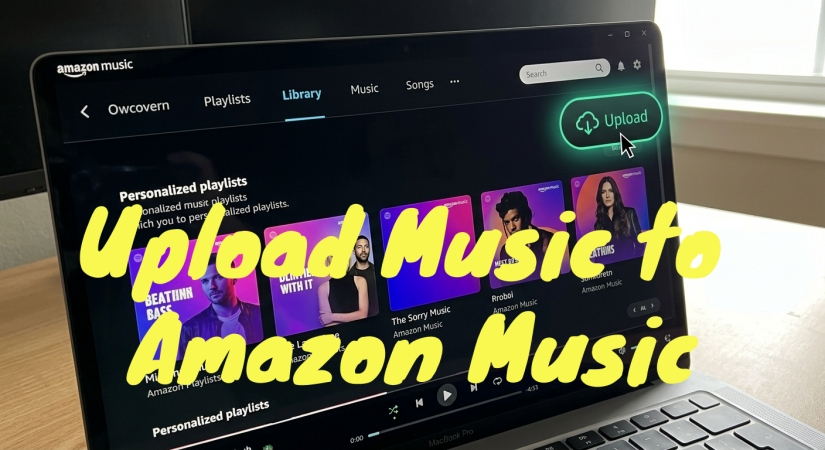
Part 1. Can I Upload Music to Amazon Music?
No, you can no longer upload personal MP3 files directly to Amazon's cloud servers. Amazon Music officially retired its personal cloud locker storage subscription service. There is no longer a native feature that allows you to store private audio files in the cloud to stream on-demand across multiple mobile devices.
However, if you want to play a rare collection of local audio files, living recordings, or backing tracks through the Amazon Music interface, you can use the Amazon Music desktop app as a local media player. To import your private collection, your files must match the app's structural compatibility guidelines. The following table outlines the accepted parameters for local playback.
| Supported Specification | |
|---|---|
| Compatible Audio Formats | MP3, M4A, WMA, FLAC, OGG, ALAC |
| Maximum File Size | 205 MB per individual track |
| Maximum Track Duration | 10 hours per file |
| Total Track Limit | Up to 50000 locally indexed tracks |
Part 2. How to Upload Music to Amazon Music
Although this official cloud locker storage feature has been completely retired, you can still use the Amazon Music desktop app as a powerful media player that unifies your streaming subscription with your offline, locally stored audio files. Here we will show you how to upload MP3 to Amazon Music library.
Step 1. Open the Amazon Music desktop application.
Step 2. Click your Profile icon in the upper right-hand corner.
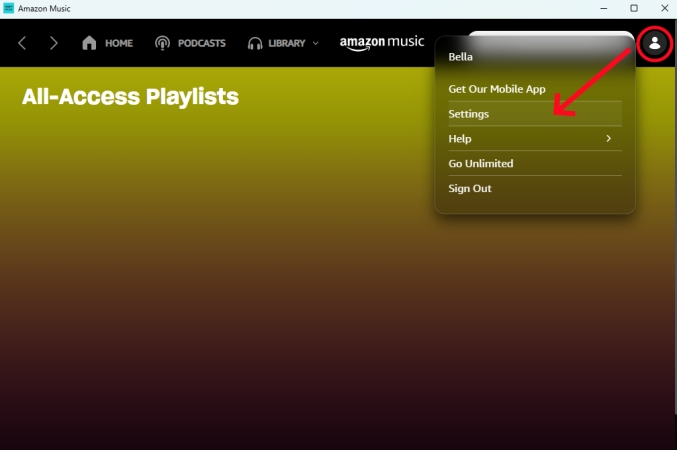
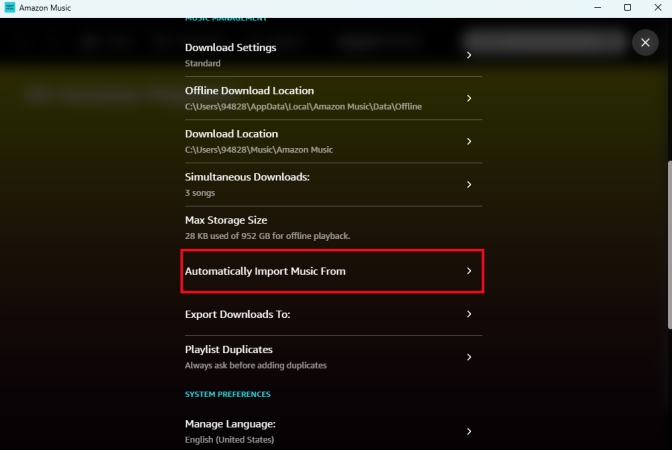
Step 3. Select Settings and location the section titled Automatically Import Music From.
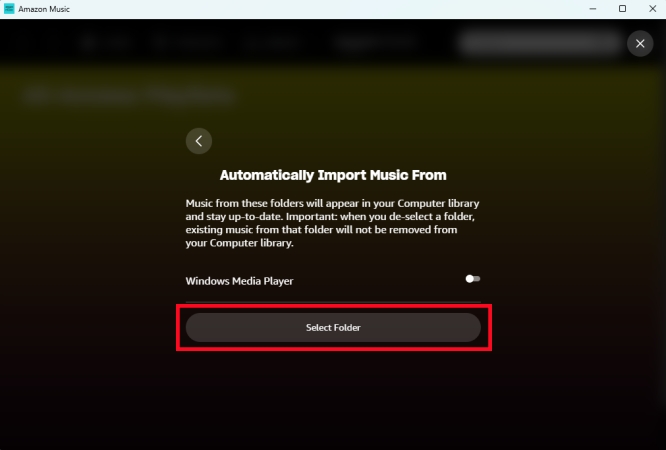
Step 4. Click Select Folder and choose the directory on your hard drive where your audio files are stored.
Step 5. Go back to Settings and scroll down to click Reload Library to sync your music.
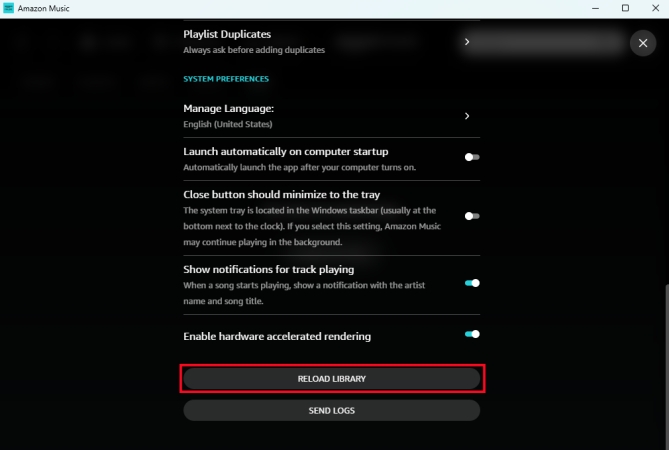
How to Find and Play Your Imported Music Offline
Once Amazon indexes your folders, finding your music requires adjusting a quick filer in the user interface. To listen to these imported audio files, follow the steps below.
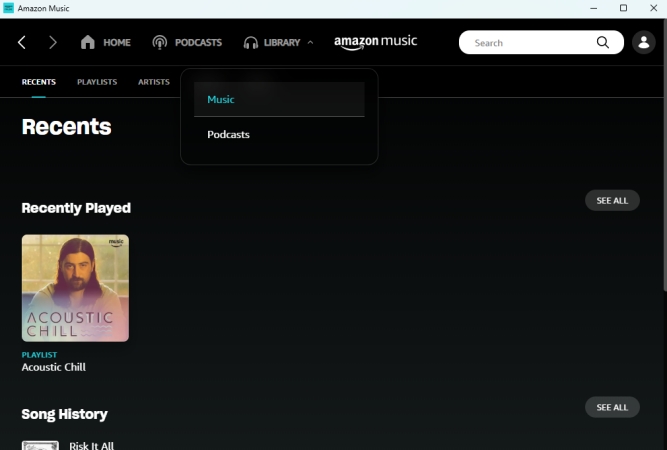
Step 1. Navigate to the Library tab at the top of the Amazon Music app.
Step 2. Click the Music button and then select Songs.
Step 3. Look for the Location filter menu on the right-hand side and select Offline.
This will isolate your local hard drive files from Amazon's streaming catalog, allowing you to seamlessly play your personal collection.
Part 3. How to Export Music from Amazon Music
When the process of uploading music to Amazon Music is complete, you can start listening to your personal audio files on Amazon Music. So, how to export music from Amazon Music library? You can download your favorite songs to your computer with a subscription to Amazon Music Unlimited or an Amazon Music downloader. Here we will show you how to export music from Amazon Music locally for playing.
Method 1. Download Music from Amazon Music via Amazon Music Unlimited
To download music from Amazon Music to your computer, you will need to subscribe to Amazon Music Unlimited. But these downloads are cache files, instead of physical audio files. This means that you cannot keep your Amazon Music downloads once the subscription ends. If you have a subscription to Amazon Music Unlimited, follow the steps below to download your liked songs.
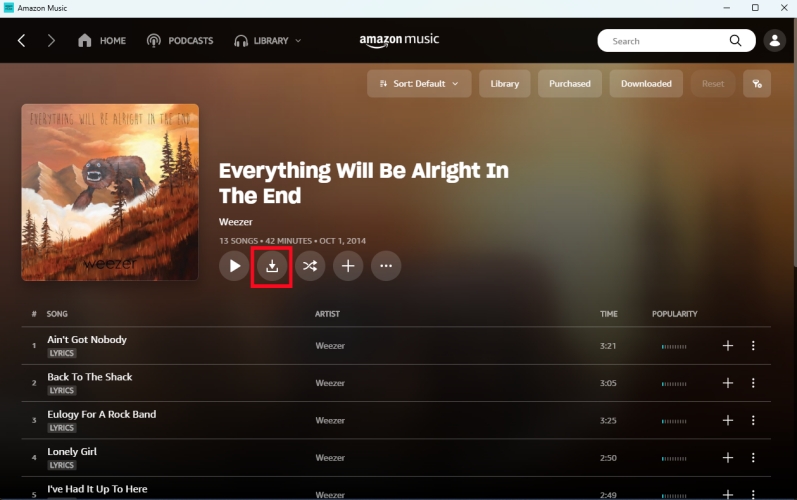
Step 1. Launch the Amazon Music app and sign into your Amazon account.
Step 2. Find any music track, album, or playlist to download in Amazon Music.
Step 3. Click the Download button to download for offline listening.
Method 2. Export Music from Amazon Music via Amazon Music Downloader
All the music downloaded with an Amazon Music Unlimited subscription are cache files only playable within its app. Besides, Amazon Prime members are not allowed to download music fro offline listening. But TunesMake Amazon Music Downloader breaks all the restrictions. With such a tool, you can download songs, albums, playlists, and podcasts from Amazon Music to six open-source audio formats. Let's start exporting music from Amazon Music with TunesMake.

Streaming Audio Recorder –
Download music from Amazon Music unlimitedly
- Download songs, albums, and playlists from Amazon Music
- Convert Amazon Music to MP3, M4A, M4B, WAV, FLAC, and AIFF
- Remove DRM protection from Amazon Music completely and safely
- Preserve the original audio quality and ID3 tags for management
- Support downloading music from 10 popular streaming platforms
Security Verified. 100% Clean & Safe.
Step 1 Set up the Parameter for Amazon Music
Launch TunesMake Streaming Audio Recorder on your computer, then go to the output audio parameters by clicking the menu bar > Preferences. In the Preferences window, you can choose MP3 as the output audio format. For better audio quality, you need to continue adjust the bit rate, sample rate, and channel. Remember to save the settings by clicking the OK button.
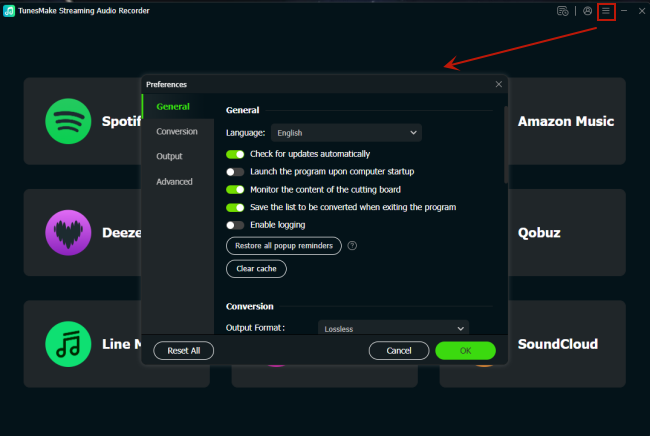
Step 2 Select Amazon Music Songs to Download
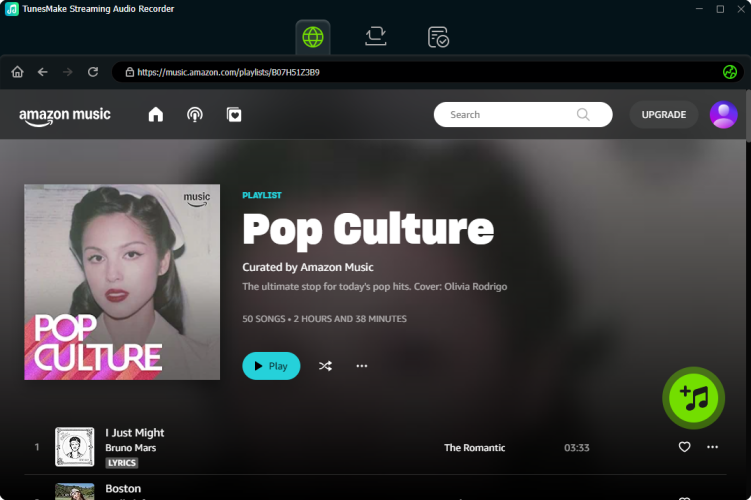
Return the software interface and select Amazon Music to load the Amazon Music web player. Go to log into with your Amazon credentials. Then locate your music library and open a curated playlist to download. To add those music tracks to the conversion list, click the + button. And the songs you select will be loaded into the conversion list to download.
Step 3 Start to Download Music from Amazon Music
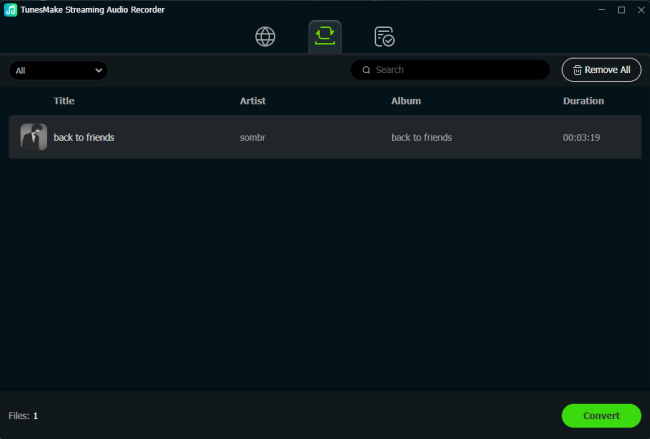
To download music from Amazon Music, you just need to click the Convert button. Then the selected items will be downloaded and saved to the default folder on your computer. Once saved, the playlist can be accessed from your computer. Then you can click the Converted icon and browse all the converted music tracks.
Part 4. Conclusion
Now you have known how to upload music to Amazon Music. With the above steps, you can upload your local audio files to Amazon Music for playing on your computer. Also, if you want to play your liked music in Amazon Music anywhere and anytime, just try using TunesMake Amazon Music Converter. After conversion, you can move Amazon Music tracks to any device or media player for playing without limits.
Related Articles




A professional writer at TunesMake, crafts in-depth tutorials, practical tips and expert advice focusing on streaming music, technology, and more.
- 1
- 2
- 3
- 4
- 5
- 6
- 7
 Leave Your Comment
(0)
Leave Your Comment
(0)

 Download Center

