








 Store
Store


Streaming music is no longer confined to a single device or a specific pair of headphones. For music lovers, music playback across devices has almost become a daily routine. If you want to enjoy content on your TV, Chromecast is a popular option since it helps you beam video, audio, and other content to your TV from diverse devices, such as a phone, tablet, or computer. What has been discussed for a long time is how to cast Apple Music to Chromecast from different devices. In this guide, we will walk you through 4 practical methods to play Apple Music on Chromecast. Keep an eye on the following content and you will know everything you want to know about Apple Music Chromecast.
Part 1. How to Chromecast Apple Music from Android Devices [Official]
Before starting casting content to Chromecast, you should make sure that your Chromecast is connected to a Wi-Fi network. Then, things will become easy when you have an Android device. Apple has integrated Chromecast support directly into its Android version app. So, you can easily find a Cast button and stream music directly to any Chromecast device.
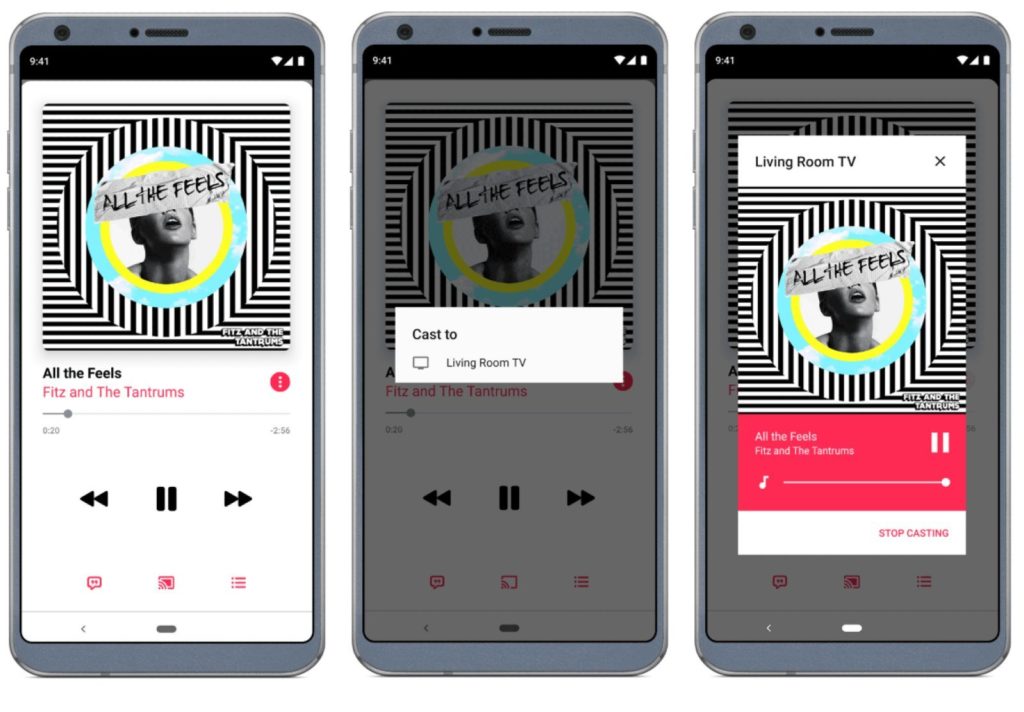
Step 1. Make sure that your Android device and Chromecast device are connected to the same Wi-Fi network.
Step 2. Launch the Apple Music app on your Android device and sign in with your Apple ID. This has to be the same ID that you use with Apple Music.
Step 3. Next, start your playback and click on the song that is currently playing on Apple Music.
Step 4. Then check for it at the bottom of your screen to open Now Playing and tap the Cast button.
Step 5. Lastly, tap your Chromecast device, and then your selected music tracks will start to stream to your Chromecast device.
Note
You can also cast music to Chromecast from other music streaming platforms, including Spotify, Tidal, YouTube Music, Pandora, Amazon Music, Deezer, Qobuz, and iHeartRadio.
Part 2. How to Stream Apple Music to Chromecast from iOS
If you are using an iPhone or iPad, you will find that playing Apple Music on Chromecast is a bit more complicated since there is no direct “Cast” button like on the Android version of the Apple Music app. To bridge the gap between iOS devices and Chromecast, you will need the help of some third-party mirroring or casting apps, which can grab the audio stream on your iPhone and redirect it to your Chromecast. However, most of these casting apps can only deal with your local audio playback. Thus, it’s necessary to download your Apple Music songs first.
Here, we recommend the TunesMake Streaming Audio Recorder to you. Adopting advanced technology, TunesMake Streaming Audio Recorder can help you remove DRM protection from Apple Music and convert any songs, playlists, albums, or podcasts to normal audio files. Depending on your needs, you can choose to save the Apple Music songs in diverse formats, including MP3, M4A, M4B, WAV, FLAC, and AIFF. What’s better, the TunesMake program smartly keeps original sound quality and ID3 tags to ensure your listening experience. Once converted, you can import these Apple Music downloads to your iPhone and use a casting app to stream them on Chromecast. Here are the detailed steps to do so:

Streaming Audio Recorder –
Download Apple Music Songs to Local Files
- Unlimitedly download streaming music songs, playlists, and podcasts
- Losslessly convert streaming music to MP3, M4A, M4B, WAV, FLAC, and AIFF
- Remove DRM protection from many streaming music platforms
- Convert streaming songs with original sound quality and ID3 tags kept
Security Verified. 100% Clean & Safe.
How to Convert Apple Music Songs to Local Audio Files
Step 1
Add Apple Music songs to TunesMake tool
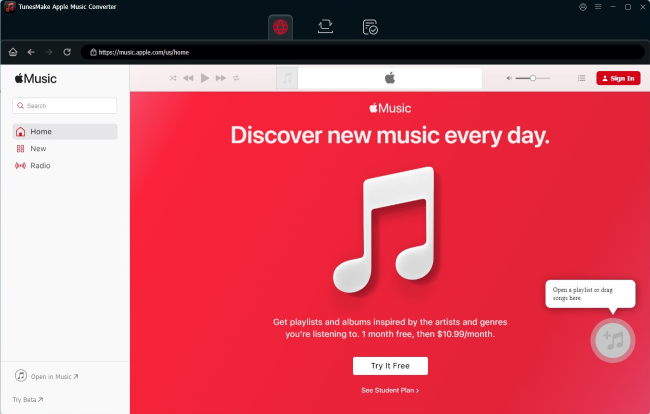
Click the Free Download button above so that you can install the TunesMake Streaming Audio Recorder on your desktop. Then, launch it and head to the Apple Music web player. You can sign in and select the playlist or album you want to listen to on your Chromecast. Then, click the Add icon in the lower right corner to let the TunesMake program analyze it. When all the included songs are listed, you can choose whichever you like and select Add to List.
Step 2
Configure the output format for Apple Music
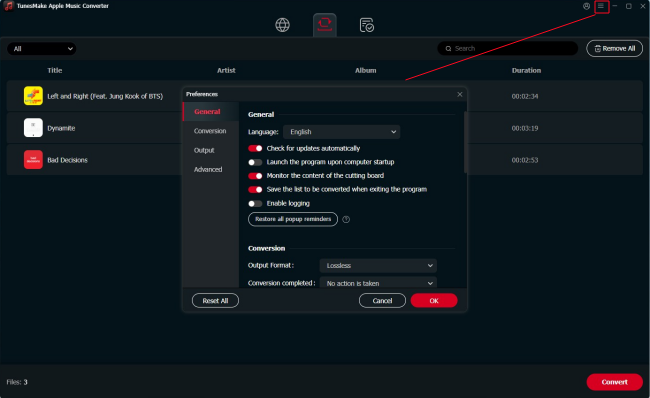
After adding the songs you like from Apple Music to the TunesMake program, you can then set the output parameters as you wish. Click the top Menu icon and click Preferences to bring out the settings window. Here, select Conversion and begin selecting the output format, output quality, channel, bit rate, sample rate, and so on.
Step 3
Start to convert Apple Music songs to MP3
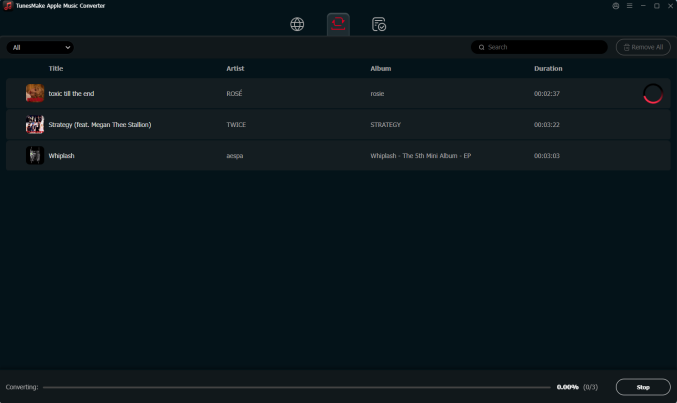
Finally, make sure that the settings are correct and hit the Convert button at the lower right side of the screen. The TunesMake program will then remove DRM protection and convert Apple Music to the format you chose. To find the location of these downloaded music files, you need to click the top Converted icon, and then select the little file icon next to each song.
How to Cast Downloaded Apple Music to Chromecast from iPhone
Now, you already save your favorite Apple Music songs as local music files on your computer. You can sync these files to your iPhone via iTunes or Music on your computer. Then, it would be easy to play them on your Chromecast.
Step 1
Sync Apple Music Songs to iPhone
1. Open the iTunes or Music app on your computer. Then, click File at the top left corner and choose Add File to Library.
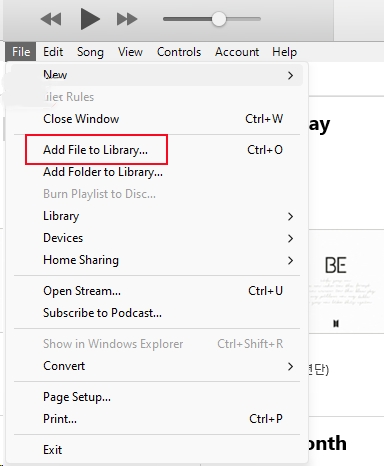
2. Then, you can find and select your downloaded Apple Music files and upload them to your library.
3. After that, connect your iPhone to your computer via a compatible USB cable.
4. Once done, click the device icon in the upper-left corner. Then, choose Music.
5. Next, select the box next to Sync Music then toggle on Selected playlists, artists, albums, and genres.
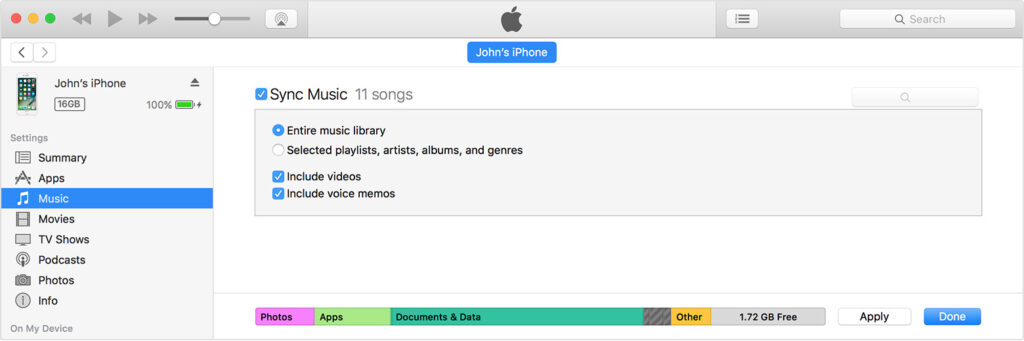
6. Now, you can sync the songs you like by clicking the Apply button.
Step 2
Cast Apple Music Songs from iPhone to Chromecast
1. Find a valid mirroring or casting app and install it from the App Store on your iPhone. You can try CastForHome or AllCast.
2. Make sure your iPhone and Chromecast are connected to the same Wi-Fi. Then, open the casting app on your iPhone.
3. You should follow the on-screen instructions to finish all necessary settings. Then, click the Cast button from the app and select your Chromecast device from the list.
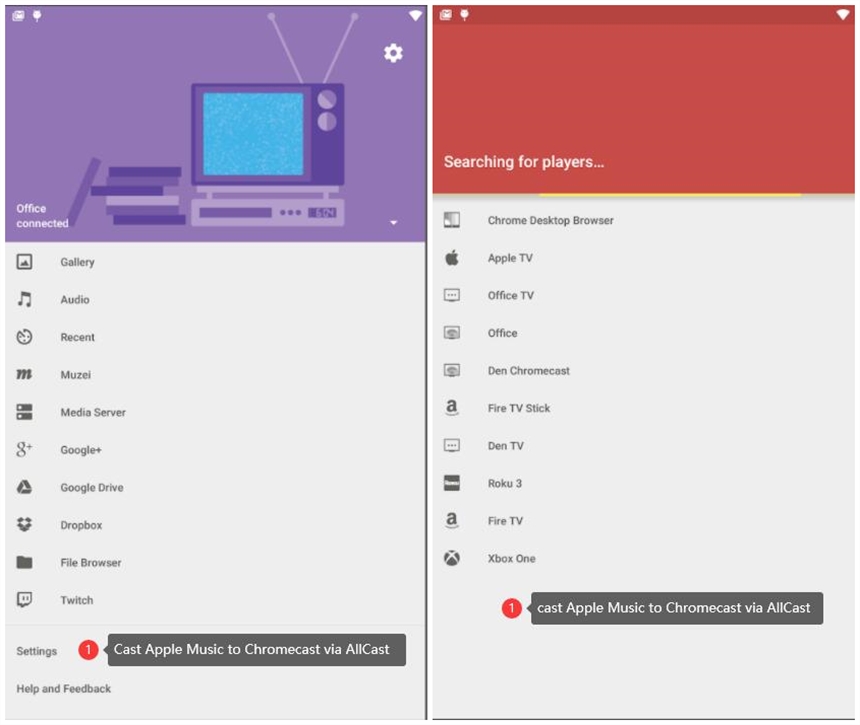
4. Now, play the local Apple Music songs on your iPhone, and the music will automatically stream to your Chromecast device.
Part 3. How to Get Apple Music Chromecast Integration on Desktop
Except for using the Apple Music app, you could also use Chrome on your computer in order to cast Apple Music to Chromecast. With this method, you could only use the Apple Music web player to browse your music library. Most people already use Chrome, so it is easy for you to cast beats from Apple Music to Chromecast.
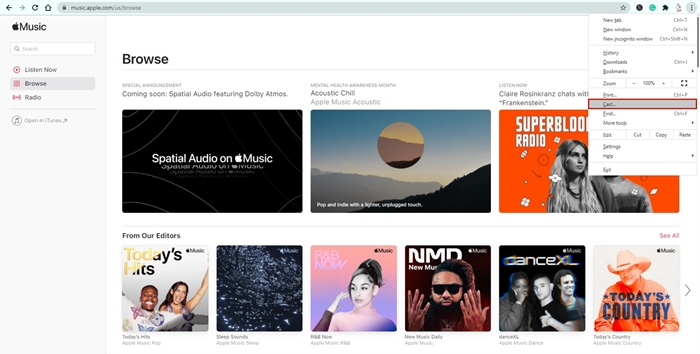
Step 1. Open up a new tab in Chrome on your computer and navigate to the landing page of Apple Music then sign in to your Apple ID.
Step 2. Click the triple-dotted menu icon in the upper right corner of your browser to open the Chrome Settings menu and choose the Cast option then click it.
Step 3. Selecting Cast will open a small window at the center-top of your browser and find your Chromecast then select it.
Step 4. Begin playing something from your library on Apple Music and your selected songs will be played from your computer to your Chromecast.
Part 4. How to Play Apple Music on Chromecast-enabled Speakers
If you have a Chromecast-enabled speaker, like the Google Nest Audio, you can stream Apple Music with voice commands or app-based media controls. This is an official method to connect two devices on iOS without using third-party tools. All you need to do is set Apple Music as your Default Music Service within the Google Home ecosystem, ensuring that whenever you ask your Chromecast speaker to play a song, it will automatically reach your Apple Music library first.
Step 1. Go to the Google Home app on your device and tap the add icon in the top left corner.
Step 2. Then, find Apple Music under the Music section. Click the link icon next to it.
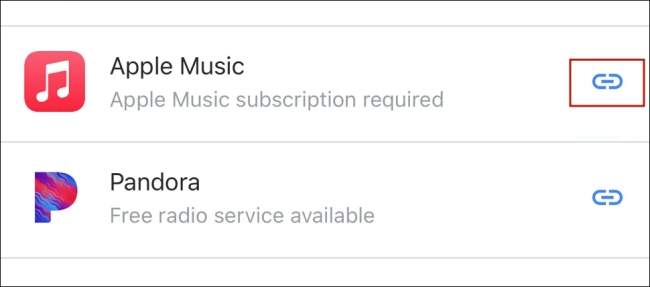
Step 3. Then, select LINK ACCOUNT > Agree and continue to sign in with your Apple ID.
Step 4. After linking, you can select Apple Music as your Default music service.
Step 5. When it is finished, you can speak to your Chromecast-enabled speaker, like “Hey Google, play [playlist/song/album] on Apple Music”.
The Bottom Line
You don’t need to be locked to the Apple Music streaming service for you to enjoy your favorite tracks. These methods have shown you how to stream Apple Music to Chromecast for advanced freedom. Chromecast has access to both video and audio content from several services. And better enough, you can even control Google Chromecast with your voice without routing Chromecast commands via a Google Home device as before. Just give vocal commands directly through Google Assistant and cast music to your Chromecast in few words.
Related Articles

A professional writer at TunesMake, crafts in-depth tutorials, practical tips and expert advice focusing on streaming music, technology, and more.
- 1
- 2
- 3
- 4
- 5
- 6
- 7
 Leave Your Comment
(0)
Leave Your Comment
(0)

 Download Center

