








 Store
Store


As multiple streaming music services develop, we can access and listen to millions of songs on our devices online. Apple Music is one of the most popular music providers that allows you to access 100 million songs, thousands of curated playlists, and original content from the artists you know and love. The Apple Music app is preinstalled on all Apple devices, like iPhone, iPad, and Mac, so Apple users can easily use Apple Music during the subscription period. Well, what about Android users? Can you get Apple Music on Android? If you are eager to know the answer, don’t miss out on this comprehensive guide. You can follow it stepwise to download the Apple Music app on your Android phone or tablet and play your favorite Apple Music tracks without limitations.
Part 1. Can You Use Apple Music on Android?
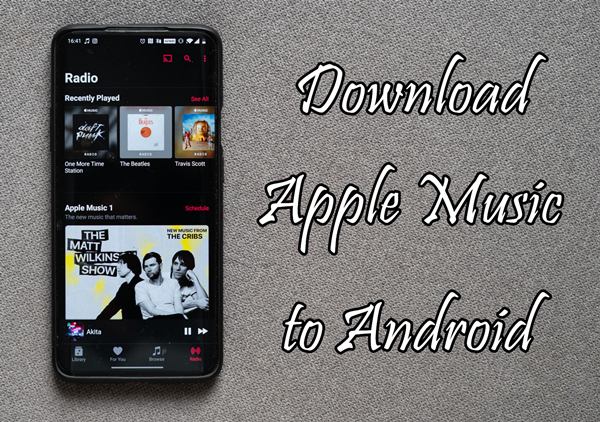
The short answer to this problem is yes. While Apple Music is originally preinstalled on Apple devices, it has aggressively expanded to other platforms. Apple Music officially released an Android version of its app years ago, and it continues to receive updates.
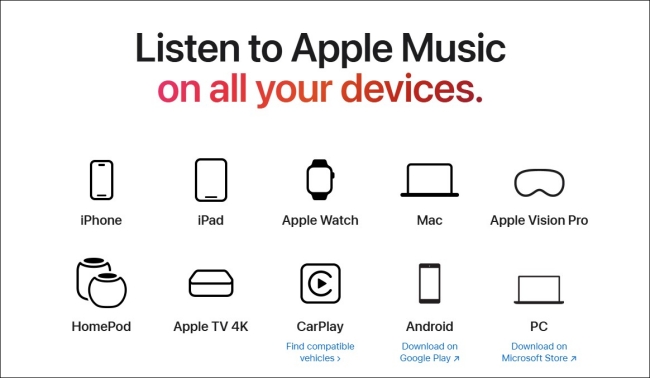
With the Apple Music app on Android and a valid Apple Music subscription, you can easily stream over 100 million songs, access various curated playlists and radio stations, download your favorite tracks for offline listening, experience spatial audio like Dolby Atmos, sync your personalized library across devices, and more. The Android app of Apple Music offers nearly the same feature as iOS, just a slight UI variation. Overall, the app experience is smooth and fully functional. Keep reading to learn how to install and use the Apple Music app on your Android device.
Part 2. How to Get Apple Music on Android
To ensure a smooth experience, you should update your Android device to the latest version. Be sure that your Android device is running Android 5.0, or later or you have a Chromebook supporting Android apps. Then, you can follow the steps below to get started with Apple Music on Android.
2.1 How to Download the Apple Music App on Android
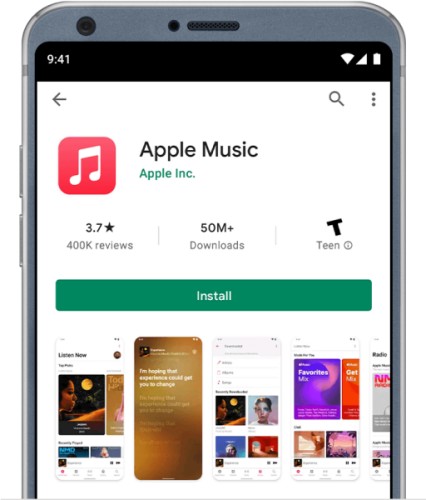
Step 1. Open the Google Play Store and search for Apple Music.
Step 2. Enter the app information page and tap Install to download the app.
Note
If Apple Music is available in your country or region but Google Play isn’t available, go to download the Apple Music app from Apple’s website.
2.2 How to Subscribe to Apple Music on Android
Step 1. Open the Apple Music app on your Android device. The first time you open it, you will receive a “Welcome to Apple Music” message.
Step 2. Here, you should tap the trial offer.
Step 3. If you already have an Apple account, tap Use Existing Apple Account. Otherwise, you will need to create a new account by tapping Create New Apple Account.
Step 4. Now, you can choose an Individual subscription, Family subscription, or a Student subscription.
Step 5. After that, confirm your billing information and select a valid payment method.
Step 6. Tap Subscribe and you are done. You will be charged automatically on the next billing day.
Note
There is a free trial of Apple Music, and you can make use of Apple Music free trial.
2.3 How to Sign in to Apple Music on Android
Step 1. If you already subscribe to Apple Music, you can head to the Apple Music app directly.
Step 2. Then, tap Sign In in the upper corner. Alternatively, you can choose the More icon > Settings > Sign In.
Step 3. Next, enter your account credentials to sign in to the Apple account that you use with Apple Music.
Part 3. How to Download Apple Music Songs on Android
With a subscription to Apple Music, you can get unlimited access to millions of ad-free songs on Apple Music. The most important feature is that you can listen to Apple Music offline. It’s easy to download all songs on Apple Music Android. Then you can enjoy Apple Music songs in Offline Mode. Here’s how to download Apple Music songs to Android devices and where are Apple Music downloads stored on Android devices. Let’s dive into the details.
How to Download Songs from Apple Music on Android
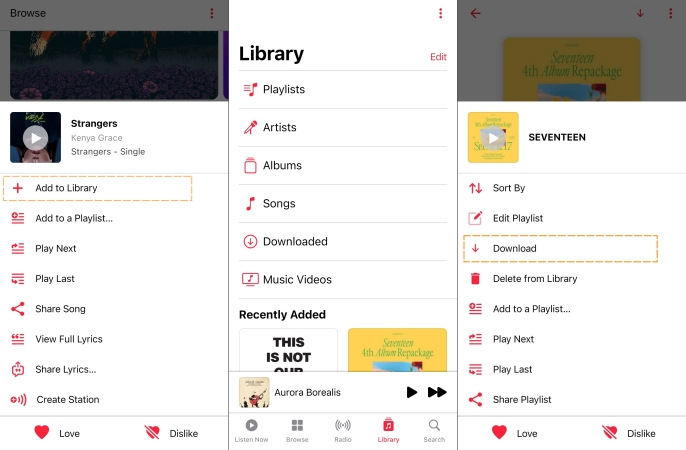
Step 1. In the Apple Music app, find an album or a playlist you want to download.
Step 2. Tap it and select Add to Library. Or you can directly find songs in the Library to download.
Step 3. Tap Playlists, Albums, or Songs, then tap the three dots at the top right corner.
Step 4. Tap Download to download playlists, albums, or songs to your device.
Where Are Apple Music Files Stored on Android?
All the downloaded Apple Music songs can be found in the Apple Music app. Tap the gear icon and select Settings, then tap Downloaded Music to view all Apple Music downloads. But where is downloaded Apple Music stored on Android? It would be stored on the internal storage of your Android device. Or you can save the offline Apple Music on an SD card you insert into your device.
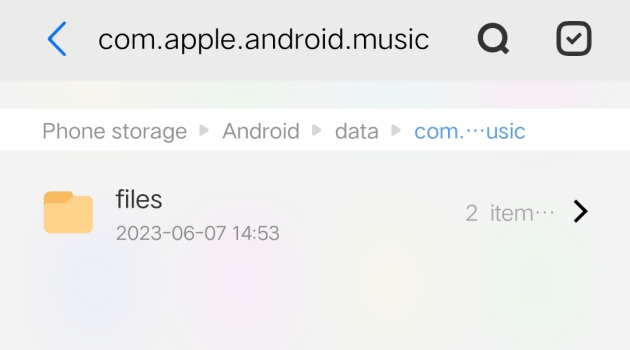
All downloaded Apple Music files may be stored in the directory of Android > Data > App Package Name. If you choose to download Apple Music songs to your device storage, then head to the location: “Internal Storage\Android\data\com.apple.android.music\files\Media“. Or simply use the File Manager app on your device and tap Phone Storage. Search for the Apple Music download location, and generally, the folder is named “com.apple.android.music“.
Part 4. How to Download Apple Music to Android and Keep Forever
Apple Music only allows access to its service during the subscription. All the songs or playlists that you’ve downloaded will be greyed out. And due to the DRM protection, you can only stream Apple Music within its app. So, you probably need a solution to solve the Apple Music songs not playing problem after canceling the subscription. The best way is to download and convert Apple Music to Android devices for playing. Here, you can use TunesMake Streaming Audio Recorder.
TunesMake Streaming Audio Recorder is a powerful yet easy-to-use music downloader and converter designed for all music lovers. You can use it to download your favorite songs, playlists, albums, and podcasts from streaming music platforms like Apple Music. Its decryption technology will remove the DRM protection of Apple Music tracks and convert them to normal audio files in MP3, M4A, M4B, WAV, FLAC, or AIFF formats. In other words, you can keep these Apple Music tracks on your Android device and listen to them even without a subscription. If you want, you can import them to other devices or media players for offline playback. In addition, the TunesMake program smartly keeps the original sound quality and ID3 tags to ensure your listening experience.

Streaming Audio Recorder –
Download Apple Music Songs to Android Locally
- Unlimitedly download streaming music songs, playlists, and podcasts
- Losslessly convert streaming music to MP3, M4A, M4B, WAV, FLAC, and AIFF
- Remove DRM protection from many streaming music platforms
- Convert streaming songs with original sound quality and ID3 tags kept
Security Verified. 100% Clean & Safe.
Step 1
Add Apple Music to TunesMake Software
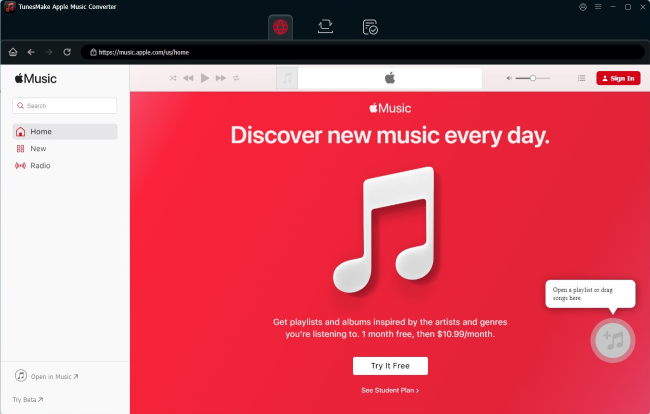
Install and launch the TunesMake Streaming Audio Recorder, and then you should choose Apple Music on its interface. After navigating to the official Apple Music web player, you can sign in and browse your Apple Music library. Once you find the playlist or album you want to save on your Android device offline, you should select it and click the lower Add icon > Add to List. Therefore, the TunesMake program will automatically load all the songs to its conversion list.
Step 2
Set the Output Format of Apple Music
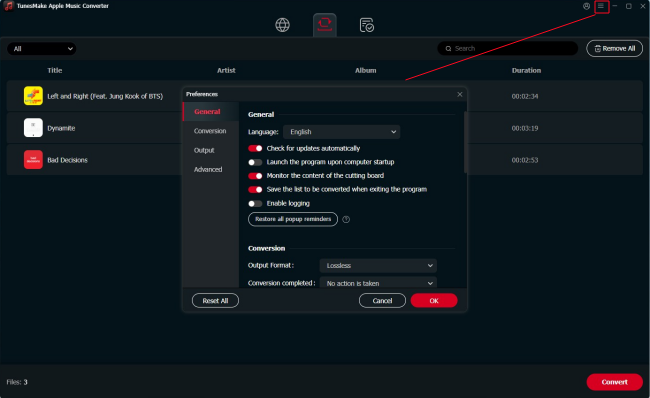
The TunesMake program allows you to set the output audio settings according to your own needs. Just click the Menu icon at the top right corner and select Preferences. When the setting window pops up, switch to the Conversion tab. Here, you can select an output format and set other parameters, like output quality, channel, bit rate, sample rate, and more. When you finish, click the OK button to save your preferences.
Step 3
Start to Convert Apple Music to MP3
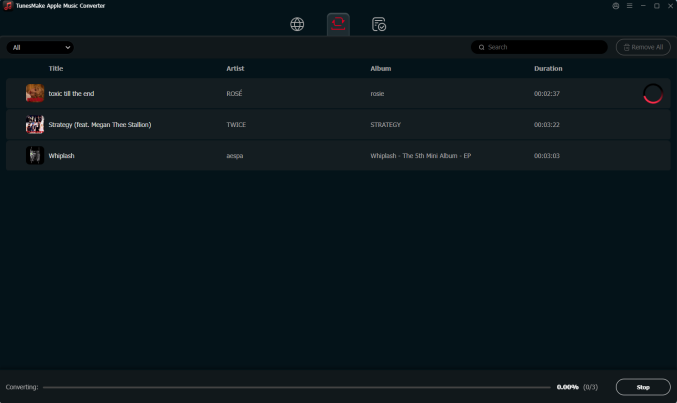
Now, you can click the Convert button to start the conversion of Apple Music songs. It only takes a few minutes to complete the conversion as the conversion speed is 13×. When finished, you can locate the converted music tracks by clicking the top Converted icon. In the History window, you can click the file icon next to each song to open its location folder.
Step 4
Sync Downloaded Apple Music to Android
To sync the downloaded Apple Music songs to your Android phone, you should first make a connection between your computer and your phone via a USB cable. Then, you can copy and paste the Apple Music files to the Music folder on your Android phone.
Final Words
And now you’ve known how to download music from Apple Music to Android devices. If you want to keep your Apple Music songs after the free trial or if you want to play Apple Music songs freely, you can use TunesMake Streaming Audio Recorder. With this one-click music converter, you can download Apple Music to your Android device as local files and keep them for offline playback. Go to have a try, and you’ll find it out.
Related Articles


A professional writer at TunesMake, crafts in-depth tutorials, practical tips and expert advice focusing on streaming music, technology, and more.
- 1
- 2
- 3
- 4
- 5
- 6
- 7
 Leave Your Comment
(0)
Leave Your Comment
(0)

 Download Center

