








 Store
Store


Listening to music is becoming our daily lives. For people who love music, iTunes is an excellent place for getting new music. iTunes is a comprehensive streaming service; you can access music, podcasts, movies, audiobooks, and so on from it. The comprehensive nature of iTunes is unmatched by any other streaming software.
So how can we get great content from iTunes? The answer is to subscribe to iTunes. As a premium user of iTunes, you can access all iTunes content without hassle. Among all content, the Music section is the most popular one. Therefore, today we will show you how to download music from iTunes and even Apple Music.
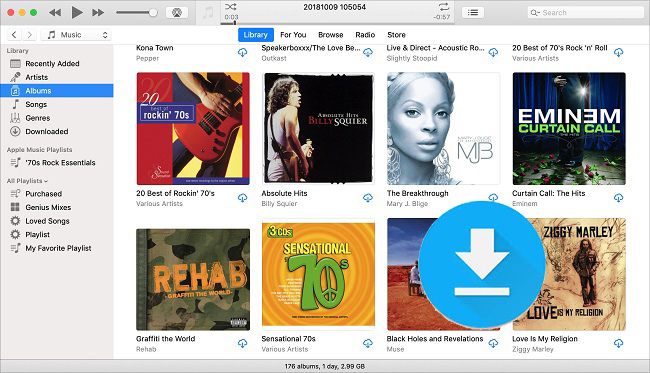
Part 1. How to Download Music from iTunes via Its App
iTunes supports premium accounts to download music for offline playing. If you have a premium account, you can download music from iTunes directly. You can follow the guide below to download music from iTunes.
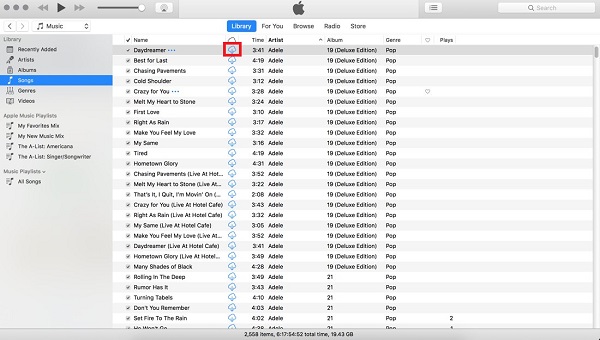
Step 1. Launch the Music or iTunes software on your computer.
Step 2. Login to your premium iTunes account.
Step 3. Locate the music you wish to listen to offline and add it to your library by clicking the Add button.
Step 4. Click the Download symbol next to the music to download and store it for offline listening on iTunes.
Wait for minutes, you can find the downloaded music in your library. Now you can play the downloaded music without a network.
Noticed that you can only offline play the music during the subscription period. When your subscription expired, you may not be capable of playing the downloaded iTunes audio.
Part 2. How to Download Purchased Music from iTunes
Beyond music streaming services, iTunes also provides a digital track purchase service. You can buy songs you like, and then download them in MP3. And the purchased content can be easily accessed on another new computer once you sign into your iTunes account. Here shows you how to download music from iTunes after purchase.
Step 1. Run the iTunes app on your computer and navigate to the Account from the top menubar and select Authorization followed by Authorize This Computer.
Step 2. In the next popup window, enter your Apple ID and the password, then click Authorize to finish.
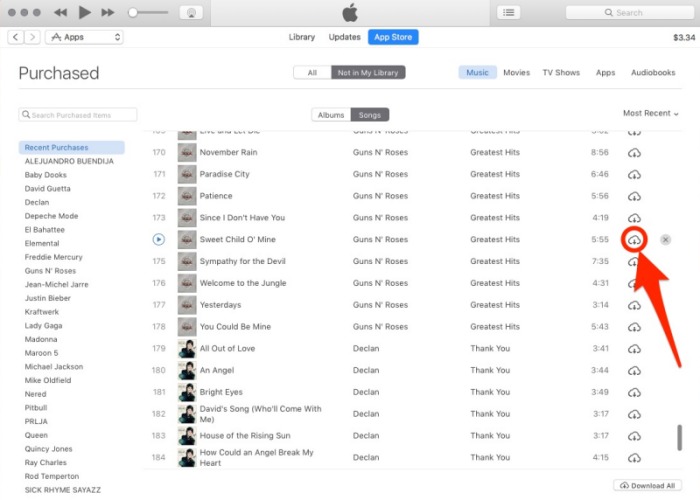
Step 3. Open Purchased from the Account menu on the left side of iTunes and the songs you purchased from iTunes Store will be shown in your sight.
Note
Here you can select the options to view All or Not In My Library to see what songs you’ve purchased are not in your iTunes library.
Step 4. Select the download arrow to the right side of the Download All button at the lower-right corner of iTunes.
Step 5. Or you can simply select one song to download by clicking the Cloud icon with a downward arrow.
Now you can download a single song or all purchased content to iTunes on PC/Mac computer.
Part 3. Bonus: How to Download Music from Apple Music
Nowadays, more and more users choose Apple Music for everyday listening, which raises an important question: can Apple Music songs be downloaded and saved the same way as iTunes tracks? While Apple Music does allow offline downloads, the downloaded files are only playable in its official app. If you need to download music from Apple Music to MP3, you will need the help of the TunesMake Streaming Audio Recorder.
TunesMake Streaming Audio Recorder is designed to remove DRM protection from iTunes/Apple Music and download protected M4P audio to a plain format, such as MP3, M4A, M4B, WAV, FLAC, and AIFF. This tool can keep the lossless quality after the conversion to promise a high listening experience. In addition, it supports customizing the audio output settings. You can change audio parameters like bit rate and sample rate to have a better music experience.

Streaming Audio Recorder –
Download Streaming Music to MP3 on PC and Mac
- Unlimitedly download streaming music songs, playlists, and podcasts
- Losslessly convert streaming music to MP3, M4A, M4B, WAV, FLAC, and AIFF
- Remove DRM protection from many streaming music platforms
- Convert streaming songs with original sound quality and ID3 tags kept
Security Verified. 100% Clean & Safe.
Step 1
Transfer the Necessary iTunes Music to The Converter
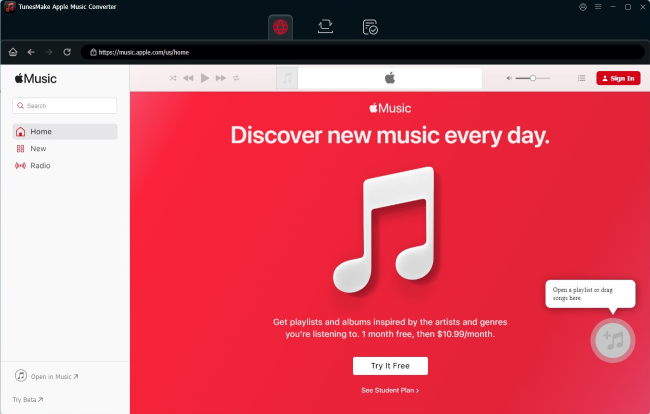
When you install and launch the TunesMake Streaming Audio Recorder, it will automatically load the official Apple Music web player. You can sign in to your account and select any playlist you want to download. Then, click the lower Add icon > Add to List. Thus, all the songs can be loaded to the conversion list.
Step 2
Configure Output Format and Parameters
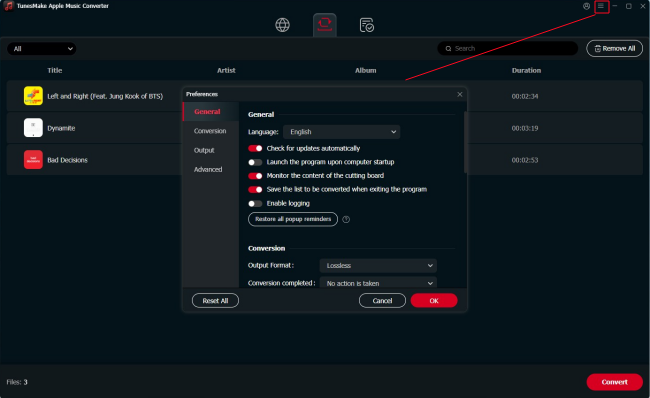
You may now modify the files to make them work with your device. It offers a variety of output formats for converting an audio file. Just click the top Menu icon > Preferences > Conversion. Then, you can select MP3 as the output format. You can change other audio parameters, including codec, bit rate, sample rate, and channel. Finally, click the OK button to confirm all of the adjustments.
Step 3
Begin by Converting M4P iTunes Music to MP3
After you’ve chosen your output formats and set the parameters, click the Convert button to begin the conversion. Because the default speed is 13×, the conversion will be completed quickly. When done, you may find the converted files in the local folder you specified before, or you can check your converted history by clicking the Converted icon.
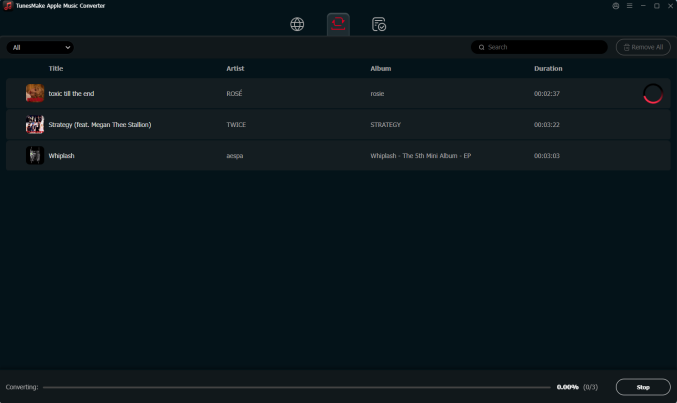
When the download is over, you can find the downloaded MP3 files on your computer’s hard drive and import them to other devices for unlimited offline playback.
Part 4. Summary
In this article, we have told you effective methods to download music from iTunes. If you are a premium user of iTunes, you can download the music from its app or download the purchased music through iTunes as well. But the downloaded iTunes music is in encrypted format which can’t be played in other places. No worries. TunesMake Streaming Audio Recorder can help you remove the playing limit and convert iTunes music to MP3. After the conversion, you will get iTunes music in MP3 files with the original quality.
Related Articles

A professional writer at TunesMake, crafts in-depth tutorials, practical tips and expert advice focusing on streaming music, technology, and more.
- 1
- 2
- 3
- 4
- 5
- 6
- 7
 Leave Your Comment
(0)
Leave Your Comment
(0)

 Download Center

