








 Store
Store


Few things are more frustrating than opening iTunes only to find that your favorite tracks, custom playlists, or entire music collection have suddenly vanished. Whether it occurred after a software update, a hard drive migration, or an accidental deletion, losing access to your music can feel overwhelming. Fortunately, your music is rarely gone for good. In this guide, you will learn how to restore music on iTunes, covering both cloud-based purchases and local media files on Windows and Mac.
Part 1. What Is Your iTunes Issue?
Before jumping into the solutions, refer to the table below to identify your specific issue and find the quickest way to restore your iTunes music library.
| What You See | Likely Cause | Recommended Fix |
|---|---|---|
| Purchased tracks are missing from the library | Tracks are hidden or deleted locally | Unhide and Redownload Purchases |
| iTunes opens completely blank or missing playlists | .itl database file is corrupted or missing | Restore Previous Library File |
| Exclamation mark appears next to song titles | File path is broken, or tracks are moved or renamed | Re-link Missing Track Paths |
| Apple Music or iTunes Match tracks disappeared | "Sync Library" feature is disabled | Re-enable Cloud Library Sync |
| Switching to a new computer or restoring from drive | Media files were backed up externally | Restore from External Backup |
Part 2. How to Restore Music on iTunes
From re-downloading past purchases to recovering corrupted library files, here are step-by-step solutions for both Windows and Mac users to restore music on iTunes.
Method 1. Unhide and Redownload iTunes Store Purchases
If you purchased music directly from the iTunes Store, your purchases are permanently tied to your Apple ID. Even if you accidentally deleted them from your computer, you can easily recover them for free using your Apple Account.
Step 1 Unhide Hidden Purchases in Account Settings
If your purchased songs no longer appear in the iTunes library or Purchased page, they may have hidden accidentally.
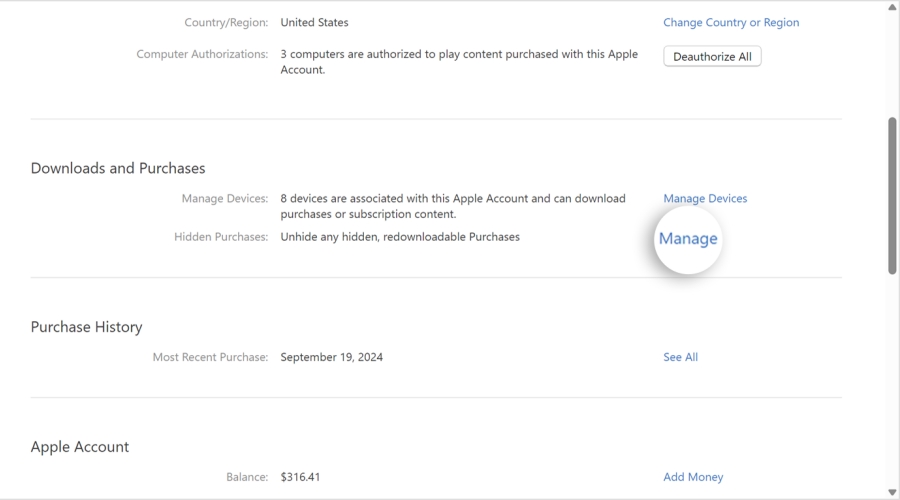
1. Open iTunes on a Windows PC or the Apple Music app on a Mac.
2. Click Account in the top menu bar and choose View My Account.
3. Sign in with your Apple ID credentials if prompted.
4. Scroll down to Download and Purchases, then click Manage next to Hidden Purchases.
5. Locate the missing songs or albums and click Unhide under each item.
Step 2 Redownload Past Purchases from the iTunes Store
Once unhidden, you can redownload your purchased music in your iTunes library directly to your computer locally.
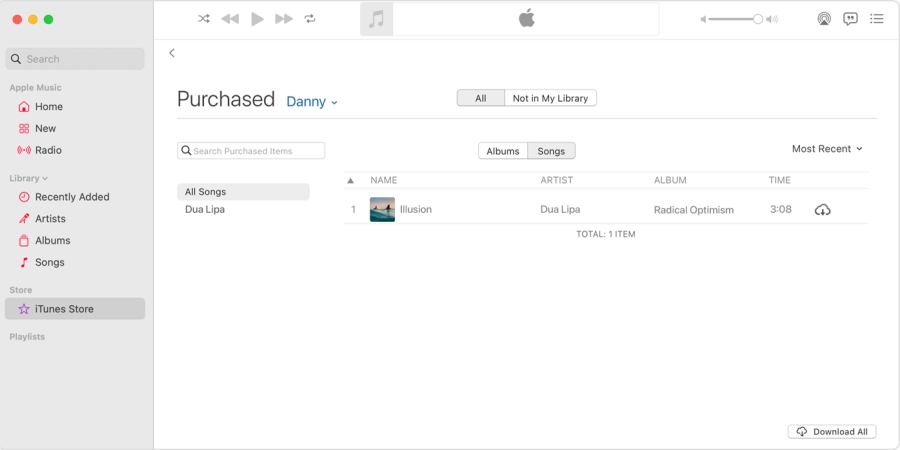
1. Navigate back to the iTunes Store tab within iTunes.
2. Under the Quick Links menu on the right panel, select Purchased.
3. Select the Not in My Library tab to filter out songs already stored on your hard drive.
4. Click the Cloud Download icon next to individual tracks.
Method 2. Restore an Empty or Corrupted Library Database
If iTunes opens and your entire library, including non-purchased MP3s, imported CDs, and custom playlists is missing, your iTunes database file may have become corrupted. iTunes automatically saves periodic backups of your database, which you can use to restore your missing library.
Step 1 Swap in the Backup Database File
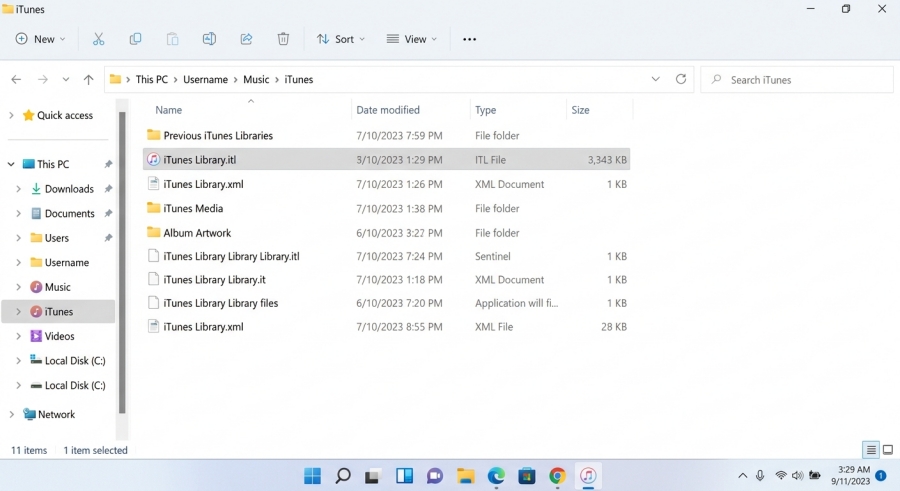
1. Close iTunes and open the main iTunes folder on your computer.
2. Find the iTunes Library.itl file and rename it to iTunes Library_Corrupted.itl as a safety precaution.
3. Open the Previous iTunes Libraries folder inside the iTunes directory.
4. Locate the most recent backup file.
5. Copy that file, paste it back into the main iTunes folder, and rename it to exactly iTunes Library.itl.
Step 2 Re-launch iTunes to Restore
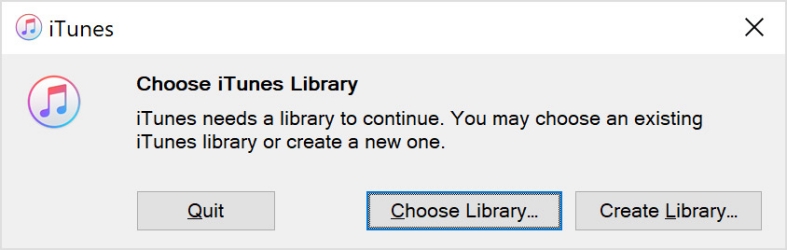
1. Press and hold the Shift key on a Windows PC or Option key on a Mac, then open iTunes.
2. A window will prompt you to "Choose iTunes Library". Click Choose Library.
3. Navigate to the main iTunes folder and select the newly renamed iTunes Library.itl file.
Method 3. Restore the Entire iTunes Library from an External Backup
If you regularly back up your computer using an external hard drive, Time Machine, or Windows Backup, you can easily restore your entire iTunes music folder, including media files and library settings from backups.
Step 1 Restore the iTunes Media Folder
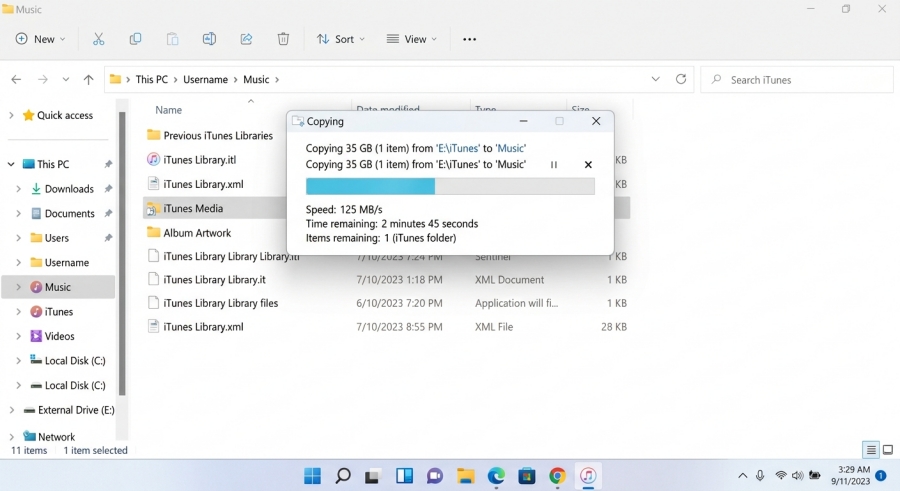
1. Connect your external backup drive to your computer.
2. Open your backup software or navigate directly to the backup folder on your external drive.
3. Locate the backed-up iTunes folder.
4. Copy the entire iTunes folder and paste it into the Music directory on your main computer drive.
Step 2 Point iTunes to the Restored Folder
1. Hold down Shift on Windows PC or Option on Mac while launching iTunes.
2. Click Choose Library.
3. Select the iTunes Library.itl file inside the restored iTunes folder you just transferred.
Method 4. Re-enable "Sync Library" for Apple Music & iCloud Music Library
If you use Apple Music or iTunes Match and noticed your cloud-based tracks or matched playlists suddenly disappeared, the Sync Library feature may have been turned off following a software update or sign-out.
On Windows (iTunes):
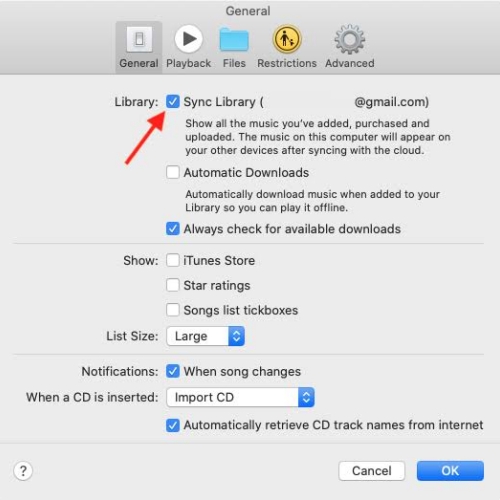
Step 1. Open iTunes and click Edit in the menu bar, then select Preferences.
Step 2. Go to the General tab.
Step 3. Ensure the checkbox for Sync Library or iCloud Music Library is checked.
Step 4. Click OK to save your changes and allow iTunes a few minutes to sync with the cloud.
On Mac (Apple Music App):
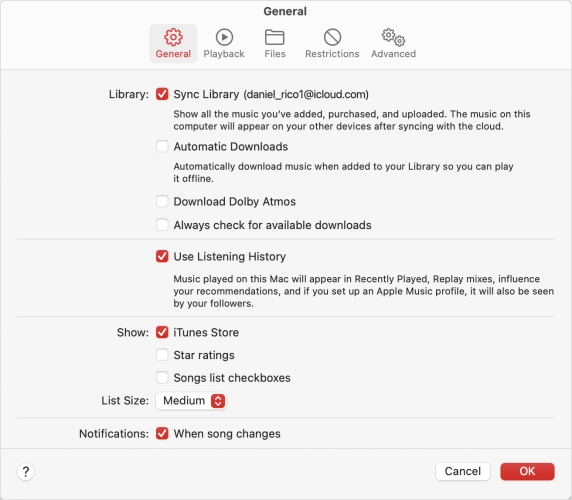
Step 1. Open the Music app.
Step 2. Click Music in the top menu bar and select Settings or Preferences.
Step 3. Under the General tab, check Sync Library.
Step 4. Click OK.
Method 5. Re-link Missing Songs with Exclamation Marks
If your songs are visible in iTunes, but double-clicking them brings up a prompt saying, "The song could not be used because the original file could not be found," an exclamation mark ! will appear next to the track name. This means iTunes lost track of where the audio files are stored on your hard drive.
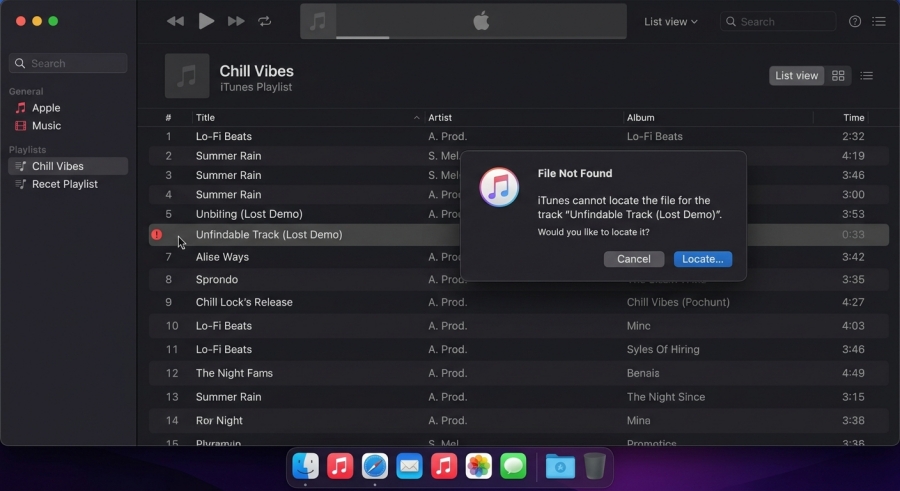
Step 1. Double-click the song with the exclamation mark !.
Step 2. When the pop-up asks if you would like to locate the file, click Locate.
Step 3. Navigate through your file browser to find where the actual audio file is currently located Select the actual audio file and click Open.
Step 4. iTunes will display a follow-up prompt, then click Find Nearby Files or OK.
Part 3. How to Back up Apple Music Tracks as Local Files
If you rely on streaming through Apple Music within iTunes, tracks are saved as cache files protected by digital rights permissions. If your subscription ends or cloud syncing fails, these streaming tracks will disappear from your library. To avoid losing access, you can convert and back up your streaming Apple Music audio as local formats like MP3 or FLAC on your drive. Utility software like TunesMake Apple Music Converter allows you to convert protected Apple Music tracks into plain local audio files while preserving full audio quality and ID3 tags.

Streaming Audio Recorder –
Download Apple Music tracks for playing anytime
- Download songs, albums, and playlists from Apple Music
- Convert Apple Music to MP3, M4A, M4B, WAV, FLAC, and AIFF
- Remove DRM protection from Apple Music completely and safely
- Preserve the original audio quality and ID3 tags for management
- Support downloading music from 10 popular streaming platforms
Security Verified. 100% Clean & Safe.
Step 1 Select and Add Apple Music Tracks
Launch TunesMake Streaming Audio Recorder on your computer. From the main interface, select Apple Music to launch its built-in web player. Sign in using your Apple ID credentials. Browse your library or search for any song, album, or playlist. Click the + button to load your desired Apple Music songs into the conversion list.
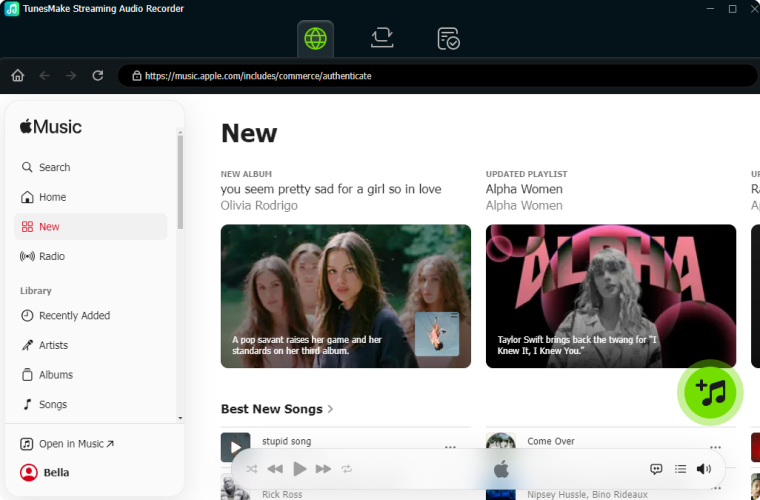
Step 2 Configure Output Audio Parameters
Click the Settings icon located in the bottom-left corner. Go to Music and choose your preferred output audio format, such as MP3, M4A, FLAC, or WAV. Adjust technical parameters if needed, such as bitrate, sample rate, and audio channel. Select a destination folder on your hard drive to store the output files.

Step 3 Convert and Save Apple Music Locally
Click the Convert button at the bottom right corner. TunesMake Streaming Audio Recorder will automatically download and save the selected Apple Music tracks into your designated format. Once the conversion is complete, click the History icon to view and locate your local audio files on your computer.

Part 4. Conclusion
Restoring lost music on iTunes is straightforward once you identify the cause. By following the above step-by-step solution, you can restore music from iTunes. To prevent future loss, go to iTunes > Edit > Preferences > Advanced and check "Keep iTunes Media folder organized" and "Copy files to iTunes Media folder when adding to library." Or you can make a backup of songs, albums, or playlists in your library with a third-party tool like TunesMake Apple Music Converter.
Related Articles




A professional writer at TunesMake, crafts in-depth tutorials, practical tips and expert advice focusing on streaming music, technology, and more.
- 1
- 2
- 3
- 4
- 5
- 6
- 7
 Leave Your Comment
(0)
Leave Your Comment
(0)

 Download Center

