








 Store
Store


There is nothing more frustrating than preparing for a flight, a long commute, or a workout only to find that Apple Music is not downloading songs for offline playback. Whether your downloads are stuck on an infinite spinning wheel, completely grayed out, or failing to start at all, you do not have to settle for silence.
As software troubleshooting experts, we have mapped out the exact, tested steps to get your offline library working again. This guide walks you through the process step-by-step, starting with quick, 10-second checks and moving to advanced system fixes and alternative backup solutions. Let’s dive into how to fix Apple Music not downloading songs now.
Part 1. Quick Fixes to Apple Music Not Downloading Songs (All Devices)
Before diving into complex settings, let's rule out the most common minor glitches. Often, a simple toggle or system status check is all it takes to resolve the issue.
Fix 1. Check Apple's Server Status
Sometimes, the issue isn't on your device at all. If Apple's delivery servers are undergoing maintenance or experiencing an outage, downloads will fail globally.
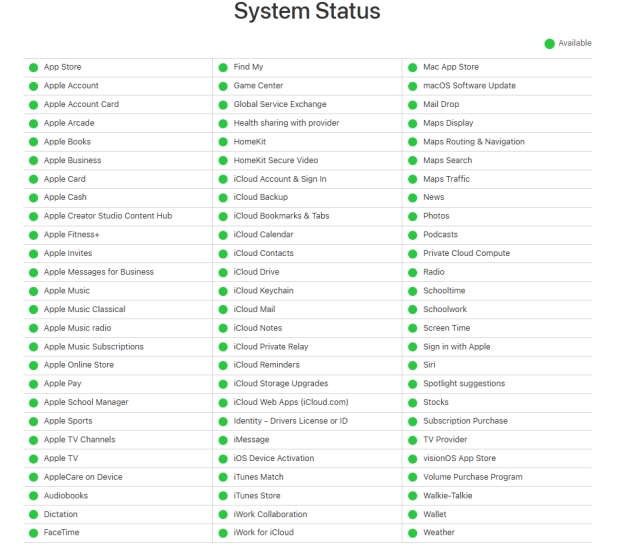
👉🏻 Visit Apple's official System Status page. If the circle next to Apple Music is green, the servers are operational. If it is yellow or red, the problem is on Apple's end, and you will need to wait it out.
Fix 2. Verify Your Subscription Status
If your billing information is outdated or your Apple Music subscription has lapsed, your offline downloading privileges are immediately revoked.
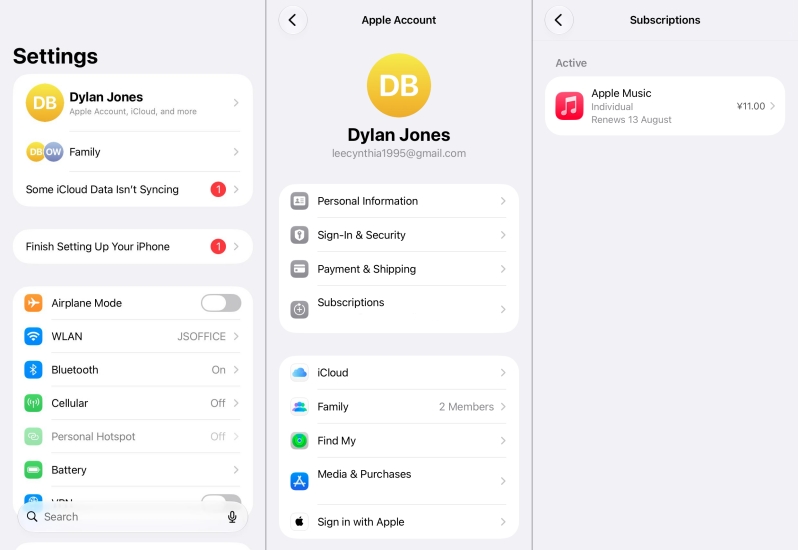
👉🏻 Check your Apple Music subscription status via your Apple Account Settings on Apple devices or in the Settings of the Apple Music app on non-Apple devices to ensure your plan is listed as active.
Part 2. How to Fix Songs on Apple Music Not Downloading on iPhone & iPad
Mobile devices are the most common places where users run into offline sync issues. Because cellular limits and storage thresholds are constantly shifting, iOS has unique safeguards that can block downloads. Following are fixes available for this issue.
Fix 1. Clear Local Device Storage
High-quality audio files take up considerable physical space on your phone. If your device's storage is nearly full, Apple Music will silently pause or decline new downloads.
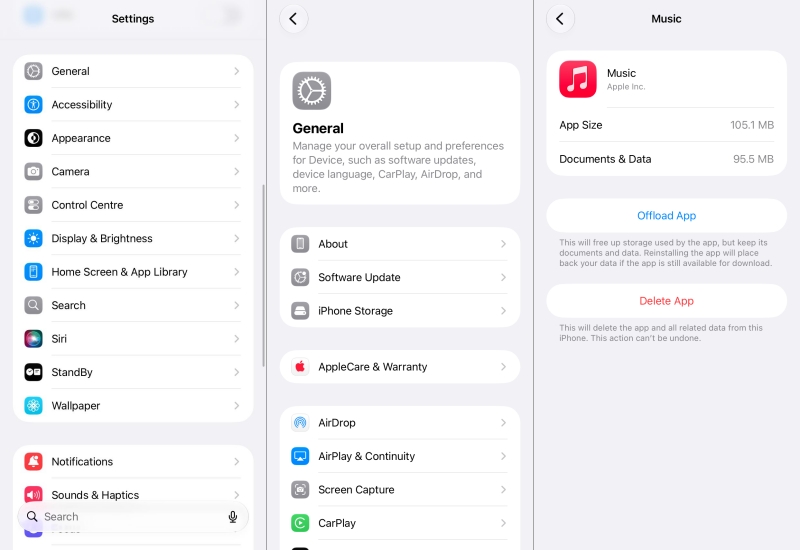
Step 1. Open Settings > General > iPhone Storage.
Step 2. Ensure you have at least 1–2 GB of free space available.
Step 3. If you are low on space, scroll down to tap Music.
Step 4. Offload or delete cached albums you no longer listen to.
Fix 2. Enable Cellular Downloads
By default, Apple Music blocks music downloads over cellular networks to save your mobile data. If you are away from Wi-Fi, you must explicitly give the app permission to use your network.
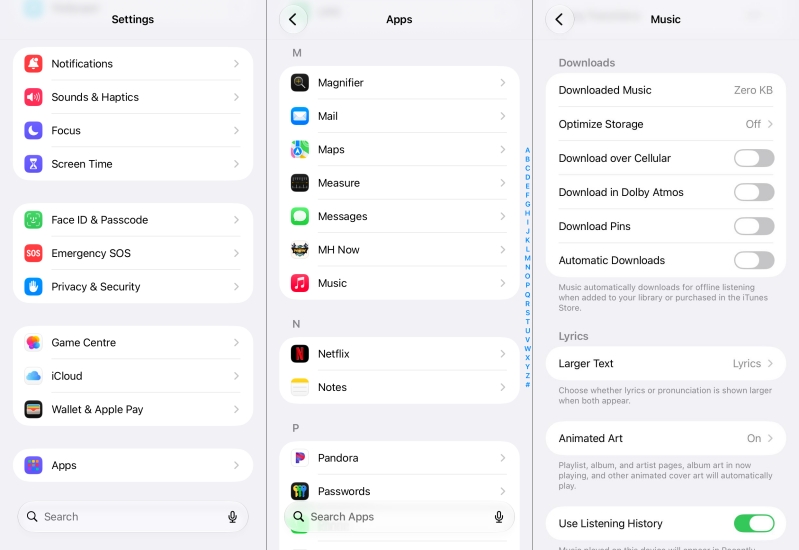
Step 1. Open Settings, tap Apps, and scroll down to Music.
Step 2. Locate Downloads and turn on Download over Cellular.
Fix 3. Toggle "Sync Library" Off and On
Sometimes the local database linking your phone to the iCloud Music Library gets corrupted. Resetting the sync connection usually clears the jam.
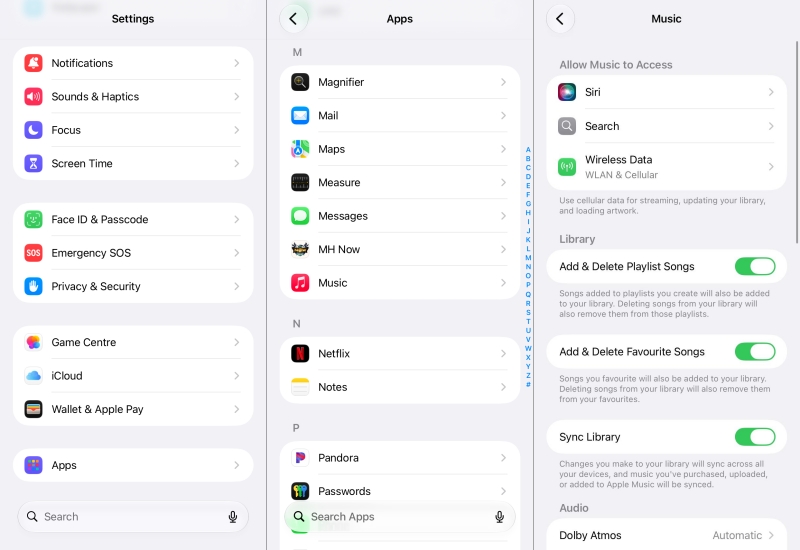
Step 1. Go to Settings > Apps > Music.
Step 2. Toggle Sync Library to OFF and confirm the prompt.
Step 3. Restart your iPhone.
Step 4. Go back to Settings > Music and toggle Sync Library back ON.
Fix 4. Sign Out of "Media & Purchases"
Signing out of your Media & Purchases account specifically refreshes your App Store and Apple Music security tokens without touching the rest of your iCloud data.
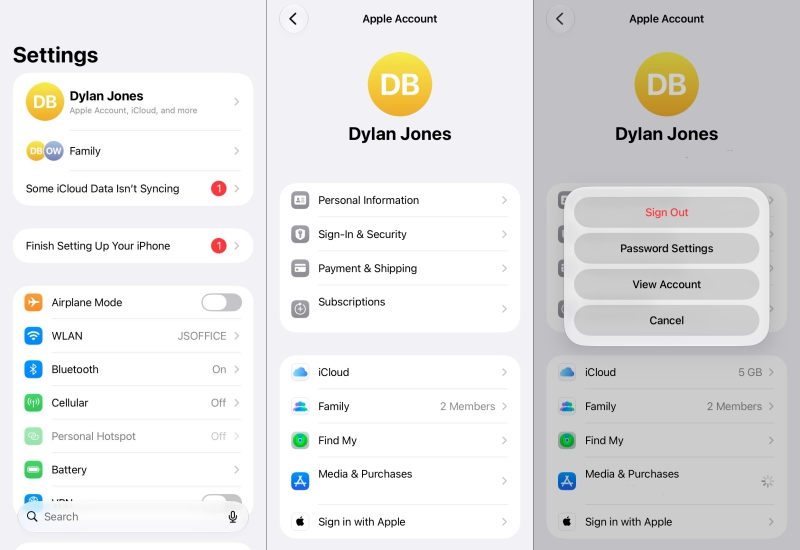
Step 1. Open Settings and tap your Apple Account at the top.
Step 2. Tap Media & Purchases > Sign Out and restart your device.
Step 3. Go back to the same menu and tap Media & Purchases to sign back in.
Fix 5. Reset Network Settings
If your device is experiencing underlying network protocol conflicts often caused by switching frequently between public Wi-Fi networks, resetting your network settings will clean the slate.
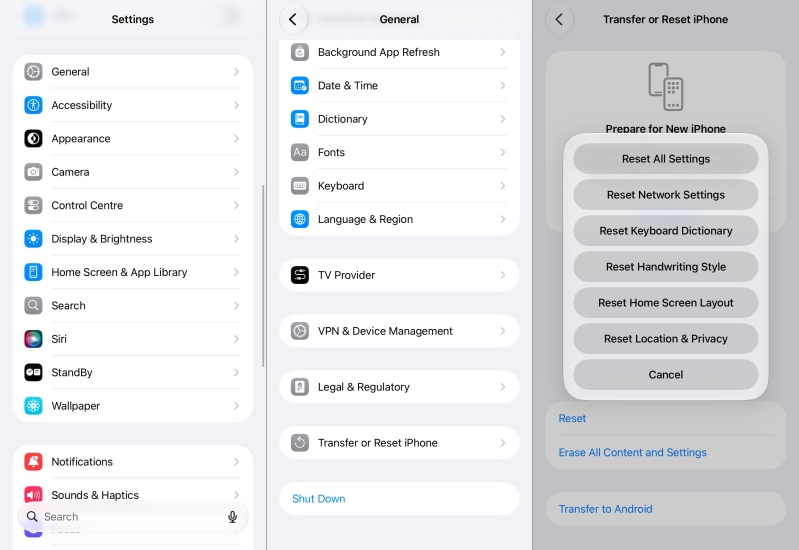
Step 1. Go to Settings > General > Transfer or Reset iPhone.
Step 2. Tap Reset and select Reset Network Settings.
Step 3. Tap Reset again and enter your passcode to confirm.
Part 3. How to Fix Songs Not Downloading from Apple Music on Android
Because Apple Music on Android runs on a non-native operating system, system permissions and cache storage are the most common failure points.
Fix 1. Clear the App Cache
Over time, temporary data can corrupt, blocking the download pipeline. Clearing the cache refreshes the app without deleting your downloaded library.
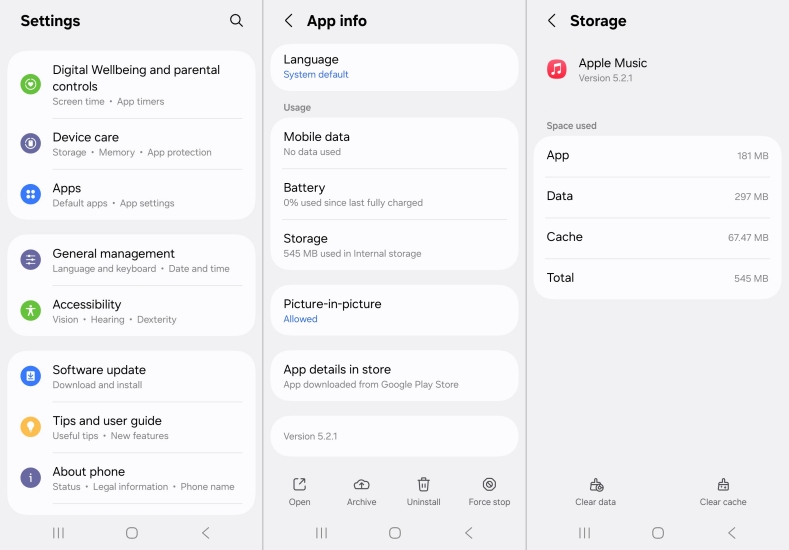
Step 1. Open your Android device's Settings.
Step 2. Go to Apps > Apple Music.
Step 3. Tap Storage and select Clear Cache.
Fix 2. Check Battery Optimization Settings
Android's aggressive battery-saving features can kill background download tasks to preserve power. Ensure that your battery optimization setting is not restricted to Apple Music.
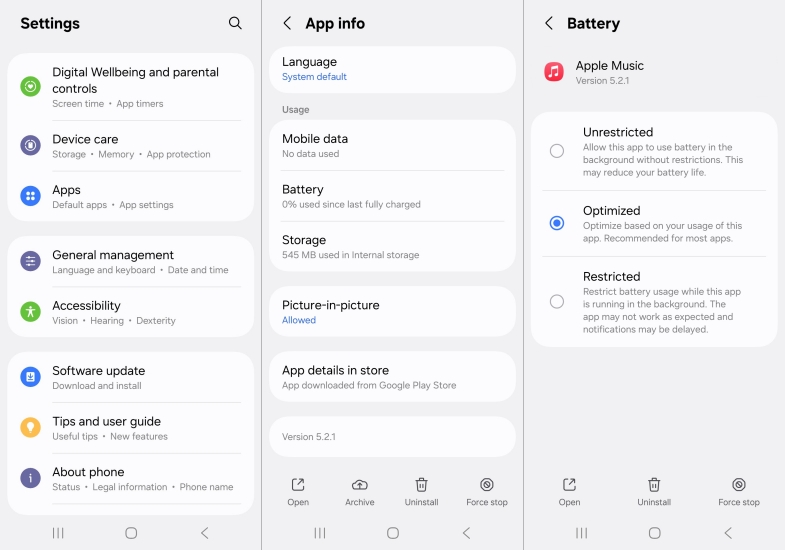
Step 1. Go to Settings > Apps > Apple Music.
Step 2. Tap Battery and set it to Unrestricted.
Part 4. How to Fix Songs Not Downloading in Apple Music on Windows & Mac
On desktop computers, download glitches are often related to mismatched cloud matching statuses or localized application caches. If you encounter the issue of songs not downloading in Apple Music on a computer, try the following solutions to fix the issue.
Fix 1. Update the Cloud Library manually
If you have added songs in Apple Music on your phone but they aren't syncing or downloading to Apple Music on your computer, you can force-refresh the database.
On Mac:
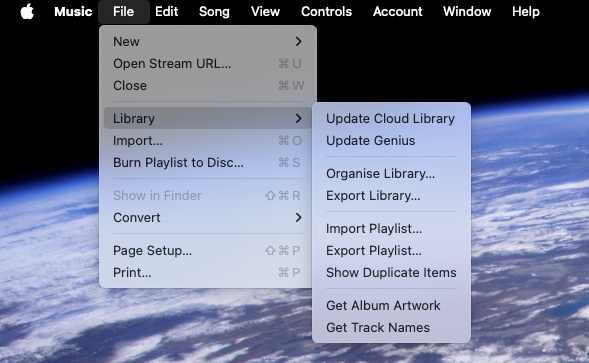
Open the Music app and click File > Library > Update Cloud Library in the top menu bar.
On Windows:
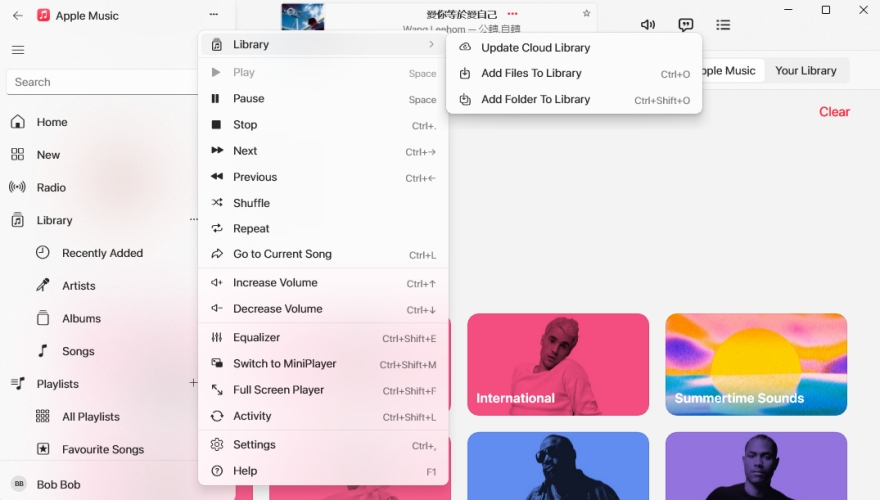
Open the Apple Music, click Sidebar Actions, go to Library, and select Update Cloud Library.
Fix 2. Check the Cloud Status Icons
Desktop apps use specific visual icons to indicate why a track isn't downloading. Right-click the columns header in your song list and enable Cloud Status to check.
-
Waiting: The song is queued. Click Update Cloud Library to push it through.
-
No Longer Available: The song cannot be uploaded or downloaded, usually due to licensing changes or file format limitations.
Part 5. A Reliable Alternative Way to Download Songs from Apple Music
If systemic iOS bugs or account sync issues continue to block your downloads within the official app, you can bypass the standard Apple Music download system entirely by downloading your music locally to your computer. Using a third-party tool like TunesMake Apple Music Converter is a highly effective workaround. Since it functions independently of the iOS download manager, it side-steps the catalog bugs that cause downloads to freeze on your mobile devices.
With TunesMake Apple Music Converter, you can download and save your favorite songs, albums, or playlists from Apple Music directly to standard audio formats like MP3, FLAC, WAV, or M4A. Once converted, these songs are saved as permanent, local files on your computer. You can manually transfer them to your iPhone, Android, or MP3 player via USB or cloud storage, completely bypassing the temperamental "Sync Library" toggle.

Streaming Audio Recorder –
Download Apple Music songs without the Apple Music app
- Download songs, albums, and playlists from Apple Music
- Convert Apple Music to MP3, M4A, M4B, WAV, FLAC, and AIFF
- Remove DRM protection from Apple Music completely and safely
- Preserve the original audio quality and ID3 tags for management
- Support downloading music from 10 popular streaming platforms
Security Verified. 100% Clean & Safe.
Step 1 Add the Songs to Download
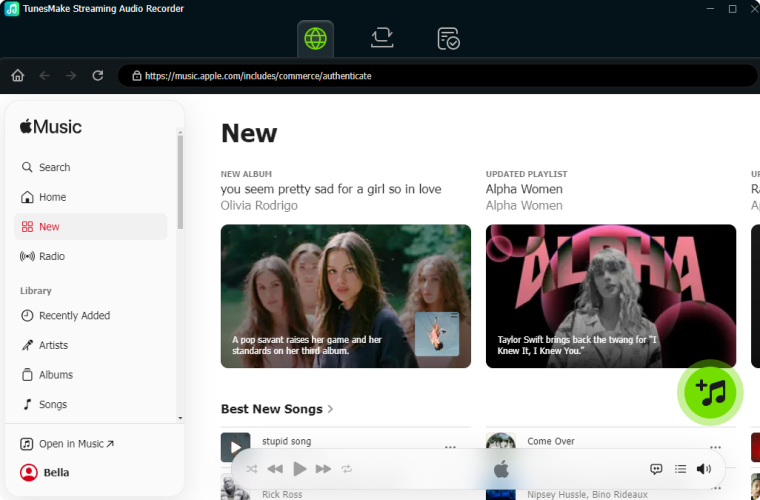
Fire up TunesMake Streaming Audio Recorder on your computer and choose Apple Music. Then the Apple Music web player will automatically open, and you can sign into with your Apple Account details. Browse all Apple Music songs in your library and add the one you want to download by clicking the + button.
Step 2 Set the Output Parameters
To improve your music enjoyment, TunesMake entitles you to reset the output settings. Just click the Settings button, and you can enter the settings window. Choose one output format you wish, and change other parameters like channel, sample rate, and bit rate on the basis of your demands. To make a confirmation, you need to hit the OK button.

Step 3 Download Apple Music
Click the Convert button, and you can initiate the download and conversion process of Apple Music. TunesMake will download and save Apple Music songs as local music files at a super-fast speed. When it is finished, you can see all the converted songs on the history list which can be opened by hitting the History button.

Part 6. Conclusion
Resolving download failures on Apple Music is typically a process of elimination. By systematically working through the quick diagnostics, checking local storage, and selectively signing out of your Media & Purchases account, you can get your music offline and ready for playback. For users dealing with persistent, unresolved system bugs or those who prefer to store local copies of their favorite tracks on other non-Apple devices, TunesMake Apple Music Converter provides a highly reliable, permanent alternative.
Related Articles



An experienced freelance writer at TunesMake, specializes in using various streaming services from Spotify, Apple Music, to Amazon Music, and more other platforms.
- 1
- 2
- 3
- 4
- 5
- 6
- 7
 Leave Your Comment
(0)
Leave Your Comment
(0)

 Download Center

