








 Store
Store


Few things disrupt your day faster than hitting play on your favorite playlist only to find that Apple Music is not working on your iPhone. Whether tracks are failing to load, songs are skipping, or your entire cloud library has vanished, troubleshooting the problem can feel overwhelming.
Because the app relies on a complex mix of local system cache, internet data, and Apple Account permissions, failures can happen for a variety of reasons. In this comprehensive guide, we will walk you through verified, step-by-step solutions to get your music playing again, ranging from single 10-second checks to deeper system resets.
Before diving into complex fixes, let's complete a quick sanity check:
-
Check Apple's Servers: Visit Apple's official System Status page online to ensure Apple Music has a green circle next to it. If the servers are down, the only solution is to wait for Apple to deploy a fix.
-
Verify Your Subscription: Go to Settings > your Apple Account > Subscription to ensure your Apple Music account hasn't lapsed due to an expired payment method.
If the Apple's servers are fine and your Apple Music subscription is active, use our diagnostic guide below to fix the exact issue you are facing. No worry, it's easy to get your music playing again through the methods in this guide.
Part 1. Quick Diagnose to Apple Music Not Working on iPhone
Apple Music not working on an iPhone can be caused by different bugs. Use this quick reference table to match your specific symptom to the correct solution in this guide.
| What You Are Experiencing | Likely Culprit | Fastest Solution |
|---|---|---|
| Songs pause instantly or won't play | Audio cache or formatting bug | Toggle Lossless Audio |
| Infinite loading or Cannot Connect error | Network or country licensing block | Check VPN & Cellular settings |
| Tracks are grayed out or playlists missing | Syncing indexing error | Reset iCloud Sync Library |
| App freezes or shuts down randomly | Corrupted app cache or outdated iOS | Reinstall app or update iOS |
Part 2. How to Fix Apple Music Not Working on iPhone
App glitches, network drops, and corrupted settings caches happen to everyone. It is not strange that lots of users open the Apple Music app only to find that Apple Music is not working on the iPhone. Here you can find your specific symptom below and follow the tailored steps to get your music back on track.
Symptom 1. Songs Instantly Pause or Won't Play at All
If a song starts to play but abruptly pauses within the first two seconds or refuses to start buffering at all, you are likely dealing with a corrupt audio streaming cache.
Step 1 Force Close and Restart the App
A hanging background script can stall the entire media engine. Force closing the app clears its short-term operating memory.
-
On iPhones with Face ID: Swipe up from the bottom edge of the screen, pause slightly in the middle, then swipe up firmly on the Apple Music preview card to close it.
-
On iPhones with a Home Button: Double-click the Home button and swipe up on the Music app card.
Once the Apple Music app is closed, perform a system restart by holding down the power and volume buttons to clear out residual temporary file blocks.
Step 2 Reset the Audio Quality Buffer
A known bug in iOS causes high-resolution streams to stall. You can force the audio pipeline to reset by toggling the Lossless settings.
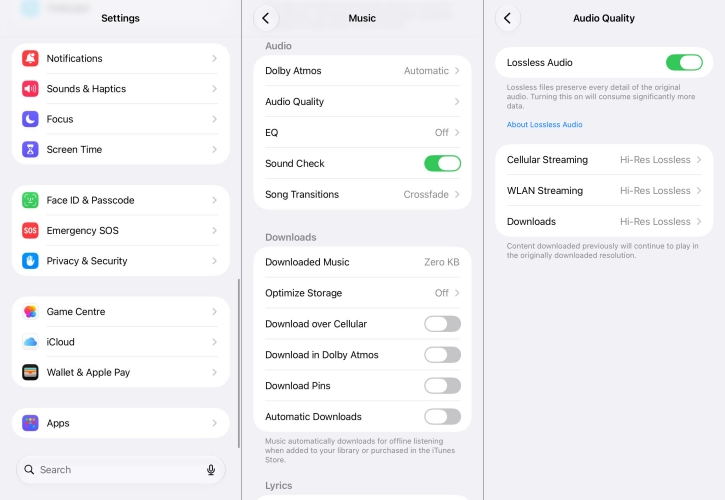
1. Go to Settings > Apps > Music.
2. Tap Audio Quality under the Audio section.
3. Turn Lossless Audio off, wait 5 seconds, and toggle it back on.
Symptom 2. Apple Music App Won't Load or Shows "Cannot Connect"
If you open the Apple Music app and are greeted by a blank screen or a persistent "Cannot Connect" message, your iPhone is struggling to reach Apple's servers.
Step 1 Disable Active VPNs
Virtual Private Networks can trick your device into routing traffic through servers that conflict with Apple Music's strict regional licensing.
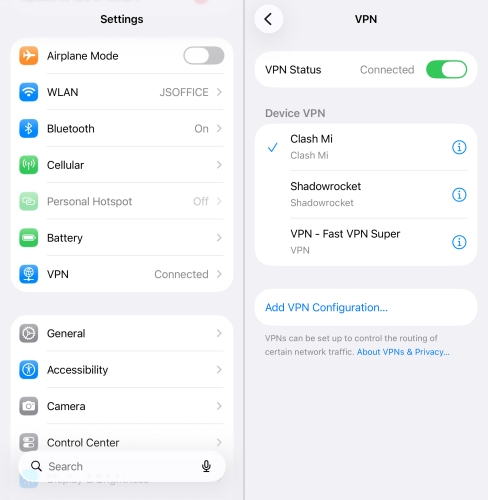
1. Open Settings on your iPhone and tap VPN.
2. Toggle any active VPNs to Not Connected.
Step 2 Check Cellular Permissions
If Apple Music works perfectly on Wi-Fi but fails when you step outside, cellular data may be blocked for the Apple Music app.
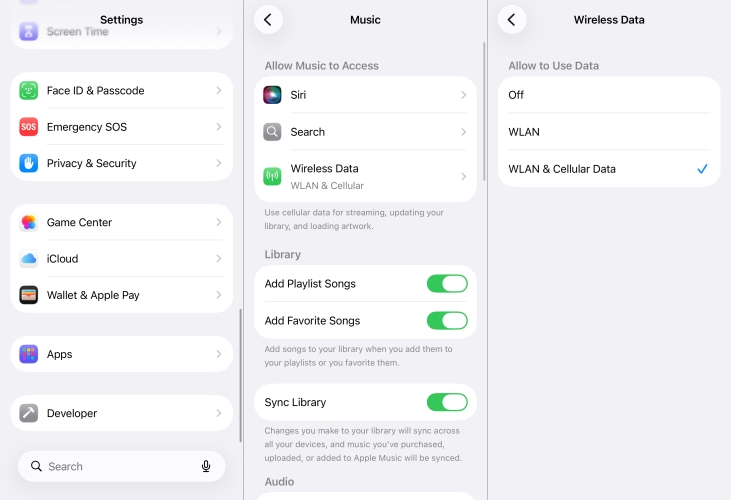
1. Go to Settings > Apps > Music.
2. Make sure the toggle next to Cellular Data is switched On.
3. Underneath, make sure Streaming is set to High Quality or Efficiency instead of Off.
Step 3 Reset Network Settings
If your network is still completely unresponsive, a corrupted network cache might be to blame. Resetting network settings on the iPhone can be a feasible method.
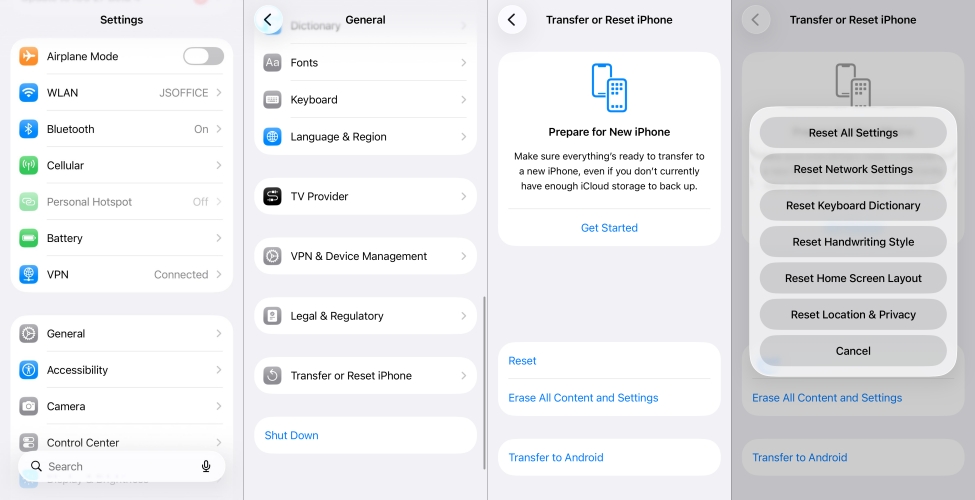
1. Locate Settings and tap General.
2. Scroll down and tap Transfer or Reset iPhone.
3. Tap Reset and select Reset Network Settings.
Symptom 3. Apple Music Tracks Are Grayed Out or Missing
If you can see your songs but they are grayed out or find years of curated playlists, albums, and artists have vanished into thin air, your iCloud Sync connection has likely desynchronized.
Step 1 Toggle Sync Library
When your cloud files refuse to index correctly, toggling the primary synchronization system acts as a hard reset for your music directory.
⚠️Warning:
-
Turning off Sync Library will temporarily remove any music you have explicitly downloaded to your phone for offline listening. Your playlists and saved music are perfectly safe in the cloud, but you will need to re-download them once the sync completes.
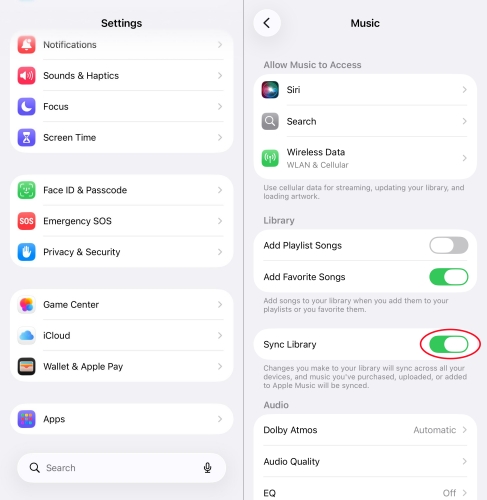
1. Navigate to Settings > Apps > Music.
2. Turn the toggle next to Sync Library to Off.
3. Restart your iPhone.
4. Go back to turn Sync Library back On.
Step 2 Re-authenticate Media & Purchases
Your phone uses separate background tokens to authorize media licenses. If this token gets desynchronized, logging out of your media profile can fix it.
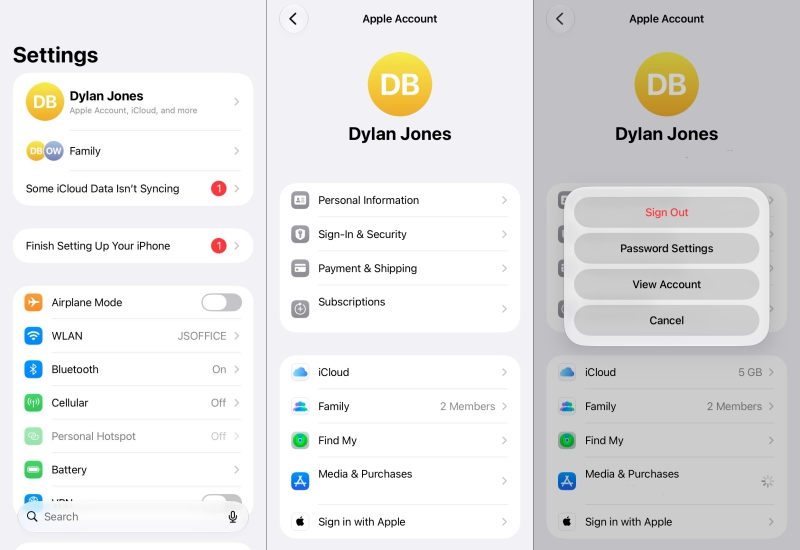
1. Open Settings and select your Apple Account profile at the top.
2. Tap Media & Purchases, then select Sign Out.
3. Tap Media & Purchases a second time to sign back in.
Symptom 4. Apple Music Keeps Crashing on Your iPhone
If the Apple Music app closes itself immediately after you open it, your local installation files have likely corrupted, or there is an operating system conflict.
Step 1 Delete and Reinstall Apple Music
You can completely delete the Apple Music app from your iPhone and download it fresh from the App Store. This will not delete your saved cloud library.
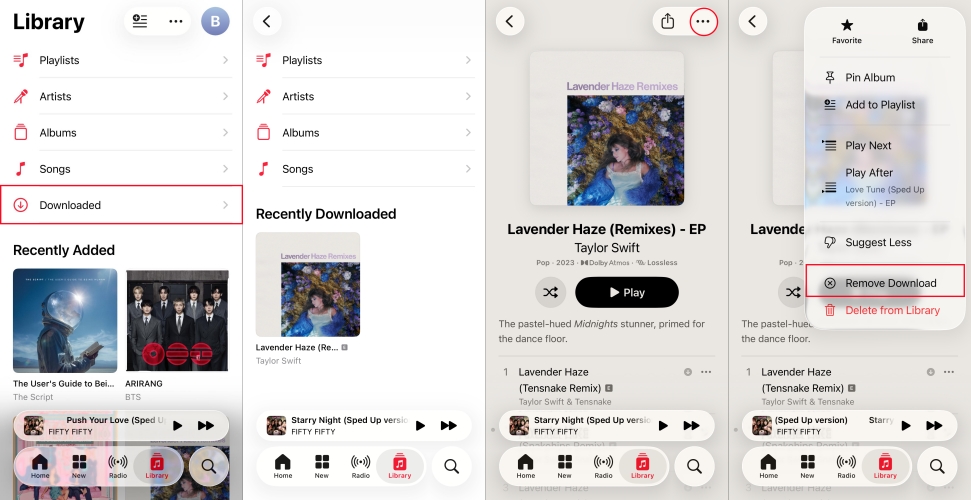
1. Press and hold the Apple Music app icon on your home screen.
2. Tap Remove App > Delete App.
3. Open the App Store, search for Apple Music, and reinstall it.
Step 2 Update to the Latest iOS
Apple frequently patches system-level media frameworks through iOS updates. Each update of iOS often fixes some media engine crashes.
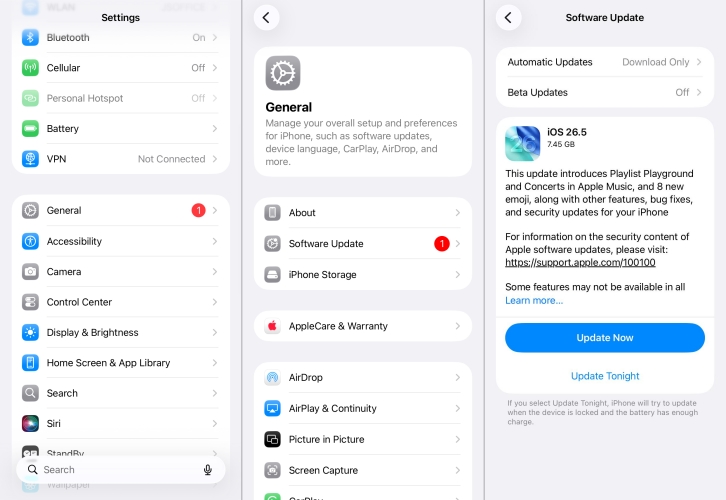
1. Go to Settings > General > Software Update.
2. If an update is available, tap Download and Install.
Part 3. Ultimate Workaround to Apple Music Not Working on iPhone
If you repeatedly experience sync failures, subscription verification glitches, or location-based licensing blocks, relying solely on the cloud can become tiresome. To bypass streaming restrictions, server outages, or sync issues altogether, many users prefer to back up their purchased music and playlists locally. A tool like TunesMake Apple Music Converter can help you save your Apple Music tracks directly onto your computer as unprotected audio files.
By converting Apple Music tracks into highly compatible formats like MP3, WAV, or FLAC, you can bypass cloud syncing entirely. Once converted, you can transfer these tracks directly to your iPhone using a standard iTunes sync or Finder transfer and play them seamlessly in any iOS media player even if the official Apple Music app is completely offline or your subscription to Apple Music is expired.

Streaming Audio Recorder –
Download Apple Music songs for playing anywhere
- Download songs, albums, and playlists from Apple Music
- Convert Apple Music to MP3, M4A, M4B, WAV, FLAC, and AIFF
- Remove DRM protection from Apple Music completely and safely
- Preserve the original audio quality and ID3 tags for management
- Support downloading music from 10 popular streaming platforms
Security Verified. 100% Clean & Safe.
Step 1 Select Apple Music Songs to Convert
Launch TunesMake Streaming Audio Recorder and it will show several streaming music platforms for you to choose. From the main interface, select Apple Music, then go to log into the built-in Apple Music web player with your Apple Account credentials. Now you can find the song or playlist you want to download and add them into the conversion list by clicking the Add icon.
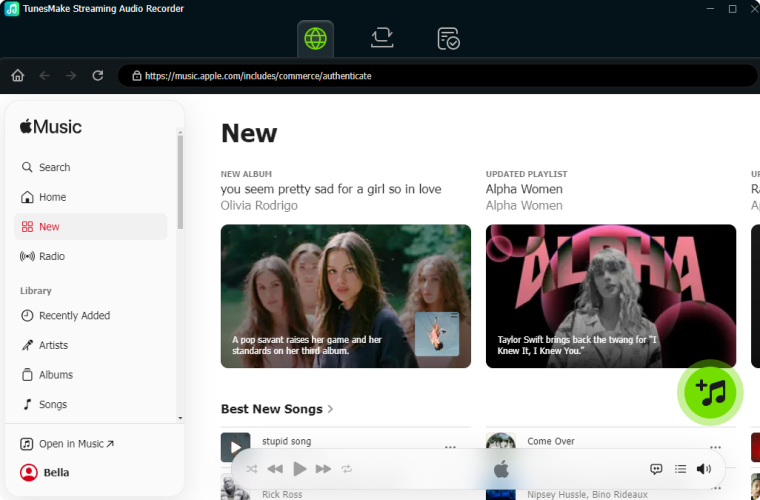
Step 2 Customize the Output Parameters
After adding Apple Music songs to the conversion list, you can set the output audio format by clicking the Settings button at the bottom left corner. When the settings window opens, you can locate the Conversion tab and set the audio parameters, such as sample rate, bit rate, channel, and format. Once set well, click the OK button to save your settings.

Step 3 Convert Apple Music to Target Format
Finally, you can click the Convert button to start the conversion of Apple Music songs. It only takes a while to finis the conversion with a faster speed. After completing the conversion, you can locate them by clicking the Converted icon. Now you can transfer these converted Apple Music audio files to your iPhone for playing at any time without using the Apple Music app.

Part 4. Conclusion
Running into issues with Apple Music on your iPhone can be frustrating, but in most cases, the fix is straightforward. By working through the systematic steps, you can resolve Apple Music not working on iPhone. If problems persist after trying these fixes, reinstalling the app or updating your iOS software will typically clear out lingering system bugs and get your music playing again.
Related Articles

A professional writer at TunesMake, crafts in-depth tutorials, practical tips and expert advice focusing on streaming music, technology, and more.
- 1
- 2
- 3
- 4
- 5
- 6
- 7
 Leave Your Comment
(0)
Leave Your Comment
(0)

 Download Center

