








 Store
Store


Apple Music's animated album covers add a vibrant, dynamic layer to your listening experience, transforming standard static covers into rich motion artwork. However, when these animated album covers stop working and stay static, it can diminish the visual experience of the app.
The issue rarely stems from a single broken feature. Instead, non-working motion art is usually caused by incorrect app toggles, system power restrictions, accessibility settings, or network streaming limitations. This comprehensive guide provides direct solutions to fix Apple Music animated cover art not working and make it work again.
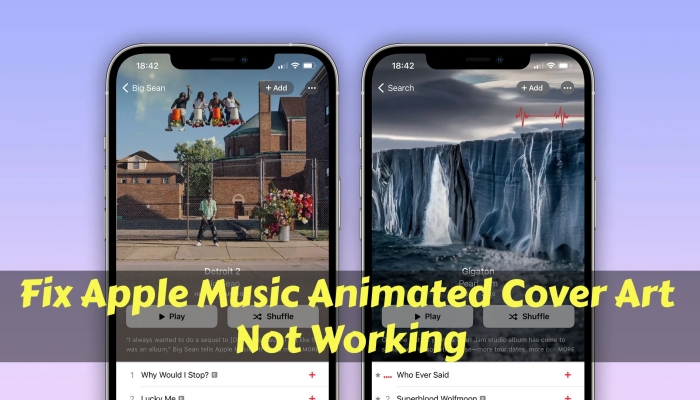
Part 1. How to Get Animated Cover Art on Apple Music
It is necessary to confirm that the album you are listening to actually supports animated artwork. Apple Music requires record labels and artists to upload custom motion art files. As a result, not every album in the catalog features animated covers. Here is how to make Apple Music songs with animated cover art on different devices.
On iPhone:
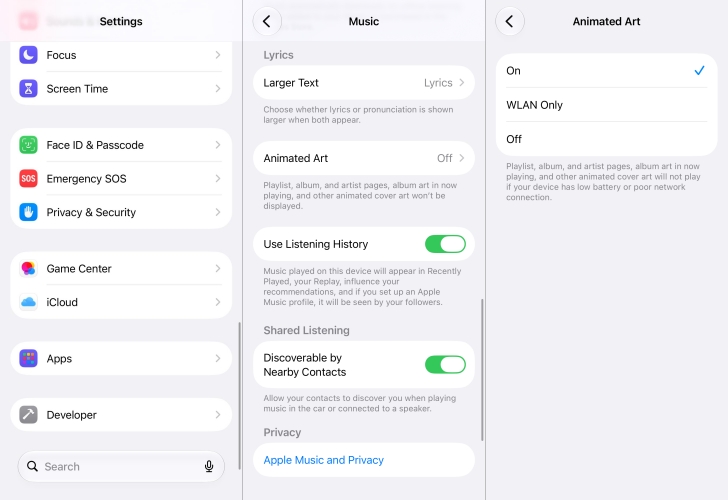
Step 1. Open Settings on your iPhone.
Step 2. Scroll down and select Apps, then tap Music.
Step 3. Tap Animated Art.
Step 4. Select On. If it is set to Wi-Fi Only, animated covers will not display when using cellular data.
On Android:
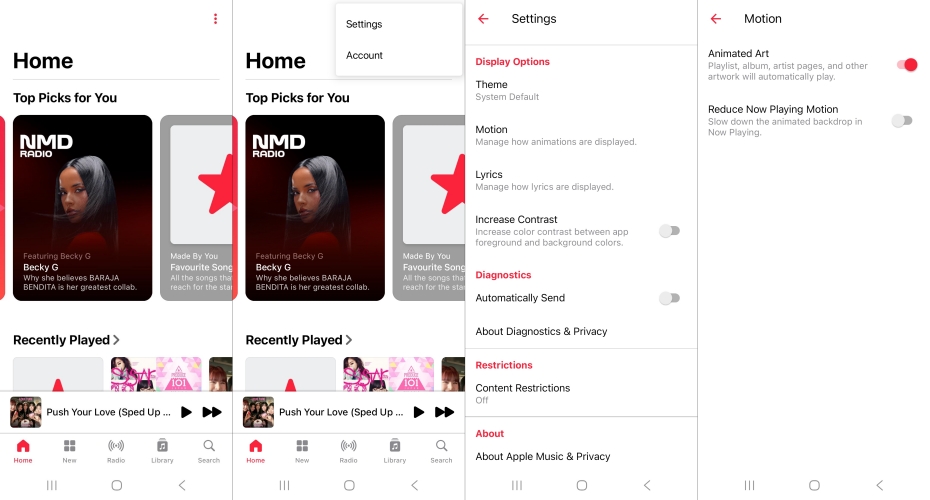
Step 1. Open the Apple Music app and tap the three-dot menu in the top right corner.
Step 2. Select Settings and locate Display Options.
Step 3. Tap Motion and turn on Animated Art.
Part 2. How to Fix Apple Music Animated Cover Art Not Working
If your album covers have stopped moving in Apple Music, the issue usually stems from hidden system restrictions, app settings misconfigurations, or network constraints. Follow the solutions below to fix Apple Music animated cover art not working on your iPhone and Android phone.
Solution 1. Disable System Battery Restrains
Power saving on Android or Low Power Mode on iOS pauses background activities and visual effects, including album motion art.
On iPhone
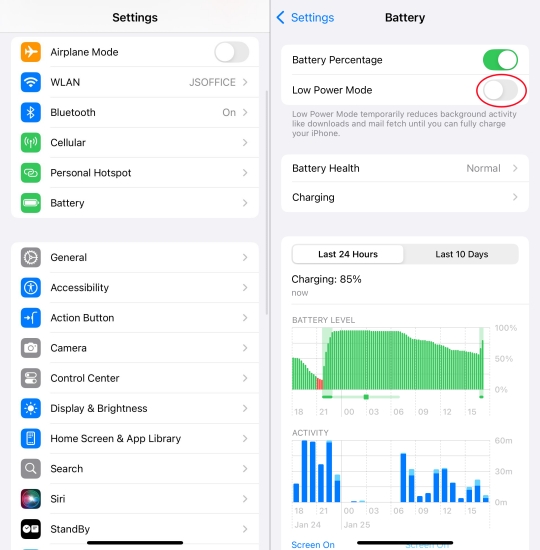
Step 1. Open Settings and tap Battery.
Step 2. Toggle off Low Power Mode.
On Android
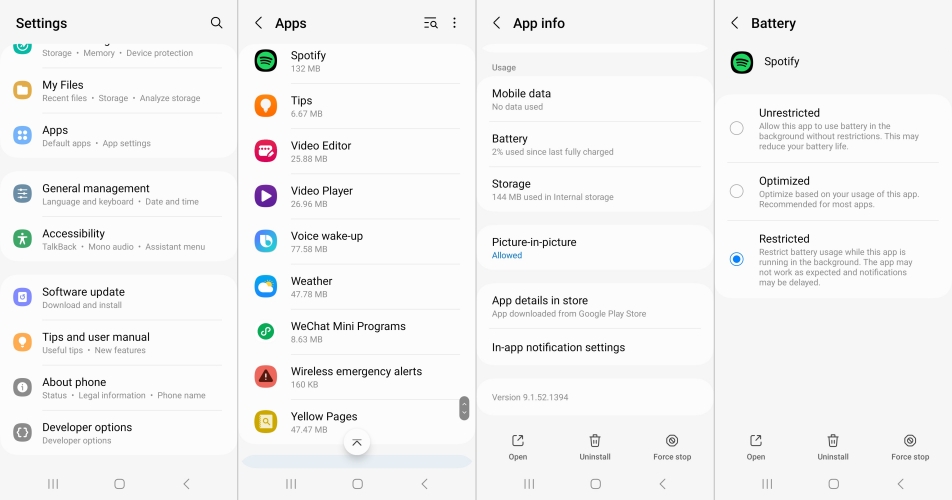
Step 1. Go to Settings and tap Apps.
Step 2. Select Apple Music and tap Battery.
Step 3. Switch to Optimized or Unrestricted.
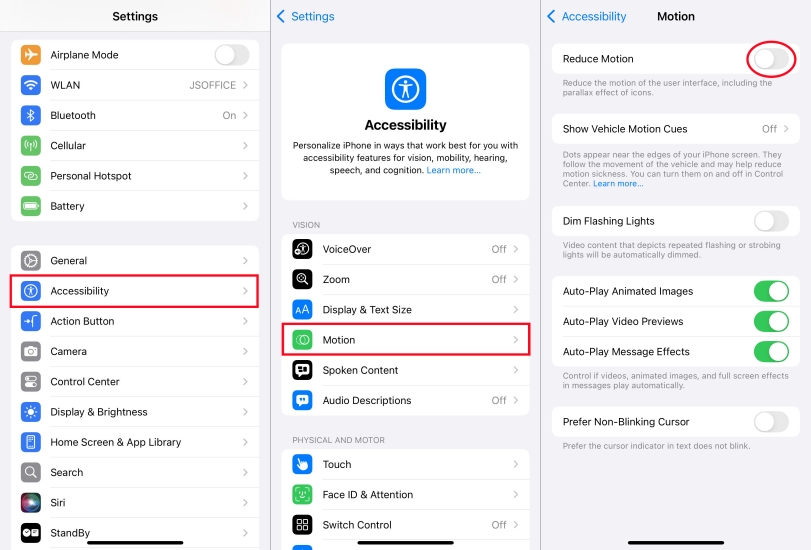
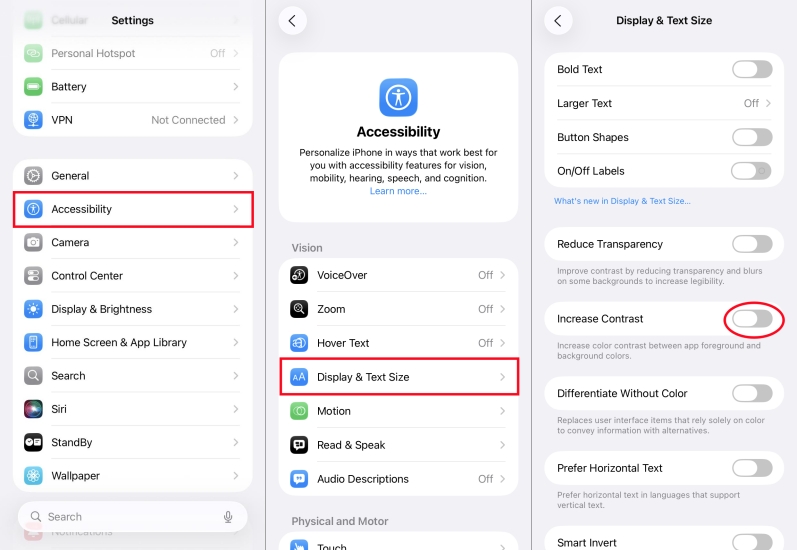
Solution 2. Reduce Motion and Increase Contrast (iOS)
iOS accessibility features designed to reduce screen movement or increase UI readability can force animated album art to remain static.
- Reduce Motion: Go to Settings > Accessibility > Motion and toggle off Reduce Motion. When enabled, this feature halts all non-essential system motion, including music artwork.
- Increase Contrast: Go to Settings > Accessibility > Display & Text Size and ensure Increase Contrast is toggled off, as high-contrast modes can conflict with Apple Music's color-blending graphics engine.
Solution 3. Set to Allow to Use Data
Streaming animated artwork requires a stable internet connection. If Apple Music is not allowed to use a cellular network, your device will restrict animated cover art to preserve bandwidth.
On iPhone
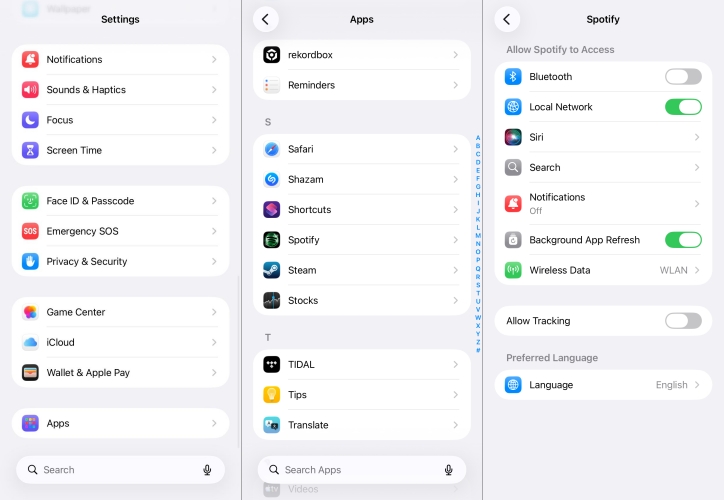
Step 1. In the Settings, tap Apps and select Music.
Step 2. Tap Wireless Data and switch to WLAN & Cellular Data.
On Android
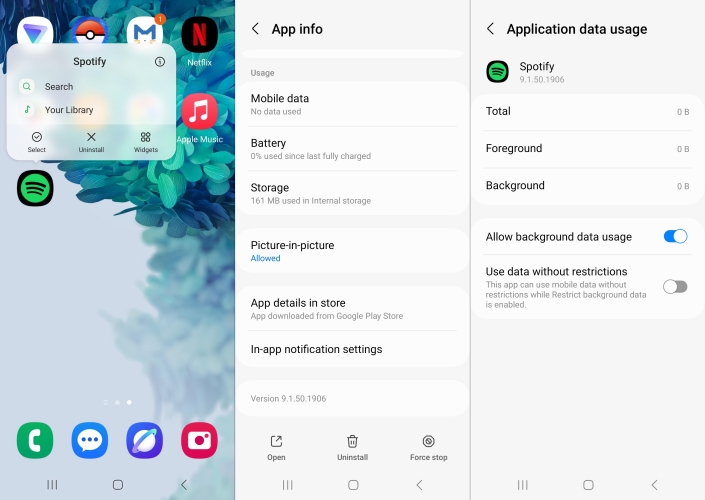
Step 1. Navigate to Settings > Apps and tap Apple Music.
Step 2. Tap Mobile Data and turn on Allow data usage while Data Saver is on.
Solution 4. Force Quit and Reopen Apple Music
Temporary memory glitches or app caching errors can prevent animated cover art from rendering properly. Force closing the app clears temporary cache files and forces a fresh reload.
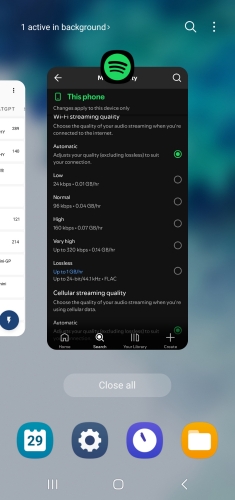
Step 1. Swipe up from the bottom of your home screen to open the App Switcher.
Step 2. Swipe up on the Apple Music card to close the app completely.
Step 3. Relaunch Apple Music and play a track with known motion art support.
Solution 5. Force Restart Your Device
Software glitches or corrupted cache files may be interfering with playback. A simple restart clears temporary system memory and resets background graphics processes.
On iPhone
Step 1. Press and quickly release Volume Up.
Step 2. Press and quickly release Volume Down.
Step 3. Hold the Power button until the Apple logo appears.
On Android
Step 1. Press and hold Volume Up and Power.
Step 2. Tap Power Off.
Solution 6. Update Your Operating System
Software bugs in older iOS or Android versions can sometimes cause media playback features to malfunction. Keeping your system updated ensures you have the latest feature support.
On iPhone
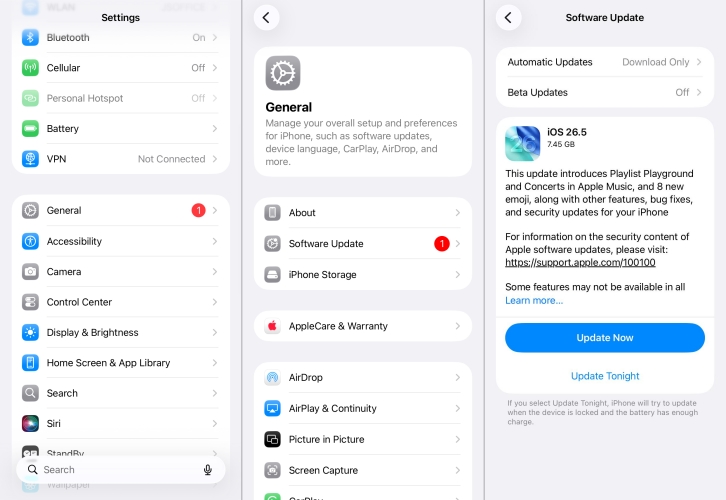
Step 1. Go to Settings and tap General > Software Update.
Step 2. Install any pending updates.
On Android
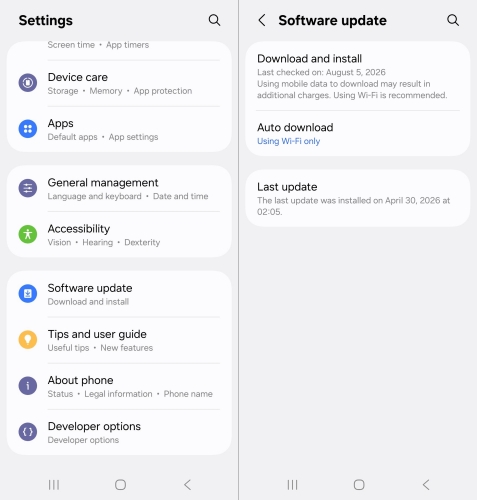
Step 1. Head to Settings and tap Software update.
Step 2. Tap Download and Install to check for update.
Step 3. Install any latest updates.
Part 3. How to Get Apple Music Songs with Animated Cover Art
If you are trying to enjoy Apple Music tracks on third-party devices, older MP3 players, or in software that does not support Apple's proprietary motion artwork format, standard streaming playback may not show cover art properly. In these scenarios, using TunesMake Apple Music Converter can help manage your library for offline use.
TunesMake Apple Music Converter allows you to convert Apple Music tracks to common formats like MP3, FLAC, or M4A while retaining essential ID3 tags and original album artwork cover files. Although converted audio files play static artwork rather than animated motion art on non-Apple media players, retaining the high-resolution artwork ID3 tag ensures your music library stays clean and visually organized across all non-supported devices.

Streaming Audio Recorder –
Download Apple Music songs with animated cover art
- Download songs, albums, and playlists from Apple Music
- Convert Apple Music to MP3, M4A, M4B, WAV, FLAC, and AIFF
- Remove DRM protection from Apple Music completely and safely
- Preserve the original audio quality and ID3 tags for management
- Support downloading music from 10 popular streaming platforms
Security Verified. 100% Clean & Safe.
Step 1 Import Apple Music Tracks to Download
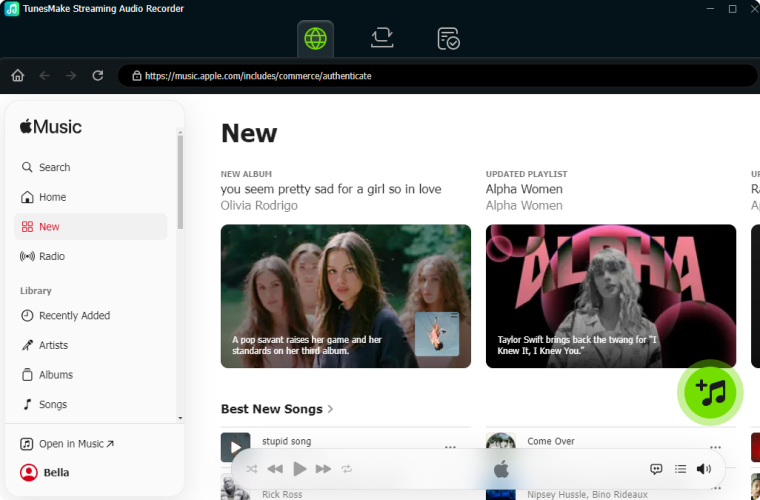
Launch TunesMake Streaming Audio Recorder and select Apple Music. Then the built-in Apple Music web player will automatically load and log into with your Apple Music account credentials. Go to your Library and select any single track, album, or playlist to download. Click the + button to add them into the conversion list.
Step 2 Set the Output Format for Added racks
Once all the content you want are added into the conversion list, click the Settings button at the bottom left of the software. You can choose MP3 as the output audio format. Other output parameters, such as sample rate, channel, and bit rate can also be adjusted. And you can personalize the output directory to save the converted music tracks.

Step 3 Start Converting Apple Music Tracks
Click Convert at the bottom of the panel. Wait for a few seconds and all your added tracks will be converted to MP3 on your computer as local audio files. After that, you can browse all the converted Apple Music songs by clicking the History button. Now, you can play your converted Apple Music songs with cover art with ease.

Part 4. Conclusion
Whether your Apple Music animated cover art stopped working due to a hidden toggle, battery-saving rules, or network constraints, walking through these quick diagnostic steps will get your moving album covers working again in most cases. If an album remains static even after enabling all system settings, it simply means the artist or label hasn't uploaded motion art assets for that specific release.
Related Articles



A passionate writer specialized in creating engaging content about music and entertainment, covering everything from the latest music trends and entertainment news to practical tutorials.
- 1
- 2
- 3
- 4
- 5
- 6
- 7
 Leave Your Comment
(0)
Leave Your Comment
(0)

 Download Center

