








 Store
Store


Djay Pro is an excellent piece of digital music mixing software for all music lovers to mix their favorite tunes. It provides a complete toolkit for performing for DJs of all skill levels. Built specially for your device, djay Pro seamlessly integrates with your music library, giving you instant access to millions of tracks. Apple Music has become one of the most popular music streaming services worldwide. So, many users wonder whether they can use Apple Music directly with djay Pro for mixing, live performances, and so on. In this comprehensive guide, we’ll walk you through how to use Apple Music on djay Pro with both the official method and the best offline workaround. Without further ado, let’s explore them together.
Part 1. Does Djay Pro Work with Apple Music?
Yes, there is a djay Pro Apple Music integration. It means you can access the Apple Music library and stream your Apple Music songs within djay Pro directly. Plus, you can utilize a third-party tool to mix Apple Music songs on djay Pro offline without limits.
Method 1. Get Apple Music djay Pro Official Integration
Apple Music is officially supported in djay Pro, allowing you to make a connection between your Apple Music account and djay Pro, offering these key features:
- Access the full Apple Music catalog
- High-quality streaming
- Real-time track search and recommendations inside djay Pro
- Instant and direct mixing of music
- Playlist syncing from your Apple Music account
Method 2. Convert Apple Music songs to Local Files for Djay Pro
While official integration between Apple Music and djay Pro offers a convenient method for music mixing and blending, it doesn’t provide the offline option. If you want full control over your Apple Music songs, downloading them locally via a third-party tool first, and then uploading them to djay Pro so that you can access the offline way. Find more detailed information on Part 3.
Can I use djay Pro with Apple Music on my mobile device?
Yes, you can use djay Pro with Apple Music on your mobile device. Just make sure that you have an active Apple Music subscription and the latest version of the djay Pro app. Then, you can browse and mix Apple music tracks directly within the app.
Can I use Apple Music with the free version of djay?
Yes. As long as you have a valid Apple Music subscription, you can access to your Apple Music library on djay Pro directly. Plus, you can use the essential DJ tools like the mixer, filters, effects, looping, and more. The djay Pro subscription is optional.
Can I use stems or record Apple Music songs on djay Pro?
Unfortunately, the answer is no. Due to the DRM protection on streaming services like Apple Music, you cannot use stems or record the songs you are able to play. What you can record are the local music files you own. Thus, the only workaround to record Apple Music on djay Pro is to convert Apple Music songs to local audio files via a third-party tool, like TunesMake Streaming Audio Recorder.
Part 2. How to Connect Apple Music to Djay Pro (Official)
With regard to playing Apple Music on djay Pro, connecting your library is a straightforward process. Nowadays, Apple Music integration on djay is available in 167 countries across iPhone, iPad, Mac, Windows, Android, and Apple Vision Pro. If you have a stable Internet connection, this method is best for DJing. Here are the steps to ensure a secure login portal and allow djay to access your library structure:
Step 1. Install the djay Pro app from its official website on your device.
Step 2. Then, launch the app. On the left side of the interface, you can see the list of all available music sources.
Step 3. Find and click the Apple Music logo.
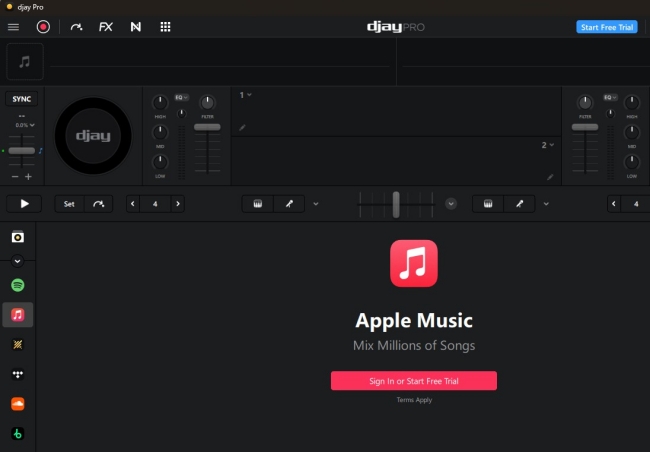
Step 4. Next, choose the Sign in option on the right. You can enter your Apple ID credentials for authorization.
Step 5. Once logged in, your playlists will appear automatically. Feel free to mix and blend the songs you like.
Bonus: How to Fix djay Pro Not Showing iTunes Library?
Some users may encounter the issue where Apple Music or iTunes does not appear in djay Pro. If the Apple Music or iTunes source is missing in djay Pro, here are some common fixes:
1. Make sure you are using the latest version of djay Pro.
2. Go to the Settings section on your iOS/Mac device system and allow djay Pro to access Apple Music library.
3. Make sure your Apple Music subscription is active.
4. Force close djay Pro. Then, restart your device and reopen djay Pro.
5. Make sure the Sync Library option on Apple Music is enabled. If using an older library, you may need to go to the Music/iTunes app settings and check "Share iTunes Library XML with other applications."
Part 3. How to Use Apple Music on Djay Pro Offline
While streaming Apple Music on djay Pro directly is convenient, the online integration has a big drawback - the requirement of a constant and stable network connection. If you are playing a live gig in a basement club, an outdoor wedding, or anywhere without a fast Wi-Fi connection, relying on streaming is a major risk.
Don’t worry. There is a Local Music tab on every djay Pro app, which means you can use Apple Music songs on djay Pro offline as long as you convert them to local audio files. This is where a dedicated Tidal music downloader comes to help. Why don’t you try the best one - TunesMake Streaming Audio Recorder?
TunesMake Streaming Audio Recorder is the ultimate solution for streaming music users. You can use it to download and convert Apple Music songs, playlists, albums, and podcasts to local files in multiple common formats, including MP3, M4A, M4B, WAV, FLAC, and AIFF. Thanks to its advanced technology, there is no quality loss during the conversion. Additionally, you can have a personalized music experience by setting the audio parameters as you wish within the TunesMake tool.

Streaming Audio Recorder –
Best Apple Music to djay Pro Downloader
- Unlimitedly download streaming music songs, playlists, and podcasts
- Losslessly convert streaming music to MP3, M4A, M4B, WAV, FLAC, and AIFF
- Remove DRM protection from many streaming music platforms
- Convert streaming songs with original sound quality and ID3 tags kept
Security Verified. 100% Clean & Safe.
3.1 Download Apple Music Songs Locally
According to the operating system of your computer, you can choose the Windows or Mac version of TunesMake Streaming Audio Recorder and install it on your desktop. Once done, you just need three simple steps to save your Apple Music songs as local files.
Step 1
Add Songs from Apple Music to TunesMake Streaming Audio Recorder
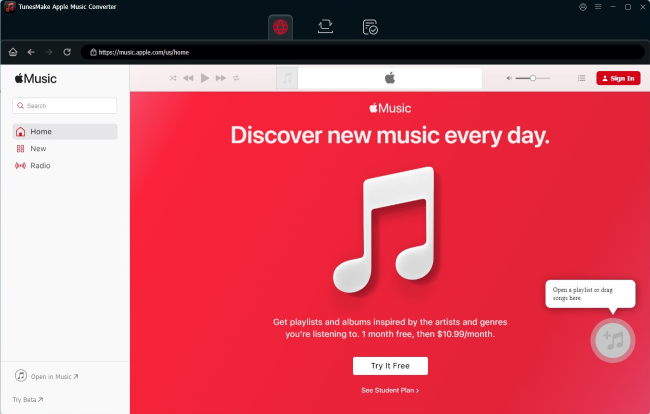
Start by launching TunesMake Streaming Audio Recorder. In its interface, you can see a list of compatible music services. Choose Apple Music to visit its official web player. Here, you can sign in to your account and find the playlist or album you want to download. After selecting one, you should click the Add icon in the lower right corner and click Add to List. Therefore, all the songs included in this playlist/album will be added to the conversion list.
Step 2
Customize the Output Parameters for Apple Music
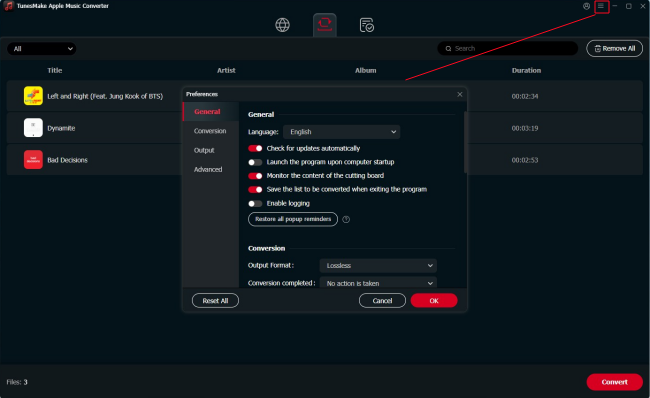
When your required music files are added to the conversion list, you can go to set the output audio parameters by clicking the top Menu icon > Preferences. In the settings window, you can switch to the Conversion tab and select the output format you need. From there, you can also set the bit rate, sample rate, codec, and channel for getting better audio quality. Once you’re satisfied with your settings, click the OK button.
Step 3
Start to Convert Apple Music Songs to Local Files
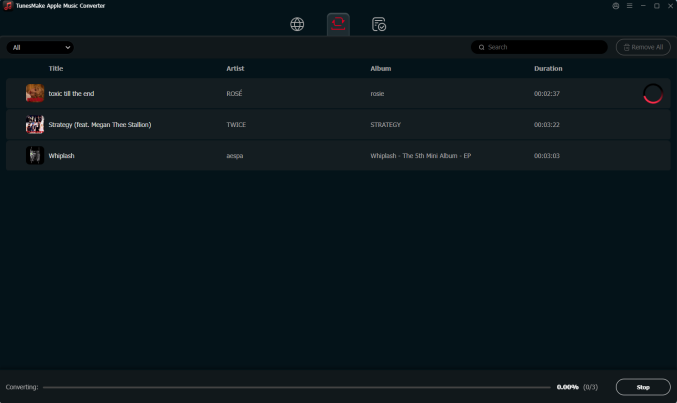
The final step is to initiate the conversion of Apple Music songs by clicking the Convert button in the bottom right corner. After conversion, you can click on the Converted icon to browse your converted songs in the history list. As your files have been saved to your default downloads folder, you can locate the folder by clicking the file icon at the rear of each track. Now you can go on reading the next part to know how to add music to djay Pro.
3.2 Add Apple Music Songs to Djay Pro on Desktop/Mobile
When everything is all right, then comes the most exciting moment. And you’re ready to add Apple Music to djay Pro for mixing your favorite tunes. As djay Pro is currently compatible with Mac, Windows, iPhone, iPad, and Android devices. Here’s how to mix Apple Music songs with djay Pro on your Windows and Mac computer.
On Windows/Mac:
Step 1. Open djay Pro on your computer, then click My Collection in the sidebar.
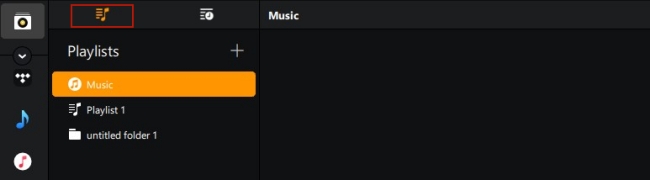
Step 2. Open a Finder or File Explore window and navigate to the folder that contains your local Apple Music files.
Step 3. Drag and drop the song you want to mix in djay Pro into the library browser. Then, you can drop the song to the desired location for free mixing.
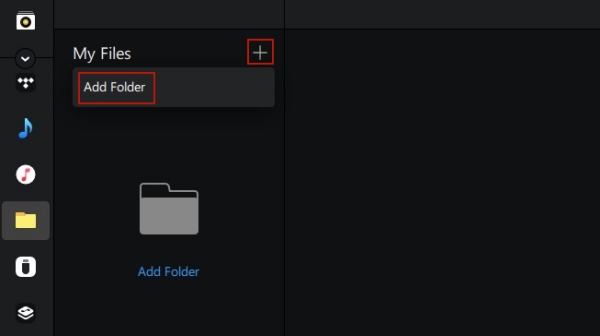
Step 4. Alternatively, you can choose the My File option in the left bar. Then, click the add icon > Add Folder to select your Apple Music folder manually.
On Android:
Step 1. To begin with, you need to sync the downloaded Apple Music songs to Android phone via a USB cable.
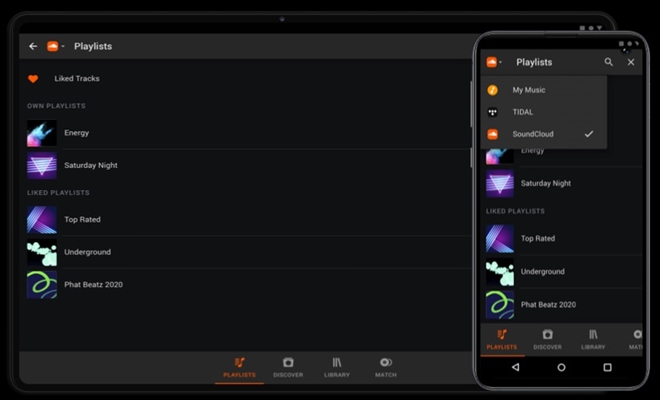
Step 2. Once done, go to the djay Pro app on your Android phone. Tap Playlists at the bottom of the screen.
Step 3. From the list, you’ll see the option like My Music, TIDAL, and SoundCloud, and tap My Music.
Step 4. Now you could add the converted Apple Music files to djay for Android to start your mixing.
On iPhone/iPad:
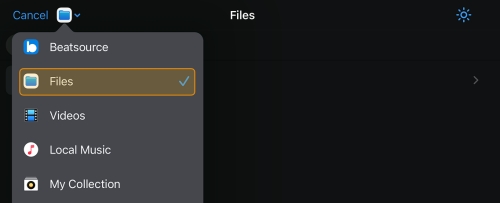
Step 1. After syncing the downloaded Apple Music songs to your iPhone or iPad, you can open djay Pro on your device.
Step 2. In djay, choose Files tab in the music library.
Step 3. Then, tap the add icon in the top left corner.
Step 4. Here, you can choose Add Files for import individual songs, or Add Folder for an entire playlist.
Step 5. Once you find the Apple Music files you want to add, select Done to confirm. The Apple Music songs will appear in your djay library source.
Part 4. Summary
The Apple Music djay Pro integration has revolutionized the workflow for modern DJs. You can easily access the massive music library at your fingertips. If you have a great Wi-Fi connection, you should use the official method to get smooth performances. However, if you don’t want to rely on an Internet connection or need to record your mixes, the offline method is better for you. Just download your Apple Music songs to local files via the TunesMake Streaming Music Recorder in advance, and you can get full control over them.
Related Articles


A professional writer at TunesMake, crafts in-depth tutorials, practical tips and expert advice focusing on streaming music, technology, and more.
- 1
- 2
- 3
- 4
- 5
- 6
- 7
 Leave Your Comment
(0)
Leave Your Comment
(0)

 Download Center

