








 Store
Store


For mobile, wedding, and bedroom DJs alike, Apple Music's massive library is an incredible resource. If you use VirtualDJ as your primary performance software, you have likely wondered how to connect your Apple Music subscription directly to your decks. While competing software like Algoriddim djay Pro and Serato have introduced official Apple Music streaming access, VirtualDJ does not support Apple Music streaming.
If you attempt to drag a streaming file directly from the Apple Music app into VirtualDJ, you will be met with an error or a blank deck. Fortunately, you can still play your favorite music tracks within the software. This step-by-step guide walks you through the exact methods required to use Apple Music with VirtualDJ safely and efficiently.
Part 1. Why Doesn't Apple Music Work with VirtualDJ?
The fundamental barrier preventing a direct connection is DRM (Digital Rights Management). When you subscribe to Apple Music, you pay for the right to stream and listen to the catalog, not to own the underlying audio files permanently. Apple encrypts its streaming audio tracks using protected .m4p or protected ALAC formats.
To DJ with a track, software must be able to perform deep algorithmic actions on the file:
-
Scan and construct a visual audio waveform.
-
Analyze the precise BPM (Beats Per Minute) and construct beat grids.
-
Allow real-time manipulation like scratching, looping, and real-time STEMS separation.
DRM completely blocks VirtualDJ from analyzing or modifying the file. Consequently, to use your library, you must utilize one of the verified workarounds below.
Part 2. How to Import Purchased iTunes Music to VirtualDJ
While you cannot stream Apple Music tracks, any song you have permanently purchased through the iTunes Store is completely DRM-free. These tracks are downloaded as unprotected AAC files that VirtualDJ reads. If you have a collection of purchased music sitting inside the Apple Music or iTunes app on your computer, you can sync it directly to VirtualDJ using the following steps.
Step 1 Allow Apple Music to Share Your Library XML
Before VirtualDJ can see your music playlists, you must give the Apple Music app permission to share its database data with external applications.
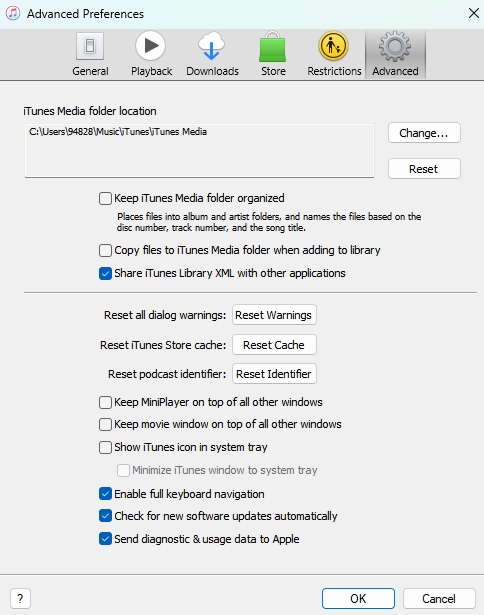
1. Open the Apple Music app or iTunes on your Mac or PC.
2. In the top menu bar, navigate to Settings on Mac or Preferences on Windows.
3. Click on the Advanced tab.
4. Check the box that says Share iTunes Library XML with other applications.
5. Click OK to save your settings.
Step 2 Access the Library within VirtualDJ
Once your library XML is shared, VirtualDJ will map your organized playlists directly into its built-in browser panel.
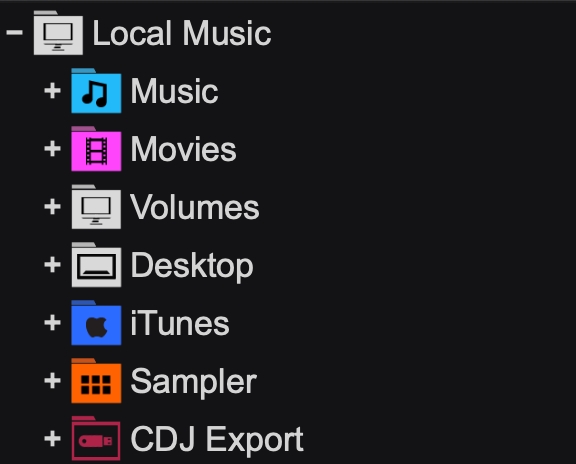
1. Launch VirtualDJ.
2. Look at the lower-left navigation panel.
3. Scroll down until you see the Local Music folder, and expand it.
4. Click on the iTunes folder icon. VirtualDJ will automatically parse your XML file and display your entire library structure.
5. Expand the folder to view your custom playlists, artists, and albums.
Step 3 Load and Mix Your Tracks
After syncing your music purchased from the iTunes Store, you can browse in the VirtualDJ directly, and start mixing at ease.
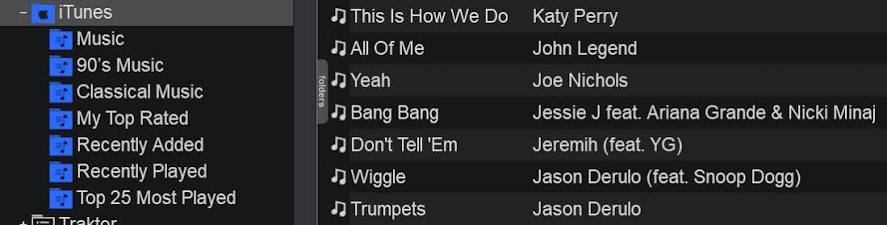
1. Browse to your desired playlist within the VirtualDJ folder tree.
2. Select an unprotected, purchased track.
3. Drag and drop the track directly onto Deck 1 or Deck 2.
4. VirtualDJ will immediately analyze the file's BPM, key, and waveform, allowing you to mix.
Part 3. Best Workaround to Use VirtualDJ with Apple Music
If there are tracks on Apple Music that you absolutely need for a mix but cannot purchase individually, the only available workaround is to use a third-party audio converting tool to generate a local, DRM-free copy of the song. Popular utilities dedicated to this process include TunesMake Apple Music Converter that are designed to connect to your Apple Music account and convert the audio losslessly into a standard local file.

Streaming Audio Recorder –
Download Apple Music songs for mixing with VirtualDJ
- Download songs, albums, and playlists from Apple Music
- Convert Apple Music to MP3, M4A, M4B, WAV, FLAC, and AIFF
- Remove DRM protection from Apple Music completely and safely
- Preserve the original audio quality and ID3 tags for management
- Support downloading music from 10 popular streaming platforms
Security Verified. 100% Clean & Safe.
Step 1 Add Apple Music Tracks to Convert
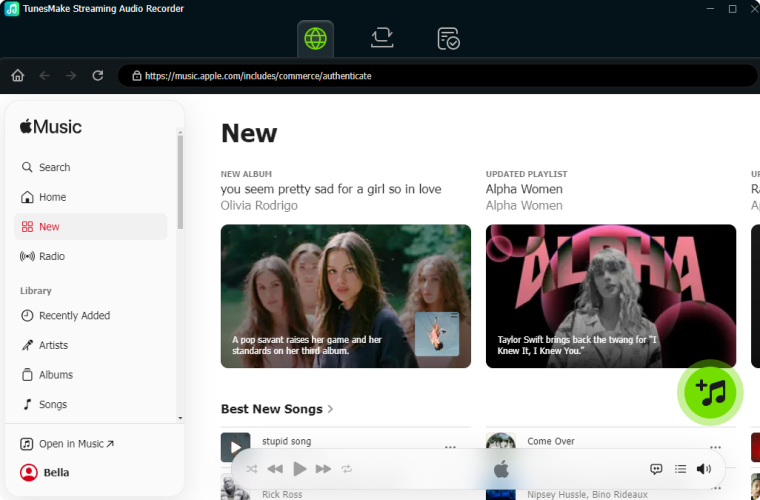
Open TunesMake Streaming Audio Recorder, and select Apple Music from the main interface. Then you will be redirect to a built-in Apple Music web player, and you can log into with your Apple Account. Now you can select any song or playlist to add into the conversion list.
Step 2 Edit the Output Parameter for Apple Music
After you have added the target items, you can personalize the output parameters by clicking the Settings button at the bottom left corner. Then switch to the Conversion tab and select the output format from MP3, FLAC, and more according to your DJ needs.

Step 3 Start the Conversion of Apple Music
When you have done all the settings, click the Convert button so that TunesMake will start the conversion of Apple Music tracks. Wait for the completion of the process. You can locate the converted audio files from the History tab.

Step 4 Import Apple Music to VirtualDJ
Now your selected Apple Music tracks are saved as local audio files on your computer. You can easily add them into different DJ software like VirtualDJ, Traktor DJ, and DJUCED for mixing. Only accessing them from the local folder in VirtudalDJ is a direct way.
1. Launch VirtualDJ on your computer to begin the process.
2. Click the Local Music button in the browser panel of the main interface.
3. Click the Add button next to each folder to navigate to the converted Apple Music folder.
4. Directly drag and drop the converted Apple Music audio file onto the decks at the top.
Part 4. Streaming Alternatives to Apple Music on VirtualDJ
If you want the seamless convenience of searching millions of songs on the fly without converting Apple Music tracks, switching your streaming provider to an officially supported partner is highly recommended. VirtualDJ offers fully authorized, native side-panel integrations for several massive catalogs. You can access these platforms directly via the browser tree underneath the Online Catalogs folder.
| Streaming Platform | Best Suited For | Key Performance Features |
|---|---|---|
| Tidal | Mainstream, Pop, Hip-Hop, Top 40 | High-fidelity audio streams; custom curation |
| SoundCloud | Underground, Remixes, EDM, Indy | Massive indie catalog; offline caching options available |
| Beatport | Electronic, House, Techno, Minimal | Optimized for club music; robust offline locker support |
| Beatsource | Mobile, Wedding, Open-Format DJs | Clean edits, transitional tracks, and event playlists |
| Deezer | General Global Pop & Mainstream | Massive international library integration |
By using these integrated catalogs, you can search for crowd requests on the fly during a gig, view real-time waveforms instantly, and maintain a seamless workflow without ever having to leave the VirtualDJ ecosystem.
Part 5. Conclusion
If you love the VirtualDJ ecosystem and its industry-leading performance features, the best method is to use a third-party tool like TunesMake Apple Music Converter to convert your liked Apple Music tracks into permanently owned local music files. Alternatively, you can consider migrating your performance playlists over to one of VirtualDJ's official streaming partners like Tidal or Beatsource.
Related Articles


A professional writer at TunesMake, crafts in-depth tutorials, practical tips and expert advice focusing on streaming music, technology, and more.
- 1
- 2
- 3
- 4
- 5
- 6
- 7
 Leave Your Comment
(0)
Leave Your Comment
(0)

 Download Center

