









 Store
Store


Have you ever wondered exactly where your downloaded Apple Music tracks go once you hit that download button? Whether you are trying to free up valuable storage space on your hard drive, back up your computer, or figure out how to manage your media files, tracking down these files can be surprisingly tricky.
Because Apple Music is a streaming service rather than a traditional digital storefront, it manages files quite differently than the old days of MP3s. In this guide, we will break down the exact default storage paths for Mac, Windows, iOS, and Android, explain the technology behind these files, and show you how to safely manage your library.
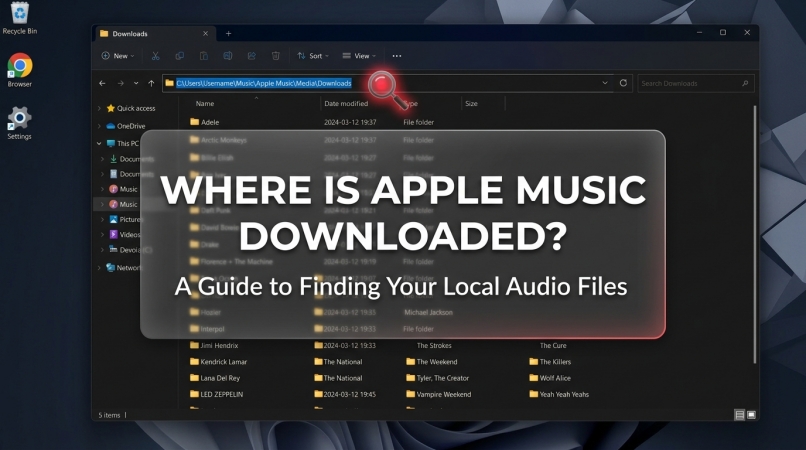
Part 1. Understanding Apple Music Downloads
To understand where downloaded Apple Music files are stored, one must first understand what is being stored. Apple Music utilizes two fundamentally different file formats depending on how the media asset was acquired.
1. Apple Music Subscription Downloads (.m4p)
When you stream and download a song using an active Apple Music subscription, the file is compressed using the AAC (Advanced Audio Coding) codec. However, it is wrapped inside an encrypted container with a .m4p extension. This format is deeply integrated with FairPlay DRM (Digital Rights Management), Apple's proprietary encryption technology.
The Encryption Layer:
The raw audio data cannot be decoded by standard media players such as VLC or Windows Media Player. The audio subsystem requires a valid, time-sensitive cryptographic key from Apple's authentication servers to decrypt the stream in real-time during playback.
The Expiry Mechanism:
If a device remains offline for more than 30 consecutive days, or if the user logs out of their Apple ID or cancels the subscription, the local application revokes these keys and renders the cached .m4p files unplayable.
2. iTunes Store Purchases (.m4a)
In contrast, songs or albums purchased outright through the iTunes Store are delivered as standard, DRM-free AAC files with a .m4a extension. These files lack the FairPlay encryption wrapper, meaning they can be freely transferred, copied, and parsed by any media player or audio editing software.
Note on Compatibility Barriers:
Because the default offline .m4p files are restricted to the Apple Music app, users who need to play their music collections on non-supported hardware such as legacy MP3 players or specialized DJ software often utilize third-party tools like TunesMake Apple Music Converter. It can convert the encrypted Apple Music tracks into standard, DRM-free audio formats like MP3, FLAC, or WAV while preserving the original ID3 metadata tags. This changes the technical storage reality from a restricted local cache to an open media file that behaves exactly like an iTunes purchase.
Part 2. Where Are Apple Music Downloads Stored?
Locating your downloaded Apple Music files on a desktop computer is relatively straightforward because both macOS and Windows allow you to explore local directory folders directly. Although it is a bit more explanation to find downloaded Apple Music files on your phone, there is still the workaround. Let's explore where Apple Music downloads are stored.
| Operating System | Default Storage Path Location |
|---|---|
| macOS (Mac) | /Users/[Username]/Music/Music/Media/Music/ |
| Windows (Apple Music App) | C:\Users\[Username]\Music\Apple Music\Media\Downloads |
| Windows (iTunes) | C:\Users\[Username]\Music\iTunes\iTunes Media |
| Android | Internal Storage/Android/data/com.apple.android.music/files/Media |
| iOS (iPhone/iPad) | Hidden within a secure, system-locked app sandbox |
Where Are Apple Music Downloads Stored on Mac?
On macOS Catalina and later, the Music app handles your audio library. By default, your downloaded streaming tracks are kept inside your user profile. To find your Apple Music downloads manually,
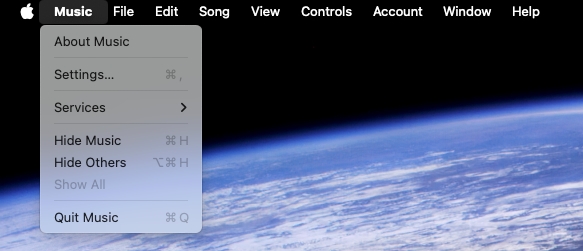
Step 1. Open the Music app, click Music in the top, and then select Settings.
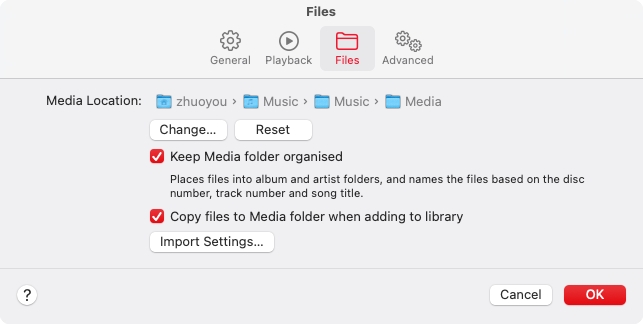
Step 2. In the Files, find the address of Media Location.
Step 3. Open Finder and click Go in the top menu bar.
Step 4. Select Go to Folder and paste the path: ~/Music/Music/Media/Music/.
Pro-Tip:
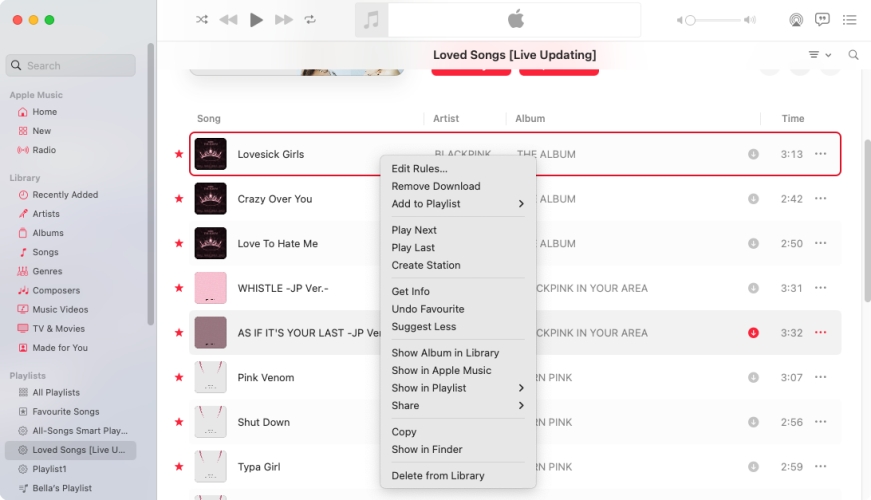
You don't actually have to hunt through folders manually. Open the Apple Music app on your Mac, right-click on any downloaded song, and select Show in Finder. This will instantly open the exact folder where that specific file lives.
Where Are Apple Music Downloads Stored on Windows?
On Windows 10 and Windows 11, Apple has replaced the older iTunes client with a modern, standalone Apple Music app available via the Microsoft Store.
For the Apple Music App:
Step 1. Launch the Apple Music app and click your profile image.
Step 2. Click Settings > Advanced > Files and find Media folder location.
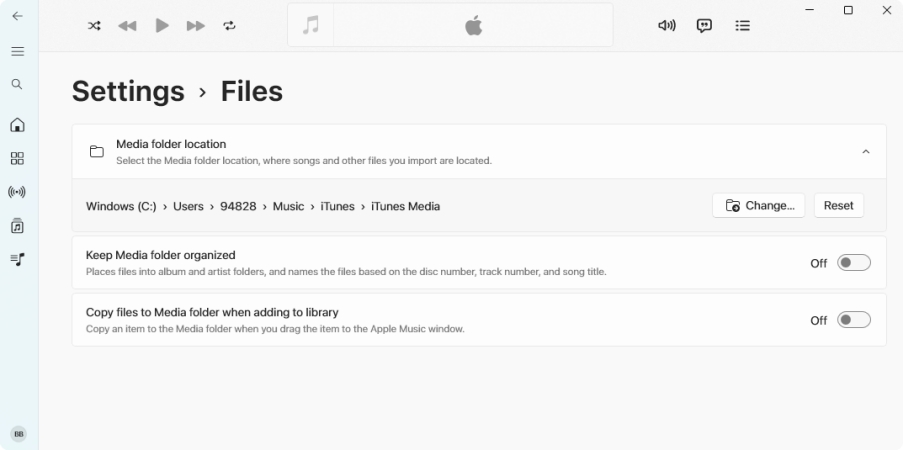
Step 3. Open File Explorer and navigate to C:\Users\[Your Username]\Music\Apple Music\Media\Downloads.
For legacy iTunes:
Step 1. Run iTunes and click Edit > Preferences.
Step 2. In the Advanced Preferences window, switch to the Advanced tab.
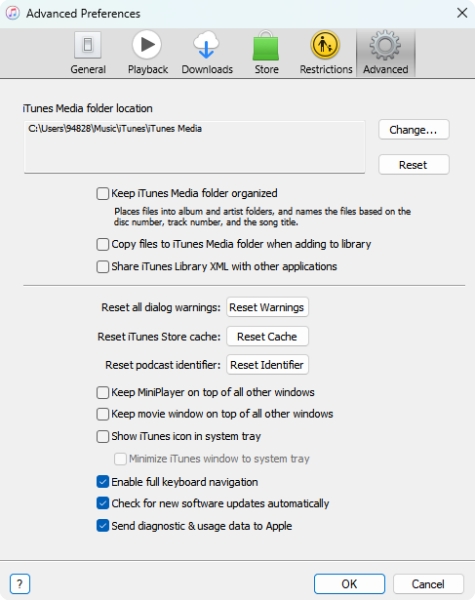
Step 3. Find iTunes Media folder location, then launch File Explorer.
Step 4. Navigate to C:\Users\[Your Username]\Music\iTunes\iTunes Media..
Where Are Apple Music Downloads Stored on Android?
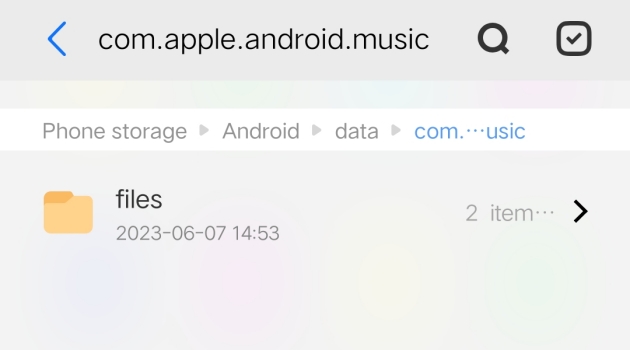
Android is significantly more open than iOS, meaning you can use a file manager app to navigate to the data cache directory. If you use a third-party file explorer app from the Google Play Store, you can locate your downloaded local cache by navigating to Internal Storage/Android/data/com.apple.android.music/files/Media.
Where Are Apple Music Downloads Stored on iOS?
Apple protects its iOS ecosystem through a security process called "sandboxing." Every app's data is isolated from the rest of the system. While your songs are downloaded to your device's internal storage, they are placed in a locked system directory (/private/var/mobile/Media/...) that is completely inaccessible to users.
You will not find these tracks inside the iOS Files app. The only way to see, play, or delete these downloads is directly through the interface of the Apple Music app itself. Just go to Library in the Apple Music app and tap the Downloaded section, then find all the downloads.
Part 3. How to Change Apple Music Download Location
If your internal hard drive or phone storage is running dangerously low, keeping gigabytes of high-quality audio files locally might not be ideal. Fortunately, you can change your Apple Music download path destinations on desktop and Android.
Move Apple Music Library to an External Hard Drive (Mac & Windows)
Instead pf manually copying files which breaks the app's file path mapping, you can redirect your computer's storage path to an external drive or secondary internal drive easily using the built-in migration feature.
Step 1. Open the Apple Music app.
Step 2. To open the settings menu, click Music > Settings on a Mac or click the three dots next to your profile picture and choose Settings on a Windows PC.
Step 3. Click on the Files tab.
Step 4. Look for the Music Media folder location and click the Change... button.
Step 5. Select a designated folder on your external hard drive and save the changes.
Move Apple Music Downloads to an SD Card (Android)
If your Android phone supports expandable storage via a microSD card, you can redirect all future offline music downloads there. It can save massive amounts of internal device memory on your Android phone.
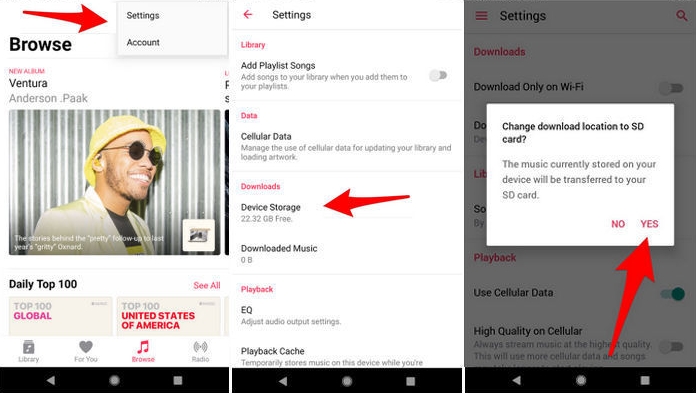
Step 1. Open the Apple Music app on your Android device.
Step 2. Tap the three-dot menu icon in the upper-right corner and select Settings.
Step 3. Scroll down to the Downloads section and tap Download Location.
Step 4. Switch the setting from Internal Storage to SD Card.
Step 5. When prompted if you want to transfer your current downloads to the SD card, tap Yes.
Part 4. FAQs about Apple Music Downloads
Can I copy Apple Music downloads to a USB drive to play in my car?
Only if you purchased the music permanently from the iTunes Store. If the songs are part of your monthly Apple Music streaming subscription, they contain DRM protection and will not play from a USB drive plugged into a car audio system. But you can use a third-party tool like TunesMake Apple Music to convert Apple Music for playing in the car.
How do I stop Apple Music from taking up too much space on my phone?
If you are using an iPhone, you can go to your main device Settings > Music > Optimize Storage. Turn this feature on, and your phone will automatically delete the local download files of songs you haven't played in a long time whenever your phone runs low on space.
Will deleting the downloaded files from my computer delete them from my library?
If you manually delete the .m4p files directly out of your local folders in Finder or File Explorer, the Apple Music app may get confused or display broken links. Instead, always use the built-in option within the app interface: right-click a song or album and select Remove Download rather than clicking Delete from Library.
Part 5. Conclusion
In the above discussion, we have specified where Apple Music downloads are stored. You can check the right solution for your computer or phone. As all Apple Music downloads are available during the subscription, you can consider using TunesMake Apple Music Converter to download and convert Apple Music songs locally for keeping forever. After conversion, you can enjoy your Apple Music songs on any device or with any media player at any time.
Related Articles



A professional writer at TunesMake, crafts in-depth tutorials, practical tips and expert advice focusing on streaming music, technology, and more.
- 1
- 2
- 3
- 4
- 5
- 6
- 7
 Leave Your Comment
(0)
Leave Your Comment
(0)

 Download Center

