








 Store
Store


There is nothing quite like settling into your airline seat, clicking your seatbelt into place, and getting ready to dive into a captivating audiobook for the next few hours. But as the flight attendant announces it's time to switch your devices to Airplane Mode, a moment of panic can hit: Will my audiobook actually play without an internet connection?
The short answer is yes, you can absolutely listen to Audible on Airplane Mode. However, it isn't as simple as just launching the app mid-flight and pressing play. If you haven't prepared your device properly before takeoff, you might find yourself staring at an error screen instead of enjoying your story.
To ensure you aren't left in total silence on your next trip, here is a definitive guide to setting up Audible for offline listening on every major device and troubleshooting Audible not working in Airplane Mode. Let's see how to listen to Audible in Airplane Mode now!
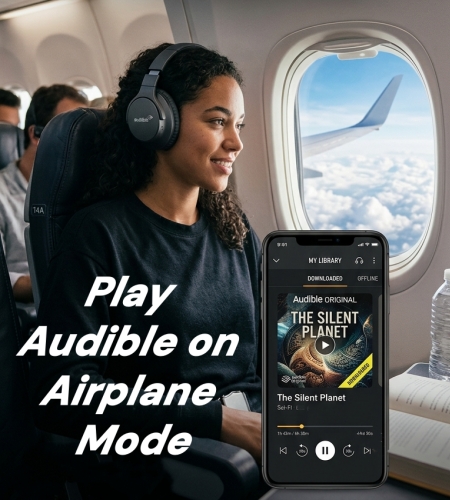
Part 1. How to Listen to Audible on Airplane Mode
To listen to Audible without WiFi or cellular data, the entire audiobook must be downloaded in the Audible app on your device first. Follow this quick checklist while you still have an active internet connection at home or at the airport gate.
Step 1 Download Audible Books Over WiFi or Cellular Data
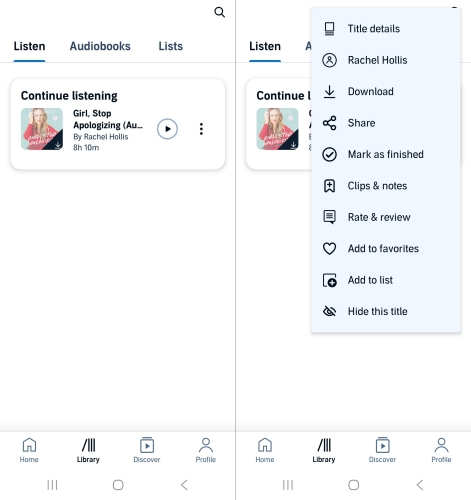
Open the Audible app on your iOS or Android device and navigate to your Library from the bottom menu. Find the title you want to listen to on the plane. Tap the cover art or the three dots next to the book and select Download.
Step 2 Verify Your Audible Book Is in the "Downloaded" Tab
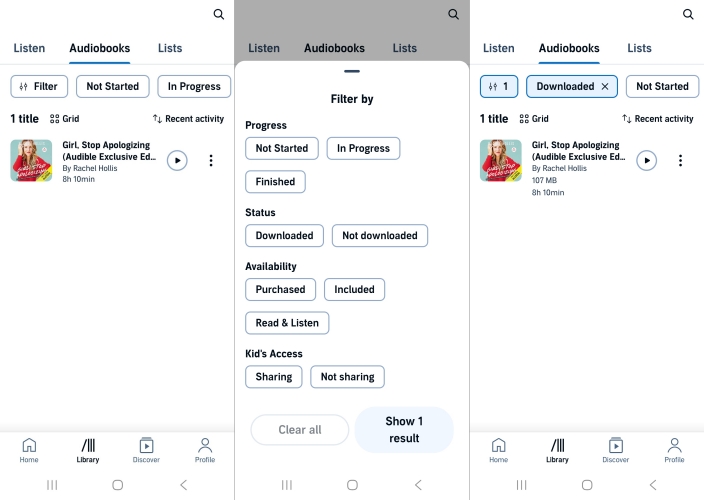
To verify the title is safely stored on your device, go to your Library and switch Audiobooks. Then tap the Downloaded filter tab at the top of your Library screen. If your audiobook appears here without any download symbols, it is entirely saved and ready for offline use.
Step 3 Use the Pre-Flight Play Trick to Ensure Normal Playing
While you are still securely connected to the internet, press play on your downloaded title and let it run for 5 to 10 seconds. This forces the Audible app to sync your current listening position, completely bypassing security check errors once you go offline.
How to Listen to Audible in Airplane Mode
Provide that you have downloaded your desired titles in the Audible app in advance, then you have the chance to listen to them in Airplane Mode. Go to enable Airplane Mode on your device and start your listening.
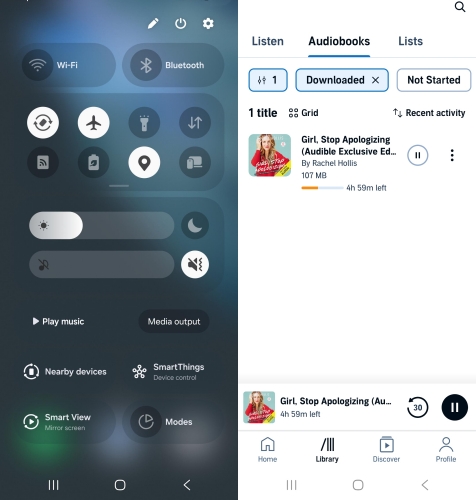
Step 1. Swipe down from the top-right corner of your screen to open the Control Center.
Step 2. Toggle the Airplane Mode switch on.
Step 3. Open Audible and go to your Library to find the downloaded title.
Step 4. Select a title in the Downloaded tab to play on your device.
Part 2. How to Fix Audible Not Working in Airplane Mode
If you have followed the steps above but still find that Audible won't play when you toggle Airplane Mode on, you are likely running into one of a few common digital roadblocks. Here is how to fix them.
Fix 1. Use the Pre-Boarding Activation Method
If the Audible app is giving you a connection error, the easiest fix requires a brief internet connection to refresh your security token.
Step 1. Turn Airplane Mode off temporarily and connect to the airport Wi-Fi or cellular data.
Step 2. Open the Audible app and tap your book to start playing it.
Step 3. Let the audio track play out loud or through your headphones for 10 to 15 seconds.
Step 4. While the book is actively playing, switch Airplane Mode back on. The app will seamlessly transition to offline playback because the security token was just refreshed.
Fix 2. Force Close the Audible App
Sometimes the Audible app gets stuck in a loop trying to search for a network that isn't there. Try to force close the app and check your Downloaded tab.
Step 1. Force close the Audible app completely by swiping it away from your device's multitasking or app switcher menu.
Step 2. Reopen the app while offline and immediately head to your Library.
Step 3. Tap the Downloaded tab at the top of the screen.
Step 4. Trying to play a book from the main "All" tab often triggers internet-dependent features, whereas the Downloaded tab forces the app into a strict offline mode.
Fix 3. Re-enable Wireless Bluetooth Settings
If your Audible audiobook looks like it is playing normally but you can't hear anything, the problem is your phone's wireless settings.
Step 1. Swipe down to open your phone's Control Center or Quick Settings panel.
Step 2. Manually tap the Bluetooth icon to turn it back on. Your headphones will reconnect, and your audio will return.
Fix 4. Remove Expired Plus Catalog Titles
Unlike purchased books, Plus Catalog titles can automatically lock if they leave the free catalog tier or if your monthly membership billing cycle passes while you are offline. If a title has expired, it will display a lock icon or a message stating it is no longer available. You will need to choose a different, fully owned title for your flight.
Fix 5. Free up More Device Storage Space
If an audiobook abruptly cuts off an hour into your flight, the download was likely interrupted. This frequently occurs if your phone runs out of storage space mid-download. Before you leave for the airport, go to your device settings to verify you have enough free storage space. If a file is acting up, delete the download from your library and re-download it completely.
Part 3. Best Method to Listen to Audible in Airplane Mode
If you want to completely avoid token verification checks, app crashes, or the 30-day account check-in requirement, the most reliable long-term solution is to convert your purchased Audible audiobooks into standard audio files before you travel.
Using a desktop application like TunesMake Audible Converter allows you to download your purchased Audible audiobooks directly onto your computer and convert them into universal formats like MP3, M4A, or FLAC. Then you can listen to your Audible books in Airplane Mode anytime and anywhere without the app limitations.

Streaming Audio Recorder –
Download Audible audiobooks to popular audio formats
- Download purchases, podcasts, and Originals from Audible
- Convert Audible books to MP3, M4A, M4B, WAV, FLAC, and AIFF
- Remove DRM protection from Audible efficiently and safely
- Preserve the original audio quality and chapter information
- Support downloading audios from 11 popular streaming platforms
Security Verified. 100% Clean & Safe.
Step 1 Import Audible Audiobooks to the Conversion List
Install and launch TunesMake Streaming Audio Recorder, then select Audible and log in with your Audible account credentials. Go to your Library and find all the purchased titles. Now you can click the + button to add them to the conversion list for converting.
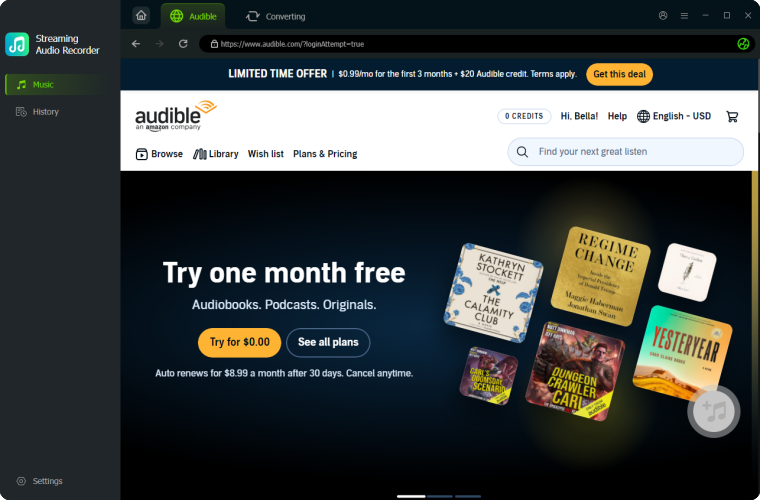
Step 2 Customize the Output Format and Parameters
After you add the audiobooks into the conversion list, you can click the Settings button at the bottom left corner. In the Conversion tab, you can choose the output format and change the channel, sample rate, and bit rate according to your need.

Step 3 Start to Convert Audible Audiobooks to MP3
After the settings are finished, you can click the Convert button to start the conversion of Audible audiobooks. Then you will get a batch of converted Audible audiobook files on your computer. And you can click the History button to browse all the converted audiobook files.

Through all the steps, you will get Audible audiobooks in the MP3 format. In that case, you can transfer these files to your phone and listen to them in Airplane Mode. You don't need to worry playing Audible audiobooks in Airplane Mode with issues.
Part 4. Conclusion
In a word, listening to Audible in Airplane Mode is feasible and easy to get. But the most recommended way to play Audible in Airplane Mode is to use TunesMake Audible Converter to convert your audiobooks to open format files. With this smart tool, you don't have to worry about any problems when you listen to Audible audiobooks in Airplane Mode. If you are in the mood, give it a try and share it with your friends and family members.
Related Articles


A professional writer at TunesMake, crafts in-depth tutorials, practical tips and expert advice focusing on streaming music, technology, and more.
- 1
- 2
- 3
- 4
- 5
- 6
- 7
 Leave Your Comment
(0)
Leave Your Comment
(0)

 Download Center

