








 Store
Store


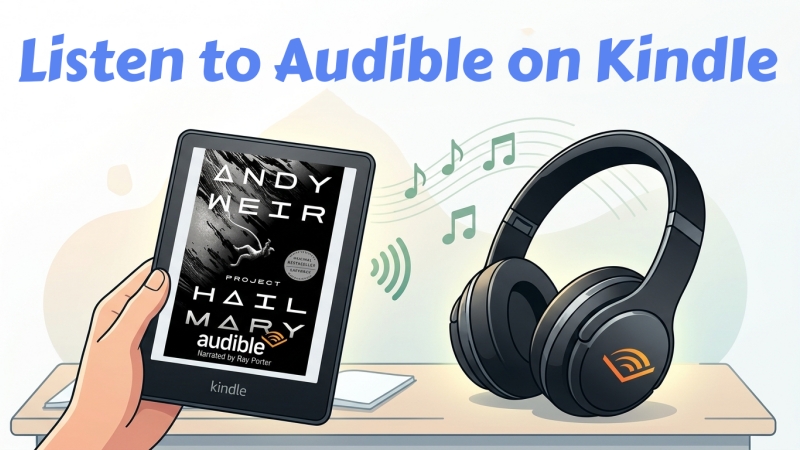
Can you listen to Audible on a Kindle e-reader? The short answer is yes, modern Kindle e-readers support Audible audiobooks. However, setup procedures, device compatibility, and troubleshooting can differ significantly depending on the exact Kindle model you own. This guide provides a step-by-step walk-through on how to listen to Audible on Kindle e-readers and Fire tablets, along with a workaround for unsupported devices.
Part 1. Can You Use Audible on Kindle?
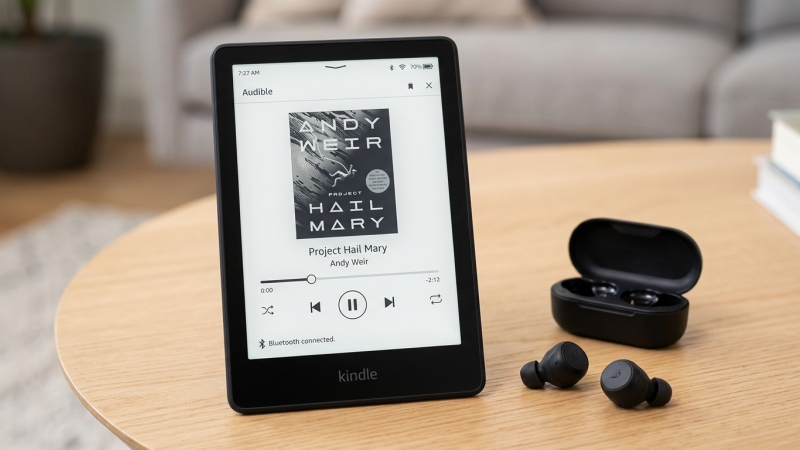
You can use Audible on Kindle, but not all devices support the playback of Audible books. Because e-ink Kindle devices do not feature built-in speakers or 3.5mm headphone jacks, supported models rely entirely on Bluetooth audio output.
Supported Kindle E-Readers:
-
Kindle Paperwhite: 10th Generation (2018) and newer (11th Gen, Signature Edition)
-
Kindle Oasis: 8th Generation (2016) and newer
-
Kindle Basic: 8th Generation (2016) and newer
-
Kindle Scribe: All generations
-
Amazon Fire Tablets: Fire HD 8, HD 10, Fire 7 (all modern Fire OS versions)
Unsupported Kindle Models:
-
Kindle Paperwhite (1st through 7th Generation)
-
Kindle Basic (1st through 7th Generation)
-
Kindle Touch, Kindle Keyboard, Kindle DX
Note:
Audible support on e-ink Kindles is available primarily for accounts registered in supported regions including the US, UK, Canada, Australia, and select European storefronts.
Part 2. How to Listen to Audible on Kindle (Supported Devices)
If you own a supported e-ink Kindle or Amazon Fire tablet, playing Audible audiobooks takes just several steps. Here's how to listen to Audible on supported Kindle devices.
Play Audible on Modern E-Ink Kindles (Paperwhite, Oasis, Basic, Scribe)
Modern e-ink Kindle e-readers, including Kindle Paperwhite (10th Gen & newer), Kindle Oasis (8th Gen & newer), Kindle Basic (8th Gen & newer), and Kindle Scribe support Audible. Because these e-readers do not feature built-in speakers or 3.5mm headphone jacks, audio playback relies entirely on Bluetooth audio devices.
Step 1: Pair Your Bluetooth Audio Device
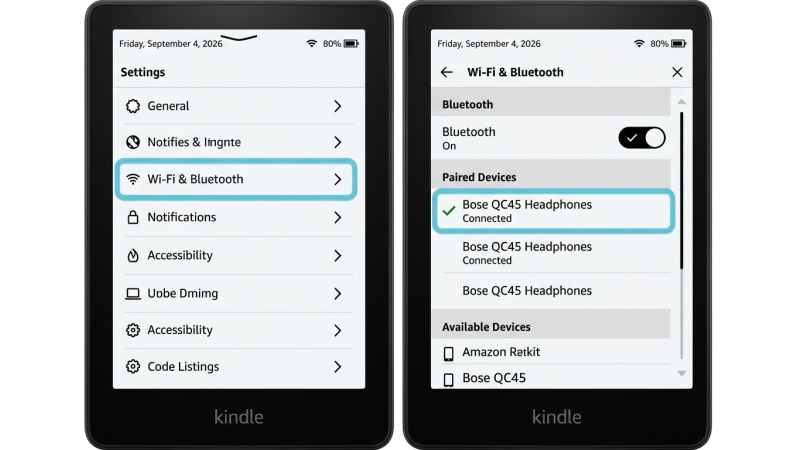
1. Put your Bluetooth headphones, earbuds, or external speaker into Pairing Mode.
2. On your Kindle home screen, swipe down from the top edge to open Quick Actions.
3. Tap Settings > Wi-Fi & Bluetooth and set the Bluetooth switch to ON.
4. Tap Bluetooth Devices, wait for your device to appear, and select it to establish a connection.
Step 2: Download and Play Audiobooks
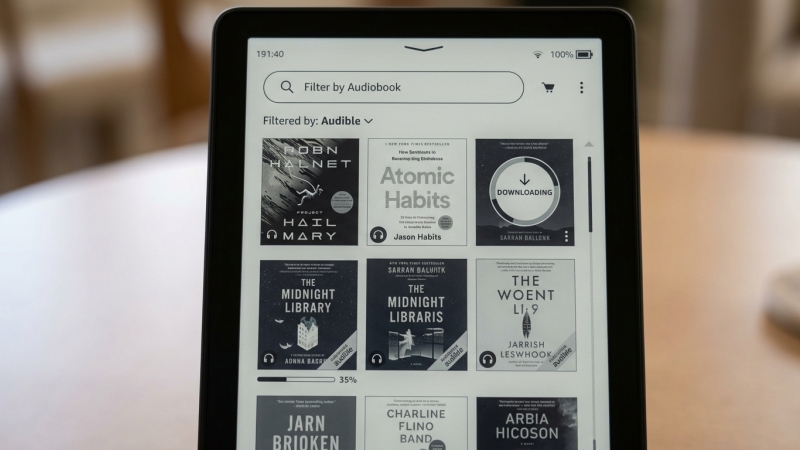
1. Navigate to your Kindle Library.
2. Tap the Filter icon in the upper toolbar and select Audible to display your audiobooks.
3. Tap the cover art of your chosen audiobook to initiate the download.
4. Once downloaded, tap the title again to launch the full-screen Kindle audio player.
Step 3: Master the Kindle Audio Player Controls
Once downloaded, you can tap the audiobook to launch the built-in player interface on your Kindle. The player allows you to
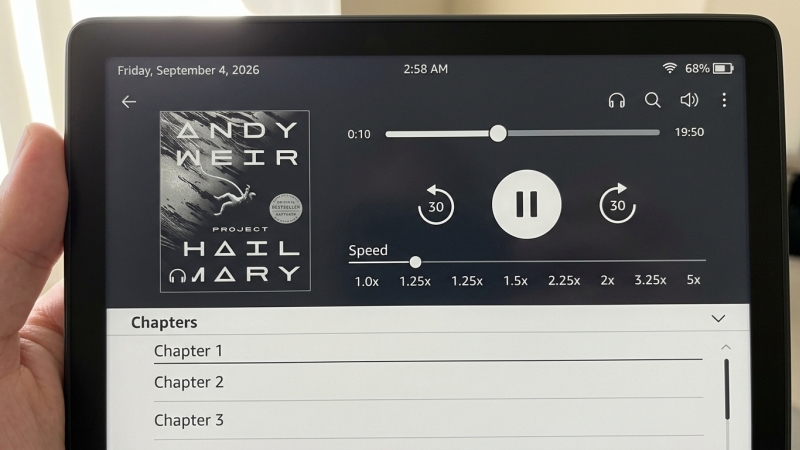
- Play or pause audio playback
- Skip forward or backward by 30 seconds
- Adjust playback from 0.75× up to 3× speed
- Navigate Chapters via the table of contents
- Set a Sleep Timer for automatic shutoff
Play Audible on Fire Tablets & Kindle Mobile Apps
Amazon Fire tablets like Fire HD 8, HD 10, and Fire 7 run Fire OS offer the most versatile listening experience because they feature built-in speakers, headphone jacks, and full color screens. On an Amazon Fire tablet, you can not only directly listen to books with the Audible app but also read Audible books through the Kindle app.
Direct Playback via Fire OS
Amazon Fire tablets run Fire OS, which deeply integrates Audible into the system.
Step 1. Open the Audible app on your Fire tablet, or access the Audiobooks tab in your library.
Step 2. Tap any purchased title to stream instantly or download for offline listening.
Step 3. Listen using built-in speakers, wired 3.5mm headphones, or paired Bluetooth devices.
Immersion Reading on Fire Tablets & Apps
On Fire tablets and mobile apps, you can utilize Immersion Reading with the Kindle app.
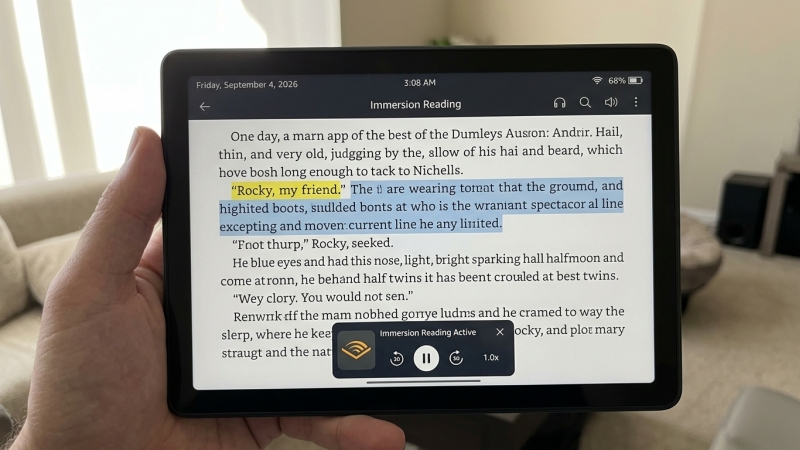
Step 1. If you own both the eBook and the Audible audiobook, open the eBook in the Kindle app.
Step 2. Tap the play button at the bottom of the screen to start audio narration.
Step 3. The text on screen will automatically highlight line-by-line as the professional voice actor reads aloud.
Part 3. How to Audible Books on Kindle (Unsupported Devices)
As older e-ink models such as a Paperwhite 7th Gen, Kindle Keyboard, or Kindle DX lacks built-in Bluetooth chips or official modern Audible software support, official direct playback is not supported. However, an alternative workaround exists to access your audiobooks.
Workaround for Getting Audible Books on Kindle
Older Kindle models with audio output like Kindle Touch or Kindle Keyboard support standard MP3 files. But because Audible downloads use DRM-protected AAX or AAXC file formats, older Kindle models cannot process them directly. Provided that your Kindle features a 3.5mm headphone jack or built-in speakers, you can solve this compatibility barrier by converting Audible books into open formats like MP3 before loading them.
Here TunesMake Audible Converter can help you easily and quickly remove restrictions from Audible books and convert them into several plain audio formats like MP3, FLAC, WAV, AIFF, M4A, and M4B. It can support the conversion of Audible books in batches while retaining chapter information and original audio quality. Then you can transfer Audible audiobooks to unsupported Kindles for playing without Bluetooth or the Audible app.

Streaming Audio Recorder –
Download Audible audiobooks to popular audio formats
- Download purchases, podcasts, and Originals from Audible
- Convert Audible books to MP3, M4A, M4B, WAV, FLAC, and AIFF
- Remove DRM protection from Audible efficiently and safely
- Preserve the original audio quality and chapter information
- Support downloading audios from 11 popular streaming platforms
Security Verified. 100% Clean & Safe.
Steps to Convert Audible Audiobooks for Kindle
It's an easy task to convert Audible audiobooks to Kindle supported audio formats like MP3 with TunesMake Audible Converter. As TunesMake is an easy-to-use program, now you will only need four simple steps to start your playback of Audible books on your Kindle.
Step 1 Add Purchased Audible Books to the Conversion List
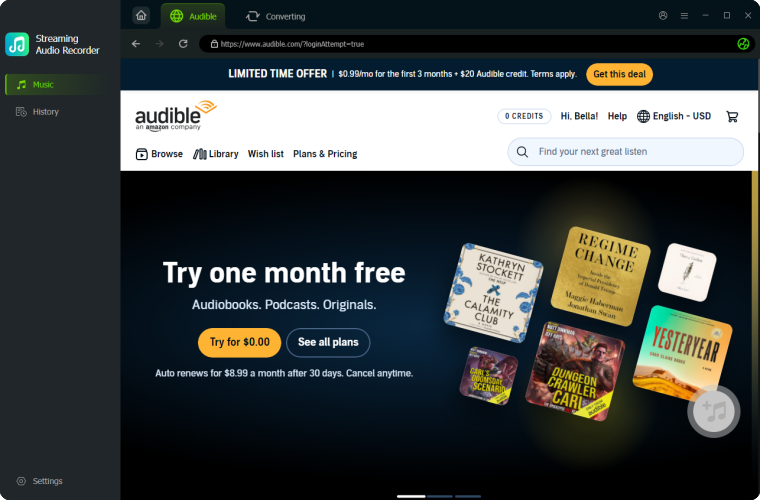
First of all, launch TunesMake Audible Converter on your computer, and you will have many options of streaming music platforms. On the main interface, select Audible and log into with your account and password. Then find your purchased Audible titles and click the + button to add them into the conversion list.
Step 2 Configure the Output Format for Audible Books
Then click the Settings button at the bottom right corner of the program, and you will see a new window in the program. Switch to the General tab and locate the Conversion part. Here you can set the output format to MP3, WAV, or any Kindle supported format. Also, you can change the bit rate, sample rate, and channel.

Step 3 Convert and Save Audible Books to MP3 Files
Now you can click the Conversion button to start the conversion of Audible books immediately. Once the conversion process is completed, find all the converted Audible books by clicking the History button at the left side panel of the program. You can click the search icon to open the folder that stores the converted Audible files.

Step 4 Transfer Converted Audible Files to Kindle
Finally, you can connect your Kindle to your computer using a USB cable. Copy the converted Audible MP3 files into the music or Audible folder on your Kindle directory. Then safely eject the device and play the audio via headphones plugged into the Kindle 3.5mm jack. Now you can freely enjoy your Audible audiobooks on your Kindle.
Part 4. More Tips about Using Audible and Kindle
Most uses are curious about how to sync Audible with Kindle and how to delete Audible books from Kindle. Whether you need to sync your listening and reading progress of Audible or delete downloaded Audible books, you can follow the steps below.
How to Delete Audible Books from Kindle
Deleting Audible books from your Kindle removes the large audio files from your device's internal storage while preserving your ownership so you can re-download them anytime from the Cloud.
Method 1: Remove Download from Kindle Storage (Recommended)
This deletes the local audio file while keeping the book cover visible in your Cloud library.
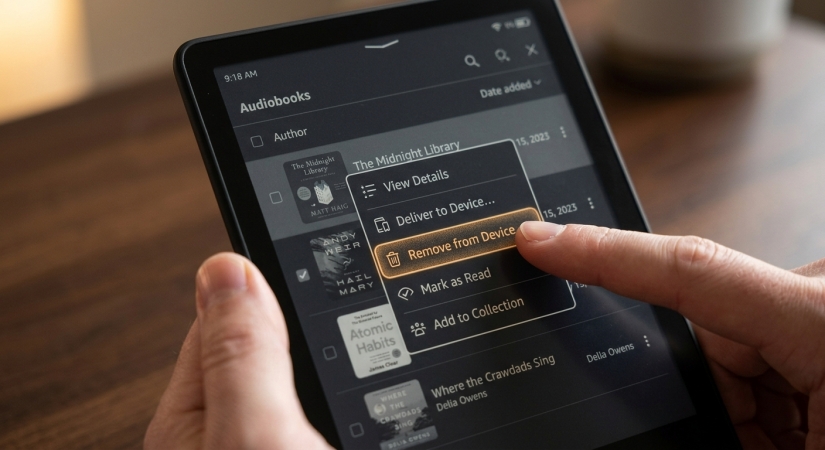
Step 1. Go to your Kindle Library screen.
Step 2. Locate the audiobook cover or tap the Filter icon and select Audible.
Step 3. Tap the three vertical dots (...) in the lower-right corner of the audiobook cover.
Step 4. Tap Remove Download or Remove from Device.
Method 2: Mass Delete Audiobooks to Free Up Space
If your Kindle storage is full, you can remove multiple downloaded audiobooks at once.
Step 1. Swipe down from the top edge of the screen and tap All Settings.
Step 2. Navigate to Device Options > Advanced Options.
Step 3. Select Storage Management.
Step 4. Tap Manual Removal > Audible Books.
Step 5. Select the audiobooks you want to clear from storage and tap Remove.
How to Sync Audible and Kindle
To sync your Audible audiobooks with your Kindle eBooks so your reading and listening progress stays updated across devices, you use Amazon's built-in Whispersync for Voice feature.
Step 1: Turn On Whispersync on Your Amazon Account
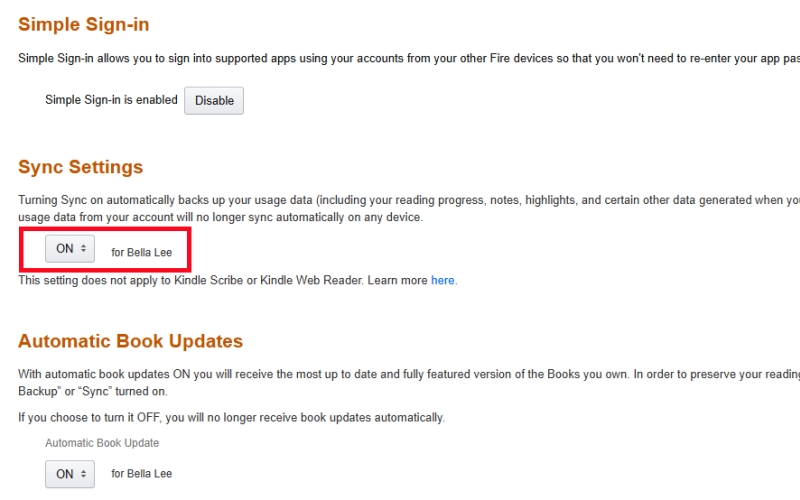
1. Open a web browser and go to Amazon's Manage Your Content and Devices page.
2. Click the Preferences tab at the top.
3. Scroll down to Device Synchronization.
4. Ensure the toggle is switched ON.
Step 2: Enable Sync on Your Devices & Apps
On a Kindle E-Reader (Paperwhite, Oasis, Scribe, Basic):
1. Swipe down from the top of the screen to open the Quick Actions menu.
2. Tap Settings > Device Options > Advanced Options.
3. Select Whispersync for Books and set it to ON.
In the Audible App (iOS / Android):
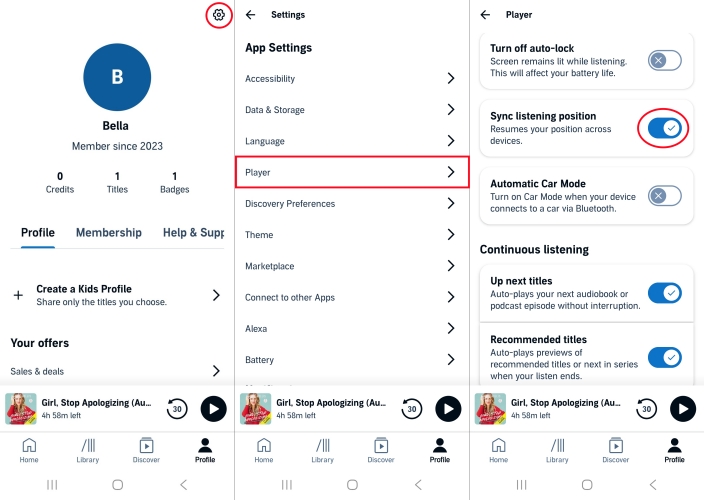
1. Open the Audible app and tap Profile in the bottom right corner.
2. Tap the Settings icon in the top right.
3. Select Player and toggle Sync Listening Position to ON.
Part 5. Troubleshooting Common Audible Kindle Issues
It is easy to set up Audible for Kindle to listen to. However, in the process of playing Audible books on a Kindle, lots of users encounter issues and don't know how to resolve them. Not fret, there are common Audible Kindle issues and the corresponding fixes.
Problem 1. Audible Books Not Syncing with Kindle
If your Audible audiobooks and Kindle are not syncing your listening progress, try these solutions from basic settings to advanced fixes.
-
Verify Account-Wide Whispersync Settings: Go to Amazon's Manage Your Content and Devices page on a desktop browser. Select the Preferences tab and scroll down to Device Synchronization. Ensure the toggle is switched ON.
-
Reset Kindle E-Reader Settings: Ensure Airplane Mode is off and Wi-Fi is connected. Go to Settings > Device Options > Advanced Options > Whispersync for Books and set it to ON. Swipe down from the top of the home screen and tap Sync.
-
Check for Account Mismatches: Check that both your Kindle device and the Audible app are logged into the exact same Amazon login credentials. If the account is in the different marketplace, you need to switch to the same one.
-
Update the Kindle Book Version: Go to Manage Your Content and Devices. Under the Content tab, select Books. If an Update Available prompt or button appears under the Actions column, click Update.
Problem 2. Audible Books Not Showing Up in Kindle
If your purchased Audible audiobooks are missing from your Kindle library, work through these fixes in order to restore them.
-
Adjust Your Library View & Filters: Go to your Kindle Library screen and tap the Filter icon. Ensure Audible is checked, or switch the main view to All Items. Verify the tab at the top is set to ALL rather than DOWNLOADED so you can see cloud purchases.
-
Unhide Audible Titles in Kindle Settings: Tap the Quick Actions gear icon > All Settings. Select Home & Library > Library tab. Locate Audible and set it to Always Show.
-
Verify Account Credentials & Region: On your Kindle, go to Settings > My Account. Confirm the exact email address matches the Amazon account used to purchase the Audible titles. If using Amazon Household, ensure content sharing for Audiobooks is enabled.
-
Perform a Manual Sync: Connect your Kindle to a stable Wi-Fi network. Swipe down from the top of the screen to open the menu. Tap Sync to force an update.
Problem 3. Kindle Audible Narration Not Working
If the Audible narration won't play inside your Kindle eBook, or you're experiencing missing audio icons or playback errors, work through these solutions.
-
Download the Companion Narration File: Open the eBook in your Kindle app. Tap the center of the screen to bring up the reading options toolbar. Look at the bottom of the screen for a Headphones icon or a prompt that says "Tap to Download Audio". Tap it and wait for the narration file to finish downloading before pressing Play.
-
Verify the Book Title Supports "Read & Listen": Go to Amazon and check the product page for your eBook edition. Verify that it features the "Read & Listen" badge.
-
Check Bluetooth Connection: Swipe down from the top menu and verify that Bluetooth is ON. Go to Settings > Wi-Fi & Bluetooth > Bluetooth Devices. Tap your connected headphones, select Forget, and re-pair them.
Part 6. Conclusion
While the Kindle lost its built-in headphone jack years ago, it remains one of the most distraction-free ways to enjoy audiobooks. By pairing a set of Bluetooth headphones or a speaker, you can seamlessly transition between reading and listening without losing your place. Whether you rely on Whispersync to switch back and forth or prefer listening directly from your e-reader, setting up Audible on your Kindle takes only a couple of minutes. Pair your device, download your audiobook, and hit play to enjoy the best of both worlds on a single device.
Related Articles

A professional writer at TunesMake, crafts in-depth tutorials, practical tips and expert advice focusing on streaming music, technology, and more.
- 1
- 2
- 3
- 4
- 5
- 6
- 7
 Leave Your Comment
(0)
Leave Your Comment
(0)

 Download Center

