








 Store
Store


Managing your digital audiobook library shouldn't feel like a chore. Whether your phone is running out of storage space, your library is getting cluttered with finished listens, or you accidentally purchased a title you don't like, knowing how to properly remove books from Audible is essential.
However, "removing" a book can mean several different things. Depending on your goal, you may want to free up space on your phone, permanently purge a title from your account, or exchange an unwanted listen for a credit refund. This guide walks you through every method to remove books from Audible step-by-step across iPhone, Android, Kindle, and web browsers.

Part 1. Can You Remove Books from Audible?
Yes, you can remove books from Audible. But deleting a downloaded Audible book and deleting an Audible title permanently is different. Before removing any audiobook, you need to know the distinction.
-
Removing Download: Deletes the downloaded audio file from your local hardware to free up storage space. The book remains linked to your account in the Audible Cloud Library, allowing you to re-download it anytime for free.
-
Permanently Deleting: Irrevocably removes the audiobook from your Amazon and Audible account. You forfeit ownership, and re-accessing the title will require buying it again.
-
Returning for a Refund: Returns an eligible audiobook within 365 days of purchase in exchange for your original credit or cash payment.
After figuring out the distinction, you can choose one that matches your current goal. This will prevent you from deleting books from Audible by mistake.
| Goal | Action Needed | Storage Freed? | Ownership Kept? |
|---|---|---|---|
| Free up device storage | Remove downloaded file | ✔️ | ✔️ (Stay in Cloud Library) |
| Clean up library view | Archive or hide yitle | ❌ | ✔️ (Hidden from view) |
| Get a refund | Return books | ✔️ | ❌ (Title is refunded) |
| Purge permanently | Delete from Amazon account | ✔️ | ❌ (Irreversible) |
Part 2. How to Remove Books from Audible Library
Audiobook files are large and can easily consume several gigabytes of local storage on your device. Removing a downloaded file deletes the audio data from your device's memory while keeping the title safely stored in your Audible Cloud Library for future re-downloading.
How to Remove Downloaded Audible Books from iPhone

Step 1. Open the Audible app on your iPhone.
Step 2. Tap Library at the bottom of the screen.
Step 3. Select the Downloaded tab at the top to display only the files saved to your phone.
Step 4. Locate the audiobook you want to remove.
Step 5. Tap the three-dot menu (...) next to the title.
Step 6. Select Remove Download.
How to Remove Downloaded Audible Books from Android

Step 1. Launch the Audible app on your Android phone or tablet.
Step 2. Go to your Library and tap the Downloaded view.
Step 3. Find the audiobook you wish to clear from your storage.
Step 4. Tap the three-dot icon beside the title.
Step 5. Tap Remove Download.
How to Remove Downloaded Audible Books from Kindle
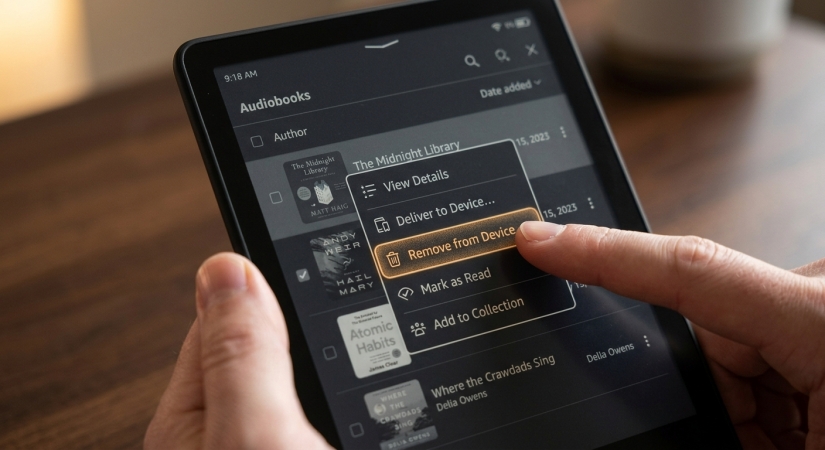
Step 1. Turn on your Kindle device and navigate to your Library.
Step 2. Tap the Filter menu and select Audible or Downloaded to locate your audiobooks.
Step 3. Long-press the cover art of the audiobook you want to delete.
Step 4. Tap Remove from Device or Remove Download.
Pro Tip: Turn On Audible's "Auto-Remove" Feature
If you frequently finish audiobooks and forget to clean up your storage, Audible includes an automated setting that deletes finished titles for you.

Step 1. Open your Audible app and tap Profile in the bottom right corner.
Step 2. Tap the Gear icon in the top right corner.
Step 3. Select Data & Storage.
Step 4. Locate Auto-Remove and toggle the switch to On.
Part 3. How to Delete Books from Audible Cloud Library
Because the Audible app does not allow permanent account deletions, managing cloud ownership requires logging into Amazon via a web browser. This action is permanent and irreversible. Once completed, you lose access to the audiobook and must repurchase it if you wish to listen again.
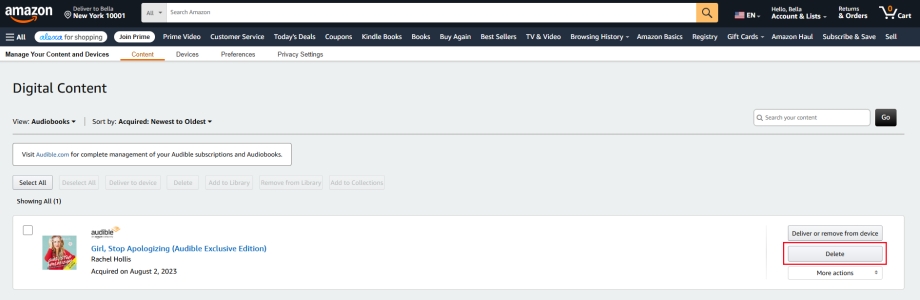
Step 1. Open a browser on your computer or smartphone and visit Amazon.com.
Step 2. Log into the Amazon account associated with your Audible membership.
Step 3. Hover over Account & Lists in the top-right corner and select Manage Your Content and Devices.
Step 4. Click the Content tab and select Audiobooks from the category filter dropdown.
Step 5. Find the title you wish to delete forever.
Step 6. Click the Delete button next to the title entry.
Step 7. Confirm by clicking Yes, delete permanently.
Pro Tip: Backup Audiobooks Locally Before Permanent Deletion
If you plan to permanently delete audiobooks from your account or cancel your membership, but still want offline access on your device, converting your purchased Audible titles to unprotected audio formats beforehand is a practical approach. TunesMake Audible Converter allows you to back up purchased Audible audiobooks into open formats like MP3, M4A, or FLAC before you purge them from Amazon.

Streaming Audio Recorder –
Download Audible audiobooks to popular audio formats
- Download purchases, podcasts, and Originals from Audible
- Convert Audible books to MP3, M4A, M4B, WAV, FLAC, and AIFF
- Remove DRM protection from Audible efficiently and safely
- Preserve the original audio quality and chapter information
- Support downloading audios from 11 popular streaming platforms
Security Verified. 100% Clean & Safe.
Part 4. How to Return Audible Books Instead of Deleting
If you accidentally purchased a book, didn't like the narrator, or selected the wrong title, do not permanently delete it. You may be eligible to return a book for a full credit or cash refund.
Return Eligibility Requirements:
-
You must have an active Audible Premium Plus membership.
-
The audiobook must have been purchased within the last 365 days.
-
The return must adhere to Audible's fair use policy.
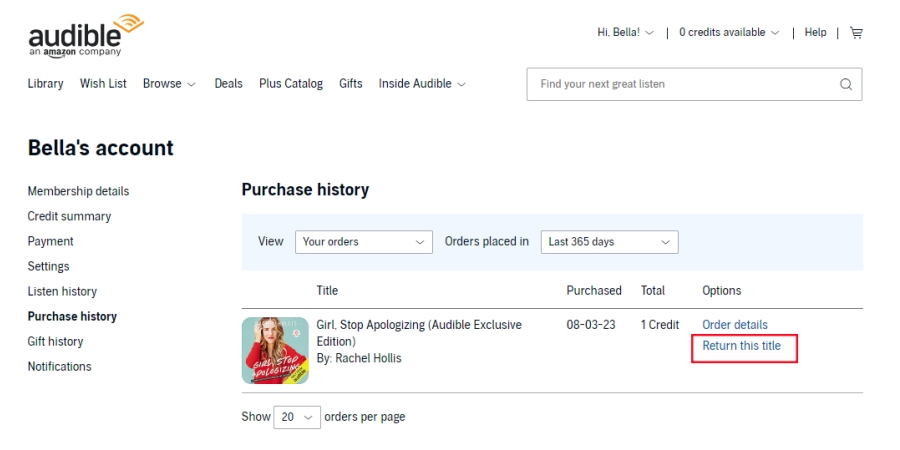
Step 1. Open a desktop or mobile browser and navigate to Audible.com.
Step 2. Log in and tap your username or profile name at the top right to open Account Details.
Step 3. Click on Purchase History in the left sidebar menu.
Step 4. Locate the order containing the audiobook you want to return.
Step 5. Click the Return Title button next to the book.
Step 6. Select a reason for your return from the dropdown list and confirm Return.
Once approved, your Audible credit or original payment method will be refunded immediately, and the title will automatically be removed from your library.
Part 5. Conclusion
Managing your Audible library effectively comes down to understanding the clear boundary between clearing local device storage, organizing your cloud view, and altering your account ownership. If your main goal is simply freeing up memory on your phone or e-reader, removing local downloads or toggling on Audible's Auto-Remove setting will solve the problem instantly without losing access to your purchased audiobooks.
For titles you no longer want in your main view, archiving offers a clean, reversible way to keep your library organized. However, if you are looking to cancel your subscription or permanently purge books from your Amazon account, creating local backups beforehand ensures you preserve your favorite listens. By choosing the right method for your specific situation, you can maintain an organized, clutter-free audiobook library while keeping full control over your digital content.
Related Articles

A professional writer at TunesMake, crafts in-depth tutorials, practical tips and expert advice focusing on streaming music, technology, and more.
- 1
- 2
- 3
- 4
- 5
- 6
- 7
 Leave Your Comment
(0)
Leave Your Comment
(0)

 Download Center

