








 Store
Store


Imagine boarding a long flight, underground on your daily commute, or traveling through a remote area with zero cell service, only to find your music streaming has come to a grinding halt. If you are a music lover, knowing how to listen to Deezer offline is the ultimate way to ensure your favorite soundtracks, albums, and podcasts are always available, no matter where you are. This comprehensive guide will walk you through exactly how to get Deezer offline music and fix Deezer Offline Mode not working.

Part 1. Who Can Listen to Deezer Offline Music?
Before getting Deezer offline music, it is important to understand who can access this feature. Deezer Offline Mode is a premium capability designed to save data and provide uninterrupted listening.
Supported Subscription Plans
To download Deezer music directly within the app on a computer or a mobile device, you must be subscribed to one of Deezer's paid plans:
-
Deezer Premium
-
Deezer Family (including Family HiFi)
-
Deezer Student
-
Deezer Duo
Note for Deezer Free Users:
If you are using the free, ad-supported tier of Deezer, the offline feature is unfortunately unavailable. You will need an active internet connection to stream music.
Device and Platform Restrictions
You can download Deezer music across multiple devices depending on your plan, but where you download matters:
-
Supported: The official Deezer mobile app and the official Deezer desktop app.
-
Unsupported: The Deezer web player. You cannot download music for offline use directly from a desktop web browser.
Part 2. How to Listen to Deezer Offline (For Premium Users)
With a premium account, you can download your Favorite tracks, albums, audiobooks, and playlists and listen to them without an internet connection. First, you need to download the content while you are still connected to WiFi or cellular data, then enable Offline Mode on Deezer for offline playback.
Step-by-Step for Mobile (Android & iOS)
Downloading your music on a smartphone or tablet is incredibly straightforward. However, keep in mind that you cannot download individual, standalone tracks directly. To download a single song, you must first add it to a playlist or your "Favorite Tracks."
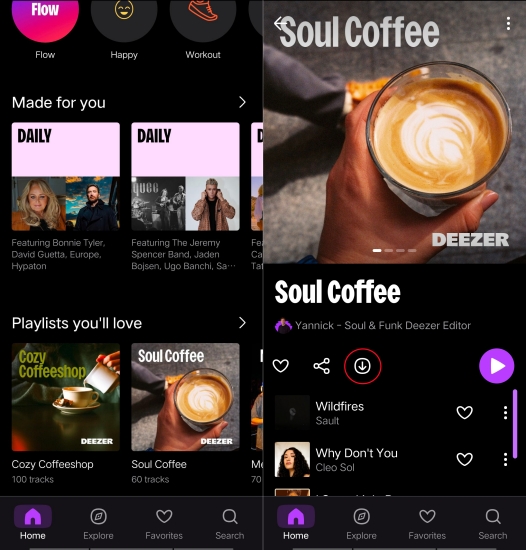
Step 1. Open the Deezer app on your iOS or Android device.
Step 2. Tap on the Favorites tab at the bottom of the screen.
Step 3. Select the category you want to download.
Step 4. Locate the specific playlist or album you want to save.
Step 5. Tap the Download button to start downloading.
Step-by-Step for Desktop (PC & Mac)
If you prefer using your computer, ensure you have downloaded the official Deezer desktop application rather than using a browser.
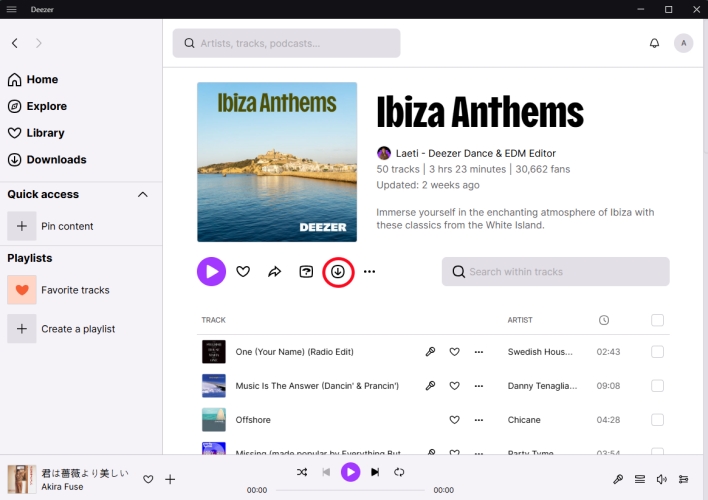
Step 1. Launch the Deezer desktop app on your PC or Mac.
Step 2. Navigate to Favorites in the left-hand sidebar menu.
Step 3. Select Playlists or Albums.
Step 4. Click the Download button located next to the content you want to save.
How to Turn On Offline Mode on Deezer
Many users make the mistake of downloading their music but leaving their app connected to the network. If your connection is weak, the app may still try to stream online, leading to buffering or unexpected data charges. To prevent this, you should manually force the app into Offline Mode.
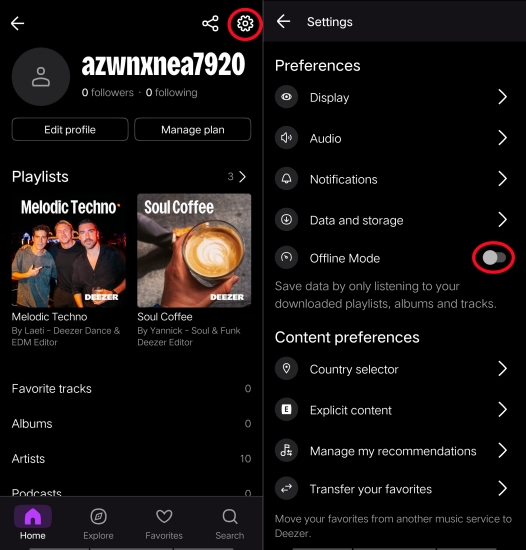
Step 1. Open Deezer and tap your Profile icon or the Settings in the top-right corner.
Step 2. Select Offline & data.
Step 3. Look for Activate offline mode and toggle the switch to the On position.
Part 3. An Alternative for Flexible Deezer Offline Music
While the official Deezer app covers basic offline needs, its built-in Digital Rights Management (DRM) restrictions mean your downloads are encrypted. They only play inside the Deezer app, expire if your subscription lapses, and require you to log online every 30 days. To bypass these ecosystem limitations, keep your tracks permanently, or listen offline using a Deezer Free account, using a dedicated tool like TunesMake Deezer Music Converter can solve the problem.
Instead of caching encrypted files inside the app, TunesMake Deezer Music Converter lets you download tracks, playlists, albums, podcasts, and radios from Deezer directly to your Mac or Windows computer as standard, unprotected audio files. Most importantly, you can keep your downloaded Deezer audio files forever and transfer them to any device for playing without hassle. Here's how to download Deezer music with TunesMake Deezer Music Converter.

Streaming Audio Converter -
Download and save Deezer music as local files
- Download tracks, albums, playlists, and artists from Deezer
- Convert Deezer music to MP3, M4A, FLAC, AIFF, WAV, and M4B
- Preserve the original audio quality and ID3 tags for management
- Remove DRM from Deezer without compressing audio quality
- Support downloading music from over 10 popular streaming platforms
Security Verified. 100% Clean & Safe.
Step 1 Import Deezer Music into the Conversion List
Open TunesMake Streaming Audio Recorder on your computer, then select Deezer from the main interface and it will automatically load the Deezer web player. Go to log into your Deezer account and find any music track, album, or playlist to download. By clicking the + button, all the Deezer music tracks will be loaded into the conversion list.
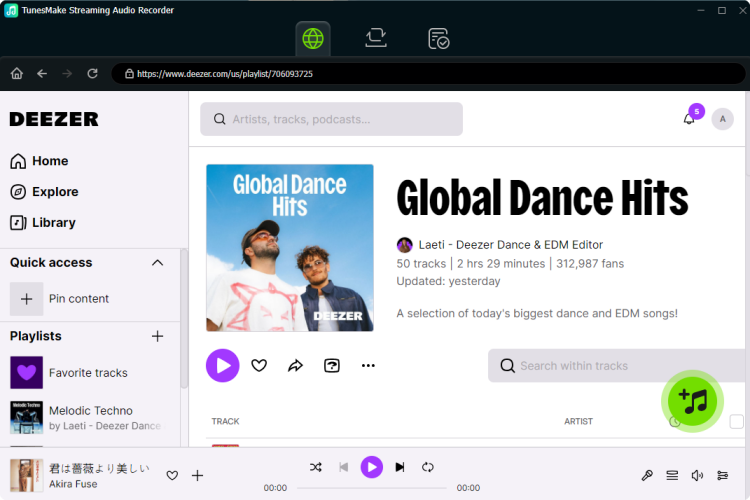
Step 2 Set up the Audio Parameters for Deezer
Click the Settings button at the bottom left corner of the converter and go to the Conversion tab. Then you can personalize the output parameters, including the output format, bit rate, sample rate, and channel. There are six audio formats like MP3, FLAC, AIFF, M4A, WAV, and M4B available for you to choose from.

Step 3 Start to Download Music from Deezer
After completing the settings, click the Convert button to start downloading and converting Deezer music tracks to your required format. When the conversion is completed, you can view the downloaded Deezer songs in the history list by clicking the History icon. Furthermore, you can click the Search icon to locate the folder.

Part 4. How to Fix Deezer Offline Mode Not Working
It can be incredibly frustrating when you're out of service or on a flight and your downloaded music refuses to play. When Deezer Offline Mode fails, it is usually caused by an incomplete download, background app limitations, or a verification glitch. Try these sequential steps to resolve the issue.
Solution 1. Check the 30-Day DRM Limit
Because of music copyright laws, Deezer must verify that your Premium subscription is still active. If your device has been completely disconnected from the internet for more than 30 days, your offline downloads will automatically lock. To fix this, simply connect to Wi-Fi, open the app to re-authenticate your account, and try again.
Solution 2. Confirm the Download Status
A green circle or checkmark next to an album title can sometimes be misleading. An album or playlist is only 100% downloaded if every single track inside it has a green download indicator. If you see a song without the indicator, it will cause the app to throw an Airplane Mode or No Network error when it tries to play that track. Connect to stable Wi-Fi and keep the app open until the playlist completely finishes downloading.
Solution 3. Clear Smart Cache on Deezer
Corrupted cache files frequently cause playback errors for offline tracks. In this case, you can try to clear Smart Cache in the Deezer app on your device. This will remove your temporary cache files to fix glitches, but it won't delete your core music downloads. Inside the Deezer app, go to Settings > Data and storage. Scroll down to Smart Cache and select Clear All. Restart the app immediately after clearing it.
Solution 4. Check Phone Permissions and Battery Saver
Android's aggressive battery and resource management can block Deezer from reading local files when your phone goes offline. Open your phone's main Settings > Apps > Deezer. Check App Battery Usage and change it to Unrestricted. Ensure that the setting Remove permissions if app is unused is disabled, as this can strip Deezer of its storage permissions over time.
Part 5. Conclusion
And voila! You have know how to listen to Deezer offline on your computer or mobile device. You can choose to upgrade your account to a Premium account or use TunesMake Deezer Music Converter to get Deezer offline music forever. From each method, you can enjoy lots of feature. If you want to break Deezer Premium limitations, you can try using TunesMake Deezer Music Converter. It is a great option if you want to keep Deezer music playable forever.
Related Articles




A senior editor from TunesMake, dedicated to sharing professional tutorials and solutions of software, movies, and music.
- 1
- 2
- 3
- 4
- 5
- 6
- 7
 Leave Your Comment
(0)
Leave Your Comment
(0)

 Download Center

