








 Store
Store


Nowadays, smartwatches have become more and more popular since they can not only track your miles but also keep the rhythm going while exercising. For music lovers - especially those who prefer discovering indie artists and DJ mixes, common questions arise: Is there an official SoundCloud Apple Music integration? Can you play SoundCloud on Apple Watch? In this complete guide, we will explore every possible method to give you assistance. Whether you want to control the music playback from your wrist or you are trying to leave your bulky iPhone at home during a run, you can find the best way to bridge the gap between SoundCloud and Apple Watch. Now, let’s explore and find the way that meets your requirements.

Part 1. Does Apple Watch Have SoundCloud?
First of all, let’s clarify the key point: yes, Apple Watch has SoundCloud. You can find the official SoundCloud app on the App Store on your Apple Watch, iPhone, and iPad. The app is available for users who have a SoundCloud Go, Go+, orf Artist Pro subscription. Once it is installed on your watch, you can use it to control the SoundCloud app and its music playback on your iPhone. It supports playing, pausing, and skipping tracks that are currently playing on your iPhone. We have prepared all the detailed steps in Part 2. You can check more detailed information there.
Although the SoundCloud app can serve as a remote control, it’s not sufficient for users who want to enjoy music without their phone while exercising. In this case, you will need the help of some third-party tools. For users who enjoy streaming SoundCloud music online, WatchCloud is a good choice. But if you want to have an uninterrupted offline experience, you should try the TunesMake Streaming Audio Recorder, which can download your favorite songs locally. Therefore, it’s easy to import these downloads to your Apple Watch for offline playing. The complete introduction and full guide are listed in Part 3.
Part 2. How to Get SoundCloud on Apple Watch with Phone
As we mentioned above, the official SoundCloud app is compatible with Apple Watch. You can follow the steps below to get it on your watch and use it to control the SoundCloud playback on your iPhone.
Download from the Watch app on your iPhone
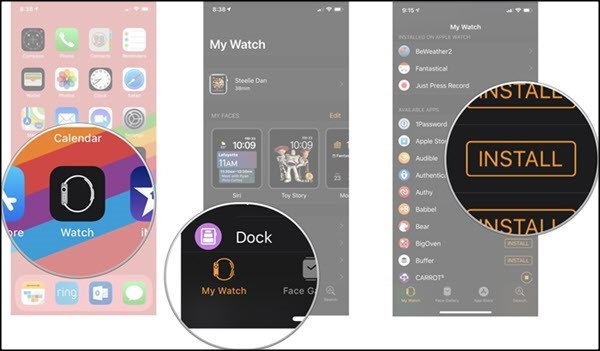
Step 1. Head to the Watch app on your iPhone that is paired with your Apple Watch.
Step 2. Then, tap the My Watch tab.
Step 3. Now, you can scroll down to find the SoundCloud app and get it on your watch by tapping the Install button.
Download from the App Store on your Apple Watch
Step 1. Press the Digital Crown button beside your Apple Watch to see the home screen.
Step 2. Then, select App Store.
Step 3. You can tap Search to find the SoundCloud app by using Scribble, Dictation, or the on-screen keyboard.
Step 4. Next, tap SoundCloud from the search results and install it by selecting Get.
Step 5. When prompted, double-click the side button under the Digital Crown to install the app.
Now, everything is done. You can connect your watch to your iPhone and control the SoundCloud app from your wrist.
Part 3. How to Play SoundCloud on Apple Watch without Phone
It’s pretty easy to play SoundCloud on Apple Watch for users who can use their phone or have a subscription. However, if you want to leave your phone behind or you don’t have a SoundCloud subscription, things can be a little tricky. Luckily, there are available methods that allow you to head out for a joy with nothing but a pair of AirPods and an Apple Watch.
Method 1. Access SoundCloud on Apple Watch via WatchCloud
The first practical method is to utilize a third-party watchOS app - WatchCloud. It is designed to bring a direct and standalone SoundCloud experience to your Apple Watch. Unlike the official app, WatchCloud allows you to stream music directly on your watch over Wi-Fi or cellular data without needing an iPhone nearby.
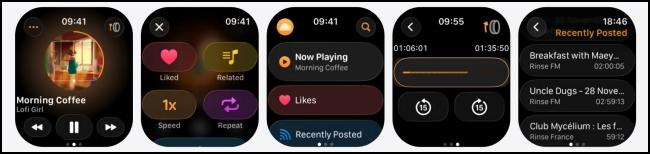
Step 1. Open the App Store on your iPhone. Then, find WatchCloud and install it on your iPhone.
Step 2. Sign in to your SoundCloud account on its interface, and then make a connection between this app and your SoundCloud account by tapping Connect.
Step 3. After that, press the Digital Crown button beside your Apple Watch and head to App Store.
Step 4. Search to find the WatchCloud app and select Get to install it on your Apple Watch.
Step 5. Once done, you can open WarchCloud on your watch and play any track you like from your SoundCloud library.
Method 2. Download SoundCloud Tracks Locally for Playing
If you are seeking reliable and phone-free SoundCloud playback, the best option is to download your favorite SoundCloud playlists offline and sync them to your Apple Watch for offline playback. While SoundCloud allows free users to download music in MP3, but only possible if the artist of the track has enabled the download option. This is where a specialized tool like TunesMake SoundCloud Music Converter becomes incredibly helpful.
TunesMake SoundCloud Music Converter, also known as TunesMake Streaming Audio Recorder, is a dedicated downloader designed to download SoundCloud tracks, playlists, albums, and more content into universal formats, including MP3, M4A, M4B, WAV, FLAC, and AIFF. One of the biggest advantages of this tool is that it will retain the original ID3 tags and sound quality to ensure your listening experience. Additionally, you can even find a customization option to change output quality, bit rate, and more settings according to your personal demands. When the downloading process is finished, you can import the downloaded tracks to your Apple Watch and get the smoothest listening experience without your phone.

Streaming Audio Recorder –
Best SoundCloud to Apple Watch Downloader
- Unlimitedly download streaming music songs, playlists, and podcasts
- Losslessly convert streaming music to MP3, M4A, M4B, WAV, FLAC, and AIFF
- Remove DRM protection from many streaming music platforms
- Convert streaming songs with original sound quality and ID3 tags kept
Security Verified. 100% Clean & Safe.
Step 1
Set Output Parameters as You Wish
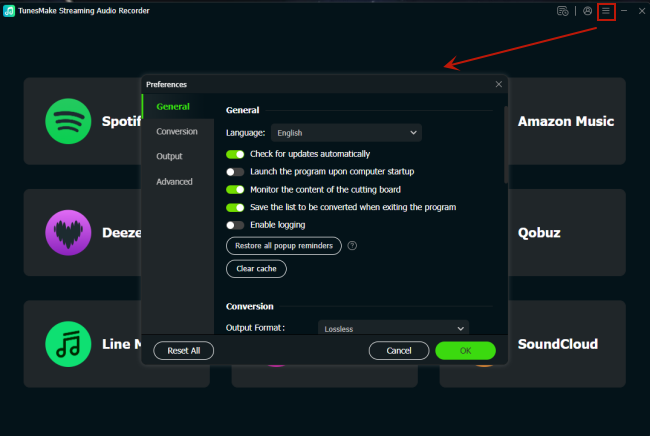
Click the Free Download button above to install the TunesMake SoundCloud Music Converter on your Windows or Mac computer. Then, launch this tool and head to its interface. You can set the output parameters by clicking the top Menu icon > Preferences > Conversion. In the new window, choose an output format that is compatible with Apple Watch, like AAC, MP3, and so on. You can also change other parameters, like output quality, bit rate, sample rate, channel, and so on. Once finished, click OK so that your changes can be saved.
Step 2
Sign in to Your SoundCloud Account
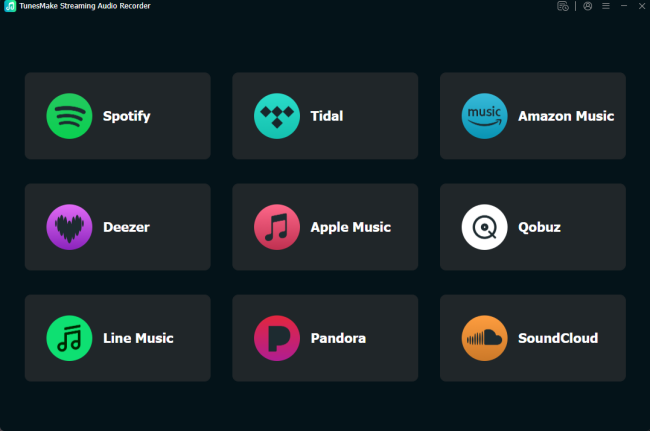
Now you have finished the necessary audio settings. Go back to the interface of the TunesMake tool. Here, you should find and click the SoundCloud icon and sign in to your account.
Step 3
Add Songs from SoundCloud to the TunesMake Tool
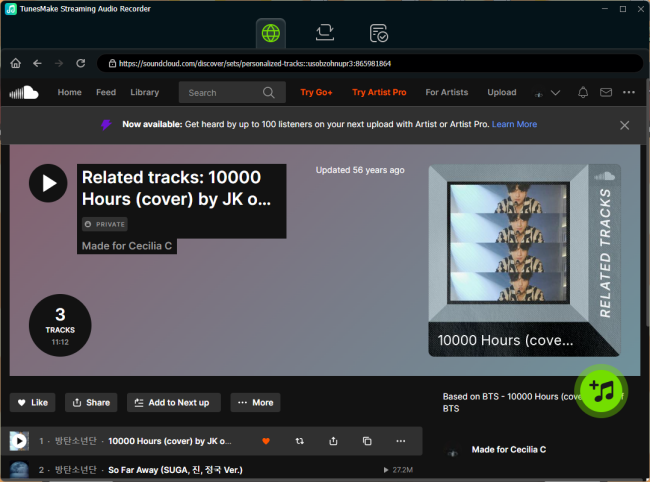
Feel free to browse the SoundCloud library to find the songs you want to listen to on your Apple Watch. Then, select any playlist or album you need to download and click the Add icon at the lower right corner. Wait for a while, the TunesMake tool will analyze this playlist/album and display all the included songs. You can then choose the songs you like and click the Add to List option to load them from SoundCloud to the conversion list.
Step 4
Begin Downloading SoundCloud Music for Apple Watch
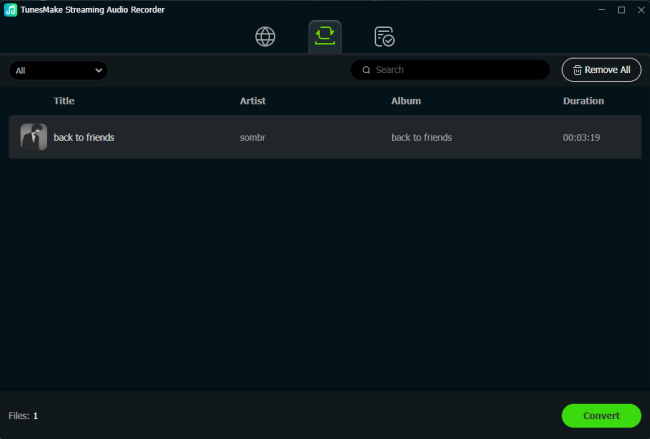
Whenever you are ready, click the Convert button, and the TunesMake tool will do the rest for you. You just need to wait for a while, and then all the tracks you choose will be downloaded to your computer. You can click the top Converted icon to browse them. If you need to know their exact location on your folder, just click the little file icon next to each track.
Part 4. How to Transfer Downloaded SoundCloud Songs to Apple Watch
Congratulations! Now that your favorite SoundCloud tracks are saved as high-quality local files, you’ve successfully bypassed the usual streaming limitations. You are all set to transfer them to your Apple Watch with ease, granting independent music playback during your next workout.
Step 1
Sync Downloaded Songs to iPhone
1. Open iTunes on your PC or the Music app on your Mac.
2. Then, select File > Add File to Library at the top. You can then choose the downloaded SoundCloud tracks and import them to your iTunes library.
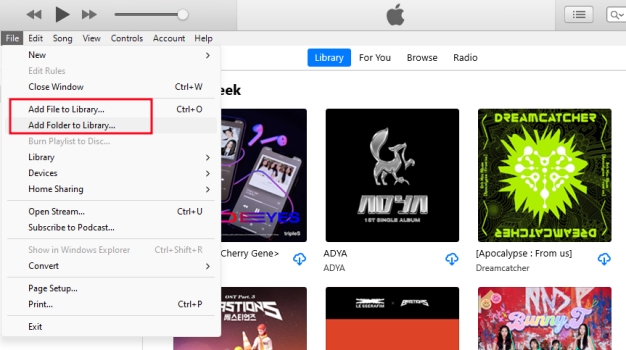
3. Once done, you should connect your iPhone to your PC using a compatible USB cable. When they are connected, you will see a little phone icon show at the top left corner. Click it.
4. Next, choose Music in the sidebar and toggle on the Sync music onto [device name] tickbox. Then, you should choose Selected artists, albums, genres, and playlists.
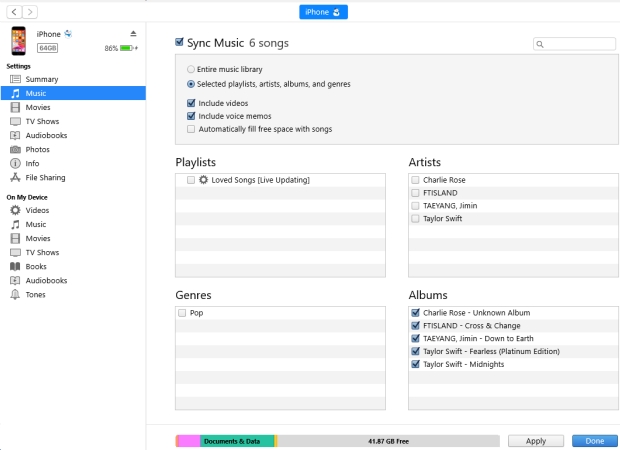
5. In the music list, select the tickbox for the downloaded SoundCloud tracks. Lastly, select Apply, and they will be imported to your iPhone.
Step 2
Add SoundCloud Downloads to Apple Watch
1. Pair your Apple Watch with your iPhone, and then open the Watch app on your iPhone.
2. Select My Watch > Music.
3. Under the Playlists & Albums, you can find the Add Music option. Tap it.
4. Then, you can navigate to the downloaded SoundCloud tracks and sync them to your Apple Watch by selecting the Add icon.
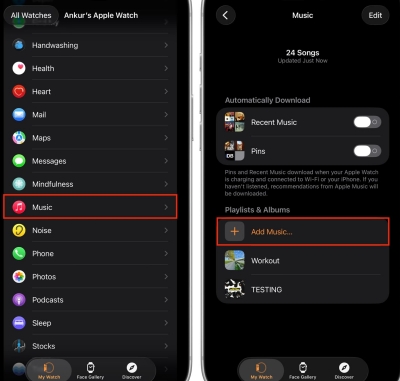
Once done, you can play the downloaded SoundCloud tracks on your Apple Watch device without your phone.
Part 5. Conclusion
The official integration of SoundCloud Apple Watch opens up a world of possibilities for your daily routine. But it’s not a complete solution for every listening scenario. If you only want to control music playback from your wrist, the SoundCloud app on your Apple Watch is sufficient. But if you prefer to enjoy SoundCloud songs on your watch without carrying a phone, downloading them locally via the TunesMake SoundCloud Music Converter is your best choice.
Related Articles




A senior editor from TunesMake, dedicated to sharing professional tutorials and solutions of software, movies, and music.
- 1
- 2
- 3
- 4
- 5
- 6
- 7
 Leave Your Comment
(0)
Leave Your Comment
(0)

 Download Center

