








 Store
Store


Mixing music smoothly requires quick access to a vast library of tracks, and Spotify remains one of the world's most popular streaming platforms. For years, DJs faced strict limitations when trying to link their streaming playlists with professional performance software. Fortunately, with recent official updates, learning how to use Spotify with Virtual DJ has become straightforward.
Whether you are a bedroom DJ practicing at home or a mobile performer preparing for live events, this guide covers everything you need to know about setting up Spotify in Virtual DJ, using offline workarounds for venues without Wi-Fi, and maximizing your performance settings.
Part 1. Can You Use Spotify with Virtual DJ?
Yes, you can use Spotify with Virtual DJ. Spotify Premium supports integration with major DJ software platforms, including Virtual DJ, rekordbox, Serato, djay, eDJing, and Cross DJ. There are two primary ways to access Spotify tracks in Virtual DJ depending on whether you are mixing online at home or playing an offline live gig.
| Feature | Spotify Online Streaming | Local Spotify Track Files |
|---|---|---|
| Internet Connection | Required | Not required |
| Account Type | Spotify Premium | Spotify Premium or Free |
| Track Analysis Speed | Streams upon deck load | Pre-analyzed instantly |
| Suitable Environment | Home practice, livestreams | Club gigs, weddings, mobile events |
| Storage Usage | Zero local storage used | Hard drive space required |
Part 2. How to Connect Spotify Premium to Virtual DJ
Virtual DJ supports direct streaming integration with Spotify Premium. This allows you to log into your Spotify account directly inside the Virtual DJ browser panel, browse your saved playlists, and load tracks onto decks instantly without downloading files beforehand. Here is how to add Spotify to Virtual DJ for online streaming.
What You Need for Spotify with Virtual DJ:
-
A Spotify Premium account
-
A mobile device or computer
-
Latest version of Virtual DJ
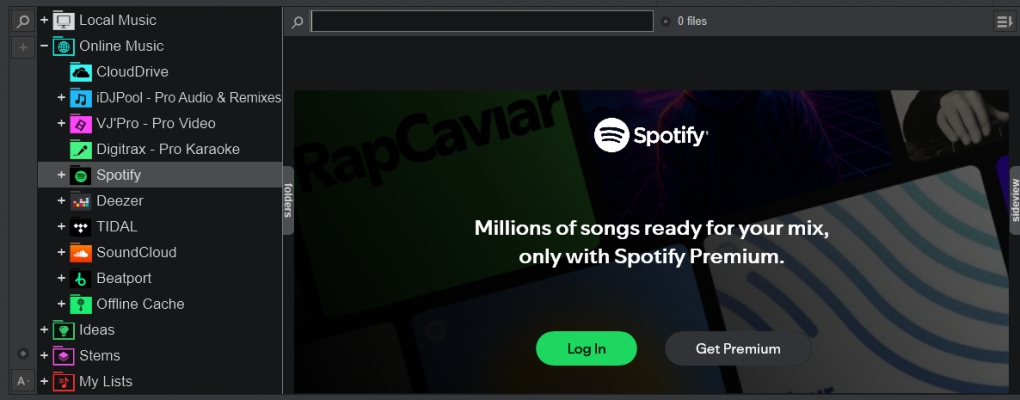
Step 1. Open Virtual DJ and ensure you are running the latest software version.
Step 2. Look at the left-hand side panel and expand the Online Music folder.
Step 3. Select Spotify within the sidebar, then click the Log In button.
Step 4. Enter your Spotify Premium login details in the authorization window.
Once authenticated, your Spotify playlists, saved tracks, and liked songs will populate directly in the center panel. Drag and drop any track onto Deck 1 or Deck 2 to begin mixing.
Part 3. How to Use Spotify Tracks Offline in Virtual DJ
While live cloud streaming is convenient, professional gigs often present unreliable WiFi or zero internet connectivity. Furthermore, Spotify's streaming licensing strictly prohibits offline caching within third-party DJ software. To ensure 100% offline reliability and unlock advanced DJ features, many performers import local audio files converted from their Spotify playlists directly into Virtual DJ's local database.
Here TunesMake Spotify Music Converter can not only download music from Spotify but also remove restrictions from Spotify. Using TunesMake, you can save Spotify music to a series of common audio formats like MP3 fully compatible with Virtual DJ. Besides, it can retain music with ID3 tags and lossless audio quality. Then you can easily and effortlessly upload Spotify music to Virtual DJ for managing and remixing.

TunesMake Spotify Music Converter –
Download music from Spotify without premium
- Download Spotify songs, albums, playlists, audiobooks, and podcasts
- Losslessly convert Spotify music to MP3, FLAC, WAV, AIFF, and more
- Remove ads from Spotify music tracks even with a Free account
- Convert Spotify music at 15× faster speed in batch with ID3 tags kept
Security Verified. 100% Clean & Safe.
Virtual DJ Spotify: File Format Supported by Virtual DJ
Thanks to TunesMake, even if you don't have a Premium account, you will still get Spotify tracks to use in Virtual DJ. Before using a professional Spotify downloader, you have to figure out what file format can be played by Virtual DJ. You can then decode Spotify music into those file formats that Virtual DJ supports for use.
How to Use Spotify Songs on Virtual DJ
By using TunesMake Spotify Music Converter, you can download and convert Spotify songs to a format supported by Virtual DJ. Then importing Spotify songs to Virtual DJ for mixing is a lot easier. Follow the steps below to download music from Spotify using TunesMake software. Then it is only one step away from mixing Spotify with Virtual DJ.
Step 1 Add Spotify Music to Download
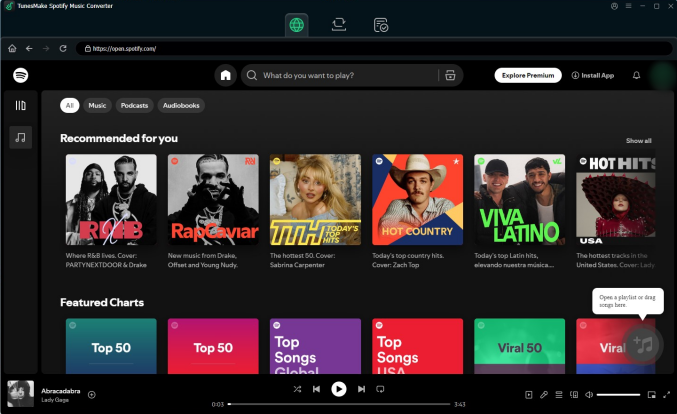
Launch TunesMake Spotify Music Converter, then it lets the built-in Spotify web player automatically load. Go to log into with your Spotify account and password. Then browse your library and select songs or playlists from Spotify to download and convert. You can directly click the + button to add them into the convert list.
Step 2 Preset the Output Parameters
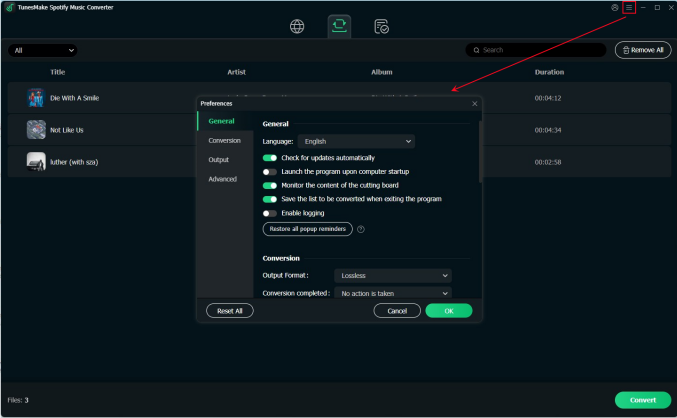
Ensure you have added all the Spotify songs you need, then head to the menu bar > Preferences > Conversion. In the settings windows, select the output format and change the parameters like the bit rate, sample rate, and channel. To get the Spotify Virtual DJ connection, you can keep the default MP3 format or change to WAV, AIFF, M4A, and FLAC.
Step 3 Download Spotify Music to MP3
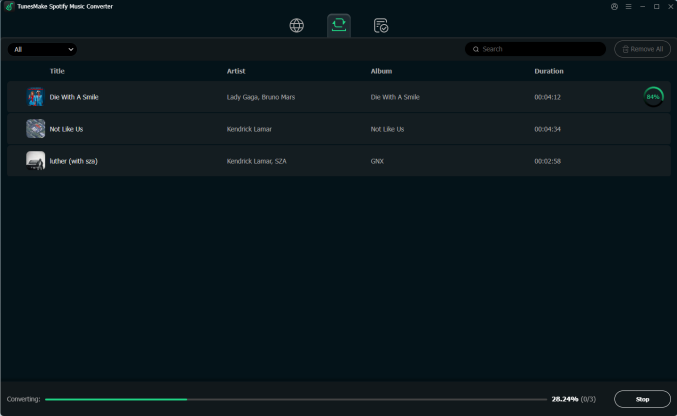
TunesMake software will then download and convert Spotify songs to your selected format by clicking the Convert button. When the conversion finishes, you can browse the converted Spotify music in the converted list by clicking the Converted icon. To better upload Spotify music into the DJ software, you're suggested to use the search icon to locate the converted folder.
Step 4 Transfer Music from Spotify to Virtual DJ
Now you have unlocked all your selected songs from Spotify. Then you can import Spotify music to Virtual DJ for remixing. It's easy to upload Spotify songs to Virtual DJ with the steps below. You can choose to sync Spotify music from iTunes to Virtual DJ.
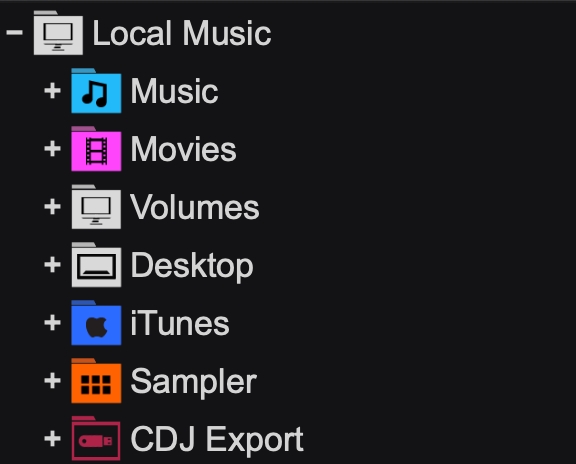
1. In iTunes, click File > New and select Playlist to create a playlist. Then drag the converted Spotify music files into the playlist.
2. Then click Edit > Preference to open the General Preferences window and switch to the Advanced tab.
3. In the Advanced Preferences window, select Share iTunes Library XML with other applications and click the OK button to save the settings.
4. Double-click the shortcut key of Virtual DJ to unleash the main screen, then head to the Local Folder menu in the left panel.
5. Click iTunes and find the playlist where you've uploaded Spotify music. Now you can play and mix Spotify music with numerous effects on Virtual DJ.
In the Local Music menu, you can find the Music directory or the Drives directory. Then you can locate the folder that contains Spotify MP3 files. In addition to the above way, you can directly drag and drop your converted Spotify songs to the DJ software.
Part 4. FAQ about Virtual DJ and Spotify
Can I use Spotify on Virtual DJ without an internet connection?
No. Direct Spotify streaming within Virtual DJ requires an active internet connection to authenticate and buffer audio tracks. For offline performances, you must use local audio files imported into Virtual DJ's local browser.
Is Spotify integration available on the free version of Virtual DJ?
Virtual DJ Free supports basic streaming features for home practice on a computer without hardware controllers. However, using advanced DJ controllers or performing commercially requires a Virtual DJ Pro or Pro Subscriber license.
Can you download music from Spotify to Virtual DJ?
No, you cannot directly download music from Spotify into Virtual DJ. Spotify have an official integration with Virtual DJ, but only for online streaming. Even if you have a Spotify Premium subscription that allows offline downloads within the official Spotify app, those downloaded files are encrypted and cannot be read by Virtual DJ offline. If you want to download tracks from your Spotify playlists in Virtual DJ, you can use TunesMake to batch convert Spotify playlists into unprotected audio formats.
Part 5. Conclusion
All in all, Virtual DJ software suits both beginners and professional users. It encompasses a plethora of controllers and phenomenal video-mixing features. But it's not easy for DJs to incorporate their favorite Spotify hits on Virtual DJ unless all the Spotify songs are converted to Virtual DJ supported formats. TunesMake Spotify Music Converter has what it takes to convert Spotify music for complete integration on Virtual DJ. Unleash every potential with this program and foreshow your DJing talent like never before.
Related Articles

A senior editor from TunesMake, dedicated to sharing professional tutorials and solutions of software, movies, and music.
- 1
- 2
- 3
- 4
- 5
- 6
- 7
 Leave Your Comment
(0)
Leave Your Comment
(0)

 Download Center

