








 Store
Store


Tidal is a renowned music streaming service offering an expansive catalog of millions of tracks across various genres. Known for its high-fidelity audio quality, it's a favorite among audiophiles and professional DJs. Meanwhile, Serato DJ remains one of the most trusted DJ platforms worldwide. Naturally, many users ask: Can you use Tidal with Serato DJ? If you are looking for the answer, you have come to the right place. In this complete guide, you can learn everything you need to know and ensure your transition from Tidal to the Serato decks is seamless. Furthermore, you can find helpful solutions when experiencing the Serato Tidal not working issue. Without further ado, let’s dive into the details.
Part 1. Can You Use Tidal with Serato DJ?
Yes, Serato DJ has an official integration with Tidal, but using Tidal with Serato DJ is not as straightforward as logging into your account. In recent years, the music industry has tightened the rules on how streaming content can be used in professional DJ software, leading to a more segmented subscription model. The standard Tidal plan is no longer enough for using Serato DJ. Here is what you need to meet if you use Tidal with Serato DJ.
The Mandatory Tidal DJ Extension
To use Tidal within any DJ software including Serato DJ Pro and Lite, you must have the DJ extension added to your subscription.
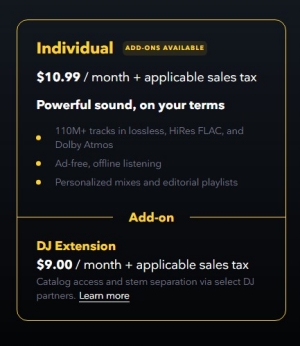
- Cost: Typically, you need to pay an additional $9.00 per month on the top of your basic subscription.
- Compatibility: This extension is available on Individual and Student plans but cannot be added to Family Plans.
- Billing Tip: If you pay through Apple or Google Pay, you must switch to direct billing on Tidal's website to enable the DJ extension.
The Required Software and Hardware
In addition to Tidal DJ Extension, you must ensure your software and hardware are correctly configured.
- Serato DJ Pro/Lite: Ensure you are using Serato DJ Lite 3.1 and later, or Serato DJ Pro 2.1 and later.
- Internet Connection: A stable connection is required for using Tidal with Serato DJ.
How to Use Tidal on Serato?
Once you meet these requirements, you can log into your Tidal account in Serato DJ to access your music library. But this method is only useful when there is an internet connection. When you don't have an internet connection, you can download Tidal tracks to local files and upload them to the DJ for mixing. Here are two primary methods to use Tidal music in Serato DJ.
| Online Streaming (Official) | Offline Export (Unlimited Workaround) | |
|---|---|---|
| Stability | Medium (Require stable Wi-Fi) | High (local files work offline) |
| Offline Playback | ❌ No | ✅ Yes |
| Audio quality | High (depends on connection) | Up to Lossless (User-defined) |
| Setup process | Simple and instant | Require pre-downloading |
| Recording | ❌ No (DRM restriction) | ✅ Yes |
Part 2. How to Use Tidal with Serato DJ Online
You can stream everything from the freshest underground sounds to certified classics directly in Serato DJ. Now, Serato DJ gives you access to the expansive catalog of music from many streaming services, and Tidal is one of them. As long as you meet the requirements mentioned above, you can connect your Tidal account to Serato DJ and mix your music online.
2.1 How to Connect Tidal to Serato DJ Lite/Pro
Step 1. Download and install Serato DJ Pro or Serato DJ Lite on your computer.
Step 2. Click on Settings and head to Library + Library > Music Streaming.
Step 3. Enable Show Streaming Services, then select Tidal under Show Streaming Service.

Step 4. Choose Sign up or Log In to Tidal by entering your Tidal account and password.
Step 5. Once logged in, select your Streaming Quality and close Settings. Then you can enjoy Tidal music.
2.2 How to Use Tidal with Searto DJ Lite/Pro
To make it more convenient to mix Tidal music, we have collected some helpful tips. You can read this section to learn how to use Tidal with Serato DJ better.
How to create a new Tidal playlist within Serato DJ
1. Go to the Serato DJ app on your desktop and sign in to your Tidal account to make a connection.
2. Once one, choose Tidal in the left bar. Then, click the New Streaming Playlist button to create a new Tidal playlist.
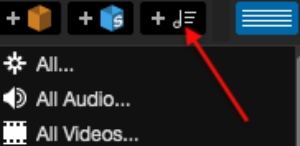
3. Once done, you can add files to the playlist by dropping and dragging.
How to search for Tidal music in Serato DJ
1. Open the Serato DJ app and make sure that you have connected to a stable and fast network.
2. Then, you can see the Streaming Search button which is located next to the search box,

3. Click the Streaming Search button and then the search focus will change to the ALL crate. Now, you can search for streaming and non-streaming tracks.
How to analyze Tidal tracks in Serato DJ
You just need to drag and drop a streaming track to the Serato deck, and then the entire audio stream will be downloaded. When the downloading process is finished, Serato DJ will analyze the file and provide you with track information, waveform overview, Key, ect automatically.
How to record on Serato Pro DJ with Tidal
No, you cannot record your sets and mixes using Tidal tracks in Serato DJ Pro due to Tidal’s licensing restrictions. According to Tidal’s official policies and terms, recording is disabled when streaming songs are used. If recording is essential for your workflow, you will need a workaround - removing the protection on Tidal songs and converting them to local files. You can head to the next part for more detailed information.
Part 3. How to Use Tidal with Serato DJ Offline
Tidal and Serato DJ bring you the ultimate mixing experience with over 90 million tracks and high-fidelity audio. With a paid subscription and a DJ add-on to Tidal, you can access a series of playlists and tracks from Tidal in this DJ software. However, for professional DJs, the biggest drawback of this method is that it only supports online streaming, which is a dealbreaker.
Relying on public Wi-Fi is not a good choice. Plus, many DJs want to record their mixes. In this case, the streaming method simply won’t work. That’s why we recommend using an alternative way to use Tidal with Serato DJ. The offline method - converting Tidal tracks to local files first, and then importing them to Serato DJ for unlimited offline use.
3.1 Workaround for Serato DJ Tidal Offline
Since Tidal doesn’t support offline use in Serato DJ directly, you will need a third-party tool to get Tidal as local files. The TunesMake Tidal Music Converter is the gold standard.
| Official Tidal Streaming in Serato DJ (Online) | TunesMake + Serato DJ (Offline) | |
|---|---|---|
| Serato Software | Serato DJ Pro 2.1 or later/Lite 1.1 or later | All versions |
| Requirements | Tidal Individual/Student + DJ extension | Any Tidal plan |
| Internet Dependency | Active Wi-Fi/data | None (play local files) |
| Recording feature | Blocked (due to DRM protection) | Fully Enabled |
| Audio Format | Encrypted AAC/FLAC | Local MP3, FLAC, WAV, M4A, AIFF |
TunesMake Tidal Music Converter is a powerful music downloader designed for all Tidal users. It can help you download songs, albums, and playlists to local files. Depending on your own demands, you can choose the output formats from MP3, M4A, M4B, WAV, FLAC, and AIFF. Just choose a format that is Serato-supported, such as MP3, FLAC, WAV, M4A, and AIFF, and then it’s a piece of cake to import the local Tidal song to Serato DJ for blending and mixing freely. Furthermore, the TunesMake tool smartly keeps the high-fidelity audio quality and ID3 tags to ensure your music experience.

TunesMake Tidal Music Converter –
Best Tidal to Serato DJ Downloader
- Download any Tidal content, including songs, albums, playlists, and artists
- Convert Tidal music to MP3, FLAC, AIFF, WAV, M4A, and M4B
- Preserve a whole set of ID3 tag information in the downloaded Tidal songs
- Handle the conversion of Tidal music up to 22X faster speed and in batch
Security Verified. 100% Clean & Safe.
3.2 How to Download Tidal Tracks for Serato DJ
First of all, you should choose the right version of the TunesMake Tidal Music Converter that is compatible with the operating system of your device, and then install it on your desktop. Then, follow the steps below to save Tidal music as local files and upload them to Serato DJ.
Step 1
Import Tidal Music to the Converter

First up is to open TunesMake Tidal Music Converter on your computer, then it will load the Tidal web player immediately. In My Collection of Tidal, find any playlist you want to download for use in the DJ software. Then, click the Add icon at the bottom and select Add to List so that you can load all of them to TunesMake successfully.
Step 2
Configure the Output Audio Parameters

After adding Tidal music to the conversion list, you need to set the audio preferences for Tidal music. Go to the menu bar, select the Preferences > Conversion option, and then you can select MP3 or other compatible format as the output format in the pop-up window. Here you can also change the bit rate, sample rate, and channel.
Step 3
Download and Convert Tidal to MP3

To initiate the conversion of Tidal music, you simply click the Convert button at the bottom right of the converter. Then, TunesMake Tidal Music Converter will save Tidal songs to unprotected audio files. You can view the converted Tidal songs within this tool by clicking the Converted icon. If you want to find their original audio files, just click the little file icon next to each song.
Step 4
Upload Tidal Music into DJ Software
Now all the Tidal songs have been converted into a playable format. You can freely add Tidal music to the DJ software for mixing even when you don’t have an Internet connection. The easiest way to load Tidal music from your computer into your library is by using the Files button on the Serato DJ app.
1. Locate the File button on the right side and click it to open the files panel.
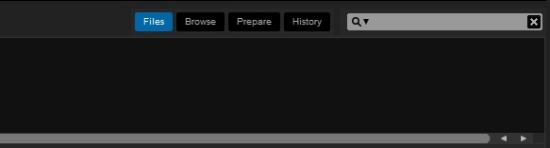
2. Once done, you can see the various locations on your computer’s hard drive on the left side of this window. Find the folder that contains your local Tidal songs.
3. Then, you can add a new Crates by clicking the add icon that is located to the left of your screen.
4. Next, drag and drop the folder or files to your new Crates. This will import any compatible file in this folder form your hard drive into your Serato DJ Pro library.
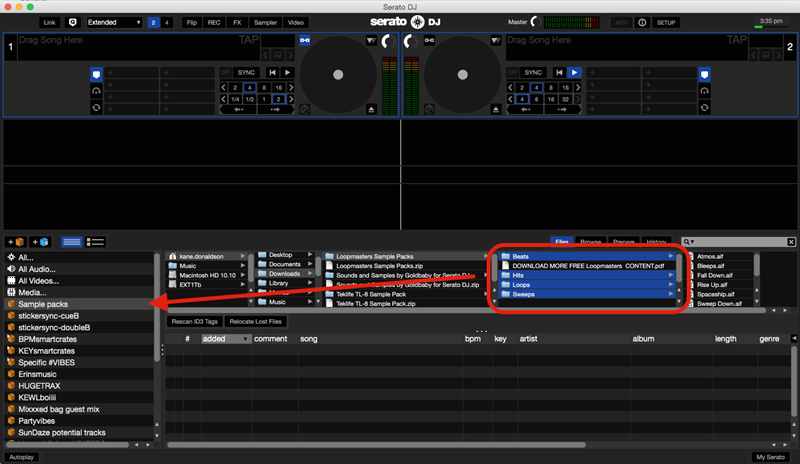
5. You can also import Tidal local files directly from Windows Explorer or Finder into the Serato DJ Pro library. Just drop them on any deck, and they will be added to your library automatically.
Part 4. How to Fix Serato Tidal Not Working
Although everything is set up correctly, issues can still occur. If you are facing the Serato DJ Tidal not working issue, here are some helpful solutions.
Error 1. Streaming Server Couldn't Reached

Streaming server could not be reached ..... I get this error when I try to play certain songs: "streaming server could not be reached, please eject and load again". Does anyone know how to get pass this and actually play the songs?
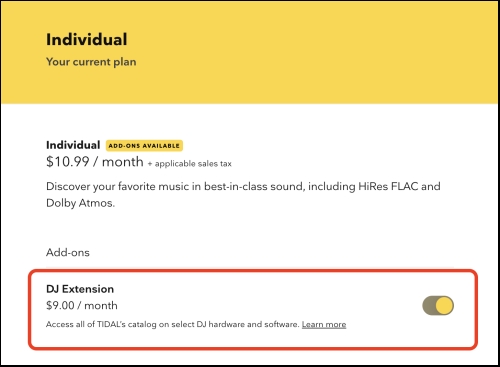
-- User from RedditWhen you receive this error message, the most common reason is that you only have the base Tidal subscription plan without the DJ extension add-on. Check the list below to solve this issue:
1. Ensure that your Individual Tidal subscription has the DJ extension add-on enabled.
2. Update your Serato DJ software to the latest version.
3. If the issue persists, you’d better check your Internet connection, ensuring it is stable.
Error 2. Tidal Playlist Not Syncing on Serato
Tidal Playlists not showing all tracks in Serato. Hello, I have many Tidal playlists that are not loading the entire playlists in Serato. For example I have a playlist of over 4000 tracks and only 30 tracks or so load/show. The Tidal app and web player loads and plays all 4000 tracks. Any ideas?
-- User from RedditAnother common issue that many users have complained about is that the songs they added to Tidal playlists don’t show up in Serato. This can be caused by sync delay or account authorization errors. Simply try these tips:
1. Log out of your Tidal account on Serato and log back in.
2. Right-click the Tidal folder in Serato and select Refresh.
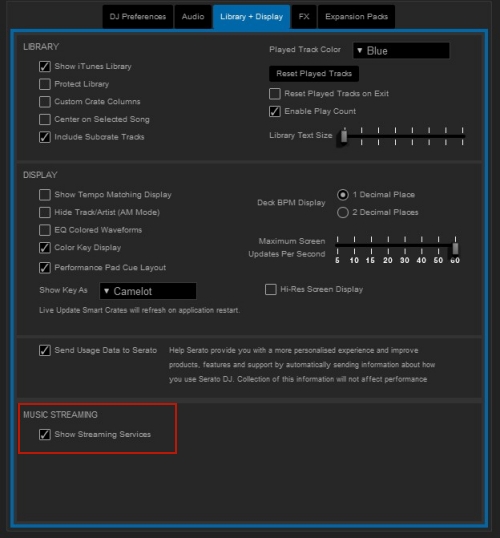
3. Re-enable the Show Streaming Services option. Head to Settings on Serato, and then choose Library + Display. Toggle off Show Streaming Services under the Music Streaming section. Next, restart Serato and re-enable the feature again.
Part 5. Conclusion
And voila! That’s all! If you are looking to use Tidal with Serato DJ, simply follow the above steps. With an active paid subscription to Tidal, you can connect Tidal to Serato DJ for use. Or you can download Tidal music to MP3 or other playable formats by using TunesMake Tidal Music Converter so that you can mix your Tidal tracks on Serato DJ offline without limits.
Related Articles

A senior editor from TunesMake, dedicated to sharing professional tutorials and solutions of software, movies, and music.
- 1
- 2
- 3
- 4
- 5
- 6
- 7
 Leave Your Comment
(0)
Leave Your Comment
(0)

 Download Center

