









 Store
Store


Tidal has been endorsed by millions of music lovers, especially audiophiles. The sound quality of Tidal is top-notch among other streaming music services, which is a pretty good competitive edge. For any music lover, there is nothing quite as frustrating as a buffering screen during your favorite track or being stuck on a long flight without a signal.
Fortunately, Tidal offers a robust offline mode feature, though it comes with specific limitations you need to know about. One is that a Tidal premium subscription is indispensable for downloading Tidal music, the other is that the offline feature is not available for desktop apps. No matter, in this guide, we will walk you through the official methods to download Tidal music on mobile and introduce several ways to help you download music from Tidal to computer.
Part 1. Can You Download Music from Tidal?
Yes, you can download music from Tidal, but the process depends entirely on the device you are using. As of now, Tidal's official "Offline Mode" is strictly reserved for mobile devices. This means that you can only download music from Tidal to a phone. But there is still a workaround to download Tidal music to a computer, even though you don't have a Premium account.
To download music from Tidal to a computer, you can use a professional Tidal music downloader like TunesMake Tidal Music Converter. This works for both Free and Premium users to download Tidal music for offline listening. Besides, some third-party tools from unknown resources can be helpful, but the security cannot be guaranteed. Following is a comparison of official Tidal music download and third-party Tidal music download.
| Feature | Official App | TunesMake | Third-Party Tools |
|---|---|---|---|
| Primary Device | iOS & Android | Windows & macOS | Windows, macOS, iOS, Android |
| File Location | Encrypted App Cache | Local Folder | Local Folder |
| Offline | Requires Tidal App | Any Media Player or Device | Any Media Player or Device |
| Audio Quality | Up to HiRes FLAC | Up to HiRes FLAC | Up to 320kbps MP3 |
| Sustainability | Files lost if subscription ends | Files remain on hard drive | Files remain on hard drive |
| Device Security | High | High | Low |
Part 2. How to Download Music from Tidal to Phone
The official way to download music from Tidal to a phone is via the mobile app. This feature is available to all paid subscribers, including Individual, Family, and Student Plans
Step 1 Set Your Download Quality
While audiophiles crave the Max setting, it isn't always practical for every scenario. Knowing the storage impact is vital for managing large libraries. Before you start downloading, ensure you aren't eating up your phone's storage unnecessarily.
| Quality Level | Format | Resolution | Average Size |
|---|---|---|---|
| Low | AAC | 96kbps | 3 MB |
| High | FLAC | 16-bit / 44.1 kHz | 30 MB |
| Max | HiRes FLAC | Up to 24-bit / 192 kHz | 150 MB+ |
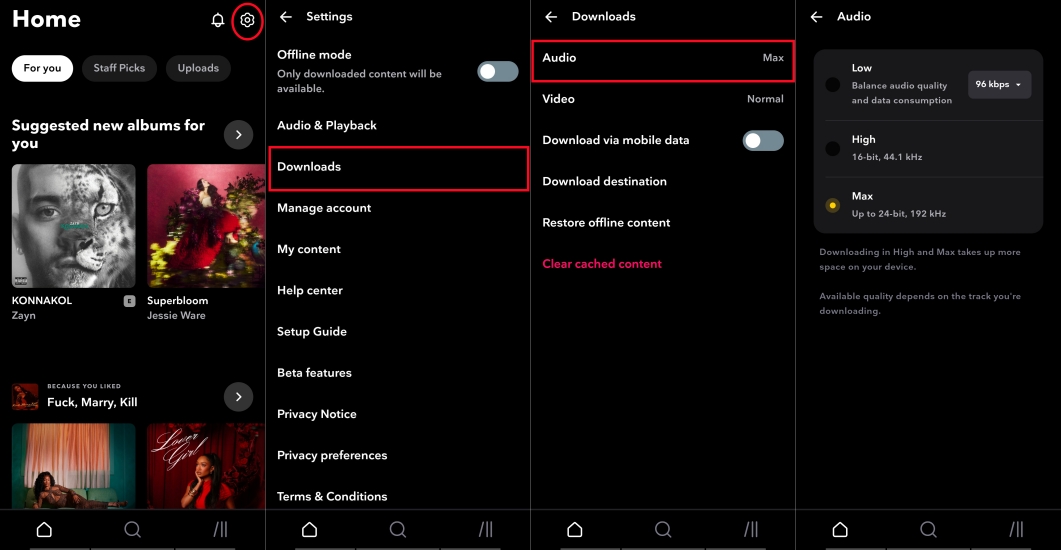
1) Open the Tidal app and tap on Settings (the gear icon).
2) Select Downloads > Audio and choose your Audio Quality.
Step 2 Download Albums and Playlists
To download music, make sure that you have an active Tidal premium account. Then you will have the ability to download music in the Tidal app. Follow the steps below to start downloading music on your iPhone or Android phone.
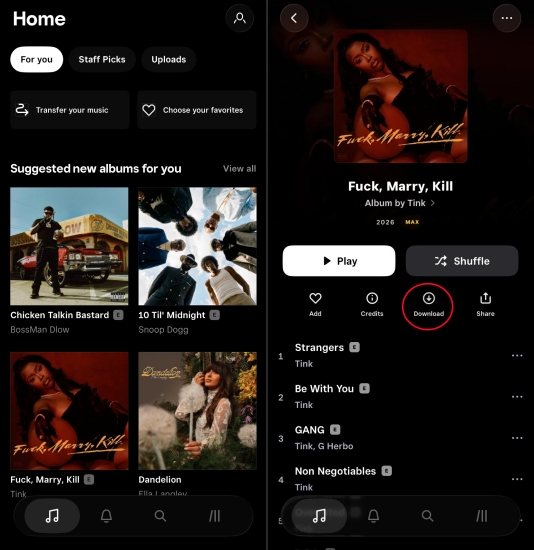
1) Navigate to the album or playlist you want to save in the Tidal app.
2) Look for the Download toggle (a downward arrow) and tap it.
Once the arrow turns solid or the progress bar finishes, your music is ready for offline use. To listen without using any data, go to Settings and toggle on Offline Mode. This ensures the app only pulls from your downloaded library.
How to save Tidal music to an SD card (Android exclusive):
If your internal phone storage is getting full, Android users have the ability to save downloads directly to an external Memory Card. But you have to set the download location before starting.
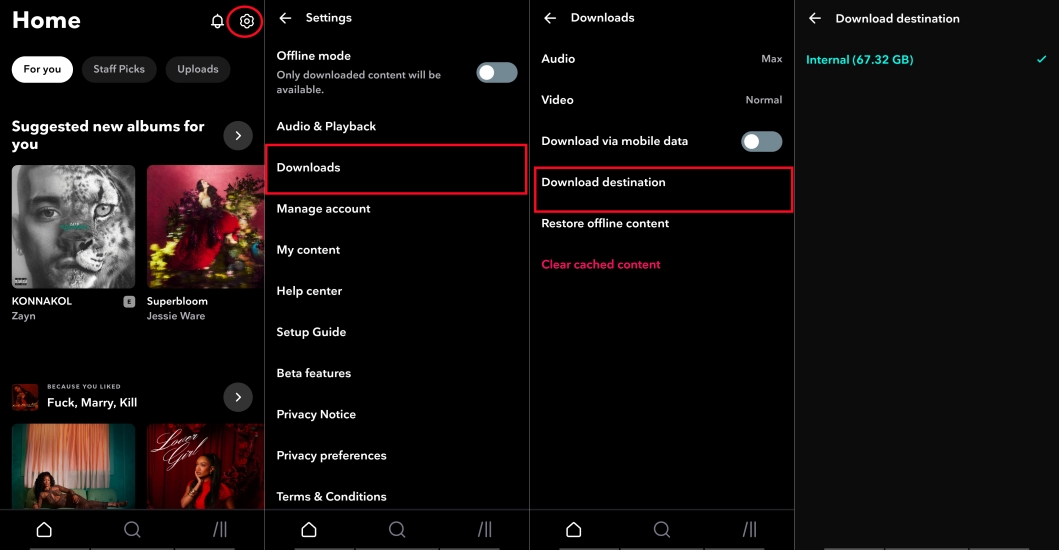
1) Go to Settings in the Tidal app and tap Download.
2) Scroll down to Downloaded Destination and select Memory Card.
Part 3. How to Download Music from Tidal to Computer
Since the official Tidal desktop app does not support native downloads for offline use, users who prefer listening on their computers often utilize dedicated music downloading tools. These tools bridge the gap by allowing you to save your Tidal music library directly to your local drive. Here we would recommend TunesMake Tidal Music Converter to you. Whether you are a Free or Premium user, TunesMake Tidal Music Converter can help you download any song, album, playlist, artist, and audiobook from Tidal.
TunesMake Tidal Music Converter is a popular choice for all Tidal users who need to bypass the mobile-only restriction of Tidal's offline mode. It functions by accessing the Tidal web player to export tracks into standard, playable formats like MP3 or FLAC. Most importantly, the tool can maintain the integrity of the original stream, supporting the preservation of HiFi and HiRes FLAC quality settings. And another key benefit is that it keeps the ID3 tags intact, ensuring your local music folder remains organized.
TunesMake Tidal Music Converter –
Download Tidal music to computer without Premium
- Download songs, albums, playlists, and artists from Tidal without premium
- Convert Tidal music to MP3, FLAC, WAV, AIFF, M4A, and M4B losslessly
- Handle the conversion of Tidal music up to 25× faster speed and in batch
- Save a whole set of ID3 tags during the conversion process automatically
- Preserve the original audio quality up to HiRes FLAC or 320kbps MP3
Security Verified. 100% Clean & Safe.
Step 1 Select and Add Tidal Songs to TunesMake

Once the TunesMake tool is installed, you can double-click its icon to launch it. In its interface, you will be navigated to the official Tidal web player. Here you need to sign in to your Tidal account. After that, you can find the Tidal playlists or albums you want to download. Then, click the download icon in the lower right corner and you can add them to TunesMake by clicking Add to List. Alternatively, you can drag and drop a song to the download icon directly.
Step 2Tune the Output Parameters for Tidal

Now, click the menu icon in the upper right corner and select the Preferences option. On the new pop-up window, select the Convert tab. From here, the output format and some parameters including bit rate, sample rate, and channel are available. Generally, users set the default MP3 format. If you pursue uncompressed audio quality, change to FLAC. Then don’t forget to click OK to save your settings.
Step 3 Download Tidal without Premium

Hover your cursor and hit on the Convert button at the bottom right corner, and TunesMake will download Tidal music free at a 22x faster speed. After conversion, all the Tidal songs will be saved to your computer locally. You can navigate to the Converted list to browse all your converted songs. You can directly click it to enjoy it offline within the converter or transfer it from your computer to other players and devices for offline playback.
Part 4. How to Get Tidal Music Download (Free But Not Safe)
While the official method and professional music downloaders like TunesMake Tidal Music Converter are best for most users, advanced users and audiophiles often look toward free community-driven tools to download Tidal music for backup or use on non-supported devices. Here's how to download music from Tidal for free with some third-party tools.
No.1 Telegram Tidal Bots
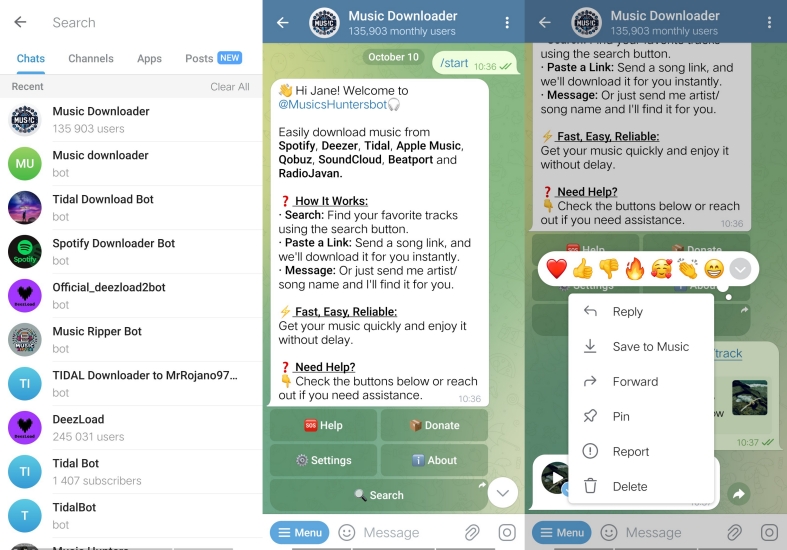
Telegram bots are the most accessible option for quick downloads without installing specialized software. As automated programs, Telegram Tidal bots like @MusicsHunterbot and @JioDLBot interact with Tidal's API to fetch music files directly within the Telegram interface. Unlike the official Tidal app, which encrypts files as cache, these bots deliver actual MP3 or FLAC files that you can save to your phone's local storage, share with others, or play on any media player.
Step 1. Launch the Tidal app and find any song, album, or playlist to download.
Step 2. Tap the Share button and select Copy link to get a shareable Tidal music link.
Step 3. Open the Telegram app and search a Tidal downloader bot like @MusicsHunterbot.
Step 4. In the chat, send /Start to start a conversion, then paste the copied music link.
Step 5. Wait the bot to analyze the music link and tap the Download option to save the music.
😀 Pros
- No need to install specialized software
- Simple to download music with a link
- Available for both phones and computers
☹️ Cons
- Fail to downloads or time out
- Lower audio quality
- Telegram account risk
- No update support
No.2 GitHub Tidal Media Downloader
GitHub Tidal Media Downloader commonly referred to as Tidal-DL or Tidal-GUI is the most established open-source project for users who want to bypass the streaming-only limitations of the Tidal desktop experience. Tidal-DL is a CLI tool compatible with Windows, macOS, Linux, and even Android, while Tidal-GUI is a graphical version for Windows users. With the two tools, users can download Tidal music to HiRes FLAC and 320kbps MP3 with a paid Tidal subscription.
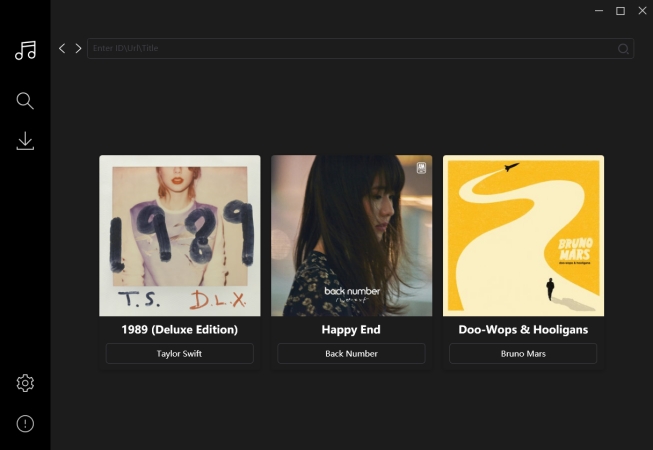
Step 1. Install Tidal-DL and run it, then configure the download preferences.
Step 2. Enter your Tidal account credentials to log into.
Step 3. Run the command tidal-dl [URL] and enter the Tidal music link.
Step 4. Click the Download button to start downloading the music.
😀 Pros
- Completely free for use
- Download music in high quality
- Highly customizable to download music
☹️ Cons
- Stop working or downloading suddenly
- A bit complicate to set up
- Audio quality depending on the subscription
- Fail to download entire albums or playlists sometimes
No.3 Streamrip
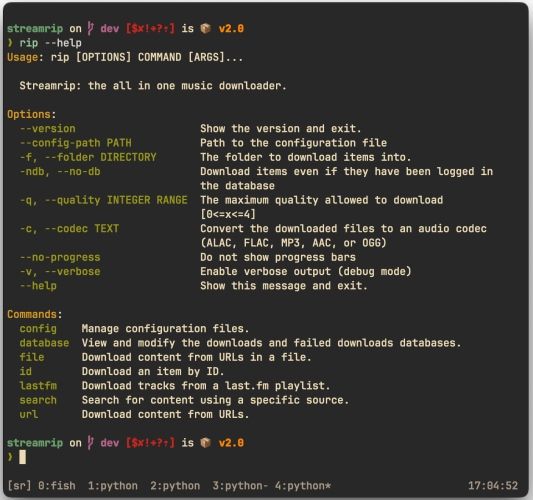
Streamrip is a high-performance, open-source command-line utility designed for audiophiles who want to maintain bit-perfect local music archives. It natively supports ripping music from Tidal, Qobuz, Deezer, and SoundCloud to HiRes FLAC or 128kbps MP3 files. But Streamrip operates by interfacing directly with the APIs of high-fidelity streaming platforms. To unlock its full potential, you typically need a premium subscription to the service you are downloading from.
Step 1. Install Python and pip, then install ffmpeg.
Step 2. Run the Command Prompt and enter pip install streamrip --upgrade.
Step 3. Log into tidal.com in a browser and load Developer Tools by pressing F12.
Step 4. Go to Application > Cookies and copy the value of the arl cookie.
Step 5. Open the config file in the terminal and enter rip config open.
Step 6. Click the tidal section and paste the copied ARL.
Step 7. Enter rip --codec mp3 url [Tidal_Link] to download and save music files.
😀 Pros
- Support up to 24-bit/192kHz
- Extremely fast to download music
- Free of ads or tracking
☹️ Cons
- Need a paid account for the best quality
- Require manual installation or Python and FFmpeg
- Need to update the script frequently
- A bit complicated for newbies to set up
No.4 DoubleDouble
DoubleDouble is a popular web-based utility designed for ripping music from various streaming services, including Amazon Music, SoundCloud, Qobuz, Deezer, and Tidal. It allows users to download in 16-bit or 24-bit FLAC and preserve full ID3 tags like the artist name, album title, and high-resolution cover art. Without installing any specialized software, users can paste a single URL for an entire album or playlist into the search bar on the website for a batch download.

Step 1. Navigate to the Tidal web player or open the Tidal app on a computer.
Step 2. Select an album or playlist to download, then get the music link.
Step 3. Open DoubleDouble in the browser and paste the copied music link.
Step 4. Click the Download button to save your wanted Tidal music tracks.
😀 Pros
- Run entirely in a web browser
- Not require a personal subscription
- Faster than local recording
☹️ Cons
- Frequently go down or change domain
- Fail to download large albums or playlist
- Contain intrusive ads or redirects
- Unable to match the correct music
No.5 Lucida
Lucida is a widely used web-based music downloader that has gained a reputation as one of the most versatile and user-friendly rippers available. It allows users to pull audio from a massive range of streaming services, including Tidal, Qobuz, Deezer, SoundCloud, Amazon Music, and Yandex Music. Without logging in or providing your personal streaming credentials, you can directly download music from Tidal to MP3 with the ID3 tags kept by pasting the music link.
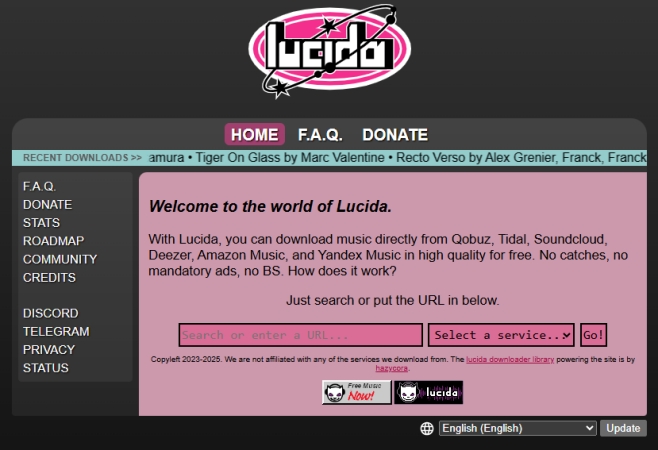
Step 1. In the Tidal app or web player, select a music track or album to download.
Step 2. Get the music link and navigate to the website of Lucida.
Step 3. Paste the copied music link into the search bar and click the Go button.
Step 4. Click the Download track button to save the music files.
😀 Pros
- Support almost all major streaming links
- Fetch 24-bit/192kHz audio where available
- No software installation required
☹️ Cons
- Change domains or go offline unexpectedly
- Exist potential redirects or pop-ups
- Not support downloading entire playlists
- Fail to match the corresponding music resource
Part 5. FAQs about Tidal Download Music
Can I download music from Tidal to my computer?
Officially, no. Tidal's Offline Mode is strictly for mobile devices. While you can stream music through the Tidal desktop app or web player, there is no official way to download those files directly to a computer for offline playback. But tools like TunesMake Tidal Music Converter can help to download Tidal music on a computer for listening anytime.
How to download music from Tidal for free?
There is no official free download method, but there are two common workarounds. One is that you can use a professional music downloader like TunesMake Tidal Music Converter to download Tidal music on your computer. The other is to choose some open-source tools like GitHub Tidal Media Downloader to fetch tracks.
How to download music from Tidal to iTunes?
Since Tidal files are encrypted, you cannot simply drag them into iTunes. To get your Tidal music into your iTunes library, you must first convert Tidal music into a DRM-free format like MP3 or FLAC using third-party tools like TunesMake. Once you have the Tidal MP3 files on your computer, open iTunes and go to File > Add File to Library to import them.
Can you download Tidal music to USB?
Not directly through the Tidal app, because the files downloaded from the Tidal app are encrypted, you cannot just move them to a USB stick and play them elsewhere. You can use TunesMake Tidal Music Converter to save Tidal songs as standard MP3 or FLAC files on your computer. Once the songs are saved as regular files, you can plug in your USB drive and simply drag and drop the files onto it.
Part 6. Conclusion
Downloading Tidal music is the best way to enjoy high-fidelity audio without the constraints of a stable internet connection. Mobile users can enjoy the full power of HiRes FLAC with just a few taps. While desktop users are unable to access the offline mode feature, there are some other solutions to get Tidal music download. With such a tool like TunesMake Tidal Music Converter, you can download music from Tidal to a computer and listen to all your liked songs offline without limitations. Have a try now, and you'll find it out!
Related Articles


A senior editor from TunesMake, dedicated to sharing professional tutorials and solutions of software, movies, and music.
- 1
- 2
- 3
- 4
- 5
- 6
- 7
 Leave Your Comment
(0)
Leave Your Comment
(0)

 Download Center

