








 Store
Store


Tidal remains unbeatable in terms of sound quality. Based on your connection, you can listen to Tidal online or offline on the fly. Streaming can be demanding on the internet connection and an intermittent network can disrupt the flow of your favorite song. But with the help of mobile data, the Tidal streaming goes smoothly. Ever wonder just how much data does Tidal use? Here’s the good news: we’ll provide you with authoritative figures for Tidal data usage. Just go ahead!

Part 1. How Much Data Does Tidal Use
Every streaming app uses variable bitrate streaming to deliver different tiers of quality. As you may know, the better the streaming quality, the bitrate is higher which determines the amount of data Tidal burns. Especially for Tidal, it is well-known for its best-in-class sound, so it is necessary that it costs more data than other streaming services. Because of this, Tidal also takes up more space than you think.
| Low | High | Master | |
|---|---|---|---|
| Bitrate | 320kbps | 1411kbps | 9216kbps |
| Data Usage Per Minute | 1.2MB | 10MB | 20MB |
Note
The specific Tidal data usage varies based on the exact sample rate. And every time you browse content on Tidal will consume mobile data.
Part 2. How to Reduce Tidal Data Usage
Are you running up against your monthly data allotment? There are essentially three ways to use less data while streaming your favorite tunes on Tidal.
Tip 1. Change the Streaming Quality
Users can directly control the data usage by adjusting the streaming quality settings on Tidal. Tidal master data usage is too heavy, so we don’t recommend listening to MQA on Tidal under cellular data.
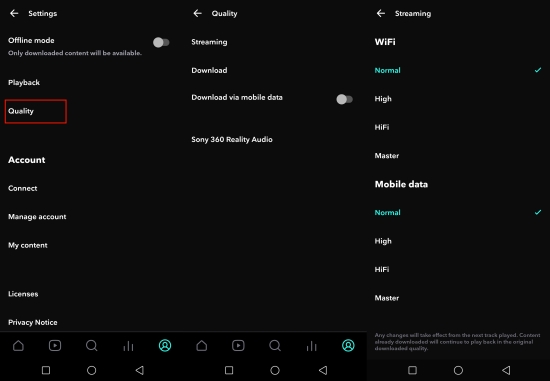
Step 1. Open the Tidal app and navigate to Settings from the top right corner.
Step 2. Tap Quality > Streaming.
Step 3. Check the Normal option under Mobile data.
Tip 2. Utilize the Offline Mode
Thanks to the Tidal Offline Mode, you can listen to Tidal even without a wireless connection. If you have a valid subscription, you can follow the steps below to download your Tidal songs for offline playback. However, you should note that Offline Note may still eat up mobile data in the background. Hence, we suggest you disable the cellular data on your device when you enable the Offline Mode.
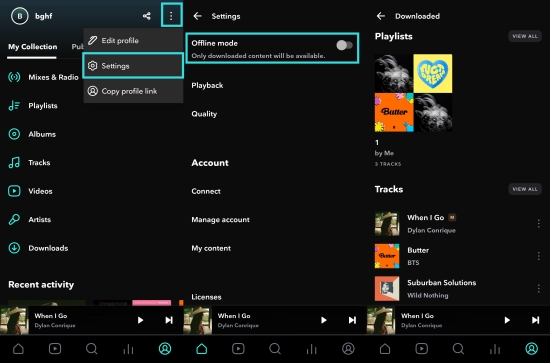
Step 1. On the Tidal app, tap the cog icon in the upper right corner to go to Settings.
Step 2. Toggle the Offline mode switcher and you will be led to the downloaded content to start your offline listening.
Step 3. Then, don’t forget to turn off the cellular data to restrict the Tidal data usage.
Tip 3. Stream Tidal Only on WiFi
To stop Tidal from using your mobile data, the easiest way is to disable Tidal data usage with Settings. With a WiFi connection, you can freely do most data-heavy things without worrying about data usage.
Step 1. Head to the Settings app on your Android or iPhone.
Step 2. Find and tap on Tidal from the apps list.
Step 3. Select Wireless Data and choose WLAN. When you do so, online content on Tidal is not available when you use mobile data.
Part 3. How to Listen to Tidal without Using Data
For audiophiles who prefer high-fidelity music streaming, Tidal consumes too much data. The best method to save your data is to download your Tidal playlists and listen to them offline. However, there is a huge limit - all the downloaded songs can be played within the Tidal app. Besides, these downloads will become inaccessible once your subscription ends. If you want to keep your Tidal downloads forever and listen to them offline anywhere you want, your option should be the TunesMake Tidal Music Converter.
TunesMake Tidal Music Converter is a professional music downloader designed for all Tidal users. Its advanced technology can help you download songs, playlists, albums, and podcasts from Tidal to local audio files. On the basis of your demands, you can set the audio output formats as MP3, M4A, M4B, WAV, FLAC, or AIFF. After that, you can directly listen to them on other devices or media players without using any data. The best thing is that the TunesMake program smartly keeps the original sound quality and ID3 tags of your Tidal tracks, so you don’t need to worry about your offline listening experience.

TunesMake Tidal Music Converter –
Download and Convert Tidal Music to MP3
- Download any Tidal content, including songs, albums, playlists, and artists
- Download Tidal music to FLAC, MP3, AIFF, WAV, M4A, and M4B
- Preserve a whole set of ID3 tag information in the downloaded Tidal songs
- Handle the conversion of Tidal music up to 22X faster speed and in batch
Security Verified. 100% Clean & Safe.
Now, connect a strong WiFi to install TunesMake Tidal Music Converter. Then let’s see how to download Tidal songs for listening without data usage.
Step 1
Input Tidal Music into TunesMake

Install the TunesMake Tidal Music Converter on your computer via the Free Download button above. Then, launch it, and it will open the Tidal web player for a connection. Now, you can find what you want to download on the Tidal library. Simply select the target playlist or album, and then click the lower Add icon > Add to List to load all songs to the conversion list.
Step 2
Configure the Output Preferences

Once the track or playlist is added to the converter, click the hamburger button in the upper right corner and select Preferences. On the new window, go to Conversion where you can change the output format, channel, sample rate, and bit rate. Just keep the default MP3 format which is best for listening to Tidal without consuming data.
Step 3
Download Tidal Music Losslessly

Back to the main interface of TunesMake Tidal Music Converter and click the Convert button. TunesMake will finish the conversion at a 22x faster speed. Once the conversion is done, go to the Converted list by clicking its icon at the top to view all downloaded songs. If you want to locate them in the local folder on your computer, click the folder icon next to each song.
On your computer, just double-click any track to play it with the built-in media player. On your phone, with a USB cable, transfer downloaded songs first and then play them within the file app or any player you prefer. Even if there is no connection, songs are available to play without using data.
Conclusion
Does Tidal use data? Positive. Every streaming activity online needs either WiFi or mobile data to work properly. Thus, it is important to pay attention to the Tidal data usage, especially when you do not have unlimited data plans. To minimize Tidal data usage, feel free to take the above tips. The best way to play Tidal without using data is to get Tidal local files listening with TunesMake Tidal Music Converter.
Related Articles


An experienced freelance writer at TunesMake, specializes in using various streaming services from Spotify, Apple Music, to Amazon Music, and more other platforms.
- 1
- 2
- 3
- 4
- 5
- 6
- 7
 Leave Your Comment
(0)
Leave Your Comment
(0)

 Download Center

