









 Store
Store


There is nothing more frustrating than cueing up your favorite playlist, putting your phone in your pocket, and having the music abruptly cut out. If Tidal stops playing when the screen is off, you are not alone. This is a common issue that plagues both iPhone and Android users.
Because Tidal streams massive, uncompressed audio files, especially if you listen in HiFi or Max quality, it requires a constant, uninterrupted stream of background data and processing power. When your phone locks, its operating system tries to save battery by putting idle apps to sleep. If your settings aren't perfectly optimized, your phone mistakes Tidal for an idle app. Fortunately, this is entirely fixable. Here is how to stop Tidal from pausing when your phone locks.
Part 1. Why Does Tidal Stop Playing When Phone Locks?
If Tidal stops playing when your phone's screen is off, it can be for a number of reasons. Following are possible reasons for consideration. Before fixing the issue, figure out the reason first.
Cause 1: Aggressive Battery Optimization & Power Saving
The most common reason Tidal stops playing when the screen is off is system-level power management. Both iOS and Android feature automated battery savers that mistake a backgrounded music player for an idle, resource-draining app.
Cause 2: Background Data Restrictions on High-Fidelity Audio
Streaming high-resolution audio requires a continuous, heavy stream of data. If your phone restricts network data usage the moment your screen goes dark, Tidal's buffer will run out within seconds, causing the track to pause or crash.
Cause 3: Corrupted App Cache or Session Conflicts
If your system settings are perfectly configured but Tidal still pauses when the phone locks, the breakdown is likely happening within the app itself or via your account status.
Part 2. How to Fix Tidal Stops Playing When Screen Is Off
Before changing your phone's deep system settings, rule out external network or account conflicts that cause background playback to fail. Then try the solutions one by one to fix the issue on an iPhone or Android phone.
-
Tidal enforces a strict one active stream per account policy for standard plans. If you leave Tidal playing on another device, starting a playback session on your phone will cause a conflict. Ensure you log out of secondary devices before listening on the go.
-
Streaming massive FLAC or Master-quality files demands a robust connection. If you enter an area with poor cellular service and lock your phone, Tidal's background buffer will run out. If necessary, change another cellular data to enable smooth listening when the screen is off.
Fixes to Tidal Stops Playing When Screen Is Off iPhone
If you are an iPhone user, aggressive background management or a stuck iOS power-saving loop is usually the culprit when Tidal pauses when the phone locks.
Solution 1. Re-enable Background App Refresh
iOS has a feature called Background App Refresh that allows apps to check for data even when minimized. However, iOS updates can sometimes cause this setting to become stuck for Tidal, ignoring your preferences.
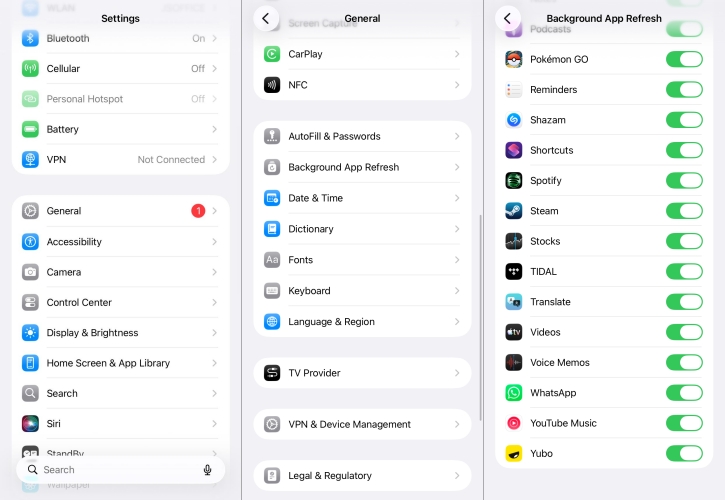
Step 1. Go to Settings > General > Background App Refresh.
Step 2. Toggle Background App Refresh Off, wait five seconds, and toggle it back On.
Step 3. Scroll down the app list on that same screen and find Tidal.
Step 4. Toggle on the switch next to Tidal, then relaunch Tidal.
Solution 2. Disable Low Power Mode Restraints
When your iPhone drops below 20% battery, or if you manually enable it, Low Power Mode severely restricts background processes. Even if you plug your phone back in, Tidal can sometimes remain throttled until a hard manual reset occurs.
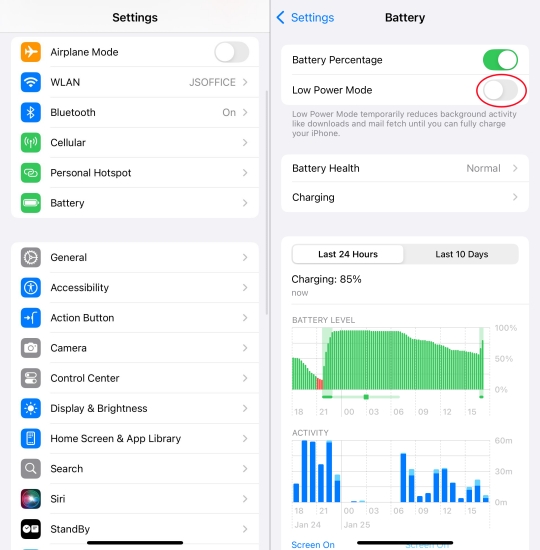
Step 1. Open Settings > Battery.
Step 2. Toggle Low Power Mode to Off.
Fixes to Tidal Stops Playing When Screen Is Off Android
Android operating systems including Samsung One UI and Google Pixel UI feature incredibly aggressive optimization algorithms designed to freeze background apps to preserve battery life.
Solution 1. Change Battery Settings to Unrestricted
By default, Android sets apps to Optimized. This means the phone decides when an app has been running in the background too long and shuts it down. We need to grant Tidal total freedom, enabling to play music when the screen is dark.
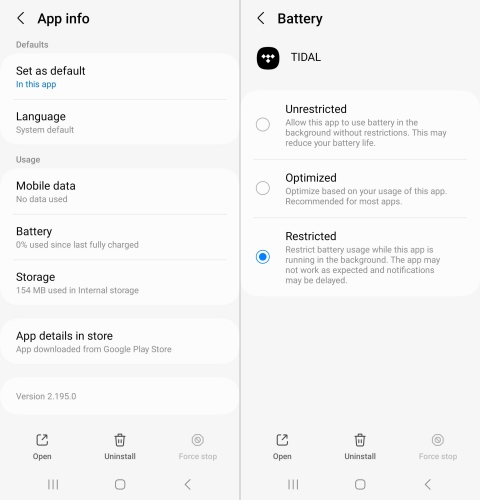
Step 1. Long-press the Tidal app icon on your home screen and tap the "i" (App Info) icon.
Step 2. Scroll down and tap on Battery or Battery usage.
Step 3. Change the setting from Optimized to Unrestricted.
Solution 2. Allow Unrestricted Background Data
Because Tidal's Max quality audio uses substantial bandwidth, Android's built-in Data Saver will kill the stream the millisecond your screen turns off if background permissions aren't explicitly enabled. Enabling unrestricted background data will allows Tidal to stream seamlessly even when your phone is running in a Data Saver mode.
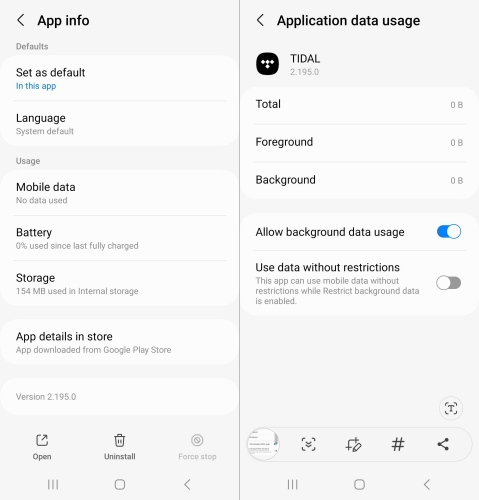
Step 1. Open the App Info page for Tidal again.
Step 2. Tap on Mobile data & Wi-Fi.
Step 3. Ensure that Background data is toggled On.
Step 4. Toggle Unrestricted data usage to On.
Solution 3. Fix Samsung Lock Screen Widget Conflicts
If you are using a Samsung Galaxy device, the default lock screen media controller can occasionally suffer a software handshake failure with Tidal's playback notification widget. In this case, toggle off Samsung lock screen widget. This forces the system lock screen to rebuild its connection to Tidal's media background player.
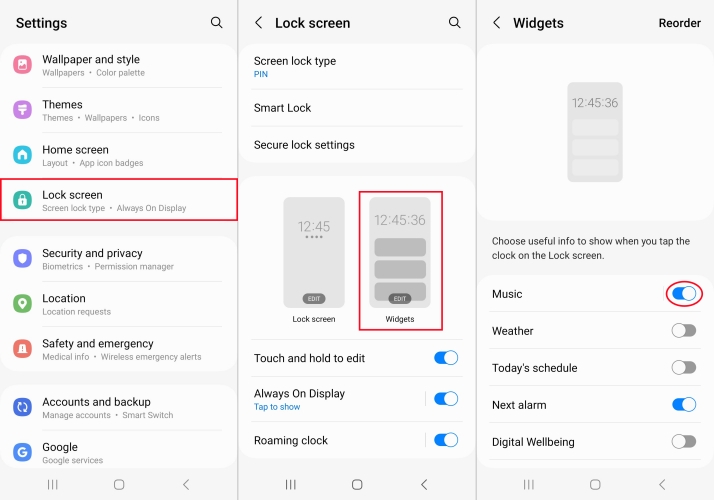
Step 1. Go to Settings > Lock screen and AOD.
Step 2. Tap on Widgets, then toggle Music or Media Controller Off.
Step 3. Restart your phone, and turn it back On.
Part 3. Universal Fixes to Tidal Stops Playing When Screen Is Off
If system-level toggles don't solve the problem, the issue might stem from corrupted temporary files inside the Tidal app itself. To fix Tidal stops playing when screen is off, try resetting some settings related to the Tidal app on the phone.
Solution 1. Restart the Tidal App
When Tidal stops playing on the lock screen, chances are that the Tidal app itself has bugs and issues. Most of these bugs and issues can be temporarily fixed by a restart since forcing close an app can shut down the issue.
On Android:
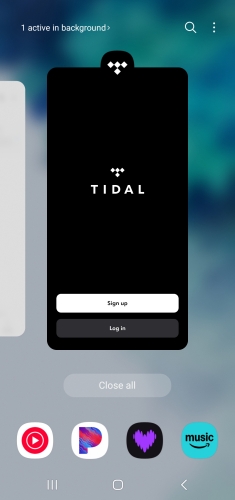
Step 1. Open the Settings apps and go to Apps.
Step 2. Select All Apps to view all opened applications.
Step 3. Tap the Tidal app and choose the Force Stop option.
On iPhone:
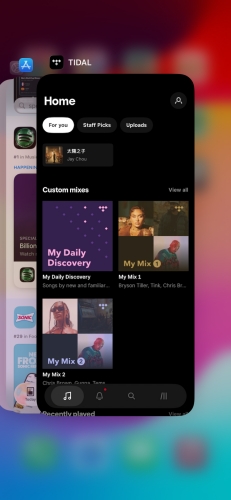
Step 1. Swipe up from the bottom of your iPhone and locate the Tidal app.
Step 2. Swipe upwards on the Tidal preview to close the app.
Solution 2. Clear the Tidal Cache
Streaming high-resolution audio fills up your storage space with temporary files quickly. If a file becomes corrupted, the app will freeze during background handshakes. Clearing the Tidal cache wipes out glitchy temporary files without deleting your downloaded offline music.
On Android:
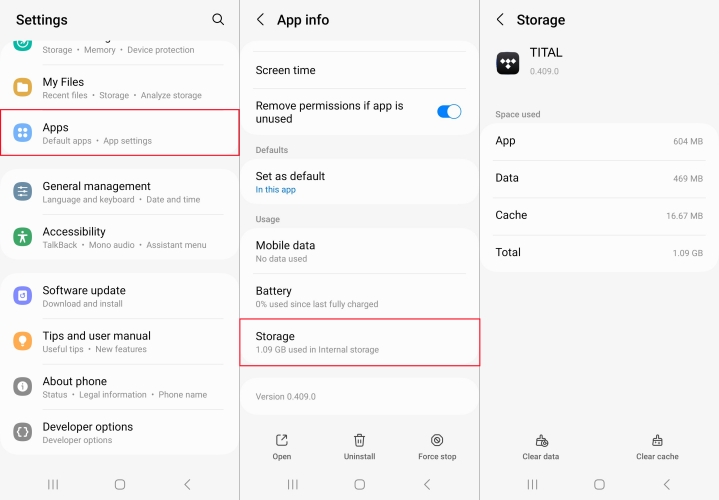
Step 1. Go to Settings > Apps and tap Tidal.
Step 2. Tap Storage & Cache > Clear Cache.
On iPhone:
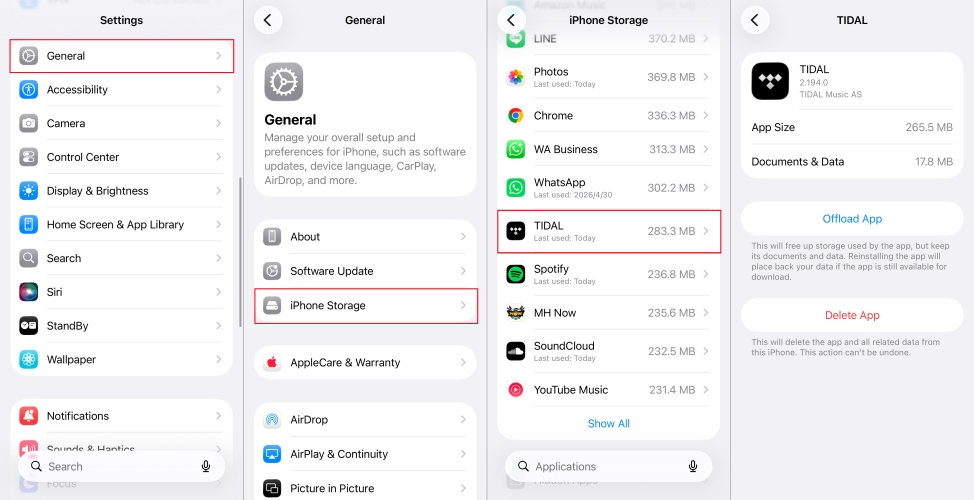
Step 1. Navigate to Settings > General > iPhone Storage.
Step 2. Tap Tidal, then select Offload App.
Solution 3. Downgrade Audio Quality Temporarily
If you are traveling through an area with weak cellular coverage, Tidal might crash trying to load heavy Master-quality files when backgrounded. Try dropping your streaming settings down to Low or Normal in the app settings to see if background playback stabilizes.
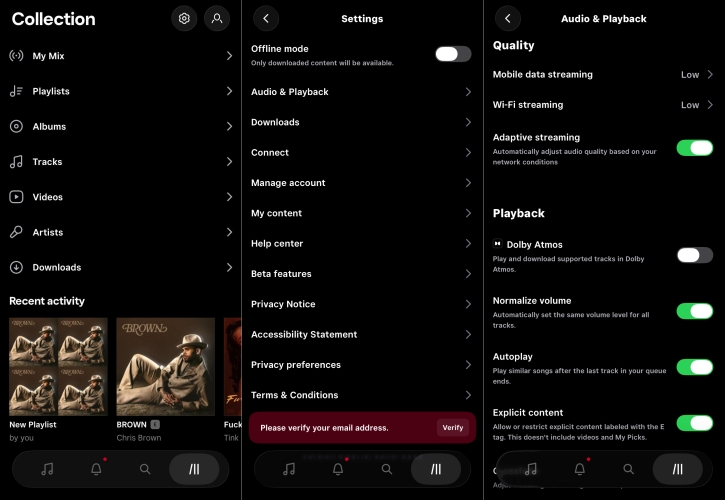
Step 1. In the Tidal app, tap the gear icon to open Settings.
Step 2. Tap Audio & Playback > Mobile data streaming.
Step 3. Set the streaming settings to Low or Normal.
Solution 4. Update Tidal and Device
Except for the corrupted cache files, the outdated Tidal app can also cause various issues while streaming music. But most problems can be solved by updating the Tidal app. To make sure there is no compatibility issue, you can upgrade the operating system of your device at the same time.
Update Tidal:
On iOS: Go to the App Store, search for the Tidal app, and tap the Update button.
On Android: Open the Google Play Store, find the Tidal app, and choose the Update option.
Update System:
On iOS: Go to Settings > General > Software Update, tap Download and Install, and tap Install Now to install the new updates.
On Android: Go to Settings > System > System Update.
Part 4. Ultimate Method to Avoid Tidal Not Playing on Lock Screen
If you have adjusted your device's battery optimization, cleared the cache, and verified your background data settings but Tidal still refuses to play when the screen is off, the problem may lie in an unresolvable conflict between the Tidal app and your phone's operating system. In this scenario, the most effective workaround is to bypass the Tidal application entirely by converting your favorite playlists into standalone local files.
Tools like TunesMake Tidal Music Converter are designed to download Tidal tracks, albums, or entire playlists directly onto a computer as permanent local audio files. By logging into the built-in web player, you can export music into highly compatible, unencrypted formats such as MP3, FLAC, or WAV while fully preserving the original HiFi audio quality and ID3 metadata tags.
Once your tracks are downloaded to your computer, you can transfer the files directly to your iPhone or Android device. Because these songs live natively on your phone's local storage, you can play them using your device's default, built-in media player. Since local media players are deeply integrated into the operating system, they are immune to the background data limits and aggressive app-sleep cycles that cause the official Tidal app to pause when your screen turns off.

TunesMake Tidal Music Converter –
Download Tidal music for playing without limits
- Download songs, albums, playlists, and artists from Tidal without premium
- Convert Tidal music to MP3, FLAC, WAV, AIFF, M4A, and M4B losslessly
- Handle the conversion of Tidal music up to 25× faster speed and in batch
- Save a whole set of ID3 tags during the conversion process automatically
- Preserve the original audio quality up to HiRes FLAC or 320kbps MP3
Security Verified. 100% Clean & Safe.
Step 1 Add Tidal Music to the Conversion List
Install and start TunesMake Tidal Music Converter on your computer, and the built-in Tidal web player will be launched. Find your desired track or playlist on Tidal, then click the + button to add them to the conversion list.

Step 2 Adjust the Output Parameters for Tidal
Click the three horizontal lines icon in the upper right corner and select the Preferences option. After a window pops up, click the Conversion section. From here, the output format and some parameters including bit rate, sample rate, and channel are available.

Step 3 Download Tidal Music as Local Files
Just click the Convert button at the bottom right corner. TunesMake will automatically download and convert Tidal music to MP3. After conversion, all the Tidal songs will be saved to your computer locally. You can navigate to the Converted list to view all your converted songs.

Part 5. Conclusion
Whether you own an Android phone or iPhone, you can find the solutions in this guide to fix Tidal stops playing when screen is off. Usually, the solutions for this issue are workable. If not, try to connect with Tidal developers for a fix or use TunesMake Tidal Music Converter to download Tidal music as local files for smooth playing when the phone locks.
Related Articles

A senior editor from TunesMake, dedicated to sharing professional tutorials and solutions of software, movies, and music.
- 1
- 2
- 3
- 4
- 5
- 6
- 7
 Leave Your Comment
(0)
Leave Your Comment
(0)

 Download Center

