








 Store
Store


As a music streaming platform featuring HiFi sound quality, My Collection is another core component of Tidal. Liking songs on Tidal is the quickest way to level up your experience and get better recommendations. Tidal My Collection is an easy-to-access place used to store and consolidate all your Tidal liked songs, albums, playlists, videos, followed artists, as well as downloaded songs. However, for some newcomers to Tidal, how to find My Collection on Tidal becomes a major problem. Thus, today we’re venturing into the world of Tidal My Collection. In the following content, you will learn how to find it, how to add songs to it, how to remove songs from it, how to download its content for offline playback, and more.
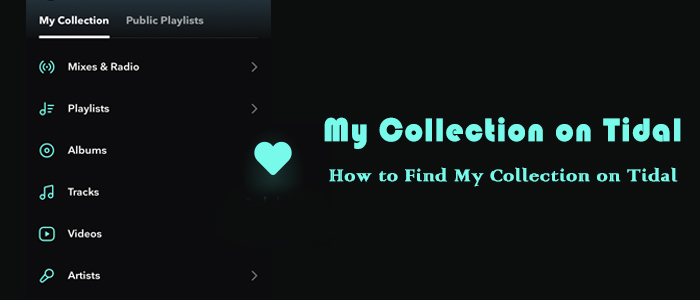
Part 1. How to Find My Collection on Tidal
My Collection is basically your personal music library and collection on the Tidal app. It shows all your liked songs, playlists, albums, podcasts, and videos. As the major section on Tidal, My Collection is easy to find on both Tidal mobile app and desktop app.
On Mobile Phone:
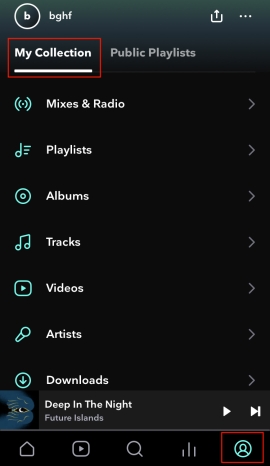
Step 1. On the Tidal mobile app, tap the Profile icon in the bottom-right corner.
Step 2. Tap My Collection. Here you can view different categories, such as Mixes & Radio, Playlists, Albums, Tracks, Videos, Artists, and Downloads.
Step 3. Select a section and you can view the concrete content you liked before.
On Desktop:
Step 1. Open the Tidal desktop app or the Tidal web player.
Step 2. From the left sidebar, you can view Mixes & Radio, Playlists, Albums, Tracks, Videos, and Profiles after clicking Collection.
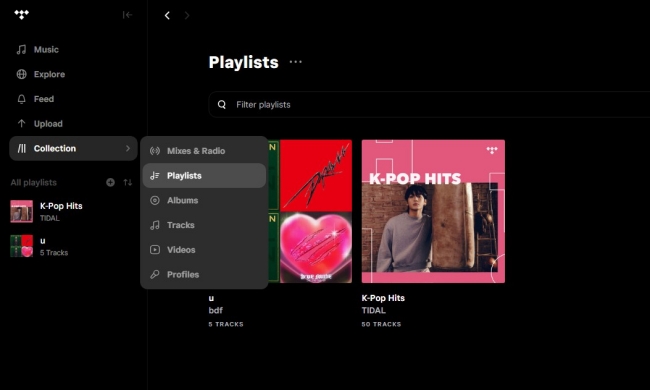
Step 3. If select Tracks, you can access Tidal liked songs and have a listening.
Part 2. How to Add/Remove Songs on Tidal Collection
Now that you find the Collection section on your Tidal app, you can manage the music tracks on it. Once you discovered certain songs that coincide with your music taste, you can like them, aka add them to Tidal Collection. If you
How to Add a Song to Collection on Tidal Mobile App
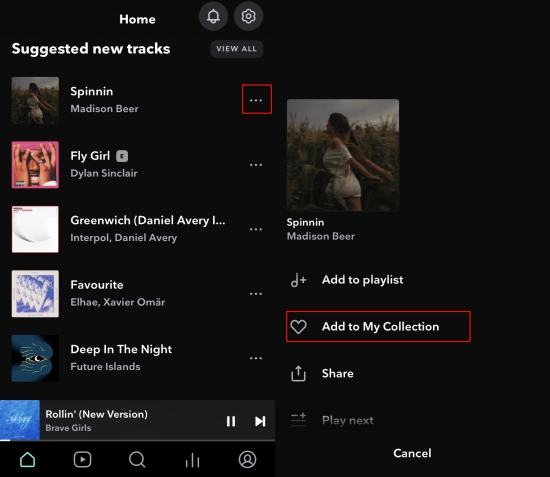
Step 1. Launch the Tidal app on your iOS or Android smartphone.
Step 2. From the bottom, go to the Home tab or the Explore tab to locate what you like.
Step 3. Tap the three-dot icon and then select Add to My Collection.
Alternatively, from the Now Playing screen, hitting on the heart button can add your liked song to Tidal Music Collection.
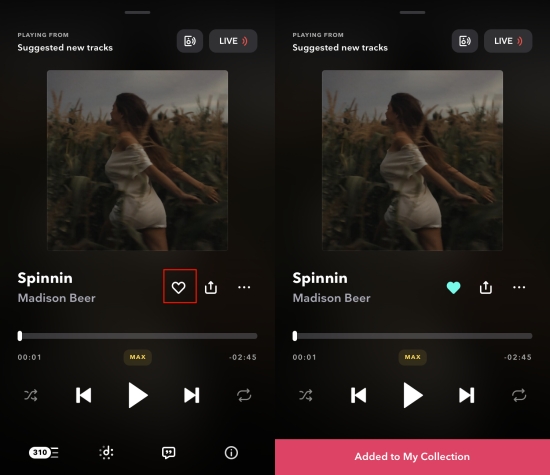
How to Like a Song on Tidal Desktop App
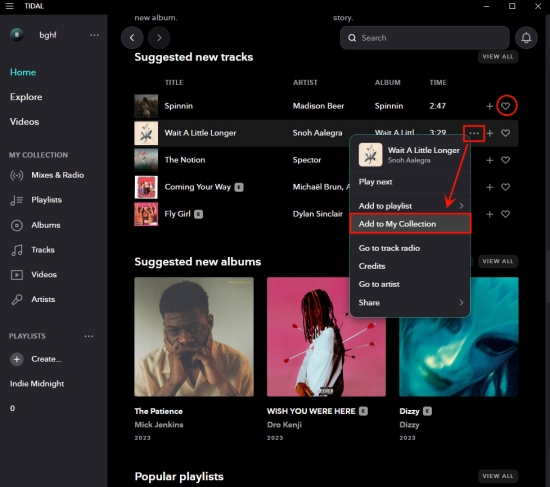
Step 1. Go to the Tidal desktop app or the Tidal web player.
Step 2. Head to the Home tab or the Explore tab from the left sidebar.
Step 3. Highlight the heart button next to the song or click the More option to select Add to My Collection.
How to Remove Songs from Tidal Collection [Mobile]
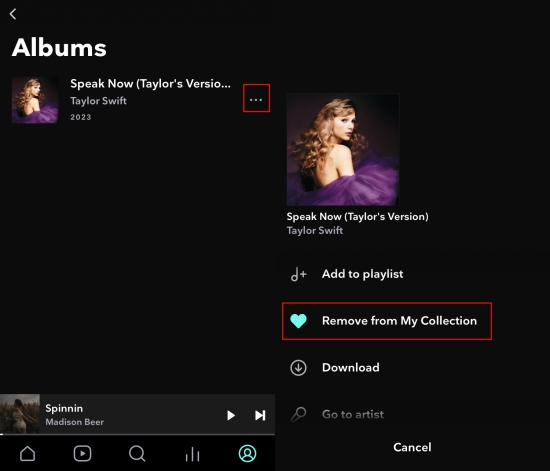
Step 1. Locate My Collection on Tidal and enter the Tracks, Albums, or other sections.
Step 2. Tap the 3-dots icon and then select Remove from My Collection.
How to Remove Songs from Tidal Collection [Desktop]
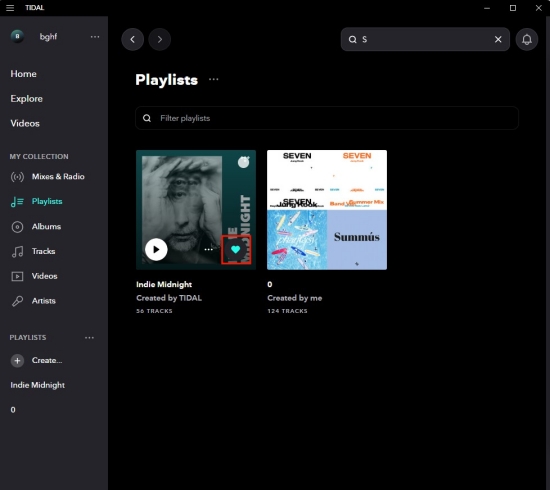
Step 1. From the sidebar of the Tidal app, go to Tracks, Albums, or other sections under My Collection.
Step 2. Hit on the blue heart button to remove the selected content from My Collection on Tidal.
Part 3. How to Download My Collection Songs on Tidal
With the Collection feature on Tidal, you can easily store your preferred songs, playlists, albums, and more content and access them quickly. For Premium subscribers, it is even possible to download songs from Tidal My Collection for offline listening. Downloading Tidal songs offline ensure your uninterrupted listening experience. According to the devices you use, the method to download songs from Collection is different.
3.1 How to Download Songs from Tidal Collection to Mobile Devices
Saving songs in the Collection section is a piece of cake if you have a Tidal subscription and use Tidal on your smartphone.
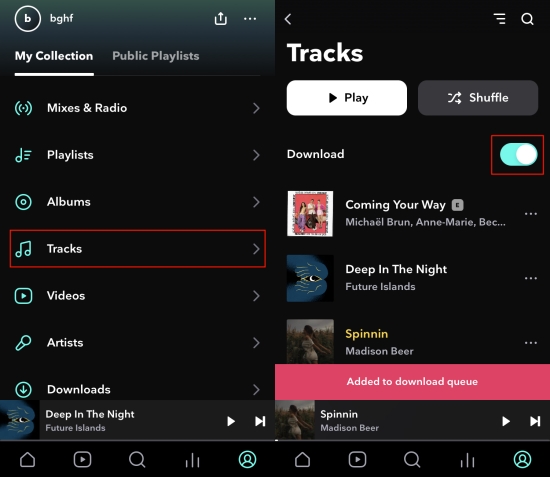
Step 1. Find My Collection from the bottom-right corner on your Android or iOS device.
Step 2. Select a section to access the content you want to download.
Step 3. If go to the Tracks selection, you will see the Download slider. Toggle it and Tidal will start downloading these Tidal liked songs to your mobile device.
Step 4. If choose the Albums or Playlists section, just tap the three horizontal dots next to the album or playlist and then choose Download.
Step 5. Once the download process is complete, back to My Collection > Downloads to listen to them offline.
3.2 How to Download Songs from Tidal Collection to Desktop
For users who prefer enjoying music on their computers, downloading Tidal tracks can be a little trick since the downloading feature isn’t available. Luckily, you can find various t alternative methods to download songs from Tidal My Collection. The most reliable and effective method is to download via a dedicated Tidal downloader - TunesMake Tidal Music Converter.
As a professional music downloader, TunesMake Tidal Music Converter is equipped with advanced technology. It can not only help you download Tidal songs, playlists, albums, and podcasts to your local device but also save them in plain audio formats. You can choose MP3, M4A, M4B, WAV, FLAC, or AIFF, depending on your own personal demands. Beyond that, the TunesMake tool can ensure a lossless quality during the downloading process. After downloading, you can play your My Collections songs anywhere and anytime you want.

TunesMake Tidal Music Converter –
Download Tidal Collection Songs to Computer
- Download any Tidal content, including songs, albums, playlists, and artists
- Convert Tidal music to MP3, FLAC, AIFF, WAV, M4A, and M4B
- Preserve a whole set of ID3 tag information in the downloaded Tidal songs
- Handle the conversion of Tidal music up to 22X faster speed and in batch
Security Verified. 100% Clean & Safe.
Step 1
Add Songs from Tidal My Collection to TunesMake

First, install and start the TunesMake Tidal Music Converter, and it will bring you to the official Tidal web player. Now, find My Collection from the left panel and go to the detailed page of the playlist or album you want to download. Then, click the lower Add icon to load all the songs in this playlist/album. Once done, pick the songs you want to save and click the Add to List option. So, these songs will be added to the TunesMake tool. Alternatively, you can directly drag and drop one song to the Add icon.
Step 2
Configure the Output Parameters

Now, click the three horizontal lines icon in the upper right corner and select the Preferences option. After a window pops up, click the Convert section. From here, the output format and some parameters including bit rate, sample rate, and channel are available. You can just keep the default MP3 format or change to FLAC if you pursue high audio quality. Don’t forget to click OK to save your settings.
Step 3
Download Tidal My Collection to Computer

Just one-click the Convert button at the bottom right corner, and TunesMake will automatically download Tidal songs from My Collection at a 22x faster speed. After conversion, all the Tidal songs will be saved to your computer locally. You can navigate to the Converted list to browse and view all your converted songs. Alternatively, use the search icon to locate converted playable Tidal files in the local folder.
If needed, use a USB cable to transfer these converted Tidal songs to your iPhone or Android for listening.
Part 4. Troubleshoot: Tidal My Collection Not Showing
Accessing My Collection on Tidal is easy, but sometimes, you may fail to view it . This can caused by a temporary sync or cache problem on the Tidal app or your device. Here are some quick fixes you can try to resolve the issue.
Log out and log back in: A simple account refresh can fix the issue of missing My Collection on the Tidal app and reset the connection. You can do so by visiting the Settings section of Tidal, and then scroll down to the bottom. Select Log out.
Restart your device: If the issue is related to your device, a quick restart can often solve it. Restarting your phone, tablet, or computer refreshes system resources and can resolve any temporary software glitches affecting Tidal.
Clear cache data: Corrupted cache data is another culprit of your Tidal My Collection not showing. So, it’s necessary to clear cache on Tidal. Typically, you can find the Clear Cache option on the Settings app of your device.
Update or reinstall Tidal on your device: If none of the above solutions work, it might be due to a bug or outdated version of the Tidal app. In this case, updating the app to the newest version is helpful. When there is no new version, reinstalling Tidal instead.
Conclusion
That’s everything you should know about Tidal My Collection. I reckon that you may know where is my Collection on Tidal and how to find My Collection on Tidal. Thanks to this feature, you can add and download all your liked songs at once. If you want to download them on your computer, remember TunesMake Tidal Music Converter can help you do so effortlessly.
Related Articles

A senior editor from TunesMake, dedicated to sharing professional tutorials and solutions of software, movies, and music.
- 1
- 2
- 3
- 4
- 5
- 6
- 7
 Leave Your Comment
(0)
Leave Your Comment
(0)

 Download Center

