









 Store
Store


If you are a HiFi enthusiast, you know that the price of studio-quality sound is paid in gigabytes. It starts with a few playlists, but suddenly your smartphone is sending "Storage Full" alerts. Because Tidal streams at significantly higher bitrates than its competitors, its temporary files can swell to massive proportions. In this guide, we'll show you how to clear Tidal cache, reclaim your storage space, and manage your Tidal downloads.
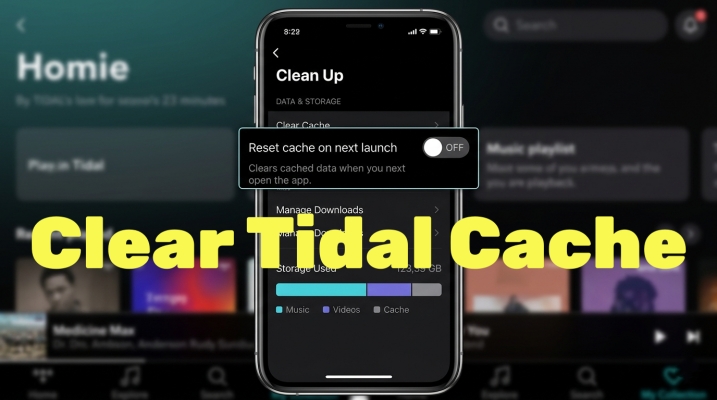
Part 1. What Is Tidal Cache?
Before diving into how to clear Tidal cache, it is vital to understand what Tidal cache is. Tidal utilizes three distinct types of data storage on your device.
1) App Data: The core files required for the application to run.
2) Streaming Cache: Temporary files stored while streaming music online. This prevents buffering your connection flickers.
| Quality Setting | Format | Data Usage (Approx.) | 1000 Songs ≈ |
|---|---|---|---|
| Low | AAC 96kbps | 0.7 MB / min | 2.5 GB |
| High | FLAC 16-bit | 5–10 MB / min | 30 GB |
| Max | HiRes FLAC | Up to 40 MB / min | 120+ GB |
3) Offline Downloads: Encrypted files intentionally saved to your device for playback without an internet connection.
Clearing your cache targets the second category, removing temporary files that may have become corrupted or are simply taking up too much room. But sometimes, the downloaded content also occupies too much space. You can have automatic management with your Tidal downloads.
Part 2. How to Clear Tidal Cache
Clearing the cache is the softest way to free up space. It deletes temporary streaming data but usually leaves your downloaded music intact. Following are the steps to clear Tidal cache.
How to Clear Tidal Cache on Windows & Mac
The desktop Tidal is prone to cache data that can interfere with high-resolution output. Fortunately, Tidal provides a built-in troubleshooting tool.
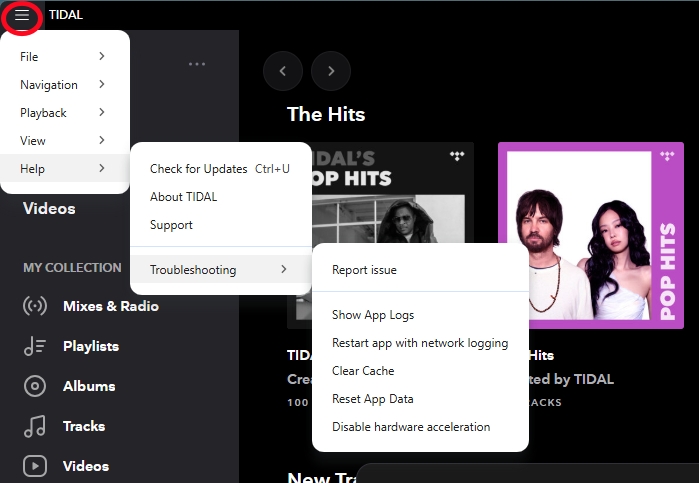
Step 1. Open the Tidal app on your computer.
Step 2. Click the three-dots in the top-left corner.
Step 3. Navigate to Help > Troubleshooting.
Step 4. Tap Clear Cache. The app will usually restart automatically.
How to Perform a Deep Clean on Tidal for Desktop (Manual Reset)
If the Tidal app won't open at all, you may need to delete the cache folders manually.
Windows: Press Win + R on the keyboard, type %AppData%, and delete the Tidal folder.
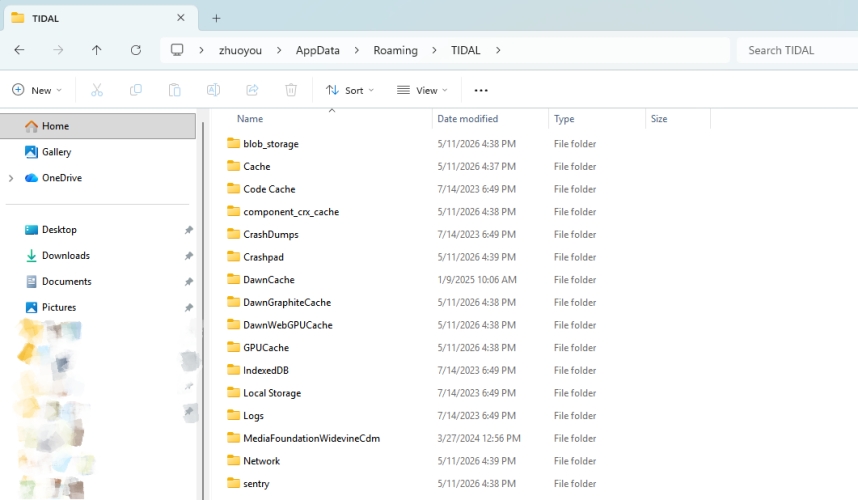
Mac: Open Finder, press Cmd + Shift + G, type ~/Library/Application Support/, and move the Tidal folder to the trash.
How to Clear Tidal Cache on Android
Android gives you the most granular control app data. You can clear the temporary cache without touching your login credentials or downloaded songs.
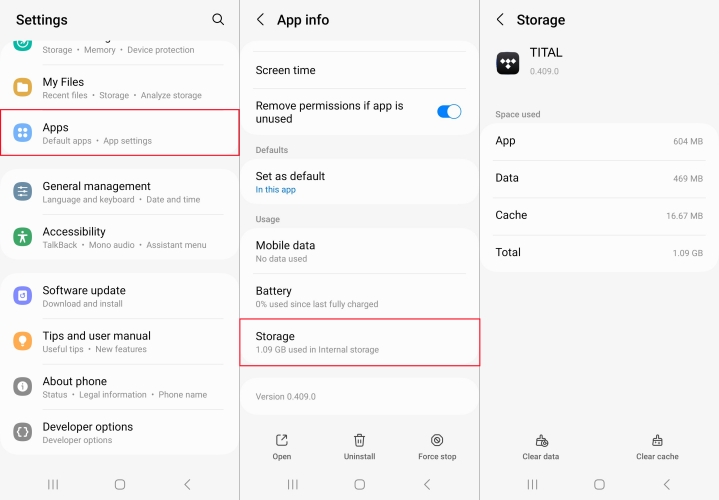
Step 1. Open your phone's Settings and go to Apps.
Step 2. Find and tap Tidal, then tap Storage & Cache.
Step 3. Select Clear Cache.
Important Note:
Don't tap Clear Storage or Clear Data unless you want to log out and delete every offline song you've downloaded within the Tidal app.
How to Clear Tidal Cache on iPhone & iPad
Unlike Android, both iPhone and iPad don't have a Clear Cache button in the system settings. You use the Offload feature to refresh the app to clear Tidal cache.
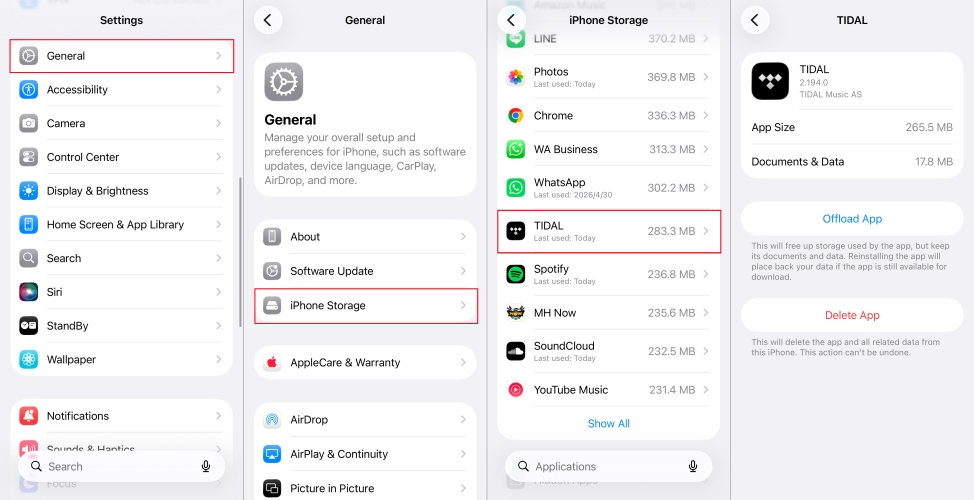
Step 1. Go to Settings > General > iPhone Storage.
Step 2. Find and tap Tidal, then tap Offload App.
Part 3. How to Manage Tidal Downloads
You don't have to manually clear your cache every week. You can optimize Tidal's behavior within the settings menu to keep the app lean automatically. Instead of frequently clearing Tidal cache, you can manage and automate your Tidal downloads with several methods.
Method 1. Set Separate Quality for Data vs WiFi
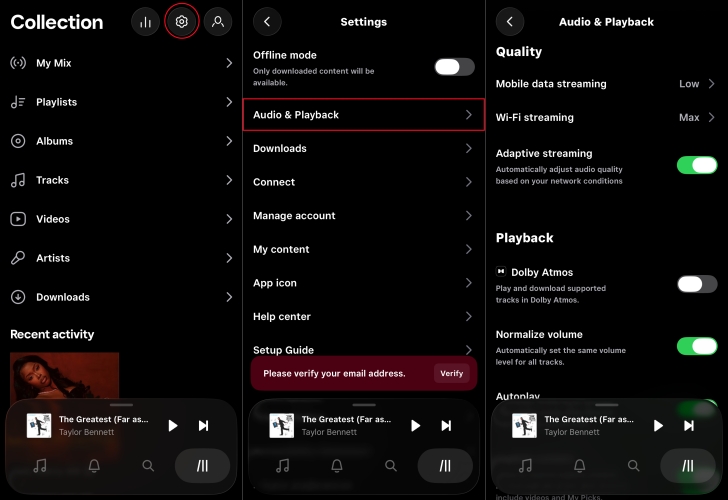
When you use the Tidal app to play music, you can set the separate streaming quality for the different network environment. In the Tidal app, go to Settings > Streaming. Set Mobile Data to Low or High and reserve Max for WiFi. This ensures your on-the-go cache stays small.
Method 2. Change Download Destination (Android Only)
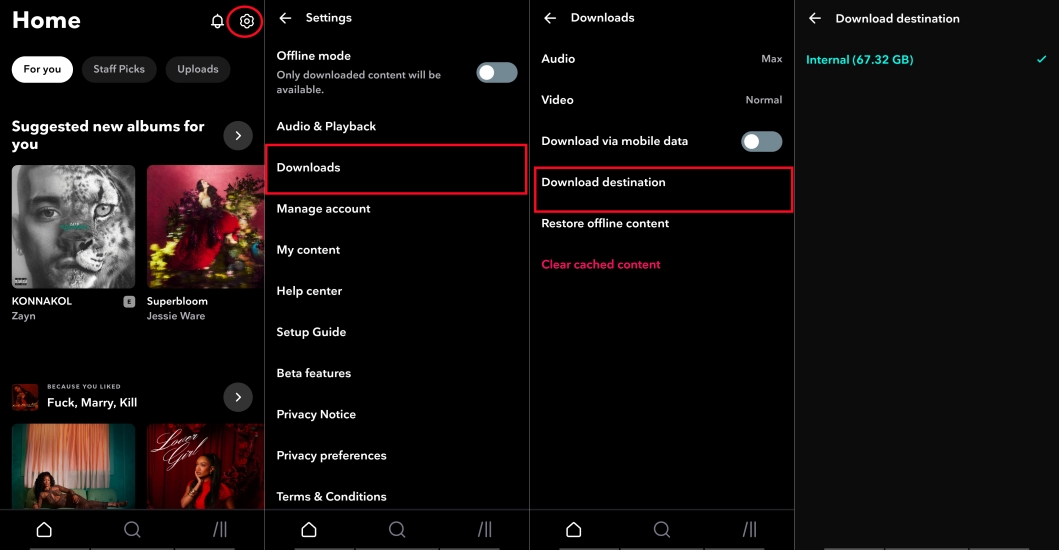
If your Android phone has an SD card slot, you can change the download destination in the Tidal app to free up more storage. In the Tidal app, go to Settings > Downloads > Download Destination and switch it to your SD card to keep your internal memory free for apps and photos.
Method 3. Download Tidal Music to External Storage
If you find yourself clearing your cache every week just to keep your phone functional, you are likely hitting the limits of your device's internal storage. Since Tidal's native Offline Mode tracks are encrypted and locked within the app, they can't be easily moved to external drives or generic media players. To solve the core problem of storage bloat, you can offload your library to an external SD card or USB drive.
TunesMake Tidal Music Converter is a helpful tool in this context. It allows you to convert Tidal tracks into plain formats like MP3 or FLAC while preserving the original Hi-Fi quality. By converting your favorite playlists with TunesMake, you can store your entire music collection on an external drive rather than letting it consume your phone's primary storage.

TunesMake Tidal Music Converter –
Download Tidal music to computer for paying anywhere
- Download songs, albums, playlists, and artists from Tidal without premium
- Convert Tidal music to MP3, FLAC, WAV, AIFF, M4A, and M4B losslessly
- Handle the conversion of Tidal music up to 25× faster speed and in batch
- Save a whole set of ID3 tags during the conversion process automatically
- Preserve the original audio quality up to HiRes FLAC or 320kbps MP3
Security Verified. 100% Clean & Safe.
Step 1 Import Tidal Tracks to the Conversion List
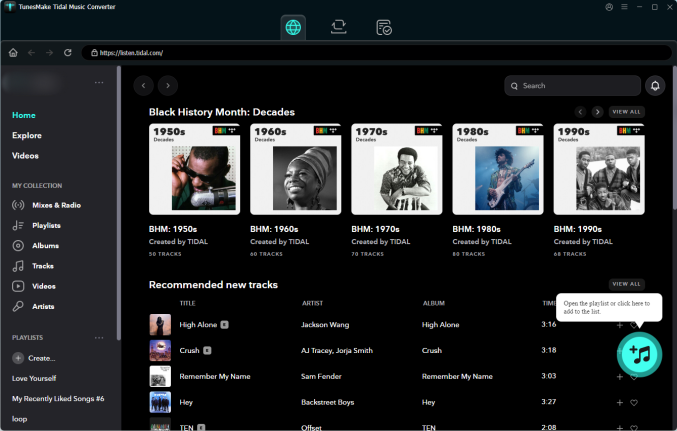
TunesMake Tidal Music Converter offers a free trial version for you, so install and run it on your computer. While running TunesMake, it will redirect you to the Tidal web player. In the Tidal player, choose a song or playlist to download, then click the + icon to add the music tracks.
Step 2 Configure the Output Audio Parameters
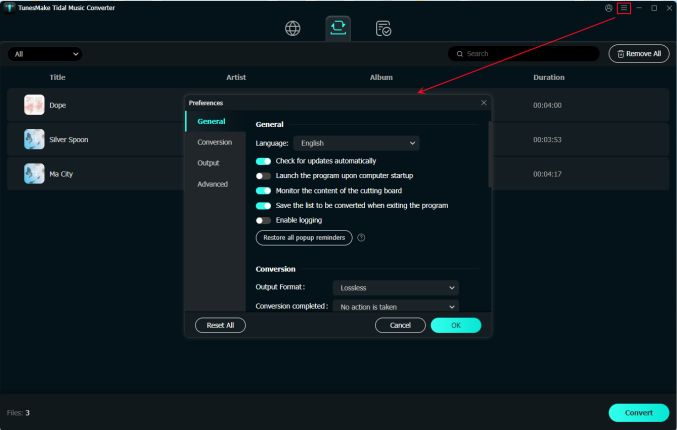
Navigate to the Menu icon > Preferences > Conversion, and select the output audio format. To back up your Tidal songs with smaller memory, MP3 is highly recommended. You can also configure other specific parameters like the sample rate, bit rate, and channel for better sound performance. After changing, click the OK button to save them.
Step 3 Download Tidal Music Locally for Backup
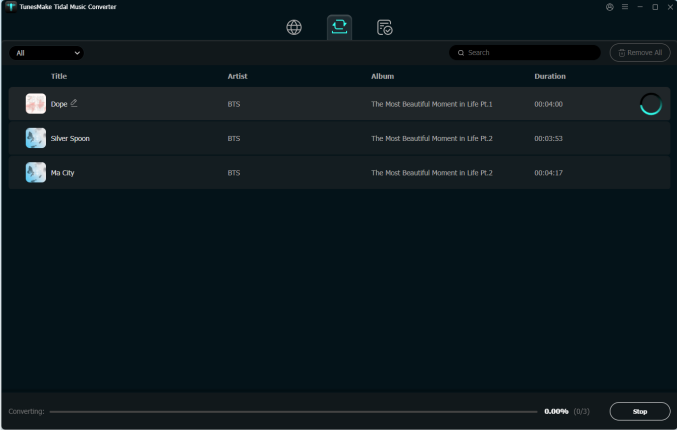
After setting the formats, you can click the Convert button to start the conversion. It's no problem to convert a batch of Tidal music tracks. You'll only need to wait for a short time till it is finished. When the conversion is over, you can access the converted music files easily in your local folder by clicking the Converted icon.
Step 4 Copy Tidal Songs to SD Card/USB Drive
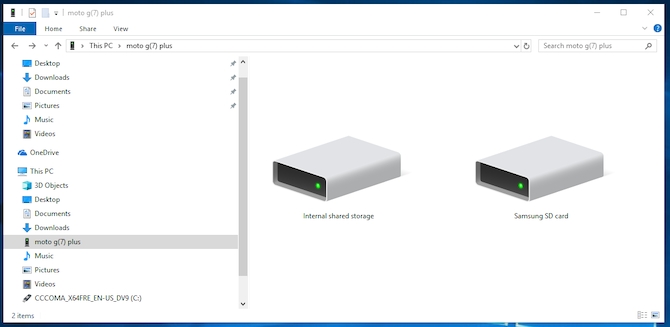
Later on, you can transfer Tidal music to an SD card or other devices for backup easily. Then plug a reader with your SD card or an USB driver into the USB port of your computer. Locate the folder where you store the converted Tidal songs and you can directly move those converted Tidal music files to the SD card or the USB drive. After that, you can connect the SD card or USB drive to any device like speakers or TVs for listening.
Part 4. FAQs about Tidal Cache
Does clearing cache delete my downloaded Tidal music?
No. On most devices, the streaming cache and offline downloads are stored in separate folders. Clearing Tidal cache only removes temporary files from songs you've streamed online, instead of those downloads for offline listening.
How much space does Tidal take up?
If you choose to stream in Max (HiRes FLAC) quality, Tidal can use up to 40MB per minute of music. This means your cache can easily exceed 5GB after just a few days of heavy listening.
Why is my storage still full after clearing Tidal cache?
Tidal has a Restore Offline Content feature. Even if you delete a download, Tidal might keep a backup in a hidden state. To fix this, go to Settings > Downloads and ensure Restore Offline Content is managed or turned off.
Part 5. Conclusion
People may be unaware of Tidal storing caches at a rather quick speed. Most of the Tidal files are useless but only occupy the space on the device. The good way is to clear Tidal cache to free up your device's storage space. After reading this post, you'll know how to clear Tidal cache on your computer or smartphone. Meanwhile, to free up more storage, you can download your Tidal music with TunesMake Tidal Music Converter to an external drive.
Related Articles




A senior editor from TunesMake, dedicated to sharing professional tutorials and solutions of software, movies, and music.
- 1
- 2
- 3
- 4
- 5
- 6
- 7
 Leave Your Comment
(0)
Leave Your Comment
(0)

 Download Center

