









 Store
Store


For years, the absence of a Tidal crossfade feature was the primary deal-breaker for users migrating from Spotify or Apple Music. While Tidal has always led the pack in audio fidelity, the lack of seamless transitions left a literal silence between tracks that frustrated many listeners. But as of early 2026, the landscape has changed. Following a major overhaul of the Tidal playback engine, the feature has officially made its return. This guide covers how to enable Tidal crossfade and troubleshoots Tidal crossfade not working.
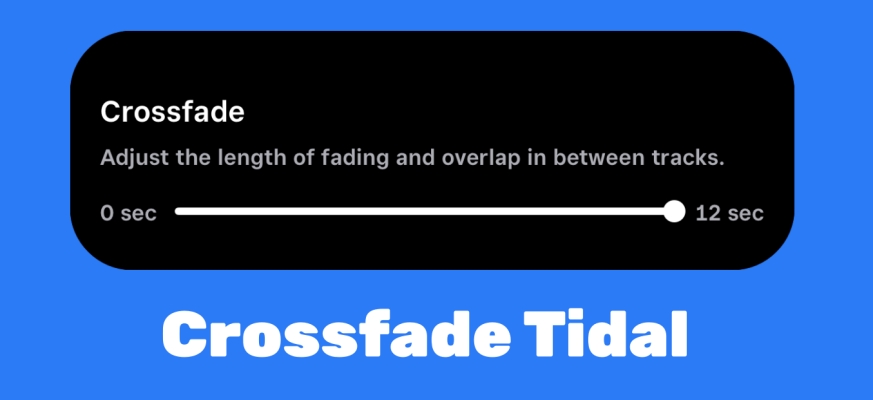
Part 1. Does Tidal Have Crossfade?
As of May 2026, the answer is finally yes, but with caveats depending on your device. In fact, Tidal actually had a crossfade feature years ago, but it was removed in 2018. At the time, the company suggested that the feature didn't align with their mission of delivering pure audio. However, user demand never wavered.
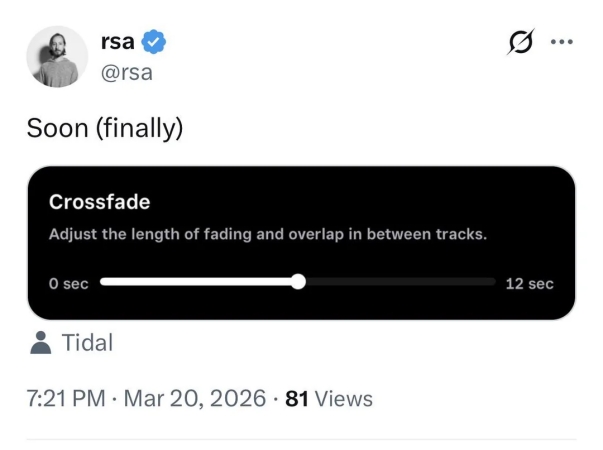
Tidal officially acknowledged that seamless listening is a core part of modern music experience. And recently, Tidal has reintroduced crossfade that is currently rolling out across platforms, starting with iOS and Android. From this table, see if your device supports the new transition feature.
| Platform | Crossfade Support | Max Duration |
|---|---|---|
| iOS App | Full support | 12 seconds |
| Android App | Full support | 12 seconds |
| Desktop App | Limited (Beta) | 10 seconds |
| Tidal Connect | Not Supported | N/A |
| Sonos / TV Apps | Not Supported | N/A |
Part 2. How to Enable Tidal Crossfade Android & iOS
The crossfade feature on Tidal isn't just a simple toggle; the new implementation allows for a customizable transition range from 0 to 12 seconds, giving users granular control over how their playlists blend. If your Tidal app is up to date, enabling the feature is straightforward. Follow these steps to enable Tidal crossfade on your device.
On Android and iOS
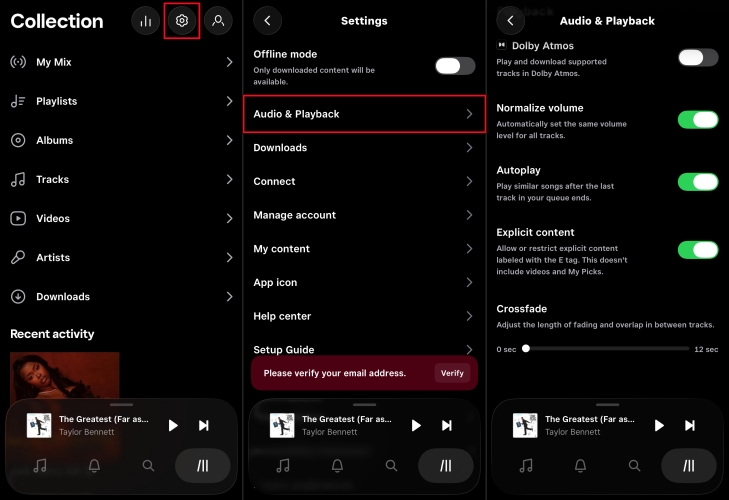
Step 1. Open the Tidal app and tap the Settings in the top right corner.
Step 2. Select Audio & Playback and scroll down to find Crossfade.
Step 3. Move the slider to your preferred duration.
Part 3. How to Crossfade Tidal Music on Any Device
One of the most frequent complaints from power users is that Tidal crossfade often fails when streaming to external hardware. When you use Tidal Connect, your phone acts as a remote, but the speaker like a Sonos pulls the file directly from Tidal's servers. Since the crossfade processing happens locally on your phone's CPU, the external speaker doesn't see the crossfade instruction.
If you need crossfade to work everywhere including on Sonos, Tesla, or older MP3 players, the most reliable method is to remove the Connect limitation entirely. This is where TunesMake Tidal Music Converter becomes a vital tool in your audio toolkit. It allows you to convert Tidal tracks into high-quality, local files. Then you can play them through any media player that supports native crossfade like VLC, Windows Media Player, or Winamp.

TunesMake Tidal Music Converter –
Download Tidal music to computer for paying anywhere
- Download songs, albums, playlists, and artists from Tidal without premium
- Convert Tidal music to MP3, FLAC, WAV, AIFF, M4A, and M4B losslessly
- Handle the conversion of Tidal music up to 25× faster speed and in batch
- Save a whole set of ID3 tags during the conversion process automatically
- Preserve the original audio quality up to HiRes FLAC or 320kbps MP3
Security Verified. 100% Clean & Safe.
How to Download Tidal Music for Crossfade
Using an advanced decryption technology, TunesMake Tidal Music Converter can convert and save Tidal music as local files while keeping the original ID3 tags and audio fidelity. Now download and install TunesMake Tidal Music Converter; then convert Tidal music with TunesMake by following the steps below.
Step 1 Add Tidal Music Tracks to TunesMake
Open TunesMake Tidal Music Converter on your computer, and it will load the Tidal web player within the software. In the Tidal web player, select any music track, album, or playlist you want to crossfade. Then click the + button to add them to the conversion list.

Step 2 Configure the Output Audio Format
Once the items are loaded into the conversion list, click the menu icon in the upper right corner and select the Preferences option. In the new pop-up window, switch to the Conversion section. From here, the output format, bit rate, sample rate, and channel are available to customize. To crossfade Tidal with third-party tools, just choose MP3 or FLAC. Then click OK to save the setting.

Step 3 Download Tidal Music Tracks Locally
Just click the Convert button at the bottom right corner, and TunesMake Tidal Music Converter will automatically download and convert Tidal music to MP3. After conversion, all the converted Tidal music will be saved to your computer. You can navigate to the Converted section to browse all your converted music or use the search icon to locate the storage folder.

How to Crossfade Tidal Local Music Files
After getting Tidal music local files, it is a piece of cake to crossfade Tidal. You can transfer them to any media player or streaming service that supports the crossfade feature and enjoy your music without hassle. As the most popular streaming service, Spotify offers a number of features, including crossfade. Here we will take Spotify as an example for your reference.
Step 1. Open the Spotify app on your computer and log into your Spotify account.
Step 2. Click your profile image and select Settings from the drop-down list.
Step 3. Scroll down to Your Library and toggle on Show Local Files.
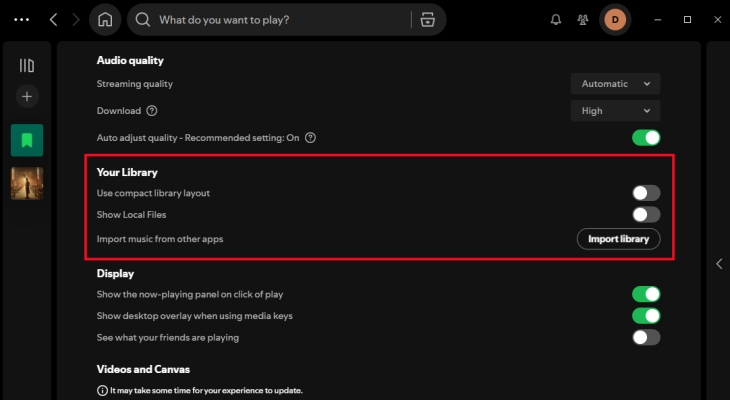
Step 4. Click Add a Source and select the folder where the Tidal music files are stored.
Step 5. Stay on the Settings page and scroll down to locate the Playback panel.
Step 6. Enable Crossfade songs and set the crossfade duration from 1 seconds to 12 seconds.
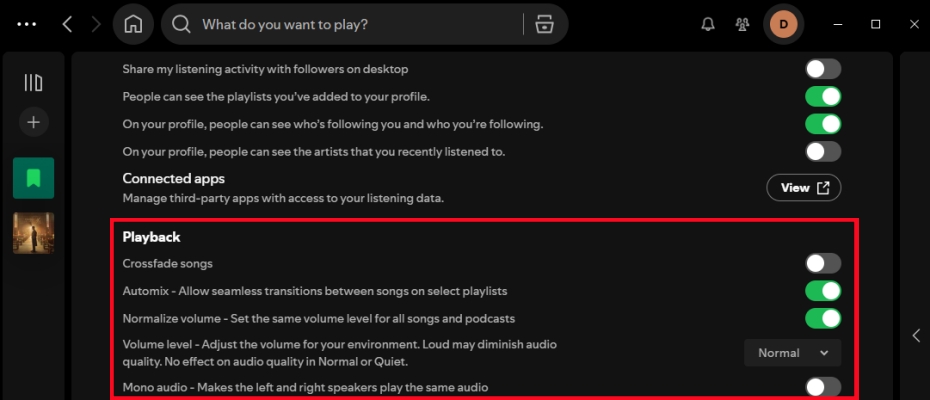
Step 7. Head to Your Library and find the Local Files playlist to start playing Tidal music.
Part 4. Common Fixes for Tidal Crossfade Not Working
Even with the feature enabled, you might encounter instances where the crossfade on Tidal fails to trigger. Here are the most common reasons for Tidal crossfade not working.
Stuttering Transitions:
If your internet connection is unstable, crossfading high-resolution FLAC files can cause a stutter. Lower your Streaming Quality to High (16-bit) instead of Max (24-bit) to reduce the buffer load.
Tidal Version Check:
Ensure your Tidal app is on version 2.114.0 or later. If not, the feature may not have reached your region yet. In this case, go to update the Tidal app on the Google Play Store or App Store.
Gapless Playback:
Tidal prioritizes Gapless Playback by default. If you are listening to a live album or a concept piece, the app is designed crossfade settings to preserve the artist's intended transition.
Tidal Connect:
When you cast audio via Tidal Connect to a speaker like Sonos, the speaker pulls the stream directly from the cloud. Currently, most hardware receivers don't support the crossfade command sent from the phone app.
Exclusive Mode:
Exclusive Mode gives Tidal total control over your audio hardware to ensure bit-perfect delivery. Because crossfade requires the software to mix two tracks simultaneously, it often conflicts with Exclusive Mode.
Part 5. Conclusion
The return of Tidal crossfade marks a significant step in the platform's evolution. By listening to community feedback, Tidal has bridged the gap between audiophile tool and lifestyle app. However, the crossfade feature is currently only available for Android and iOS users. If you want to crossfade Tidal anywhere, try downloading Tidal music as local files with TunesMake Tidal Music Converter. Don't hesitate, and start your use right now.


A senior editor from TunesMake, dedicated to sharing professional tutorials and solutions of software, movies, and music.
- 1
- 2
- 3
- 4
- 5
- 6
- 7
 Leave Your Comment
(0)
Leave Your Comment
(0)

 Download Center

